

Mouse drift is that maddening moment when your cursor slides on its own, jumps a few pixels sideways, or keeps creeping after your hand stops moving. It shows up mid-game, mid-spreadsheet, mid-anything, and it feels like the hardware has a mind of its own. The good news? Most drift isn’t a dead mouse. It’s a dirty sensor, a bad surface, a driver hiccup, or a setting that’s quietly sabotaging you, and every one of those is fixable at your desk in a few minutes.
This walkthrough moves from the cheapest, quickest checks to the deeper fixes, so you don’t tear apart your setup before ruling out a stray crumb under the sensor. The steps apply to almost any pointer, from a $15 office clicker to a high-end gaming mouse or the ergonomic units people rely on for eight-hour shifts. Work them in order and you’ll usually corner the problem long before you reach the bottom of the page. If you already suspect the mouse itself is toast, hang on until the end. We’ll cover when it’s smarter to replace it, and what a solid daily driver for a work desk looks like.
What you’ll need
Almost nothing, which is the nice part. Grab a microfiber cloth, a can of compressed air or a soft brush, and a cotton swab with a little isopropyl alcohol (70% or higher). You’ll want a clean, opaque, non-glossy surface to work on, plus a spare USB port or a fresh set of batteries if your mouse is wireless. A second mouse helps for a quick sanity check, though it isn’t required. That’s the whole toolkit. No screwdrivers, no soldering, no reason to void a warranty. Set aside ten minutes and a bit of patience, because the trick is going one step at a time and confirming the result before you move on.
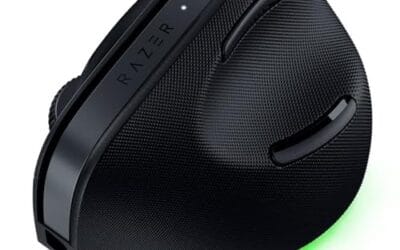
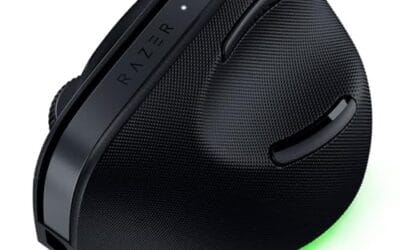
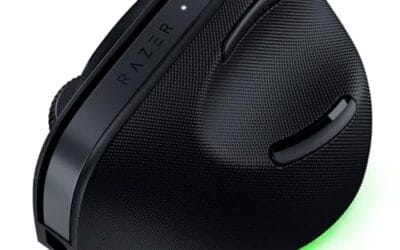
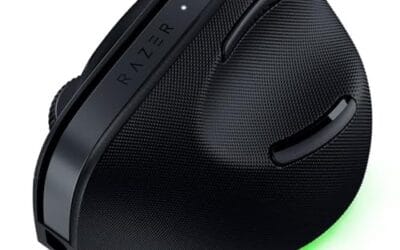
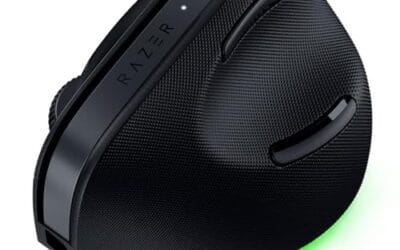
If drift has been dogging you for weeks and you’re already eyeing an upgrade, an ergonomic vertical mouse is a sensible landing spot because it fixes wrist strain while giving you a fresh sensor. The Razer Pro Click V2 Vertical Wireless Mouse is one such option, a 6-button ergonomic design at $113.99 with a 4.7 rating, and it connects three ways: 2.4GHz, Bluetooth, or USB-C wired. Keep it in your back pocket as a fallback, but try the free fixes first.

Pros
- Focus Pro 30K sensor handles glass and reflective desks that trip up older vertical mice
- Battery rated up to 6 months, 5 minute top-up returns roughly 3 working days of use
- Three connectivity modes with up to 5 paired devices covers desktop, laptop, and tablet rotation
Cons
- Limited owner feedback at time of writing, so long-term reliability signal is not yet available
- Vertical handshake shape has a real learning curve for existing claw and fingertip grip users
- Mouse weight and max DPI are not specified in source, hard to gauge fast-tracking responsiveness
The Pro Click V2 Vertical is Razer's ergonomic wireless mouse aimed at knowledge workers and creators who log long sessions on Windows or Mac systems. The 6 button layout adds a dedicated AI prompt key tied into Razer Synapse 4 shortcuts for summarizing text and drafting emails.
The defining trait is the angled handshake shell with a wrist base that lifts your palm off the deck, reducing pronation on long days. Razer's Focus Pro 30K optical sensor handles glass and high-gloss surfaces, which vertical mice at this tier often struggle with due to older 3200 to 12000 DPI sensors.
Trade-offs are honest. Vertical shells force a handshake grip, so claw and fingertip users will fight muscle memory for a week or more. Battery is rated up to 6 months, but 18 zone Chroma with full underglow will cut that hard if you leave reactive lighting on. Mouse weight is not specified.
Buy this if you already know a vertical shape helps your wrist and you need one mouse hopping between a Windows tower, a MacBook, and a tablet over Bluetooth. Skip it if you plan to play competitive FPS titles, since vertical shells punish rapid tracking flicks and micro adjustments.
Sensor: Focus Pro 30K optical sensor with a claimed 99.8% resolution accuracy. Razer uses this same sensor family across its high-end lineup, so tracking on glass, mousepads, and gloss desks is realistic. Max DPI and polling rate are not specified in source data.
Switches and Buttons: Mechanical switches rated to a 60 million click lifecycle. Six total buttons include a dedicated AI prompt key mapped through Synapse 4 for text summarization and email drafting shortcuts on Windows.
Connectivity: Three modes ship in the box: 2.4GHz HyperSpeed via bundled dongle, Bluetooth with up to 3 host pairings, and USB-C wired. Combined device ceiling is 5, letting you rotate between desktop, laptop, tablet, and a secondary machine without re-pairing.
Battery and Charging: Rated up to 6 months under standard test conditions, with 5 minutes of USB-C charging yielding roughly 3 working days. The 18 zone Chroma RGB plus full underglow will cut that figure significantly if reactive lighting stays enabled.
Step 1: Rule out the surface first
Optical and laser sensors read texture, so a glossy, reflective, or transparent surface confuses them constantly. Glass desks are the worst offenders. So are dark, shiny mousepads that have worn smooth in the middle. Before you touch a single setting, move your mouse to a plain sheet of printer paper or a proper cloth pad and see if the drift stops cold.
If the cursor behaves on paper but drifts on your desk, you’ve found your culprit. A dedicated mousepad solves it for a few dollars, and a larger hard or hybrid pad gives the sensor consistent texture across the whole working area. Cable snag counts as a surface problem too, since a wired mouse that tugs against its own cord will jitter as the line whips it back. Folks who deal with that constantly swear by a mouse bungee to hold the cable steady and stop the yank-and-drift cycle. Fix the ground your mouse lives on, then move up the chain. It’s the single most common cause, and it’s the one people skip the most.
Step 2: Clean the sensor, feet, and pad
Flip the mouse over. That little glowing eye is the sensor, and a single hair, dust ball, or smear of skin oil across it will scatter the light and send phantom movement to your screen. Blow it out with compressed air, then gently wipe the lens with a dry cotton swab. Only touch it with alcohol if there’s visible gunk, and let it dry fully before plugging back in.
While you’re down there, clean the PTFE feet, those little skids at the corners. Grime builds up on them and makes the mouse skate unevenly, which reads as micro-drift. Wipe the mousepad too. A pad that looks clean can carry a film of oil that throws off tracking. Pay attention to the ring of dust that collects right around the sensor opening, since that’s the debris most likely to drift into the light path mid-swipe. This step alone fixes a surprising share of drift complaints, and it costs you five minutes and zero dollars.
Step 3: Update or reinstall the driver
Software drift is real. A corrupted or outdated driver can feed bad coordinates to Windows, and the cursor wanders even though the hardware is spotless. Open Device Manager, expand Mice and other pointing devices, right-click your mouse, and choose Update driver. If that finds nothing, uninstall the device entirely and reboot. Windows reinstalls a clean driver on startup.
Got a gaming mouse with its own software, like Razer Synapse, Logitech G Hub, or Corsair iCUE? Update that too, or reset its profile to default. A bad macro binding or a polling-rate glitch inside those apps can masquerade as drift. And check your USB receiver’s firmware if it’s a wireless unit. Manufacturers push fixes for exactly this kind of tracking bug, and people skip the update for months without realizing it’s the answer.
Step 4: Kill pointer acceleration and fix your settings
Windows has a setting called Enhance pointer precision, which is really just pointer acceleration in disguise. It changes how far the cursor travels based on how fast you move, and it makes tracking feel inconsistent, almost like the pointer overshoots or drifts past where you aimed. Head to Settings, Bluetooth & devices, Mouse, then Additional mouse settings, open the Pointer Options tab, and uncheck it. Instant improvement for a lot of users.
While you’re in there, drop your pointer speed to the middle notch and let the mouse’s native DPI do the work. Cranking Windows sensitivity to compensate for a low-DPI mouse creates jittery, skippy movement that feels like drift. If your mouse has DPI buttons, set a sane level (800 to 1600 DPI suits most desks) and leave the OS slider centered. It’s also worth checking any third-party tweak utilities you’ve installed over the years, since an old macro tool or an abandoned tuning app can keep injecting input long after you forgot it existed. Clean input beats software trickery every time.
Step 5: Hunt down wireless interference
Wireless drift often traces back to a crowded signal. A 2.4GHz receiver plugged into a USB 3.0 port right next to it can pick up interference that shows as stutter and drift, a well-documented quirk. Move the receiver to a front-panel port or use a short USB extension to get it out onto the desk, closer to the mouse and away from the tower’s metal shielding.
Low batteries are the other big one. A wireless mouse running low will drop packets and drift right before it dies, so swap in fresh cells or charge it fully before you blame the hardware. If your mouse supports Bluetooth and a 2.4GHz dongle, try switching modes. The dongle is usually more stable for precision work, while Bluetooth can stutter when the channel gets busy with headphones or a keyboard sharing the air. Multi-device units like the Razer Pro Click V2, with its 2.4GHz, Bluetooth, and USB-C wired options, let you fall back to a wired connection to confirm whether the drift is a radio problem or the sensor itself. If wired is clean and wireless drifts, you’ve isolated the fault to the signal, not the mouse.
Pros
- Focus Pro 30K sensor handles glass and reflective desks that trip up older vertical mice
- Battery rated up to 6 months, 5 minute top-up returns roughly 3 working days of use
- Three connectivity modes with up to 5 paired devices covers desktop, laptop, and tablet rotation
Cons
- Limited owner feedback at time of writing, so long-term reliability signal is not yet available
- Vertical handshake shape has a real learning curve for existing claw and fingertip grip users
- Mouse weight and max DPI are not specified in source, hard to gauge fast-tracking responsiveness
The Pro Click V2 Vertical is Razer's ergonomic wireless mouse aimed at knowledge workers and creators who log long sessions on Windows or Mac systems. The 6 button layout adds a dedicated AI prompt key tied into Razer Synapse 4 shortcuts for summarizing text and drafting emails.
The defining trait is the angled handshake shell with a wrist base that lifts your palm off the deck, reducing pronation on long days. Razer's Focus Pro 30K optical sensor handles glass and high-gloss surfaces, which vertical mice at this tier often struggle with due to older 3200 to 12000 DPI sensors.
Trade-offs are honest. Vertical shells force a handshake grip, so claw and fingertip users will fight muscle memory for a week or more. Battery is rated up to 6 months, but 18 zone Chroma with full underglow will cut that hard if you leave reactive lighting on. Mouse weight is not specified.
Buy this if you already know a vertical shape helps your wrist and you need one mouse hopping between a Windows tower, a MacBook, and a tablet over Bluetooth. Skip it if you plan to play competitive FPS titles, since vertical shells punish rapid tracking flicks and micro adjustments.
Sensor: Focus Pro 30K optical sensor with a claimed 99.8% resolution accuracy. Razer uses this same sensor family across its high-end lineup, so tracking on glass, mousepads, and gloss desks is realistic. Max DPI and polling rate are not specified in source data.
Switches and Buttons: Mechanical switches rated to a 60 million click lifecycle. Six total buttons include a dedicated AI prompt key mapped through Synapse 4 for text summarization and email drafting shortcuts on Windows.
Connectivity: Three modes ship in the box: 2.4GHz HyperSpeed via bundled dongle, Bluetooth with up to 3 host pairings, and USB-C wired. Combined device ceiling is 5, letting you rotate between desktop, laptop, tablet, and a secondary machine without re-pairing.
Battery and Charging: Rated up to 6 months under standard test conditions, with 5 minutes of USB-C charging yielding roughly 3 working days. The 18 zone Chroma RGB plus full underglow will cut that figure significantly if reactive lighting stays enabled.
Troubleshooting common issues
Ran the five steps and something’s still off? Here are the stubborn cases and how to corner them.
The cursor drifts only in games, not on the desktop
That points to in-game sensitivity or a controller conflict, not the mouse. Check whether a plugged-in gamepad or joystick has a drifting analog stick that the game reads as pointer input. Unplug it. Also disable raw input toggles and any in-game mouse smoothing, which can feel like drift during fast flicks.
The pointer jumps to a corner or teleports
Teleporting is different from slow drift and usually means the sensor lost tracking briefly, often from lifting the mouse or crossing a seam on the pad. Lower the lift-off distance in your mouse software if it’s adjustable, and make sure your pad is a single flat surface with no ridges or edges under the working area. A frayed pad edge or a sticker in the tracking zone will do it every time.
Drift got worse after a Windows update
Updates sometimes reset your Pointer Options or install a generic driver over the good one. Redo Step 3 and Step 4, then check whether a Windows patch reinstalled Enhance pointer precision behind your back. It happens more than Microsoft would like to admit.
Nothing worked and the sensor is clearly failing
If a clean sensor still drifts on paper, with a fresh driver and a wired connection, the sensor or switch is wearing out. That’s your signal to replace it. A worn sensor won’t heal, and chasing it further just wastes hours you could spend working.
When to stop fixing and replace the mouse
Cheap mice with entry-level sensors develop drift as they age, and no amount of cleaning restores a degraded lens. If yours is a few years old, drifts across multiple surfaces, and shrugs off every fix above, it’s done. Replacing it is cheaper than the frustration, and a modern sensor tracks cleaner than a budget unit did on day one.
This is also a chance to fix comfort while you’re at it. If drift came bundled with wrist ache, an ergonomic mouse or a vertical mouse rotates your hand into a handshake grip that eases strain. The Razer Pro Click V2 Vertical, at $113.99 with a 4.7 rating and three connection modes, fits that bill for a work-focused desk. Gamers chasing zero-latency precision usually lean toward a wireless gaming mouse instead, where the sensor and polling rate are built for speed.
Wrapping up
Mouse drift feels like a hardware death sentence, but nine times out of ten it’s a surface, a smudge, a driver, or a setting. Work the list in order. Swap surfaces, clean the sensor and feet, refresh the driver, kill pointer acceleration, and clear wireless interference. Most people find their fix somewhere in the first three steps, and they never spend a cent. The key is patience, changing one thing at a time so you actually know which fix did the job.
If you’ve done all of it and the cursor still wanders, trust the diagnosis and retire the mouse. A worn sensor is a worn sensor, and no cleaning brings it back. Match the replacement to how you actually work, comfort-first for long shifts, speed-first for gaming, and you’ll forget drift was ever a problem. Clean input, steady cursor, done.


























Write Your Review
No reviews yet. Be the first to share your experience!