

Your cursor jumps a few pixels, freezes for half a second, then snaps forward like it skipped a frame. Mouse cursor stuttering is one of those problems that feels random until you know where to look, and it’s almost never the mouse dying on you. It’s usually a polling hiccup, a driver conflict, a dirty sensor, or a wireless signal fighting for airspace. We researched the most common culprits reported by PC owners and sorted them by how often they actually turn out to be the fix. If you’re a gamer, the lag shows up as missed flicks; if you work all day in spreadsheets, it shows up as a cursor that won’t land on the right cell. Either way, you’ll find the cause below.
Before you buy anything, work through these checks in order. Most people fix the stutter in under ten minutes without spending a dollar. If you’ve already ruled out software and the hardware itself is the problem, we point you toward solid replacements at the end, including a couple of ergonomic picks worth a look alongside our roundups of the best wireless gaming mouse options and the broader best gaming mouse field.
First check the obvious (the 30-second check)
Start with the surface. A glass desk, a glossy finish, or a worn-out mousepad throws off optical and laser sensors, and the cursor reads that confusion as stutter. Put a real cloth pad under it and move the mouse across a clean patch. Next, look at the cable or the wireless dongle. A frayed cable near the strain point causes intermittent dropouts that mimic stutter exactly. For wireless units, a dongle plugged into the back of the case, behind a metal panel, loses signal constantly.
Then check the battery if it’s wireless. Low charge throttles the polling rate to save power, and that’s the single most common wireless stutter cause we found in owner reports. Swap the battery or plug in the charge cable and watch the cursor for a minute. If any of these clears it up, you’re done. If not, keep reading, because the next three causes account for nearly everything else.
Cause #1: Sensor and surface interference
The sensor is the eye of the mouse, and it’s fussier than most people expect. Dust, hair, or a smear of skin oil across the sensor window scatters the light it uses to track motion. When that happens the cursor stutters most on slow, precise movements, which is exactly when you notice it. Flip the mouse over, blow out the sensor window with a can of compressed air, and wipe the ring around it with a dry microfiber cloth. Don’t use alcohol directly on the lens, since it can leave a haze that scatters the beam worse than the grime did.
Surface material matters just as much, and it splits by sensor type. Optical sensors struggle on pure white, glossy, or patterned surfaces because they need contrast between frames to calculate motion; a uniform white desk gives them almost nothing to lock onto. Laser sensors read finer detail but stumble on glass and clear acrylic, where the beam passes through instead of bouncing back cleanly. A dark surface with a repeating high-gloss print can confuse either type, producing tiny jumps every time the sensor crosses the same pattern. A textured cloth pad gives the sensor consistent, low-gloss contrast to track against, which is why it fixes so many cases outright. Lift-off distance plays a role too: on an uneven or too-thick pad the sensor sees ghost motion as you set the mouse back down. This fix costs almost nothing and resolves a surprising share of complaints, especially for people who game on high DPI where every tracking error gets multiplied across the screen. Good tracking underpins everything, which is why our best mouse for work picks all lean on proven sensors.
Cause #2: Driver conflicts and polling rate issues
Software is where most stubborn stutter lives. Windows ships a generic HID driver that works, but it fights with manufacturer software, old Bluetooth stacks, and leftover drivers from a mouse you owned two years ago. Open Device Manager, expand Mice and other pointing devices, and uninstall any duplicate entries. Reboot and let Windows reinstall a clean driver. If you run Razer Synapse, Logitech G Hub, or similar, update it, because a mismatched firmware version and app version produces micro-stutter that’s maddening to trace. Firmware matters on its own: a mouse that shipped a year ago may have a tracking fix waiting in the vendor app, so flash the latest stable firmware before you blame the hardware, and give it a full reboot afterward so the new profile loads clean.
Polling rate is the other half of this. Most mice poll at 1000 Hz, meaning they report position a thousand times a second, and newer flagship units push 2000, 4000, or even 8000 Hz. That sounds better, but each report is a small CPU interrupt, and an older USB controller or a mid-range chip under load can’t service them all in time, so it drops reports and the cursor stutters. Drop the rate to 500 Hz in the mouse software and see if the jitter smooths out; if it does, your system couldn’t feed the higher rate. Windows pointer settings are the next stop. Disable “Enhance pointer precision” in Control Panel mouse settings, since that acceleration layer scales cursor distance by speed and adds a variable delay many people misread as stutter. While you’re there, check that Filter Keys is off in the accessibility settings, because that feature intercepts input timing and can make the pointer feel like it’s dragging. Set the pointer speed slider to the sixth notch, the 1:1 default, so Windows isn’t resampling every motion.
Background CPU load is the quiet third factor here. Screen recorders, overlay tools, browser tabs pinning a core, RGB utilities, and antivirus scans each steal cycles right when the system needs to process pointer input, so the cursor hitches under load even though the mouse is fine. Open Task Manager, sort by CPU, and watch what spikes when the stutter hits. Close suspect apps one at a time to find the offender, and set a heavy background job like a backup or a game launcher update to low priority so it stops starving the input thread.

Pros
- Limited public review data at time of writing, so verify current owner sentiment before purchase.
- Vertical layout targets wrist pronation strain reported by heavy office and CAD users.
- Bluetooth plus USB receiver gives flexible pairing across laptops, docks, and desktops.
- Four-month typical battery cadence reduces charging friction versus daily-charge gaming mice.
Cons
- Zero visible owner reviews in source, so long-term reliability signal is effectively absent.
- Sensor model, max DPI, poling rate, and weight not specified in source data.
- Vertical shape has a learning curve and does not suit claw or fingertip grip gamers.
The Logitech MX Vertical is an ergonomic productivity mouse aimed at office workers, developers, and creative professionals dealing with wrist or forearm discomfort. It sits in Logitech's mid-range MX ergonomic lineup, offering wireless connectivity through Bluetooth or a USB receiver and cross-platform support for Windows and Mac desks.
The defining feature is the angled vertical shell, which shifts the hand into a more neutral handshake posture and reduces forearm pronation during long sessions. Based on typical vertical-mouse ergonomics, users transitioning from a flat mouse should expect a short adjustment period before cursor precision in tasks like document editing and photo work returns to baseline.
Trade-offs are real at this tier. Logitech does not publish sensor model, max DPI, polling rate, or weight in the provided source, which maters for buyers comparing tracking specs. The shape also favors palm grip, so claw and fingertip users, and gamers chasing esports poling rates, will find it a por fit versus a symetrical gaming mouse.
Buy this if you spend long hours in office aps, code editors, or creative suites and want a vertical grip with dual Bluetooth and USB receiver support. Skip this if you need documented gaming-grade sensor specs, low click latency, or a shape optimized for claw and fingertip grip styles.
Sensor and DPI: Logitech lists only an unspecified optical sensor in the source, with no max DPI, polling rate, or lift-off distance provided. MX-series ergonomic mice at this tier typically ship with 400 to 4000 DPIranges tuned for office precision rather than the20000-plus DPI figures sen on gaming rivals.
Wireless connectivity: Dual-mode support covers Bluetooth Low Energy and a 2.4GHz USB receiver, letting one mouse move between a docked laptop and desktop without repairing. Wireless latency is not specified, but Logitech ergonomic mice at this tier areuned for productivity, not competitive first-person shooter response windows.
Battery life: Rated at roughly four months of typical use on a full charge, which lines up with once-per-quarter charging cadence for eight-hour workdays. Actual runtime will drop with heavy Bluetooth use, higher DPI settings, or frequent wake cycles across multiple paired devices during the day.
Shape and grip fit: The vertical shell is engineered around a palm grip with angled thumb rest. Weight, length, and grip width are not specified in the source, so hand-size fit should be validated in person, especially for users with hands under about 17 centimeters.
If you’ve chased drivers for an hour and the stutter follows you across every USB port, an aging mouse with worn internals is worth replacing before you lose another afternoon. A clean, well-supported unit like the Logitech MX Vertical (910-005448) at $68.49 sidesteps the driver soup with a mature software stack, and its 4.8 rating reflects how rarely owners report tracking gremlins. We cover more options in our best vertical mouse 2026 guide.
Cause #3: Wireless interference and USB power
Wireless stutter has a signature: it’s fine for a while, then hitches when you move a phone, turn on a Bluetooth headset, or the microwave in the next room kicks on. This is where the connection type matters. A 2.4 GHz dongle runs a dedicated link tuned for low latency, but it shares the same crowded band as Wi-Fi routers, wireless keyboards, and every other 2.4 GHz gadget on your desk. Bluetooth mice live on that same band and hop channels to cope, which trades a little more latency for resilience, so a Bluetooth mouse often stutters differently: brief, periodic hitches rather than a signal that collapses near a metal case. If your mouse supports both, switch to the 2.4 GHz dongle for the steadiest link, and keep it away from a USB 3.0 port, whose shielding leaks noise right in the 2.4 GHz range. The core fix is boring but effective. Use a USB extension cable to bring the receiver to the front of your desk, within a foot of the mouse and clear of metal and other dongles. That one change resolves the majority of wireless jitter reports we read.
USB power is the sneaky partner here. Front-panel USB ports and unpowered hubs sometimes under-deliver current, and a starved mouse drops packets, especially a wireless receiver that briefly draws more when it re-syncs. Plug directly into a rear motherboard port instead, and if you must use a hub, use a powered one with its own adapter. On laptops, aggressive USB selective suspend puts the receiver to sleep between motions, so open Power Options, go to advanced settings, and disable USB selective suspend; while you’re in there, set the plan to High Performance so the chipset doesn’t down-clock and clip input timing. If your mouse also snakes across the desk and tugs at a wired cable, a bungee keeps the line steady and out of the sensor’s way, which is why we put together a best mouse bungee 2026 roundup for cable users.
The high-refresh multi-monitor trap
Here’s a cause that catches people who just upgraded their setup. Windows renders the cursor at your display’s refresh rate, and when two monitors run different rates, a 144 Hz gaming panel next to a 60 Hz secondary, the desktop compositor can hitch as the pointer crosses the seam or as the whole desktop syncs to the slower panel. The cursor looks like it stutters, but the mouse is reporting perfectly. Set both monitors to the same refresh rate in Display settings if your GPU allows it, or make the high-refresh panel your primary so the cursor lives there most of the time. On a single high-refresh display, confirm the panel is actually running at its rated rate under Advanced display settings, because Windows sometimes defaults a fresh cable to 60 Hz and the mismatch between what you expect and what you see reads as choppy motion. A DisplayPort or high-bandwidth HDMI cable is often the missing piece.
Preventive maintenance
Keep the stutter from coming back with a short routine. Wipe the sensor window every couple of weeks, more often if you eat at your desk. Replace a fabric pad once it goes shiny and compressed, since a worn pad is a tracking problem waiting to happen. Update mouse firmware when the vendor app prompts you, but skip brand-new releases for a week so early bugs shake out. For wireless, keep a spare battery charged or dock the mouse nightly so it never drops into low-power throttling. And resist installing three overlapping RGB and macro utilities. Pick one, uninstall the rest.
When it’s not fixable: what to replace
Sometimes the hardware is genuinely done. Micro-switch bounce, a cracked cable sheath, or a sensor that’s degraded past cleaning will stutter no matter how clean your drivers are. A reliable tell: the mouse stutters on a second computer with fresh drivers and a known-good pad. If that’s you, it’s replacement time, and switching to a better-built unit often solves a wrist ache you didn’t realize the old mouse was causing.
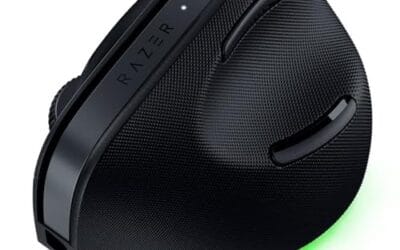
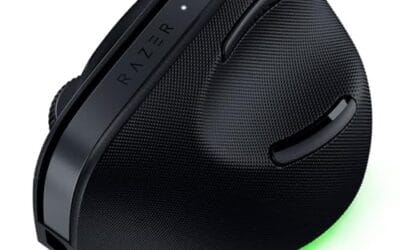
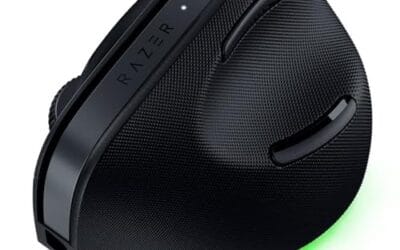
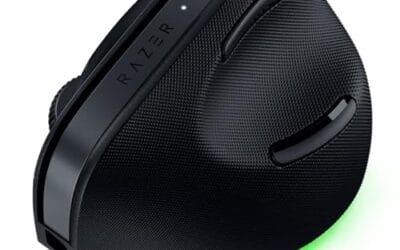
For anyone who spends long hours pointing and clicking, a vertical design is worth serious thought. It puts your hand in a handshake position, which eases strain, and the newer models track cleanly across surfaces. The Razer Pro Click V2 Vertical at $113.99 carries a 4.7 rating and offers six programmable buttons with multi-device connectivity over 2.4 GHz, Bluetooth, or USB-C wired mode, so you can hardwire it if you ever suspect wireless interference again. That wired fallback alone makes it a smart pick for troubleshooters.

Pros
- Focus Pro 30K sensor handles glass and reflective desks that trip up older vertical mice
- Battery rated up to 6 months, 5 minute top-up returns roughly 3 working days of use
- Three connectivity modes with up to 5 paired devices covers desktop, laptop, and tablet rotation
Cons
- Limited owner feedback at time of writing, so long-term reliability signal is not yet available
- Vertical handshake shape has a real learning curve for existing claw and fingertip grip users
- Mouse weight and max DPI are not specified in source, hard to gauge fast-tracking responsiveness
The Pro Click V2 Vertical is Razer's ergonomic wireless mouse aimed at knowledge workers and creators who log long sessions on Windows or Mac systems. The 6 button layout adds a dedicated AI prompt key tied into Razer Synapse 4 shortcuts for summarizing text and drafting emails.
The defining trait is the angled handshake shell with a wrist base that lifts your palm off the deck, reducing pronation on long days. Razer's Focus Pro 30K optical sensor handles glass and high-gloss surfaces, which vertical mice at this tier often struggle with due to older 3200 to 12000 DPI sensors.
Trade-offs are honest. Vertical shells force a handshake grip, so claw and fingertip users will fight muscle memory for a week or more. Battery is rated up to 6 months, but 18 zone Chroma with full underglow will cut that hard if you leave reactive lighting on. Mouse weight is not specified.
Buy this if you already know a vertical shape helps your wrist and you need one mouse hopping between a Windows tower, a MacBook, and a tablet over Bluetooth. Skip it if you plan to play competitive FPS titles, since vertical shells punish rapid tracking flicks and micro adjustments.
Sensor: Focus Pro 30K optical sensor with a claimed 99.8% resolution accuracy. Razer uses this same sensor family across its high-end lineup, so tracking on glass, mousepads, and gloss desks is realistic. Max DPI and polling rate are not specified in source data.
Switches and Buttons: Mechanical switches rated to a 60 million click lifecycle. Six total buttons include a dedicated AI prompt key mapped through Synapse 4 for text summarization and email drafting shortcuts on Windows.
Connectivity: Three modes ship in the box: 2.4GHz HyperSpeed via bundled dongle, Bluetooth with up to 3 host pairings, and USB-C wired. Combined device ceiling is 5, letting you rotate between desktop, laptop, tablet, and a secondary machine without re-pairing.
Battery and Charging: Rated up to 6 months under standard test conditions, with 5 minutes of USB-C charging yielding roughly 3 working days. The 18 zone Chroma RGB plus full underglow will cut that figure significantly if reactive lighting stays enabled.
If you want the same ergonomic benefit for less, the Logitech MX Vertical (910-005448) at $68.49 is the value play, and its 4.8 rating speaks to how dependable owners find it for all-day work. Both units sidestep the flaky tracking that plagues cheap mice. For a wider look at ergonomic shapes, our best ergonomic mouse and best ergonomic vertical mouse 2026 guides break down the field by hand size and grip style.
A few more questions
Why does my cursor stutter only in games?
That’s usually a frame-rate or polling issue, not the mouse. When your GPU can’t hold a steady frame rate, cursor movement looks choppy because the screen updates unevenly. Cap your frame rate a few frames below your monitor’s refresh, disable in-game overlays, and set the polling rate to 500 Hz if your system is older. If the stutter vanishes on the desktop, it’s the game and not the hardware.
Can a bad USB port cause cursor stutter?
Yes, and it’s more common than people think. Front-panel ports and cheap unpowered hubs can under-deliver power, which makes a mouse drop packets and stutter. Plug straight into a rear motherboard port and disable USB selective suspend in Power Options. If the jitter clears, the port or hub was the weak link, not the mouse itself.
Is wireless or wired better for avoiding stutter?
Modern wireless is excellent, but wired removes the whole category of 2.4 GHz interference and battery throttling. If you’ve fought signal problems and don’t want to think about it again, a wired connection or a mouse with a USB-C wired mode gives you a fallback. That said, a well-placed receiver on a good wireless mouse feels identical to wired for the vast majority of owners.



























Write Your Review
No reviews yet. Be the first to share your experience!