

A mouse sensor problem can feel like a haunted PC: the pointer jumps, slows down at random, skips across the screen, or refuses to track on one patch of your pad. The good news is that you can check the sensor from Windows or macOS with no special lab gear. You’ll inspect the lens, verify basic settings, compare wired and wireless behavior, and use repeatable pointer movements to separate a dirty lens from bad surface tracking, driver issues, or a worn-out mouse. If your current setup is already uncomfortable, our guides to the best ergonomic mouse and best gaming mouse can help after you’ve confirmed the problem.
What you’ll need
You’ll need the mouse, your PC, a clean mouse pad or plain matte sheet of paper, a microfiber cloth, a cotton swab, 70% or 90% isopropyl alcohol, and five minutes of desk space. For wireless mice, also keep the receiver within 12 inches of the mouse if possible, charge the battery above 50%, and remove nearby USB 3.0 hubs from the immediate area. Simple stuff. Don’t use glass, glossy magazine paper, or a reflective desk for the first pass because optical and laser sensors can behave badly on those surfaces. Related buying context: best ergonomic vertical mouse 2026.
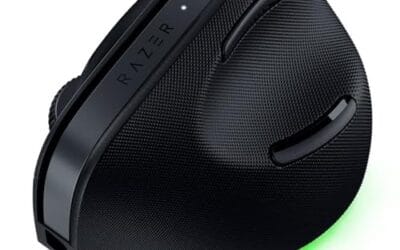
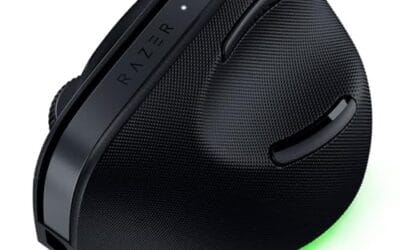
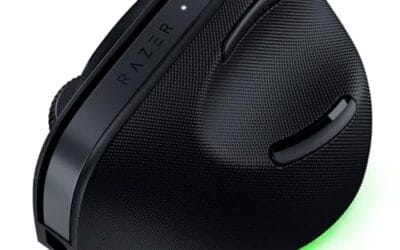
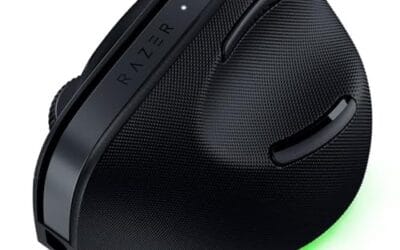
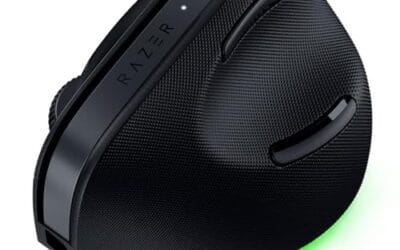
A known-good mouse is useful for comparison, but it isn’t required. If you’re replacing an office mouse and want a current ergonomic reference point, the Razer Pro Click V2 Vertical Wireless Mouse is a $113.99, 4.7-rated option with a 6-button ergonomic design, Windows and Mac support, 2.4GHz wireless, Bluetooth, USB-C wired mode, multi-device connectivity, and Chroma RGB. It’s relevant here because switching between 2.4GHz, Bluetooth, and USB-C wired mode gives you more ways to isolate tracking from connection trouble.

Pros
- Focus Pro 30K sensor handles glass and reflective desks that trip up older vertical mice
- Battery rated up to 6 months, 5 minute top-up returns roughly 3 working days of use
- Three connectivity modes with up to 5 paired devices covers desktop, laptop, and tablet rotation
Cons
- Limited owner feedback at time of writing, so long-term reliability signal is not yet available
- Vertical handshake shape has a real learning curve for existing claw and fingertip grip users
- Mouse weight and max DPI are not specified in source, hard to gauge fast-tracking responsiveness
The Pro Click V2 Vertical is Razer's ergonomic wireless mouse aimed at knowledge workers and creators who log long sessions on Windows or Mac systems. The 6 button layout adds a dedicated AI prompt key tied into Razer Synapse 4 shortcuts for summarizing text and drafting emails.
The defining trait is the angled handshake shell with a wrist base that lifts your palm off the deck, reducing pronation on long days. Razer's Focus Pro 30K optical sensor handles glass and high-gloss surfaces, which vertical mice at this tier often struggle with due to older 3200 to 12000 DPI sensors.
Trade-offs are honest. Vertical shells force a handshake grip, so claw and fingertip users will fight muscle memory for a week or more. Battery is rated up to 6 months, but 18 zone Chroma with full underglow will cut that hard if you leave reactive lighting on. Mouse weight is not specified.
Buy this if you already know a vertical shape helps your wrist and you need one mouse hopping between a Windows tower, a MacBook, and a tablet over Bluetooth. Skip it if you plan to play competitive FPS titles, since vertical shells punish rapid tracking flicks and micro adjustments.
Sensor: Focus Pro 30K optical sensor with a claimed 99.8% resolution accuracy. Razer uses this same sensor family across its high-end lineup, so tracking on glass, mousepads, and gloss desks is realistic. Max DPI and polling rate are not specified in source data.
Switches and Buttons: Mechanical switches rated to a 60 million click lifecycle. Six total buttons include a dedicated AI prompt key mapped through Synapse 4 for text summarization and email drafting shortcuts on Windows.
Connectivity: Three modes ship in the box: 2.4GHz HyperSpeed via bundled dongle, Bluetooth with up to 3 host pairings, and USB-C wired. Combined device ceiling is 5, letting you rotate between desktop, laptop, tablet, and a secondary machine without re-pairing.
Battery and Charging: Rated up to 6 months under standard test conditions, with 5 minutes of USB-C charging yielding roughly 3 working days. The 18 zone Chroma RGB plus full underglow will cut that figure significantly if reactive lighting stays enabled.
Step 1: Clean the sensor lens and check the surface
Flip the mouse over and look directly at the sensor window. Dust, pet hair, skin oil, and tiny fabric fibers can block part of the lens, which makes the cursor skip even when the electronics are fine. Unplug the mouse or switch it off first. Wipe the bottom feet and the lens area with a dry microfiber cloth, then use a barely damp cotton swab with isopropyl alcohol around the lens rim. Don’t flood the opening; one small pass is enough. Let it dry for 60 seconds before powering the mouse again.
Now move to a boring surface: a clean black or dark gray cloth pad, or a matte white sheet of printer paper. Move the mouse in slow horizontal lines for 10 seconds, then slow vertical lines for another 10 seconds. The cursor should move smoothly without stair-stepping, sudden stops, or diagonal drift. If the pointer improves on paper but fails on your desk, the sensor probably isn’t dying; your surface is the culprit. Glossy coatings, clear glass, metal grain, and deep desk texture can confuse many sensors. Easy win.
Step 2: Confirm DPI, pointer speed, and acceleration settings
Before blaming hardware, make sure software hasn’t changed how the pointer feels. In Windows, open Settings, go to Bluetooth & devices, then Mouse, and set pointer speed near the middle. Next, open Additional mouse settings, choose Pointer Options, and note whether Enhance pointer precision is enabled. That setting adds acceleration, so the same inch of mouse movement can move the cursor a different distance depending on speed. It can make a healthy sensor feel inconsistent.
If your mouse has a DPI button, press it slowly and watch for big jumps in pointer speed. Many mice cycle through 400, 800, 1600, and 3200 DPI-style presets without showing a clear on-screen label. Pick one setting and leave it there while you check tracking. Don’t change DPI, pointer speed, and surface at the same time or you’ll never know what fixed the issue. On macOS, open System Settings, then Mouse, and keep Tracking speed at a moderate value for this check. One variable at a time.
Step 3: Check tracking with slow lines, fast swipes, and lift-off
Open a blank area where you can see pointer movement clearly: the desktop, Paint, a notes app, or any window with empty space. Start with slow lines. Move the mouse exactly 4 inches to the right, then 4 inches back to the left. Repeat this 10 times. A healthy sensor should return the pointer close to where it started each time. It won’t be pixel-perfect because your hand isn’t a robot, but it shouldn’t crawl upward, stop mid-stroke, or jump across the screen.
Next, check fast swipes. Place the pointer near the center of the screen and flick the mouse left and right across roughly 8 to 10 inches of pad. If the pointer hits an invisible wall, spins out, or shoots in the wrong direction, you’re seeing a tracking failure. That can happen from a weak sensor, a bad pad, an extremely high DPI setting, or wireless interference. Then check lift-off behavior by raising the mouse slowly while moving it. Most modern mice should stop tracking a short distance above the pad. If it continues tracking high in the air, the cursor may wobble every time you reposition your hand.
Step 4: Separate sensor issues from USB, wireless, and driver issues
Connection problems can impersonate a bad sensor. For a wired mouse, plug directly into a rear motherboard USB port on a desktop or a different side port on a laptop. Skip the hub for now. If the issue disappears, the hub, cable angle, or front-panel USB wiring may be the problem. Wiggle the cable gently near the mouse shell and near the USB plug while moving the cursor in slow circles. If tracking cuts out during the wiggle, that’s more likely a cable or port fault than a sensor fault.
For a wireless mouse, charge it or install a fresh battery, then move the receiver close to the mouse with a short USB extension if you have one. Keep the receiver away from USB 3.0 drives, external SSDs, and dense cable bundles. Try 2.4GHz first, then Bluetooth if your mouse supports both. If wired mode works but wireless doesn’t, the sensor is probably fine and the radio path is the weak point. The same logic applies to multi-mode mice like the Razer Pro Click V2 Vertical Wireless Mouse, which supports 2.4GHz, Bluetooth, and USB-C wired mode. Those modes aren’t just convenience features; they’re useful diagnostic paths.
Step 5: Compare behavior across apps and another PC
A real sensor fault follows the mouse everywhere. An app or driver issue often doesn’t. Try the same slow-line and fast-swipe checks on the desktop, inside a browser, and inside one game or creative app if that’s where you noticed the problem. Some games use raw input, some don’t, and a few apply their own sensitivity curve. If the cursor feels normal in Windows but strange only in one title, check that game’s raw input, sensitivity, polling-rate, and acceleration options before replacing hardware.
If you can, plug the mouse into another PC or laptop for two minutes. Use the same pad and the same movement pattern. If the fault repeats there, you’ve narrowed it to the mouse, the pad, or the local environment around the mouse. If it vanishes, focus on your original PC: remove duplicate mouse utilities, update the vendor app, restart the HID-compliant mouse device in Device Manager, or create a temporary Windows user profile. For buyers comparing replacements, our best wireless gaming mouse guide covers models where connection quality matters as much as raw tracking.
Troubleshooting common issues
The cursor jumps only on one part of the desk
That’s usually a surface problem, not a sensor death sentence. Clean the pad, rotate it 180 degrees, and try a matte sheet of paper in the same physical spot. If paper works and the pad doesn’t, the pad has a worn glossy patch or embedded grit. Cloth pads can develop polished lanes after months of use, especially near the center where your wrist rests.
The mouse works for a few minutes, then skips
Look at power and wireless behavior first. Recharge the mouse, replace the battery, and move the receiver closer. Some mice reduce performance at low battery, and Bluetooth can feel uneven if the PC is also handling headphones, controllers, and a congested 2.4GHz network. You’ll get cleaner evidence by checking with audio devices disconnected for a few minutes.
The pointer speed changes after every restart
That points to software profiles. Vendor apps can load a different DPI stage at startup, and Windows can apply saved pointer settings after login. Open the mouse utility, delete extra profiles you don’t use, and assign one DPI stage as default. If the mouse has onboard memory, save the profile to the device rather than only inside the app.
The sensor light is off
Some modern sensors don’t show a bright visible LED, so a dark lens doesn’t always mean failure. Check the power switch, battery, cable, and USB port first. If the mouse is fully powered but never moves the pointer on two PCs and two surfaces, the internal sensor board or cable connection may be bad. At that point, replacement usually beats repair unless the mouse is expensive and still under warranty.
Before / after expected outcomes
Before this process, you may only know that the cursor feels wrong. After it, you should know which bucket you’re in: dirty lens, bad surface, DPI or acceleration setting, wireless interference, USB or cable issue, app-specific behavior, or likely hardware failure. The biggest tell is repeatability. If slow 4-inch lines and fast 8-inch swipes fail on two clean surfaces and two PCs, the mouse is the common factor. If the failure changes every time you move ports, apps, or receivers, keep chasing setup variables.
Variations / advanced setups
High-refresh gaming setups add a few extra checks. If your mouse utility supports polling-rate choices such as 125Hz, 500Hz, 1000Hz, or higher, try 500Hz or 1000Hz before assuming the sensor is bad; very high rates can expose weak USB hubs or older CPUs during heavy loads. If you use a bungee, make sure the cable isn’t pulling upward during swipes; our best mouse bungee roundup explains why cable drag can feel like tracking drag. For vertical mice, keep your wrist angle consistent during slow-line checks because tilting the shell can make a normal sensor path look curved.
Common questions
Can I check a mouse sensor without downloading software?
Yes. You can learn a lot with a clean surface, slow 4-inch lines, fast 8-inch swipes, and another USB port. Software helps when you need exact DPI or polling-rate controls, but it isn’t required for basic diagnosis. Start simple because it removes profile confusion.
Is a skipping cursor always a bad sensor?
No. Dirty lenses, glossy surfaces, low battery, Bluetooth congestion, USB hubs, and acceleration settings are more common than true sensor failure. A bad sensor is more likely when the same fault follows the mouse across multiple PCs and clean surfaces. Pattern matters.
Should I use glass to check tracking?
Don’t use glass for the first pass. Many sensors dislike transparent or reflective surfaces, so glass can create a problem that wouldn’t appear on a normal pad. Use matte paper or a clean cloth pad, then try your usual desk surface afterward if you want a comparison.
What DPI should I use while checking the sensor?
Use a moderate setting, often around the middle DPI stage on the mouse, and keep Windows or macOS pointer speed near the center. Extremely high DPI magnifies tiny hand movements and makes normal jitter look worse. Extremely low DPI can hide small skips. Consistency beats chasing a magic number.



























Write Your Review
No reviews yet. Be the first to share your experience!