

You plug in the mouse, the cursor sits frozen in the middle of the screen, and Windows acts like nothing happened. No arrow movement, no click response, maybe a sad little “USB device not recognized” chime. It’s one of the most common desktop headaches out there, and the frustrating part is that the cause is usually small. A loose port. A dead coin cell. A driver that quietly corrupted itself after an update. Before you assume the hardware died, it’s worth walking through the fixes in order, because most people solve this in under five minutes without buying anything. This guide sorts the causes from most likely to least, so you don’t waste an afternoon reinstalling drivers when a $2 battery was the real problem.
We researched the failure patterns owners report across wired, wireless, and Bluetooth mice, then grouped them by how often they actually turn out to be the culprit. If you’re shopping while you troubleshoot, our guides to the best wireless gaming mouse and the best mouse for work can help you figure out what to grab if this one really is done. And if the constant reconnecting has you eyeing a switch, an ergonomic mouse upgrade is a decent excuse. But let’s fix what you’ve got first.
First check the obvious (the 30-second check)
Start with the dumb stuff, because it’s right most of the time. Unplug the mouse and move it to a different USB port, ideally one directly on the motherboard back panel rather than a front-panel or hub port. Front headers and cheap unpowered hubs drop out constantly. If it’s a laptop, skip the docking station and go straight into the machine. Wireless mouse? Pull the little USB receiver and reseat it, then flip the power switch on the underside off and back on. Half the “dead mouse” reports we read came down to a receiver that had been bumped loose or a switch someone nudged in a bag.
Two more quick ones. Check that the optical sensor on the bottom is glowing (a faint red or invisible IR light means it has power), and try the mouse on a second computer if you have one nearby. That single move tells you whether the problem is the mouse or the PC, and it saves you from chasing driver ghosts on a machine that was never at fault. If the cursor wakes up on the other computer, the mouse is fine and your original PC’s ports or software are the issue.
One thing people skip: a full power cycle. Shut the PC down completely, pull the power cord for 30 seconds, then boot back up. That drains residual charge from the USB controllers and clears a surprising number of “detected once, never again” faults. On a laptop, hold the power button for 15 seconds after shutdown to do the same thing. It sounds like a cliche, but the controller reset it forces genuinely fixes ports that got stuck in a bad state after a sleep or hibernate cycle.
Cause #1: The USB port or cable connection failed
Physical connection problems top the list. USB ports wear out, especially the ones you plug and unplug daily, and the springy contacts inside can lose tension until they no longer grip the connector. On wired mice, the cable itself is a weak point right where it exits the mouse body, because that spot flexes thousands of times. A partial break there causes the exact intermittent behavior people describe: works when you hold the cable at one angle, dies when you let go. If wiggling the cable near the mouse changes anything, that’s your answer.
Try every port on the machine, not just two. Rear ports wire directly to the chipset and tend to be more reliable than front-panel connectors that route through extra cabling. If the mouse works in some ports but not others, you’ve got dead ports, not a dead mouse, and that’s often a motherboard header or a blown port fuse. A quick reboot into the BIOS/UEFI screen also helps here. If your mouse works in BIOS but not in Windows, the hardware is fine and the fault is on the software side, which is the next section. A powered USB hub can rescue you if your board’s ports are genuinely failing, though it’s a bandage rather than a repair.
Cause #2: A corrupt or outdated driver
If the mouse is alive in BIOS but ignored inside Windows, the driver stack is the suspect. Open Device Manager (right-click Start, pick it from the menu, or press Windows key plus X). Look under “Mice and other pointing devices.” A yellow triangle or an entry called “Unknown device” confirms a driver fault. Right-click the mouse entry, choose Uninstall device, then unplug and replug, or reboot. Windows reinstalls the generic HID driver automatically, and that clean reinstall clears most corruption. It’s the single fix that resolves the widest range of “detected but not working” cases.
Windows updates occasionally break input drivers too. If the mouse stopped the day after an update, roll the driver back from that same Device Manager entry under the Driver tab. Gaming mice with vendor software (Razer Synapse, Logitech G Hub, Corsair iCUE) add another layer that can hang; try quitting the app, or reinstalling it fresh from the maker’s site. One more trick people forget: disable “USB selective suspend” in the power plan settings. That feature powers down idle USB ports to save energy, and on some systems it never wakes the mouse back up, which reads as a random dropout every few minutes.
Cause #3: Dead battery or a lost wireless pairing
Wireless and Bluetooth mice fail differently, and the number one reason is boring: the battery’s flat. Swap in a fresh AA or AA cell, or charge a rechargeable model for 15 minutes before you judge it, since a fully drained pack can look completely dead. Low-battery behavior is sneaky because the mouse often works for a second when you jiggle it, then quits, which sends people down the driver rabbit hole when a $3 cell would’ve fixed it. If you’re on a rechargeable mouse with a worn internal battery that won’t hold a charge anymore, that’s a genuine end-of-life sign.
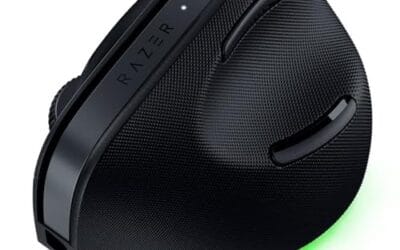
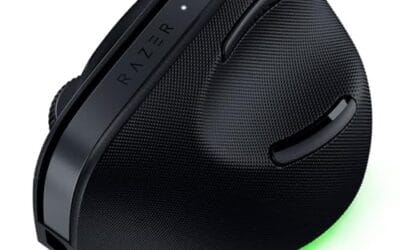
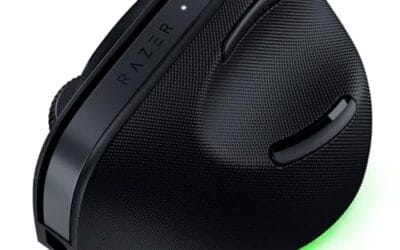
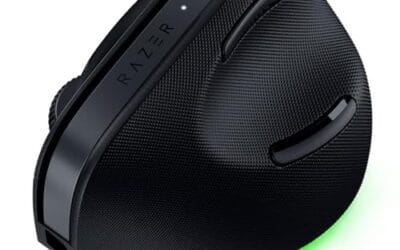
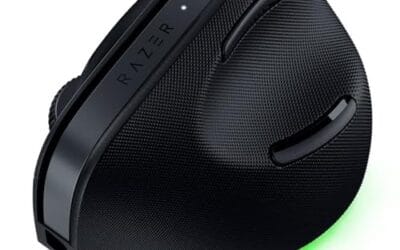
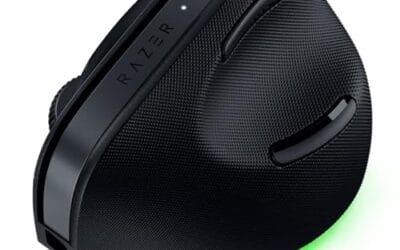
Pairing is the other wireless gremlin. For a 2.4GHz receiver, plug it into a port close to the mouse and away from a metal desk frame or a USB 3.0 port, because USB 3.0 throws interference right in the 2.4GHz band and causes stutter or total dropout. For Bluetooth, delete the mouse from your Bluetooth settings and re-pair it from scratch, holding the mouse’s connect button until its light flashes. Multi-device mice that hop between a laptop and a desktop sometimes just need the channel button pressed to switch back. If you’ve decided the wireless model is done and want something that plays nicer across machines, the Razer Pro Click V2 is a 6-button ergonomic vertical mouse at $113.99 (rated 4.7) that connects three ways: 2.4GHz, Bluetooth, or USB-C wired mode. Having a wired fallback baked in means a dead battery never leaves you stranded.

Pros
- Focus Pro 30K sensor handles glass and reflective desks that trip up older vertical mice
- Battery rated up to 6 months, 5 minute top-up returns roughly 3 working days of use
- Three connectivity modes with up to 5 paired devices covers desktop, laptop, and tablet rotation
Cons
- Limited owner feedback at time of writing, so long-term reliability signal is not yet available
- Vertical handshake shape has a real learning curve for existing claw and fingertip grip users
- Mouse weight and max DPI are not specified in source, hard to gauge fast-tracking responsiveness
The Pro Click V2 Vertical is Razer's ergonomic wireless mouse aimed at knowledge workers and creators who log long sessions on Windows or Mac systems. The 6 button layout adds a dedicated AI prompt key tied into Razer Synapse 4 shortcuts for summarizing text and drafting emails.
The defining trait is the angled handshake shell with a wrist base that lifts your palm off the deck, reducing pronation on long days. Razer's Focus Pro 30K optical sensor handles glass and high-gloss surfaces, which vertical mice at this tier often struggle with due to older 3200 to 12000 DPI sensors.
Trade-offs are honest. Vertical shells force a handshake grip, so claw and fingertip users will fight muscle memory for a week or more. Battery is rated up to 6 months, but 18 zone Chroma with full underglow will cut that hard if you leave reactive lighting on. Mouse weight is not specified.
Buy this if you already know a vertical shape helps your wrist and you need one mouse hopping between a Windows tower, a MacBook, and a tablet over Bluetooth. Skip it if you plan to play competitive FPS titles, since vertical shells punish rapid tracking flicks and micro adjustments.
Sensor: Focus Pro 30K optical sensor with a claimed 99.8% resolution accuracy. Razer uses this same sensor family across its high-end lineup, so tracking on glass, mousepads, and gloss desks is realistic. Max DPI and polling rate are not specified in source data.
Switches and Buttons: Mechanical switches rated to a 60 million click lifecycle. Six total buttons include a dedicated AI prompt key mapped through Synapse 4 for text summarization and email drafting shortcuts on Windows.
Connectivity: Three modes ship in the box: 2.4GHz HyperSpeed via bundled dongle, Bluetooth with up to 3 host pairings, and USB-C wired. Combined device ceiling is 5, letting you rotate between desktop, laptop, tablet, and a secondary machine without re-pairing.
Battery and Charging: Rated up to 6 months under standard test conditions, with 5 minutes of USB-C charging yielding roughly 3 working days. The 18 zone Chroma RGB plus full underglow will cut that figure significantly if reactive lighting stays enabled.
For a deeper look at the wireless field before you commit, the roundup of the best vertical mouse picks for 2026 covers the connection options worth prioritizing.
Preventive maintenance that actually helps
A few habits keep this from recurring. Route wired cables so they don’t get yanked or pinched under the desk, and if your mouse cord snags on the edge constantly, a mouse bungee holds the cable in a gentle arc and takes strain off the joint where cables usually crack. Keep the optical sensor clean; a hair or dust speck across the lens can mimic a detection failure. Blow out your USB ports with a quick puff of air every few months so contacts stay clean. For wireless, don’t let batteries fully drain before swapping, and store the receiver plugged in rather than loose where it gets crushed.
It’s also worth keeping your drivers and firmware current, but on your own schedule rather than blindly. Vendor mice from Razer and Logitech ship firmware updates that fix connection dropouts and pairing bugs, so if a wireless model has been flaky, check the maker’s app for an update before you write it off. And resist the urge to run three overlapping mouse utilities at once. Layered vendor software fighting over the same device is a real source of phantom disconnects, so pick one app and uninstall the rest.
When it’s not fixable: what to replace
Sometimes the mouse really is finished. Cracked cable strands inside the jacket, a worn charging port that won’t hold contact, or a failed internal battery that swells or won’t charge past a few minutes are all past the point of a worthwhile repair. Micro-soldering a $30 mouse isn’t worth the hour. If you’ve swapped ports, reinstalled the driver, and tried a fresh battery with no luck, and it’s dead on a second computer too, it’s replacement time. The good news is that a reliable everyday mouse doesn’t cost much, and it’s a fair moment to fix any wrist strain you’ve been ignoring.
The Logitech MX Vertical (model 910-005448) is a common upgrade pick here at $68.49 with a 4.8 rating, and its handshake-angle shape reduces forearm twist compared with a flat mouse. It’s a solid choice if the old mouse died and your wrist could use a break. If ergonomics are the priority, our guides to the best ergonomic vertical mouse for 2026 and the best gaming mouse break down the shapes and sensors worth paying for at each budget.

Pros
- Limited public review data at time of writing, so verify current owner sentiment before purchase.
- Vertical layout targets wrist pronation strain reported by heavy office and CAD users.
- Bluetooth plus USB receiver gives flexible pairing across laptops, docks, and desktops.
- Four-month typical battery cadence reduces charging friction versus daily-charge gaming mice.
Cons
- Zero visible owner reviews in source, so long-term reliability signal is effectively absent.
- Sensor model, max DPI, poling rate, and weight not specified in source data.
- Vertical shape has a learning curve and does not suit claw or fingertip grip gamers.
The Logitech MX Vertical is an ergonomic productivity mouse aimed at office workers, developers, and creative professionals dealing with wrist or forearm discomfort. It sits in Logitech's mid-range MX ergonomic lineup, offering wireless connectivity through Bluetooth or a USB receiver and cross-platform support for Windows and Mac desks.
The defining feature is the angled vertical shell, which shifts the hand into a more neutral handshake posture and reduces forearm pronation during long sessions. Based on typical vertical-mouse ergonomics, users transitioning from a flat mouse should expect a short adjustment period before cursor precision in tasks like document editing and photo work returns to baseline.
Trade-offs are real at this tier. Logitech does not publish sensor model, max DPI, polling rate, or weight in the provided source, which maters for buyers comparing tracking specs. The shape also favors palm grip, so claw and fingertip users, and gamers chasing esports poling rates, will find it a por fit versus a symetrical gaming mouse.
Buy this if you spend long hours in office aps, code editors, or creative suites and want a vertical grip with dual Bluetooth and USB receiver support. Skip this if you need documented gaming-grade sensor specs, low click latency, or a shape optimized for claw and fingertip grip styles.
Sensor and DPI: Logitech lists only an unspecified optical sensor in the source, with no max DPI, polling rate, or lift-off distance provided. MX-series ergonomic mice at this tier typically ship with 400 to 4000 DPIranges tuned for office precision rather than the20000-plus DPI figures sen on gaming rivals.
Wireless connectivity: Dual-mode support covers Bluetooth Low Energy and a 2.4GHz USB receiver, letting one mouse move between a docked laptop and desktop without repairing. Wireless latency is not specified, but Logitech ergonomic mice at this tier areuned for productivity, not competitive first-person shooter response windows.
Battery life: Rated at roughly four months of typical use on a full charge, which lines up with once-per-quarter charging cadence for eight-hour workdays. Actual runtime will drop with heavy Bluetooth use, higher DPI settings, or frequent wake cycles across multiple paired devices during the day.
Shape and grip fit: The vertical shell is engineered around a palm grip with angled thumb rest. Weight, length, and grip width are not specified in the source, so hand-size fit should be validated in person, especially for users with hands under about 17 centimeters.
Tools and parts you might need
Most of these fixes need nothing but your hands. For the rest, keep a couple of fresh AA and AA batteries in a drawer, a can of compressed air for the ports and sensor, and a spare USB cable if your mouse uses a detachable cord. A powered USB hub is worth having if your desktop’s rear ports are aging, since it gives you clean, reliable connections without opening the case. That’s genuinely the whole kit. No screwdrivers, no soldering iron, no software licenses.
If you want to go one level deeper, a cheap USB voltage meter that sits inline between the port and the cable tells you whether a port is actually delivering power, which settles the “is it the port or the mouse” question fast. It’s a $10 gadget, not a requirement, but handy if you troubleshoot other people’s machines too. Beyond that, everything on this list is a five-minute job you can knock out before your coffee gets cold.
A few more questions
Why does my mouse work in BIOS but not in Windows?
That pattern means the hardware and ports are fine, because BIOS uses a basic built-in driver. The fault is in Windows’ driver stack. Uninstall the mouse in Device Manager and reboot so Windows reinstalls the HID driver clean, and if it started right after an update, roll the driver back. That combination clears the large majority of these cases.
My wireless mouse keeps disconnecting every few minutes. What’s wrong?
Two usual causes. First, a low battery that works briefly then drops, so swap in a fresh cell. Second, 2.4GHz interference from a nearby USB 3.0 port or device, which you fix by moving the receiver to a port farther away or using a short USB extension to reposition it. Disabling USB selective suspend in your power settings stops another common dropout.
Is a mouse that isn’t detected worth repairing?
Rarely. If the cause is a dead battery, a loose receiver, or a driver glitch, those are free fixes and you keep the mouse. But a frayed internal cable or a failed rechargeable battery costs more in time and parts than a decent replacement mouse runs, so at that point it’s smarter to replace. Confirm it’s truly dead by checking it on a second computer before you toss it.



























Write Your Review
No reviews yet. Be the first to share your experience!