

If you’ve ever seen a mouse marketed as having optical or mechanical switches, the difference is under the buttons, not under the sensor. That’s why it matters for click feel, click latency, and long-term consistency. It’s a small detail with a big effect. And if you’re comparing an ergonomic vertical shape like the best ergonomic vertical mouse 2026 picks or a work-first option from best mouse for work, the switch type can be the thing that decides whether the mouse feels crisp or just average.
We researched how these switch designs differ, what real users tend to notice, and why the choice shows up most clearly in office mice, vertical mice, and other high-use models. The short version is simple. Optical switches use light to detect the click, while mechanical switches rely on physical metal contact. That basic difference changes durability, debounce behavior, and the way the click feels in daily use.
The short answer
Optical mouse switches register a click with a light beam or sensor break, so they don’t depend on two metal contacts slamming together every time you press the button. Mechanical switches do the classic physical-contact thing. In practice, optical switches are often chosen for faster response and better resistance to wear, while mechanical switches are still common because they’re familiar, inexpensive, and easy to tune for a satisfying click.
That doesn’t mean optical is always “better.” It means optical and mechanical solve the same job in different ways. If you want a mouse that feels sharp and stays consistent over a lot of clicks, optical has the edge on paper. If you care more about a specific click feel, lower price, or a proven mainstream design, mechanical can still be the right call.

Pros
- Focus Pro 30K sensor handles glass and reflective desks that trip up older vertical mice
- Battery rated up to 6 months, 5 minute top-up returns roughly 3 working days of use
- Three connectivity modes with up to 5 paired devices covers desktop, laptop, and tablet rotation
Cons
- Limited owner feedback at time of writing, so long-term reliability signal is not yet available
- Vertical handshake shape has a real learning curve for existing claw and fingertip grip users
- Mouse weight and max DPI are not specified in source, hard to gauge fast-tracking responsiveness
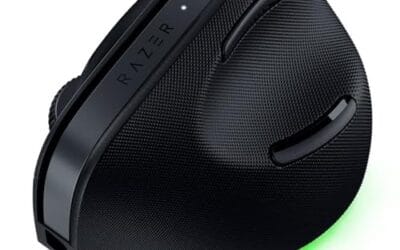
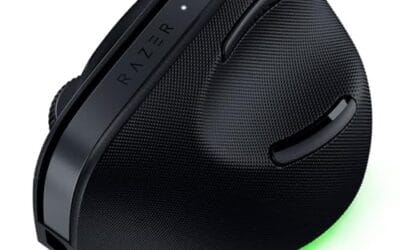
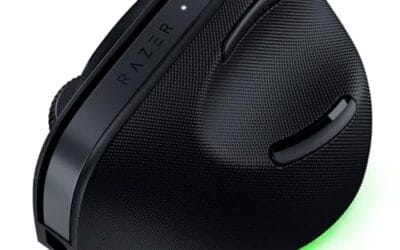
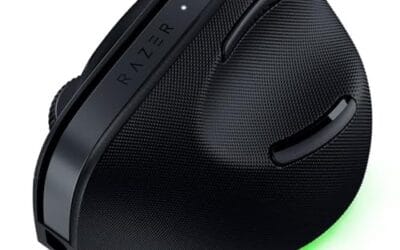
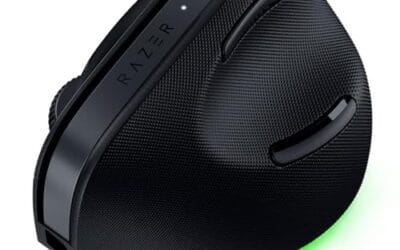
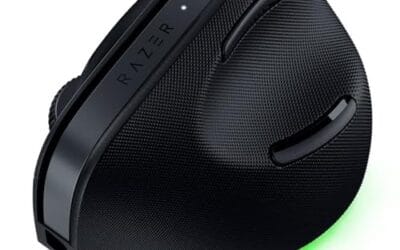
The Pro Click V2 Vertical is Razer's ergonomic wireless mouse aimed at knowledge workers and creators who log long sessions on Windows or Mac systems. The 6 button layout adds a dedicated AI prompt key tied into Razer Synapse 4 shortcuts for summarizing text and drafting emails.
The defining trait is the angled handshake shell with a wrist base that lifts your palm off the deck, reducing pronation on long days. Razer's Focus Pro 30K optical sensor handles glass and high-gloss surfaces, which vertical mice at this tier often struggle with due to older 3200 to 12000 DPI sensors.
Trade-offs are honest. Vertical shells force a handshake grip, so claw and fingertip users will fight muscle memory for a week or more. Battery is rated up to 6 months, but 18 zone Chroma with full underglow will cut that hard if you leave reactive lighting on. Mouse weight is not specified.
Buy this if you already know a vertical shape helps your wrist and you need one mouse hopping between a Windows tower, a MacBook, and a tablet over Bluetooth. Skip it if you plan to play competitive FPS titles, since vertical shells punish rapid tracking flicks and micro adjustments.
Sensor: Focus Pro 30K optical sensor with a claimed 99.8% resolution accuracy. Razer uses this same sensor family across its high-end lineup, so tracking on glass, mousepads, and gloss desks is realistic. Max DPI and polling rate are not specified in source data.
Switches and Buttons: Mechanical switches rated to a 60 million click lifecycle. Six total buttons include a dedicated AI prompt key mapped through Synapse 4 for text summarization and email drafting shortcuts on Windows.
Connectivity: Three modes ship in the box: 2.4GHz HyperSpeed via bundled dongle, Bluetooth with up to 3 host pairings, and USB-C wired. Combined device ceiling is 5, letting you rotate between desktop, laptop, tablet, and a secondary machine without re-pairing.
Battery and Charging: Rated up to 6 months under standard test conditions, with 5 minutes of USB-C charging yielding roughly 3 working days. The 18 zone Chroma RGB plus full underglow will cut that figure significantly if reactive lighting stays enabled.
The longer explanation
A mouse switch is the tiny component that turns finger pressure into a registered click. In a mechanical switch, a spring and metal contacts physically meet and complete the circuit. That system has been used for decades, and it works well, but those contacts can wear over time. They can also bounce, which is why firmware often adds debounce filtering so one press doesn’t register as several. That’s where some of the “feel” differences come from.
Optical switches skip that contact bounce problem by using a beam of light or an optical interruption path. When you press the button, the sensor sees the change and sends the signal. Less physical contact usually means less wear on the switch mechanism itself. It can also make the input feel a bit cleaner, because there’s less ambiguity about the moment the click happens. Nice. Clean.
For the average buyer, the real-world difference is usually not dramatic in a casual web-browsing session. You’ll feel it more if you click all day, if you care about button consistency across years of use, or if you’re sensitive to the exact tactile point where the click lands. Gamers notice it too, but so do spreadsheet users, editors, and anyone who works in a vertical grip for long hours.
History / how we got here
Mechanical switches came first because they were simple, cheap, and easy to mass-produce. The classic mouse click feel most people remember is mechanical by default. For years, the industry focused more on sensor quality, scroll wheels, and shape than on the switch itself, because a basic mechanical switch did the job well enough and kept costs down.
Optical switches became more attractive as users started demanding lower latency, longer lifespans, and more consistent click behavior. That shift showed up first in enthusiast and gaming hardware, then in premium productivity mice. You can see that path in newer ergonomic designs such as the best ergonomic mouse roundups and wireless office-focused picks like best wireless gaming mouse lists, where switch feel is one piece of a much bigger performance puzzle.
Why it works this way
The core reason is contact physics. Mechanical contacts touch, separate, and touch again. That’s reliable, but it introduces wear, electrical bounce, and some variation from unit to unit. A manufacturer can tune the shell, spring tension, and preload, yet the underlying contact method still has those limits. Over time, that can contribute to double-click behavior or a mushier feel on older mice.
Optical switches reduce that dependency on physical contact. Because the click is detected optically, there’s less chance for contact degradation to change the behavior. That said, optical switches still need good mechanical design around them. The shell, button hinge, and overall construction still determine whether the click feels sharp, hollow, stiff, or nicely balanced. The switch type is important, but it’s not the whole story. Not even close.
When you’d want this
You’d care most about optical switches if you use your mouse heavily and want consistent clicks over time. That includes productivity users who click constantly, people who keep the same mouse for years, and anyone who’s had a mechanical switch start acting flaky. Optical is also appealing if you want a premium mouse that feels engineered rather than merely assembled. The best mouse for work category is full of examples where long-session comfort and dependable clicks matter more than flashy specs.
Mechanical switches still make sense if you want familiar tactile feedback and don’t want to pay for a premium switch implementation. Plenty of solid mice use them, and many people will never wear one out in normal use. If you prefer a soft, familiar click, mechanical might actually feel better to you than a sharper optical design. Subjective? Absolutely. But that’s part of the choice.

Pros
- Limited public review data at time of writing, so verify current owner sentiment before purchase.
- Vertical layout targets wrist pronation strain reported by heavy office and CAD users.
- Bluetooth plus USB receiver gives flexible pairing across laptops, docks, and desktops.
- Four-month typical battery cadence reduces charging friction versus daily-charge gaming mice.
Cons
- Zero visible owner reviews in source, so long-term reliability signal is effectively absent.
- Sensor model, max DPI, poling rate, and weight not specified in source data.
- Vertical shape has a learning curve and does not suit claw or fingertip grip gamers.
The Logitech MX Vertical is an ergonomic productivity mouse aimed at office workers, developers, and creative professionals dealing with wrist or forearm discomfort. It sits in Logitech's mid-range MX ergonomic lineup, offering wireless connectivity through Bluetooth or a USB receiver and cross-platform support for Windows and Mac desks.
The defining feature is the angled vertical shell, which shifts the hand into a more neutral handshake posture and reduces forearm pronation during long sessions. Based on typical vertical-mouse ergonomics, users transitioning from a flat mouse should expect a short adjustment period before cursor precision in tasks like document editing and photo work returns to baseline.
Trade-offs are real at this tier. Logitech does not publish sensor model, max DPI, polling rate, or weight in the provided source, which maters for buyers comparing tracking specs. The shape also favors palm grip, so claw and fingertip users, and gamers chasing esports poling rates, will find it a por fit versus a symetrical gaming mouse.
Buy this if you spend long hours in office aps, code editors, or creative suites and want a vertical grip with dual Bluetooth and USB receiver support. Skip this if you need documented gaming-grade sensor specs, low click latency, or a shape optimized for claw and fingertip grip styles.
Sensor and DPI: Logitech lists only an unspecified optical sensor in the source, with no max DPI, polling rate, or lift-off distance provided. MX-series ergonomic mice at this tier typically ship with 400 to 4000 DPIranges tuned for office precision rather than the20000-plus DPI figures sen on gaming rivals.
Wireless connectivity: Dual-mode support covers Bluetooth Low Energy and a 2.4GHz USB receiver, letting one mouse move between a docked laptop and desktop without repairing. Wireless latency is not specified, but Logitech ergonomic mice at this tier areuned for productivity, not competitive first-person shooter response windows.
Battery life: Rated at roughly four months of typical use on a full charge, which lines up with once-per-quarter charging cadence for eight-hour workdays. Actual runtime will drop with heavy Bluetooth use, higher DPI settings, or frequent wake cycles across multiple paired devices during the day.
Shape and grip fit: The vertical shell is engineered around a palm grip with angled thumb rest. Weight, length, and grip width are not specified in the source, so hand-size fit should be validated in person, especially for users with hands under about 17 centimeters.
What to look for in a mouse switch
Start with click feel, because that’s what you’ll notice every minute you use the mouse. Some optical implementations feel a bit more defined, while others feel nearly identical to a tuned mechanical switch. The point isn’t to chase “optical” as a badge. It’s to find a mouse whose buttons match the kind of work you do. If you’re choosing among ergonomic shapes, especially vertical ones, the switch can make the shell feel much better or much worse in hand.
Then look at durability claims, but keep them in context. A switch rated for a huge number of clicks sounds impressive, yet the shell, scroll wheel, feet, and battery life matter too. The Razer Pro Click V2 Vertical Wireless Mouse, for example, is a 6-button ergonomic design with multi-device connectivity over 2.4GHz, Bluetooth, or USB C wired mode, plus Chroma RGB and Windows/Mac support. At $113.99 with a 4.7 rating, it’s clearly aimed at users who want a premium ergonomic package, not just a switch upgrade.
Also pay attention to whether the mouse’s switch choice matches the rest of the build. A premium switch in a poor shape won’t save your wrist. A well-shaped mouse with a decent mechanical switch can still feel great. The Logitech Mouse MX Vertical, priced at $68.49 with a 4.8 rating, shows why this matters. The vertical form itself is a big part of the story, and the click system has to complement that shape instead of fighting it.
Common misconceptions
One common mistake is assuming optical switches automatically mean lower latency in every case. That’s not guaranteed. Firmware tuning, polling rate, wireless implementation, and overall mouse design all affect responsiveness. Switch type is only one piece of the chain. A bad implementation can dull an optical switch, and a good mechanical implementation can feel excellent.
Another misconception is that mechanical switches are obsolete. They’re not. They’re still everywhere because they’re proven, affordable, and flexible. Plenty of people prefer the tactile signature of mechanical clicks, and for a lot of mainstream users, the difference won’t justify a premium. The smarter approach is to match the switch type to your habits, budget, and shape preference. That’s the real decision.
A third myth is that switch type alone fixes double-click problems forever. It can help, but nothing is magic. Dust, moisture, shell wear, and overall manufacturing quality all play a part. A well-built mouse with mechanical switches can outlast a poorly built optical one. The switch matters. The whole mouse matters more.
Frequently asked
Are optical mouse switches faster than mechanical ones?
Usually, optical switches can register a click very cleanly because they don’t rely on contact bounce the same way mechanical switches do. That said, the end-to-end feel also depends on firmware, wireless tech, and the mouse’s internal tuning. So yes, optical can be faster in theory, but the whole device still decides what you actually feel.
Do optical switches last longer?
They often have an advantage in wear resistance because there’s less physical contact at the switching point. That can help consistency over time. Still, the rest of the mouse has to hold up too, and durability isn’t just about the switch.
Are mechanical switches worse for office use?
Not at all. Many office users love the familiar feel and lower cost of mechanical switches. If the click is comfortable and the mouse shape suits your hand, mechanical can be a perfectly smart choice for work.
Why do some ergonomic mice use optical switches?
Because ergonomic mice are often built for long hours of use, and consistency matters a lot there. A vertical design already changes the way your hand rests, so a cleaner click mechanism can help the experience feel more refined. It’s a good fit for premium ergonomic products.
Should I pick switch type before shape?
Usually, no. Shape comes first for most people, especially if you’re choosing between a standard mouse and a vertical one. If the shape hurts your hand, the switch type won’t save it. Once the shape is right, then the switch type becomes a meaningful finishing detail.



























Write Your Review
No reviews yet. Be the first to share your experience!