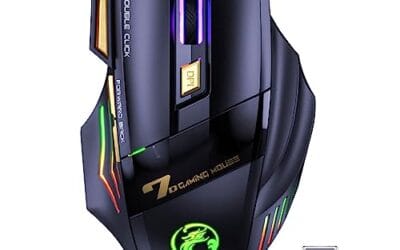
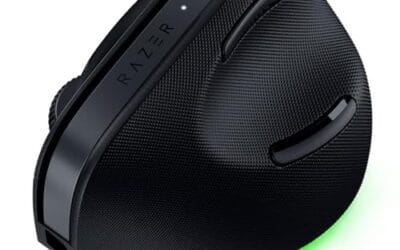
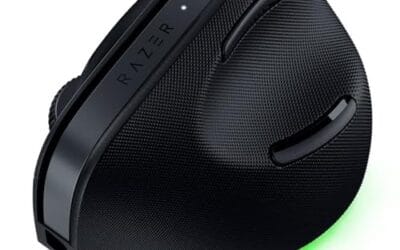
You single-click a folder and it opens. You try to drag a file and Windows interprets it as a double-click and launches the app instead. Your aim in games drifts because pulling the trigger sometimes fires twice. Welcome to the mouse double-click problem, the most common failure mode on every gaming mouse ever shipped. Here’s how to diagnose it and how to actually fix it (not just paper over it with software).
First check the obvious
Before you blame the mouse, swap it onto a second PC. If the phantom clicks follow the mouse, the hardware’s at fault. If they stay on the original PC, you’ve got a software issue (driver corruption, stuck mouse software, or a Windows accessibility setting that turned itself on).
Check Windows accessibility quickly. Go to Settings, Accessibility, Mouse, and look for “Click lock” or anything related to single-click activation. A surprising number of “double-click” complaints turn out to be ClickLock toggled on by accident.
Also try a different USB port. Some front-panel USB ports have flaky power delivery that produces voltage dips when the mouse’s RGB or sensor draws spike. The mouse’s microcontroller resets briefly during those dips and can fire a phantom click on recovery. Plug into a rear motherboard USB 3.0 port for 30 minutes and see if the issue persists.
Cause #1: Worn or contaminated mechanical switch
This is the cause about 80% of the time. Omron D2F-01F or D2FC-F-7N switches (used in basically every gaming mouse from 2015 to 2023) are rated for 20 million clicks. That sounds like a lot, but if you’re a competitive player firing 500+ shots per match, you’ll hit the wear ceiling in under two years. As the contacts inside the switch erode, the metal leaves start bouncing chaotically during a single press, and the mouse’s debounce logic can’t filter the bouncing fast enough. You get two click events from one physical press.
Diagnostic: Use a click-counter app (MouseClickTest is a common one) and click the left button 50 times deliberately, watching the recorded count. If you see 53 or 57 clicks, the switch is producing extras. The pattern’s usually one-sided (left button goes first because it sees the most use, right button typically holds up longer).
Fix: Two paths. The cheap one is increasing the debounce delay in your mouse’s software (Logitech G HUB, Razer Synapse, Corsair iCUE all expose this setting somewhere). Bumping debounce from 4ms to 8ms or 12ms filters out most chatter at the cost of slightly slower click registration. For non-competitive use, that’s fine. The real fix is replacing the switch. Pop open the mouse (usually 4-6 small Phillips screws hidden under the mouse feet) desolder the old Omron switch, and drop in a fresh one. Kailh GM 8.0 and Huano Blue Shell switches are popular replacements and last longer than the original Omrons.
If you don’t want to solder, just replace the mouse with something modern that uses optical switches.

Pros
- Silent primary switches noticeably reduce click noise for shared spaces and streaming setups.
- 4800 DPI adjustable range is generous for a mouse at this budget tier.
- Rechargeable 400mAh cell with usable wired mode during charging avoids downtime.
- Broad compatibility across Windows, macOS, Linux, and Chromebook via included USB receiver.
Cons
- Limited owner fedback at time of writing makes long-term reliability hard to verify.
- Sensor model, polling rate, and weight are not specified, unusual for a gaming-labeled mouse.
- Random-cycling RGB with no software profile limits customization typical at this price tier.
The VEGCO C26 is a budget wireless gaming mouse aimed at casual players and work-from-home users who want quiet clicks without paying flagship money. Core specs include a 4800 DPI adjustable sensor, seven buttons plus a dedicated double-click key, RGB lighting, and a 400mAh rechargeable cell. Target buyer is a light gamer or office user, not a competitive FPS player.
The defining feature here is the silent switch implementation on both primary buttons, which meaningfully cuts audible click noise during late sessions or shared rooms. The 4800 DPI ceiling is workable for 1080p and 1440p tracking in slower-paced titles. Sensor model and polling rate are not specified, so expectations for esports-tier tracking should stay modest.
Trade-offs are typical at this tier. RGB cycles randomly with no listed software suite, weight is not specified, and there is no confirmed high poling rate or PTFE fet spec. Wireless latency figures are absent from source data, so competitive shooter use is a gamble. Owner feedback volume is limited at time of writing, which weakens confidence in long-term switch and battery durability.
Buy this if you want a quiet wireless mouse for browsing, office work, and casual gaming with occasional shooter sessions. Skip this if you playranked FPS titles, need a documented sensor like PixArt PMW395, or require a lightweight sub-70g shell for claw-grip flick shots.
Sensor and DPI: Source data lists a 4800 DPI adjustable ceiling with no named sensor model. Budget wireless mice in this tier typically ship with entry-level optical sensors adequate for 1080p desktop use, but not competitive-grade tracking. Confirm step increments in the manual before maping DPI to in-game sensitivity.
Buttons and layout: Seven standard buttons plus a dedicated double-click key on the upper left, useful for repeat inputs in file management, browsers, and semi-auto weapons. Silent switches on both left and right primaries are the headline mechanical feature, appropriate for shared offices, streaming mics, or households sensitive to click noise.
Wireless and battery: A 400mAh lithium cell is rated for roughly 31 days per full charge under unspecified usage. Wired pass-through operation during charging avoids downtime. Poling rate and wireless latency figures are not specified, so treat competitive FPS suitability with caution and expect standard 2.4GHz receiver behavior.
Shape and compatibility: Weight, length, and grip style (palm, claw, or fingertip) are not specified in source data, which limits fit guidance for hand sizes above roughly 19cm. Compatibility is broad, covering Windows 7 through 10, macOS, Linux, and Chromebook, with RGB that cycles automatically rather than through named software.
Cause #2: Driver issue or background software conflict
Software-side double-clicks are less common but they happen, and they’re way more annoying because nothing about the mouse feels wrong. The symptom is intermittent: hours of normal clicks, then a burst of doubles, then normal again. The culprit’s usually mouse driver software that didn’t uninstall cleanly when you swapped brands. Old Logitech, Razer, or SteelSeries drivers leave background services running that hook into mouse input system-wide.
Diagnostic: Open Task Manager and scroll through the background processes. Look for anything from a mouse brand you no longer own (LGHUB.exe, RzSDKService, sse3-service). Also check Device Manager, expand Mice and other pointing devices, and confirm only one mouse-related entry exists. Multiple entries (especially HID-compliant mouse showing up twice) means there’s a phantom driver still hooked in.
Fix: Uninstall all mouse-related software you don’t actively use. Run a tool like Revo Uninstaller to scrub leftover registry entries. Reboot. Then reinstall the current mouse’s software from scratch. If you’re not picky about RGB or macro features, you can skip the manufacturer software entirely and let Windows handle the mouse with its generic HID driver. Generic drivers don’t double-click and they don’t get into conflicts.

Pros
- Presents as a generic HID mouse, bypassing endpoint software that blocks jiggler apps
- Two modes in one button: cursor movement for sleep prevention and 5 Hz auto-click
- Zero driver overhead, no background process, no admin rights required to run
- Cross-platform support spanning Windows, macOS, Linux, and Android hosts
Cons
- Limited verified owner feedback at time of writing, so reliability signal is thin
- Undetectability claim depends on IT stack, MDM tools and behavior analytics may still flag activity
- Auto-click fixed at 5 Hz with no adjustable interval or dwell settings specified
The Cloudeck Mouse Jiggler is a budget hardware USB dongle in the mouse-mover category, combining a sleep-prevention jiggler with a 5 clicks per second auto-clicker in a single-button housing. It targets remote workers keping Teams or Slack indicators green, plus casual users automating repetitive clicks in browser tasks.
Its defining trait is hardware-level operation: the device enumerates as a standard HID mouse rather than running software on the host, which sidesteps endpoint tools that block jiggler executables. Based on the listed feature set, cursor nudges appear continuous rather than time-gaped, and the auto-click mode toggles in via a double press.
Trade-offs are typical at this tier. The 100 percent undetectable claim is marketing shorthand, corporate MDM, behavior analytics, and webcam presence detection can still flag idle-avoidance paterns regardless of HID enumeration. Click cadence is fixed at 5 Hz with no adjustable interval disclosed, and cable length, dimensions, and waranty are not specified in source data.
Buy this if you need a driverless, cross-platform hardware jiggler for keeping a personal laptop awake or running low-effort auto-click tasks. Skip this if your workplace uses activity analytics beyond simple idle timers, or if you need adjustable click intervals, macro support, or verified long-term reliability data.
Device Class: Enumerates as a standard HID mouse over USB, per the listing, which is why it runs without drivers or admin rights. No sensor model, DPI, or poling rate is specified in the source, expected for a jiggler rather than a pointing device intended for user tracking.
Jiggle Behavior: The unit simulates pointer movement to defeat OS sleep and scrensaver timers. Cadence, pixel travel distance, and pattern are not disclosed in source data. Jiglers at this tier typically produce small periodic offsets suficient to reset idle counters in Windows, macOS, and common chat clients.
Auto-Click Mode: Double pressing the button engages continuous clicks at a stated 5 times per second, roughly 200ms between actuations. There is no documented adjustment for interval, burst length, or button (left versus right), which limits use for games or tools requiring specific cadence.
Compatibility and Build: Works with Windows, macOS, Linux, and Android hosts that accept USB HID input. A non-slip pad on the underside keeps the housing planted during button preses. Cable length, connector type (USB-A versus USB-C), weight, and dimensions are not specified.
Cause #3: Static buildup or grounding fault
If you’re getting double-clicks only in dry weather, on a carpeted floor, or right after handling another electronic device, static discharge through the mouse cable’s the cause. The mouse’s microcontroller picks up small voltage spikes that mimic legitimate click signals. It’s relatively rare but persistent when it happens.
Diagnostic: Touch a grounded metal object (the case of your PC, a radiator) before using the mouse. If the double-clicks vanish for the next 20 minutes, then come back later, static’s almost certainly the cause. Also check whether the issue gets worse in low humidity (below 30%).
Fix: Use an anti-static mat under the mouse, increase room humidity to 40-50% with a small humidifier, and make sure your PC is plugged into a properly grounded three-prong outlet. For severe cases, attach a small grounding wire from the mouse’s USB cable shielding to a grounded chassis point (this is an advanced fix and you should know what you’re doing). For most users, a humidifier and an anti-static surface clear the problem entirely.
When to RMA / replace
RMA the mouse if it’s under warranty and the failure showed up within the first 12 months. Most premium brands (Logitech, Razer, Corsair, SteelSeries) have a 2-year warranty and they’ll cross-ship a replacement once you describe the symptoms. Pack a short video showing the click counter app registering extras when you press once. That’s all the evidence they need.
Replace rather than repair if the mouse is over 3 years old, the scroll wheel’s also acting up, or the sensor’s starting to jitter. Multiple failure points means the whole PCB is reaching end-of-life. New mid-tier optical-switch mice run $40-60 and they don’t develop double-click issues at all (optical switches don’t have mechanical contacts to wear out).
Common questions
Will switch lube fix double-clicking?
No. Switch lube reduces friction in keyboard switches where it matters. Mouse switches use a different mechanism and lubing them doesn’t help with contact wear. Don’t put any lubricant inside a mouse switch. You’ll just contaminate the contacts further and make it worse.
Why do my new mice double-click within 6 months?
A bad batch of Omron switches shipped from 2018 onward had quality control issues that produced premature contact wear. If you’re seeing fast failures on multiple mice from the same brand, that’s likely it. Look for mice using optical or Huano switches instead. Razer’s optical switches and Glorious’s lightweight models with Kailh GX switches both hold up better long-term.
Does the debounce setting solve the problem permanently?
It buys time. Increasing debounce masks chatter that’s already started but the underlying wear keeps progressing. Eventually the switch’s chatter window exceeds your debounce setting and you’re back where you started. Treat it as a 3-6 month bandage while you decide whether to repair or replace.
Can I just replace the switch myself?
If you’ve soldered before, yes, it’s a 20-minute job with a $15 soldering iron. If you haven’t, get a hot-swap mouse next time. Glorious Model O Pro, Endgame Gear OP1, and a few Razer Viper models now ship with sockets so you can swap switches without soldering. That’s the future.