

The CPU runs the operating system and works through the instructions that keep your apps and games running. The GPU draws what you see on screen and handles work that can be split into many similar calculations. In a game, the CPU can work out where a moving car should be while the GPU draws its bodywork, shadow and reflections. Your PC needs both jobs done before you see the next frame.
If you’re upgrading for sharper visuals at 1440p or 4K, start by checking the graphics card. If you play at low settings and still can’t reach the frame rate you want, look at the CPU and the game engine too. For browsing, spreadsheets and video calls, a CPU with integrated graphics can cover both jobs without a separate card. Each upgrade pays off only when the work you’re asking the PC to do can use it.
CPU vs GPU at a glance
| What to compare | CPU | GPU |
|---|---|---|
| Main job | Runs general software and coordinates work | Renders graphics and processes suitable workloads in parallel |
| Typical design | General-purpose cores that handle varied instructions and dependencies | Many execution units that can run similar operations across large groups of data |
| Memory | Uses system RAM along with on-chip caches | Typically shares system RAM when integrated or uses dedicated VRAM on a graphics card |
| Role in a game | Works through input, simulation and the instructions needed to draw the scene | Processes geometry, applies shaders and draws the frame |
| Why you’d upgrade | Slow CPU-heavy apps or a CPU-limited frame rate | Slow rendering at your chosen resolution or insufficient VRAM for a workload |
How the two processors work
CPU: a general-purpose processor
CPU stands for central processing unit. Its cores execute instructions, pull in data and choose what to do next when a program branches. A browser, file compressor and game engine all give the CPU different kinds of work. It also handles dependencies, such as waiting for the result of one calculation before it can start another. Caches keep frequently needed instructions and data close to the cores so the processor can often avoid waiting for system RAM.
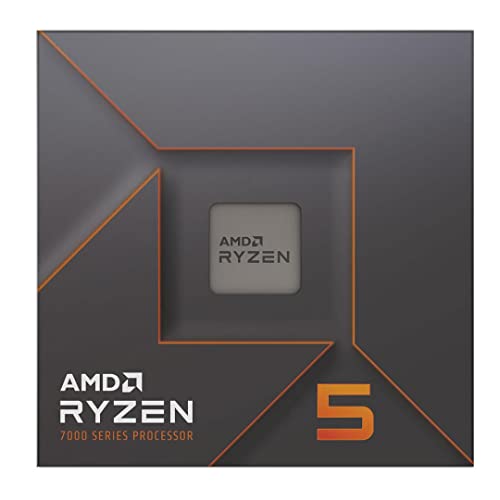
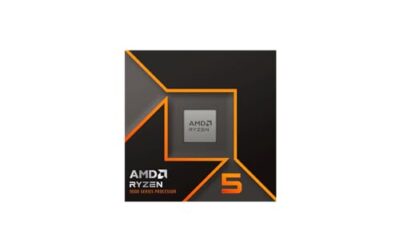
A CPU can run several threads at once. The AMD Ryzen 5 7600X, for example, has six physical cores and supports 12 threads. Software still has to divide its work across those threads. If one game thread is busy preparing a frame and the other threads are waiting on it, the CPU can set the pace even with resources available elsewhere.
GPU: a processor built for parallel work
GPU stands for graphics processing unit. A screen contains millions of pixels, and a rendered scene calls for similar operations across lots of vertices, pixels or samples. A GPU can keep large groups of threads working across that data together. The same design helps in workloads like applying a filter across a large image or tracing many rays in a 3D scene, provided the application can put that work on the GPU.
GPUs also have hardware for particular jobs, such as decoding certain video formats. Which hardware an app uses depends on the format, driver and app support. And a GPU’s compute units are organized differently from CPU cores. Those two core counts describe different things, so comparing the numbers alone won’t tell you which process will finish first.
CPU vs GPU rendering
In a game, the CPU updates the scene and submits work for the GPU. Those steps overlap as the game keeps producing frames. Raising the resolution from 1920 × 1080 to 2560 × 1440 increases the number of pixels from about 2.1 million to about 3.7 million at native rendering resolution. That’s about 78% more pixels before considering upscaling. The GPU has more pixels to shade, while the game still has the same cast of characters to animate and simulate. Other settings, such as crowd density or view distance, can change work for both processors.
For offline 3D work, the renderer may let you choose which processor calculates the final image. Blender’s Cycles supports CPU rendering and GPU rendering through options such as CUDA, OptiX, HIP, oneAPI or Metal, depending on the hardware and operating system. A compatible GPU can speed up rendering. Check the renderer’s support and whether a representative scene fits in the card’s VRAM before budgeting for one. Large textures and complex geometry can change that calculation, and rendering on the same card that drives the display can make the interface less responsive.
Integrated graphics vs a dedicated graphics card
An integrated GPU sits in the processor package and typically uses some of the system’s RAM. On a desktop like a Ryzen 5 7600X build, it can drive a monitor through a compatible motherboard’s display output. Check the exact processor model for integrated graphics and the board for the outputs you need. The presence of an HDMI port on the board alone can’t tell you whether the CPU can supply a picture. Our guide to integrated graphics covers how shared memory works.
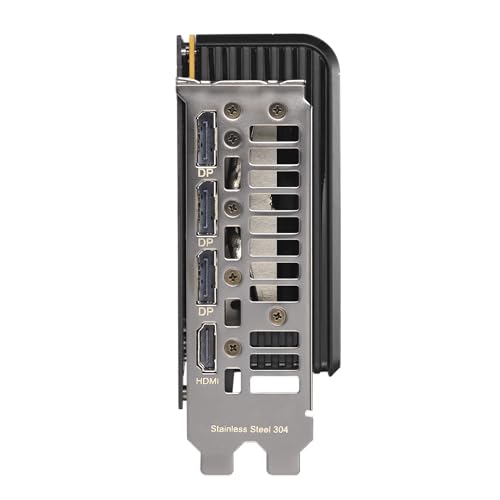
A dedicated desktop graphics card adds a discrete GPU, its own video memory and its own cooler. The ASUS Prime GeForce RTX 5060 OC Edition, for example, is a separate PCIe card with 8 GB of GDDR7 and an eight-pin power connector. If you add a card like this to a desktop for gaming, typically you’ll connect the monitor to the card’s ports. Check the exact card’s length, thickness and power connector against your case and power supply before ordering.

How to tell which part is holding you back
Start with a repeatable stretch of a game where the frame rate falls short. Same scene. Same camera path. Check whether vertical sync, an explicit frame-rate cap or frame generation is affecting the numbers. Then, keeping everything else consistent, lower the render resolution and compare frame rate and frame times. If performance rises substantially and the GPU’s 3D engine was heavily loaded at the original setting, graphics work was likely the constraint there.
If dropping the resolution barely changes the result, there’s a reason to look beyond graphics settings. Watch per-logical-processor activity as well as total CPU usage. A game can stall on one busy thread while overall CPU usage looks moderate. A busy thread can also move between cores, making the pattern harder to spot. A graphics engine waiting for new work can show low activity even if the game is struggling.
Look at the graph that matches the task. Windows Task Manager can show separate engines for 3D, compute or video decoding. A busy video decoder tells you little about whether a game could push more 3D frames. Similarly, a spike in frame time can come from shader compilation, asset streaming or background work. Compare more than one pass before treating a single hitch as an upgrade signal. See our CPU bottleneck guide for more diagnostic clues.
Frame time also puts your target in context. At an even 60 frames per second, a new frame arrives about every 16.7 milliseconds. At 144 frames per second, it’s about every 6.9 milliseconds. A game can average the frame rate you want yet feel uneven if some frames take far longer than the rest. When you compare the same scene, look for steadier frame delivery as well as a higher average.
Which should you upgrade first?
- Competitive games at 1080p and low settings: If your graphics card has room to spare and lowering resolution hardly moves frame rate, compare game-specific CPU results. Our gaming CPU guide can help you narrow the options.
- Visually demanding games at 1440p or 4K: If the graphics engine stays busy and lowering resolution helps, compare GPUs at the resolution and settings you plan to use. Check the 1440p graphics card guide if that’s your target.
- Office work, streaming video and school: Integrated graphics can be enough if the chip handles your monitor setup and the apps you use. If a task drags, identify whether it’s waiting on the processor, memory or storage before buying hardware.
- 3D rendering or editing: Check which parts of your workflow the app accelerates. A GPU may help with rendering and supported effects while a CPU upgrade still helps with work the software runs on the CPU.
For a desktop build that can run without a separate graphics card at first, the Ryzen 5 7600X is one example of a CPU with integrated display output support. It requires an AM5 motherboard with a compatible BIOS and DDR5 RAM. If you’re upgrading an older platform, factor in the cost of the board and memory. If you already have an AM5 desktop, start with your board’s CPU support list.

Pros
- 5.3GHz boost clock is competitive for 1080p gaming frame rates in single-threaded workloads
- 38MB combined cache (L2 + L3) reduces latency compared to prior Ryzen 5000 series chips
- AM5 socket offers a longer upgrade path than the now-retired AM4 platform
- Integrated Radeon Graphics useful for POST testing before discrete GPU installation
Cons
- Zero verified owner reviews at time of writing - real-world reliability data is absent
- 105W TDP runs warm under load and requires a quality cooler not included in the box
- AM5 platform mandates DDR5 memory, adding cost over DDR4-compatible alternatives
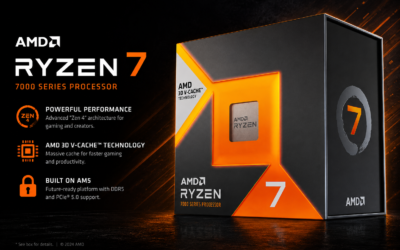
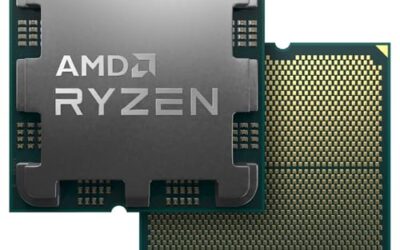
The AMD Ryzen 5 7600X is a mid-range desktop CPU aimed at custom PC builders moving to the AM5 platform who want capable gaming and general productivity performance without the cost of an 8-core chip. Combining 6 Zen 4 cores with a 5.3GHz max boost clock on a 5nm process node, this processor targets 1080p and 1440p gaming builds and light multitasking workloads. It is best suited for builders pairing it with a mid-range GPU like an RTX 4060 or RX 7600, not users running heavily threaded workloads like 3D rendering or video encoding where more cores pay off.
The Zen 4 architecture is the headline story here. Moving from 7nm to 5nm compared to Ryzen 5000 series chips, AMD extracted meaningful improvements in instructions-per-clock alongside higher boost frequencies. The 5.3GHz ceiling is the highest base boost available on a Ryzen 5 chip at this tier, and third-party benchmark data from sources like GamersNexus and Hardware Unboxed has shown the 7600X trading blows with Intel's Core i5-13600K in gaming, with the outcome varying by title and memory configuration. The 32MB L3 cache, while smaller than the X3D variants, still provides a solid hit rate for gaming workloads. Pairing the chip with fast DDR5 memory matters here - slower kits can leave measurable frame rate on the table.
AMD has not bundled a stock cooler with the 7600X, which is worth noting upfront. The 105W TDP - and the chip's tendency to spike toward its 142W Package Power Tracking limit under boost - means a quality 240mm AIO or a strong tower air cooler like a Noctua NH-D15 or be quiet! Dark Rock Pro is the practical minimum for sustained performance. The AM5 platform's Socket AM5 uses LGA-style contact points, a change from AM4's PGA design, so handling requires care during installation.
There are several considerations worth flagging before purchasing. Most importantly, this listing carries no verified owner reviews at the time of writing, which makes it genuinely difficult to assess real-world quality consistency, shipping condition, or seller reliability for this specific listing. Buyers should treat this as an early or low-traffic listing and cross-reference with reviews of the same chip from other verified retailers. Additionally, the 7600X runs hotter than the non-X variant (7600) at stock settings, and some owners of the broader 7600X have reported the chip benefits from a slight power limit reduction in BIOS without meaningful performance loss - a consideration for less experienced builders. The AM5 platform's DDR5 requirement also adds to total build cost compared to B660 or B760 Intel boards that still accept DDR4.
Overall, the Ryzen 5 7600X is a technically capable mid-range CPU with a well-documented architecture and a clear place in AM5 gaming builds - but the absence of any owner feedback on this specific listing is a real gap that cautious buyers should address before committing. Check for updated reviews from verified purchasers, compare pricing against the non-X Ryzen 5 7600 which runs cooler and costs less at similar gaming performance, and confirm the seller's return policy before finalizing the order.
For gaming, use your target resolution and frame rate to decide where to spend first. For general use or rendering, let the applications you use most often make that decision. The useful upgrade is the one that shortens the wait you’re actually seeing.
FAQ
Is a GPU the same thing as a graphics card?
GPU means the processor itself. A graphics card is the whole assembly, which includes that processor, memory, cooling and display ports. An integrated GPU handles graphics from inside the processor package and needs no separate card.
Can upgrading the GPU make everyday apps faster?
It can help with features the app already accelerates, such as certain effects or video formats. Opening a slow spreadsheet or loading a crowded browser session can depend more on CPU speed, memory, storage or network access, depending on where the delay occurs.




Write Your Review
No reviews yet. Be the first to share your experience!