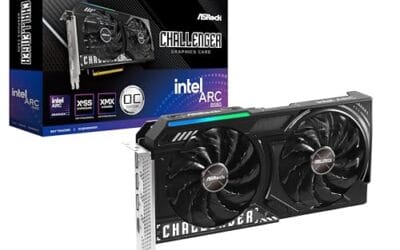
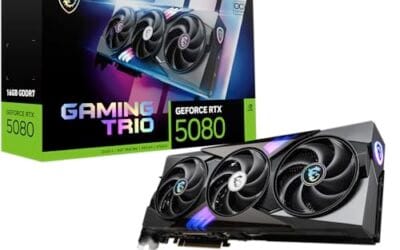
Modern GPUs ship from the factory with voltage curves tuned for the worst silicon in the bin. Yours probably runs cooler and stabler than the default voltage demands. Undervolting trims that excess, dropping temperatures by 10 to 15 degrees and shaving 30 to 80 watts off your power draw with almost no FPS loss. Done right, it’s the cleanest free upgrade in PC tuning. Here’s how to dial it in without bricking your card.
What you’ll need
MSI Afterburner is the standard tool, and it’s free regardless of which brand made your card. Grab the latest version from msi.com and install it. You’ll also want a stress utility to verify stability. OCCT or 3DMark’s Speed Way loop both work well. Add a temperature monitor (HWiNFO64) so you can watch how the curve behaves under sustained load.
Time-wise, plan on 90 minutes for your first attempt. Most of that is waiting for stability runs to finish. You can break it into shorter sessions if you’d rather. Just don’t rush the verification phase. A bad undervolt that crashes mid-game costs more time than a careful one.
Step 1: Baseline your card first
Before you touch anything, write down your stock numbers. Run a 10-minute loop of your favorite demanding game or 3DMark’s Time Spy stress run, then note: peak temperature, average clock under load, power draw at the wall (or via Afterburner’s TBP reading), and the score you hit. That’s your reference. You’re trying to beat the temps and power without losing more than 1 to 2 percent of the score.
Pros
- Approachable entry point into GPU concepts for readers without a hardware engineering background
- Ties abstract silicon topics to visible outcomes like pixels, frames, and rendered scenes
- Narative format works as a shortlist reference before committing to a specific card
Cons
- Limited owner feedback at time of writing, hard to gauge depth or technical accuracy
- Page count, edition, author credentials, and publication year not specified in source data
- Not a replacement for current architecture whitepapers when spec-shopping new NVIDIA or AMD GPUs
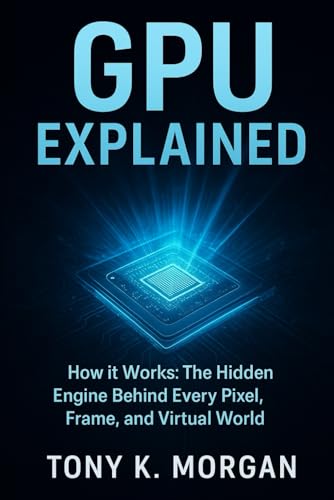
Majosta GPU Explained is a consumer-facing technology title covering how graphics processors turn compute workloads into rendered frames. Filed under Technology and Science History, it targets curious PC builders, students, and gamers who want plain-language context on GPU internals before committing to a specific card or upgrade path in the current generation.
The defining angle is the pixel-to-frame narrative rather than a spec sheet dump. Based on the title and category, expect coverage of the rendering pipeline, shader stages, and virtual world simulation framed for a general audience. Consumer technology books in this tier typically run 100 to 250 pages of narrative rather than dense reference tables.
Trade-offs are typical for a general-audience technology book. It will not replace vendor whitepapers on RDNA, Ada Lovelace, or Blackwell when comparing TGP, VRAM capacity, or ray tracing throughput. Source data does not specify page count, edition, or author credentials, so depth relative to Digital Foundry or GamersNexus write-ups cannot be confirmed.
Buy this if you want an accessible primer on GPU architecture before spending on an RTX or Radeon build, and you prefer long-form reading to video walkthroughs. Skip this if you already read architecture deep dives, need current benchmark data, or want a certification-style textbook rather than a narrative technology read.
Format and Category: Listed under Neural Networks and Technology and Science History books, indicating a consumer trade title rather than an academic textbook. Source data does not specify page count, ISBN, format (paperback, hardcover, or Kindle), or publication year, so length and edition cannot be confirmed from the listing alone.
Scope of Coverage: Title framing points to four concept clusters: the GPU as a compute engine, pixel-level rendering, frame construction, and virtual world simulation. Books at this length typically dedicate 30 to 60 pages per major concept, though the exact chapter split is not specified in the source data.
Target Reader: Positioned for readers with 0 to 2 years of PC hardware background who understand terms like CPU and RAM but want structured context on shader cores, memory bandwidth, and VRAM roles before choosing a card in the 8GB to 16GB VRAM tier.
What Is Not Covered: No indication of benchmark tables, current-generation SKUs, or overclocking guidance. Buyers looking for GDDR7 speeds, PCIe 5.0 bandwidth figures, or AV1 encode comparisons should treat this as background reading and pair it with current review site data.
Step 2: Open the voltage-frequency curve editor
In Afterburner, press Ctrl+F. A graph pops up with voltage on the x-axis and frequency on the y-axis. Each dot represents a point on your card’s stock curve. Higher voltage means higher allowed clock. You’re going to flatten the right side of that curve so the GPU hits its target clock at a lower voltage than it normally would.
First, identify your card’s stock peak voltage under load. For most RTX 40-series and RX 7000-series cards, that’s somewhere between 1000 and 1100 millivolts. Cards like the RTX 4090 and 7900 XTX run higher. Watch HWiNFO during the baseline run to confirm the exact number.
Step 3: Pick your target voltage and clock
Start conservative. If your card hits 1.05V at 2700 MHz stock, aim for the same 2700 MHz at 950mV. That’s a 100mV drop, which is meaningful but not aggressive. Find the 950mV dot on the curve and drag it up to where 2700 MHz sits on the y-axis. Hold Shift and click-drag to select every dot to the right of your target voltage, then drag those down so they sit at or below your target clock. This creates a flat-top curve: voltage scales up to 950mV, then frequency holds steady regardless of how much more voltage Windows requests.
Hit Apply (the checkmark icon) in Afterburner. The curve takes effect immediately. Your idle clock won’t change. You’ll only see the difference under load.
Step 4: Stress run to confirm stability
Launch OCCT’s GPU 3D stress run or 3DMark Speed Way’s stress loop. Let it loop for 20 minutes. Watch for crashes, driver timeouts (the screen flashes black and recovers), or visual artifacts like flickering polygons. Any of those means you’ve gone too low on voltage. Back off the voltage by 25mV and run it again.
Stable in synthetic loads doesn’t always mean stable in games. After OCCT passes, fire up the most demanding title in your library and play for an hour. Cyberpunk 2077 with ray tracing, Indiana Jones with path tracing, Hogwarts Legacy on Ultra. Those load the GPU in unpredictable ways that synthetic runs miss. If you crash to desktop, that’s the same signal: voltage too low.
Pros
- Volume numbering makes it easy to slot alongside earlier GPU Zen books.
- Advanced scope avoids rehashing basic rasterization, API setup, and beginner shader material.
- Chapter based structure lets you read single techniques standalone without sequential reading.
Cons
- Limited owner feedback at time of writing, so content quality is unverified.
- No table of contents, page count, or format specified in the listing.
- Advanced framing assumes existing shader and graphics pipeline experience, unsuitable for beginners.
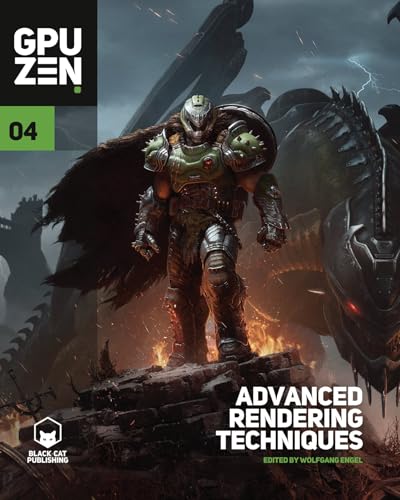
GPU Zen 4 is the fourth volume in the GPU Zen series of advanced rendering collections, published by Black Cat Publishing Inc. and listed under Computer Science. It targets graphics programmers already writing shader and engine code, not readers looking for an introductory GPU or API tutorial.
The defining trait is the series format: chapter contributions from working graphics engineers on specific rendering problems rather than a single author textbook narrative. Titles in this series typically cover shadows, lighting, geometry handling, and general GPU programming, though the actual chapter list for this volume is not specified.
Listing data is thin: no description, feature bullets, page count, format, or table of contents appear in the source. That matters more for a technical book than for hardware, since chapter topics determine whether content overlaps volumes you already own. Owner feedback is also absent at time of writing.
Buy this if you write real time rendering code professionally and want chapter level techniques from other engineers working on shipping engines. Skip this if you need API fundamentals, a structured course, or confirmation of specific chapter topics before purchase, since the listing does not disclose them.
Edition and series: This is volume 4 of the GPU Zen line, implying three prior volumes. Volume numbering is the only edition data the listing provides, and no revision date, publication year, ISBN, or print run is specified.
Subject classification: Filed under Computer Science with the subtitle Advanced Rendering Techniques, which places it at shader, pipeline, and algorithm level rather than tooling. No API list, engine version, or target GPU generation appears in the source data.
Format and page data: The specifications field returns an empty array, so page count, dimensions, and print versus digital format are all not specified. Confirm the format on the product page first if you specifically need a print copy.
Publisher: Black Cat Publishing Inc. is the listed publisher, the imprint associated with the GPU Zen series. No errata policy, companion code repository, or supplementary sample download is specified anywhere in the listing data.
Step 5: Push lower if you’ve got headroom
Stable at 950mV/2700 MHz? Try 925mV at the same clock. Repeat the verification loop. Stable at 925mV? Try 900mV. Most modern cards land somewhere between 875mV and 950mV for their best efficiency point. Below 875mV, you start losing meaningful performance because the clock can’t hold. Above 1000mV, you’re not really undervolting anymore.
AMD cards using Adrenalin’s built-in tuning skip Afterburner entirely. Open Adrenalin, head to Performance, Tuning, switch the GPU tuning dropdown to Manual, enable GPU tuning, and set your max frequency and minimum voltage there. The behavior is similar but the interface is simpler.
Step 6: Save the profile and set it to load at boot
Once you’re happy, click one of the profile slot numbers in Afterburner (1 through 5) to save the curve. Then click the Settings gear, General tab, and tick “Apply overclocking at system startup” plus “Start with Windows.” That way your undervolt loads automatically and you never run stock voltages by accident.
Verify it worked
Re-run the same benchmark you used for your baseline. Compare the four numbers: peak temp, average clock, power draw, and score. A good undervolt drops temps by 8 to 15 degrees, drops power by 40 to 80 watts, keeps the clock within 1 to 2 percent of stock, and scores within 1 to 2 percent of baseline. If your score dropped 5 percent or more, you’re undervolting too aggressively and the clock isn’t holding. Raise the voltage 25mV and recheck.
Fan noise is the bonus payoff. Lower temps mean the fan curve doesn’t ramp as hard, and your card runs noticeably quieter under sustained load. That alone makes the exercise worth it for folks who game with headphones off.

Pros
- Narrow subject focus keeps the workflow readable for complete beginners
- Text format makes stepping back through clock increments easier than scrubbing video
- Covers a topic where small gains still help older GPUs at 1080p
Cons
- No owner feedback published at time of writing, so depth is unverified
- Listing omits page count, edition date and publisher, making scope impossible to confirm
- Overclocking guides age quickly as GPU boost algorithms and tuning tools change
This is a short instructional title on GPU overclocking, sitting at the budget end of the Hardware and DIY category rather than alongside full technical manuals. Brand, page count and publisher are not specified in the listing. Target buyer: a first-time builder who owns a mid-range NVIDIA or AMD card and wants safe headroom.
The defining angle is safety framing, pushing core and memory clocks in small increments, then validating with stress loops before calling a profile stable. Guides in this tier typically cover MSI Afterburner sliders, power limit and temperature targets, and fan curve edits, though the listing does not confirm which tools are used.
Trade-offs are clear. With no description, feature list or owner feedback published, depth and screenshot quality are unverified, and short digital titles in this tier often lag behind current GPU architectures. Gains on modern boost-managed cards are also modest, and voltage tuning still risks instability regardless of how careful the instructions are.
Buy this if you are new to GPU tuning, want a structured walkthrough of power limits, temperature ceilings and stability testing, and prefer reading over video tutorials. Skip this if you already run Curve Optimizer or per-game undervolt profiles, or need coverage tied to a specific RTX or Radeon generation.
Format and scope: The listing specifies a single digital title in Hardware and DIY with no page count, edition date or publisher shown, so treat scope as introductory. Guides of this length typically run under 100 pages and cover one tuning workflow rather than per-architecture deep dives.
Tooling covered: Not specified in the source. Overclocking walkthroughs in this tier normally center on MSI Afterburner plus a stress test tool, with core offsets stepped in 15 to 25 MHz increments and memory in 50 to 100 MHz steps before each validation run.
Thermal and power ceilings: Also unlisted. Typical safe targets referenced in this category are GPU core temperatures below 83 C, memory junction below 95 C on GDDR6X cards, and power limit increases held to the vendor slider range, usually 10 to 20 percent.
Hardware applicability: No supported GPU list is specified. Boost-managed NVIDIA RTX and AMD Radeon cards already self-tune aggressively, so realistic manual gains sit near 3 to 7 percent, and undervolting often beats raw clock pushes on cards above roughly 200W TGP.
Common questions
Will undervolting void my GPU warranty?
No. Undervolting reduces stress on the silicon, and manufacturers can’t detect it after the fact since it lives in software, not firmware. Overclocking with voltage increases is a different conversation. Pure undervolts are safe across every brand I’ve seen.
How do I undo an undervolt?
Open Afterburner, hit the Reset button (curved arrow icon), and Apply. Curve snaps back to factory. If Windows hard-crashes from a bad undervolt, boot into Safe Mode and uninstall Afterburner, then reinstall.
Does undervolting hurt performance?
Usually 0 to 2 percent loss in real games. Many users actually gain performance in thermally limited cases because the GPU stops throttling. Mini-ITX builders see the biggest gains.
Can I undervolt a laptop GPU?
Sometimes. Afterburner works on mobile RTX cards if the laptop manufacturer didn’t lock the BIOS. AMD mobile GPUs are mostly locked. If the voltage slider in Afterburner is greyed out, your laptop vendor disabled it and there’s no clean workaround.
How long does the verification phase actually take?
Plan on at least an hour of real-game runtime per voltage step before you call a setting stable. Synthetic loops catch the obvious failures in 20 minutes, but workload patterns in actual games are different enough that a few specific titles will crash a curve that synthetics passed. Don’t rush this part.