

Choose WD Blue for bulk desktop storage, WD Black for a faster mechanical drive in a desktop that needs one, and WD Red Plus for a compatible home or small-office NAS. If you’re buying a drive for Windows or a game you play every night, put an SSD ahead of all three. The hard drive can hold the larger library.
We’re comparing 3.5-inch SATA hard drives here. WD also uses Blue and Black on SSDs, and the Red family includes both standard Red and NAS options called Red Plus and Red Pro. Start with the kind of drive your machine accepts, then match the full model number to the job.
WD Blue vs. Black vs. Red at a glance
These three examples have different capacities. Their specs apply to the listed model numbers. If you’ve already settled on a size, compare the specs and prices of drives at that capacity before ordering.
| Drive and model | Best fit | Recording | Spindle speed | WD limited warranty |
|---|---|---|---|---|
| WD Blue 8 TB (WD80EAAZ) | Desktop archives and media libraries | CMR | 5,640 RPM | 2 years |
| WD Black 4 TB (WD4006FZBX) | Faster desktop storage where an HDD makes sense | CMR | 7,200 RPM | 5 years |
| WD Red Plus 10 TB (WD100EFGX) | Shared files and backups in a compatible NAS | CMR | 7,200 RPM | 3 years |
What each WD hard drive is built for
WD Red, Red Plus, and Red Pro for NAS storage
A box that stays on all week. That’s a typical job for WD Red Plus, especially if the NAS holds family photos, shared folders, and backups from more than one computer. WD rates the 10 TB WD100EFGX for 180 TB of annual workload and lists it for RAID-optimized NAS systems with up to eight bays. WD also specifies RAID error recovery controls for Red Plus, which matter in a multi-drive enclosure.

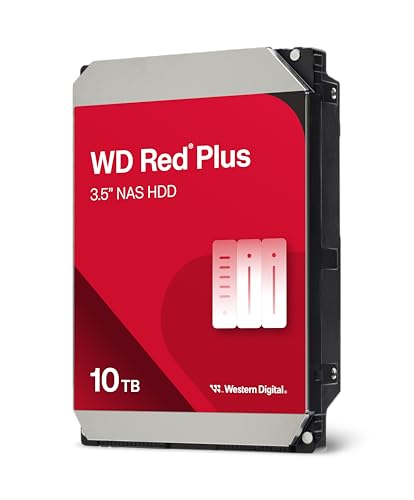
Plain WD Red is easy to confuse with Red Plus. WD’s 4 TB WD40EFAX standard Red uses shingled magnetic recording (SMR), which WD positions for lighter workloads. Red Plus uses conventional magnetic recording (CMR), the better starting point for a home RAID array. Look at Red Pro when the enclosure or heavier shared workload calls for it. WD rates that range for up to 550 TB per year, so weigh the extra cost against how much data the NAS actually moves.
WD Blue for everyday desktop storage
A single drive for a lot of files. That’s where an 8 TB Blue like the WD80EAAZ fits. Keep your operating system and current work on an SSD, and use the Blue for old project folders, photos, local video, and games you’re keeping for later. Once the archive fills the SSD, this setup lets you expand the storage you need while keeping your everyday apps on the SSD.

Blue’s model number is especially important if you’re looking at 4 TB. WD lists the WD40EZAX as CMR and the similarly named WD40EZAZ as SMR. Both are 5,400 RPM models with a 256 MB cache, so matching the capacity, speed, and cache on two listings still leaves a meaningful difference. For a desktop drive you frequently fill, clear, and refill, I’d choose the CMR model when prices are close.
WD Black for faster mechanical desktop storage
The 4 TB WD4006FZBX is a 7,200 RPM CMR drive with a five-year limited warranty in WD’s specifications. It makes sense if you’re committed to a mechanical drive, move large folders regularly, and can use the higher transfer ceiling. Western Digital lists up to 267 MB/s for this Black model and up to 215 MB/s for the 8 TB Blue above. Those are manufacturer figures for specific drives. Actual copies depend on the drive, files, and the device at the other end.

Think about the reason you’re upgrading. A Black can suit a PC that needs a secondary drive for a large collection of recordings. If the issue is waiting for new game areas to load or moving through dozens of small project assets, put the active files on an SSD if you can. For a wider look at mechanical options, see our gaming hard drive guide.
How RPM and recording method affect your files
Higher RPM reduces the average time the platter takes to rotate the requested data under the head. A spin at 7,200 RPM takes about 8.3 milliseconds, compared with about 10.6 milliseconds at 5,640 RPM. On average, the rotational portion of a random access is about half a turn. The head still has to seek, and the application may issue other requests. The hard drive RPM guide explains how that plays out with different file sizes.
Sequential copies depend on how much data a drive reads or writes as the platter turns. That’s why Western Digital rates the 7,200 RPM Red Plus in the table at up to 260 MB/s, close to the 4 TB Black’s rating despite their different roles. SATA 6 Gb/s describes the interface. For a big folder of video clips, compare model-specific transfer figures and think about whether the source and destination can sustain those rates.
CMR lays tracks side by side. SMR overlaps them to increase density, which can mean reorganizing data when existing regions are rewritten. An SMR drive can suit an archive you add to occasionally and mostly read back. For frequent large updates or a RAID rebuild, choose a compatible CMR drive so sustained writes are less likely to run into that extra work.
Check the bay and the workload before paying
For a tower PC, check the case for a free 3.5-inch mount, the motherboard for an available SATA data port, and the power supply for a SATA power connector. Some compact PCs have room for only a 2.5-inch drive or an M.2 SSD. On some motherboards, populating an M.2 slot also disables a particular SATA port. Check the board manual if you’re adding a drive alongside an existing M.2 SSD.
For a NAS, check the maker’s compatibility list for the exact SKU and capacity. If you’re replacing a failed disk in a pool, check the NAS’s replacement-size requirement before buying. For a first build, budget for usable capacity after redundancy and leave room for future backups. A two-disk mirror made with 10 TB drives holds roughly the capacity of one drive before formatting and other overhead. Keep a separate backup for anything you’d hate to lose, since deleting a file from the mirror affects the shared copy. Our first-time NAS setup guide walks through pools, shared folders, and backups.
For a like-for-like price check, compare the 4 TB Blue WD40EZAX, 4 TB Black WD4006FZBX, and 4 TB Red Plus WD40EFPX. All three use CMR. The Black is the 7,200 RPM model in that group, and the Red Plus is the NAS option. For a desktop archive, divide the total price by the advertised capacity and check whether the cheaper drive leaves enough room for growth. For a mirror, price both drives against the usable capacity of the pair. Check regional warranty coverage and seller terms for the exact listing before you buy.
Which WD hard drive should you buy?
- A desktop with a small SSD and a growing archive. Choose WD Blue in a capacity that gives you room to grow. Check the model for CMR if the archive gets rewritten regularly.
- A desktop that regularly moves big files and still needs a mechanical drive. Compare WD Black with a same-size Blue. Pay for the Black if you can use the extra throughput or value the longer limited warranty.
- A two- or four-bay home NAS. Start with a compatible WD Red Plus. Size the pool around usable capacity, and consider Red Pro if your enclosure or workload calls for the higher tier.
If you’re choosing between Blue and Black for a desktop, price the capacity you need first. If the drive is going into a NAS, put compatibility and sustained write behavior first. That decision will narrow the options more reliably than the color on the label alone.
How these drives were compared
The comparison uses manufacturer specifications for the exact models, including recording method, spindle speed, rated transfer speed, and limited warranty. The recommendations are based on where each drive fits in a PC or NAS. You can check the model specifications in WD’s Blue desktop drive specs, Black gaming HDD specs, and Red Plus NAS drive specs.
Frequently asked questions
Can I use WD Red Plus in a regular desktop PC?
Yes. A 3.5-inch SATA Red Plus can work as desktop storage if your case, power supply, and motherboard can accommodate it. It can be a reasonable choice when you’re reusing a spare drive or it costs less than a comparable desktop model. If you’re buying a fresh drive for occasional file storage, compare the Blue’s price at the same capacity.
Will a 10 TB drive show as 10 TB after I install it?
Expect some displays to show around 9.09 TiB for a 10 TB drive before formatting overhead. The label uses decimal terabytes and the smaller number uses binary tebibytes. If you’re adding a large disk to a modern Windows PC, choose GPT when initializing the new drive so the system can address the full capacity.







Write Your Review
No reviews yet. Be the first to share your experience!