

Every time you slide your mouse across a desk, a tiny camera under the hull is snapping thousands of pictures per second and doing math on them. That’s the mouse sensor, and it’s the single component that decides whether your cursor lands exactly where you meant it to or drifts a pixel off. Most people never think about it until a cheap mouse feels laggy or jittery, then suddenly the sensor matters a lot.
This is a plain-English breakdown of what the sensor actually does, why some cost more, and when the difference is worth paying for. If you’re already shopping, our guides to the best gaming mouse and the best mouse for work lean heavily on sensor quality, so understanding the part helps you read those picks and judge whether a spec sheet is bragging or actually telling you something useful.
The short answer
A mouse sensor is an optical device that tracks movement by photographing the surface beneath the mouse and comparing consecutive frames. When the images shift, the sensor calculates direction and distance, then reports that to your PC as cursor movement. It’s essentially a very fast, very low-resolution camera paired with a small image-processing chip. No moving ball, no mechanical parts, just light bouncing off your desk and a lens reading the pattern.
Two flavors dominate. Optical sensors use a red or infrared LED and work great on cloth and most opaque surfaces. Laser sensors use a laser diode that reads finer surface detail, which lets them track on glass and glossy tables where optical units struggle. The tradeoff is that a laser reads so deep into a surface that it can pick up texture you don’t want counted, and that historically showed up as subtle acceleration. For most gamers and office users, a modern optical sensor is the better pick because it’s cleaner and more consistent across the surfaces people actually use.

Pros
- Focus Pro 30K sensor handles glass and reflective desks that trip up older vertical mice
- Battery rated up to 6 months, 5 minute top-up returns roughly 3 working days of use
- Three connectivity modes with up to 5 paired devices covers desktop, laptop, and tablet rotation
Cons
- Limited owner feedback at time of writing, so long-term reliability signal is not yet available
- Vertical handshake shape has a real learning curve for existing claw and fingertip grip users
- Mouse weight and max DPI are not specified in source, hard to gauge fast-tracking responsiveness
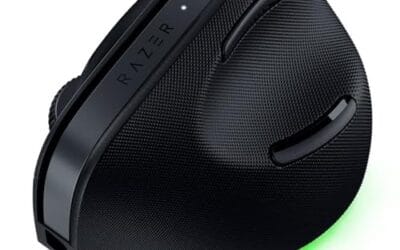
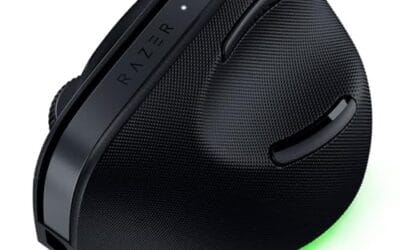
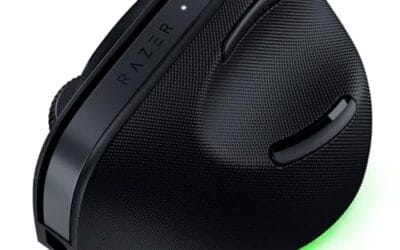
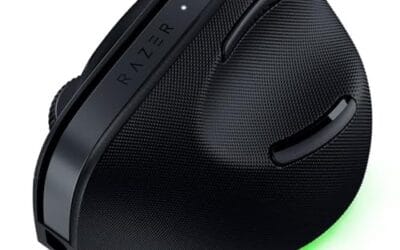
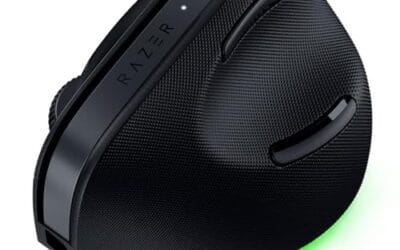
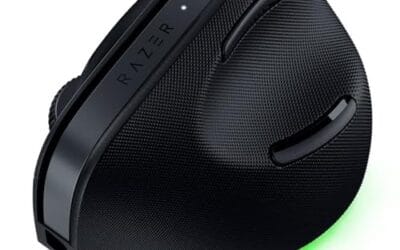
The Pro Click V2 Vertical is Razer's ergonomic wireless mouse aimed at knowledge workers and creators who log long sessions on Windows or Mac systems. The 6 button layout adds a dedicated AI prompt key tied into Razer Synapse 4 shortcuts for summarizing text and drafting emails.
The defining trait is the angled handshake shell with a wrist base that lifts your palm off the deck, reducing pronation on long days. Razer's Focus Pro 30K optical sensor handles glass and high-gloss surfaces, which vertical mice at this tier often struggle with due to older 3200 to 12000 DPI sensors.
Trade-offs are honest. Vertical shells force a handshake grip, so claw and fingertip users will fight muscle memory for a week or more. Battery is rated up to 6 months, but 18 zone Chroma with full underglow will cut that hard if you leave reactive lighting on. Mouse weight is not specified.
Buy this if you already know a vertical shape helps your wrist and you need one mouse hopping between a Windows tower, a MacBook, and a tablet over Bluetooth. Skip it if you plan to play competitive FPS titles, since vertical shells punish rapid tracking flicks and micro adjustments.
Sensor: Focus Pro 30K optical sensor with a claimed 99.8% resolution accuracy. Razer uses this same sensor family across its high-end lineup, so tracking on glass, mousepads, and gloss desks is realistic. Max DPI and polling rate are not specified in source data.
Switches and Buttons: Mechanical switches rated to a 60 million click lifecycle. Six total buttons include a dedicated AI prompt key mapped through Synapse 4 for text summarization and email drafting shortcuts on Windows.
Connectivity: Three modes ship in the box: 2.4GHz HyperSpeed via bundled dongle, Bluetooth with up to 3 host pairings, and USB-C wired. Combined device ceiling is 5, letting you rotate between desktop, laptop, tablet, and a secondary machine without re-pairing.
Battery and Charging: Rated up to 6 months under standard test conditions, with 5 minutes of USB-C charging yielding roughly 3 working days. The 18 zone Chroma RGB plus full underglow will cut that figure significantly if reactive lighting stays enabled.
The longer explanation
Inside the sensor housing sits an image sensor, a lens, and a light source. The LED or laser illuminates the surface at a low angle so tiny bumps and fibers cast shadows. The lens focuses that lit patch onto the image sensor, which grabs frames at a blistering rate, often 6,000 to 12,000 frames per second on good hardware. A digital signal processor then lines up each frame against the last one and measures how far the surface texture moved.
That movement gets converted into counts, and the density of those counts is what marketing calls DPI, or dots per inch. You’ll sometimes see the same idea labeled CPI, counts per inch, which is the technically correct term since the sensor reports counts rather than screen dots. Both describe the same thing: how far the cursor travels for a given amount of physical hand motion. Higher DPI means the cursor moves farther for the same swipe. People assume more DPI is always better. It isn’t. What actually separates a great sensor from a mediocre one is tracking accuracy at speed, low latency, and the absence of smoothing or acceleration you didn’t ask for. A clean sensor reports exactly what your hand did, no guessing.
How it works step by step
Picture the sequence. Light hits the surface. The image sensor captures frame one, showing a rough map of shadows and highlights. A microsecond later it captures frame two. The processor overlays the two and finds that the pattern shifted, say, three pixels left and one pixel up. It converts that pixel shift into movement counts using the configured DPI, buffers the result, and pushes it to your PC over USB or wireless at the polling rate.
That polling rate deserves its own note. It’s how often the mouse tells the PC where it is, measured in hertz. A 1,000Hz mouse reports 1,000 times per second, or once every millisecond, and newer flagships push 4,000Hz or 8,000Hz. Frame rate and polling rate are separate numbers that people mix up constantly. The sensor can photograph the surface far faster than it reports, so a high frame rate feeds a clean signal into whatever polling interval you choose. Both need to be solid for motion to feel locked in.
The whole loop repeats endlessly while the mouse is on. Because it happens thousands of times a second, motion feels instant. The magic isn’t any single step. It’s the speed and the consistency of doing it over and over without dropping frames or misreading the surface. That’s the difference you feel when a budget sensor spikes during a fast flick versus a premium one that stays glued to your aim.
Why it works this way
Optical image tracking won because the old mechanical ball design was awful. Balls picked up dust and skin oil, the internal rollers gummed up, and you had to pop the ball out and scrape the gunk off every few weeks. An image sensor has no contact parts, so it doesn’t wear or clog. It’s sealed, quiet, and cheap to make at scale.
Reading surface texture with light also turns out to be far more precise than counting roller rotations. A camera can resolve movement down to fractions of a millimeter and update thousands of times faster than a spinning wheel ever could. That precision is why competitive players care so much about the specific sensor model in their mouse. Names like the PixArt PMW3360 and the later PAW3395 became reference points because reviewers documented their tracking speed and consistency, and a mouse built on a known-good sensor carries that reputation with it. The physics of photographing a desk simply beats the physics of dragging a rubber ball.
When you’d want a high-end sensor
If you play shooters, do photo or video editing, or design in CAD, a top-tier sensor pays off. You’ll notice tighter tracking on fast flicks, no cursor drift when you lift and reset the mouse, and consistent behavior at high DPI. Creative pros benefit from the same accuracy because selecting a single pixel in a large image demands a sensor that reports movement honestly, without smoothing that rounds off your intent.
Ergonomic and vertical mice have caught up here too. The best ergonomic vertical mouse models now ship with the same class of sensor found in flagship gaming gear, so you don’t trade precision for wrist comfort anymore. The Logitech MX Vertical, for example, pairs a 4,000 DPI optical sensor with a 57-degree angled shape at $68.49 and a 4.8 rating, which is why it lands on so many work-from-home desks.

Pros
- Limited public review data at time of writing, so verify current owner sentiment before purchase.
- Vertical layout targets wrist pronation strain reported by heavy office and CAD users.
- Bluetooth plus USB receiver gives flexible pairing across laptops, docks, and desktops.
- Four-month typical battery cadence reduces charging friction versus daily-charge gaming mice.
Cons
- Zero visible owner reviews in source, so long-term reliability signal is effectively absent.
- Sensor model, max DPI, poling rate, and weight not specified in source data.
- Vertical shape has a learning curve and does not suit claw or fingertip grip gamers.
The Logitech MX Vertical is an ergonomic productivity mouse aimed at office workers, developers, and creative professionals dealing with wrist or forearm discomfort. It sits in Logitech's mid-range MX ergonomic lineup, offering wireless connectivity through Bluetooth or a USB receiver and cross-platform support for Windows and Mac desks.
The defining feature is the angled vertical shell, which shifts the hand into a more neutral handshake posture and reduces forearm pronation during long sessions. Based on typical vertical-mouse ergonomics, users transitioning from a flat mouse should expect a short adjustment period before cursor precision in tasks like document editing and photo work returns to baseline.
Trade-offs are real at this tier. Logitech does not publish sensor model, max DPI, polling rate, or weight in the provided source, which maters for buyers comparing tracking specs. The shape also favors palm grip, so claw and fingertip users, and gamers chasing esports poling rates, will find it a por fit versus a symetrical gaming mouse.
Buy this if you spend long hours in office aps, code editors, or creative suites and want a vertical grip with dual Bluetooth and USB receiver support. Skip this if you need documented gaming-grade sensor specs, low click latency, or a shape optimized for claw and fingertip grip styles.
Sensor and DPI: Logitech lists only an unspecified optical sensor in the source, with no max DPI, polling rate, or lift-off distance provided. MX-series ergonomic mice at this tier typically ship with 400 to 4000 DPIranges tuned for office precision rather than the20000-plus DPI figures sen on gaming rivals.
Wireless connectivity: Dual-mode support covers Bluetooth Low Energy and a 2.4GHz USB receiver, letting one mouse move between a docked laptop and desktop without repairing. Wireless latency is not specified, but Logitech ergonomic mice at this tier areuned for productivity, not competitive first-person shooter response windows.
Battery life: Rated at roughly four months of typical use on a full charge, which lines up with once-per-quarter charging cadence for eight-hour workdays. Actual runtime will drop with heavy Bluetooth use, higher DPI settings, or frequent wake cycles across multiple paired devices during the day.
Shape and grip fit: The vertical shell is engineered around a palm grip with angled thumb rest. Weight, length, and grip width are not specified in the source, so hand-size fit should be validated in person, especially for users with hands under about 17 centimeters.
What to look for in a mouse sensor
Skip the DPI arms race. Nobody games at 26,000 DPI. Look instead at maximum tracking speed, measured in inches per second, which tells you how fast you can move before the sensor loses the surface. Look at maximum acceleration in Gs, and check reviews for mentions of drift, jitter, or built-in smoothing. Jitter is the giveaway that a sensor is guessing: draw a slow straight line and a weak sensor renders it as a shaky, wobbling path instead. A good spec sheet lists these numbers plainly. Also confirm the sensor tracks well on your actual surface, since glass desks need a laser or a specifically capable optical unit.
Lift-off distance matters if you play at low sensitivity and reposition the mouse often. It’s the height at which the sensor stops tracking as you raise the mouse, and a short lift-off distance means tracking cuts out the instant you lift, so your aim doesn’t shift mid-motion. Many good mice let you tune it in software, often to one or two millimeters. Wireless models add one more thing to weigh: a strong sensor is wasted if the wireless link introduces lag, so pair sensor quality with a proven low-latency connection.
Common misconceptions
The biggest myth is that DPI equals accuracy. It doesn’t. DPI is just cursor speed, and cranking it past a few thousand mostly makes the pointer twitchy. Accuracy comes from clean tracking, not big numbers. Another myth is that laser always beats optical. Laser reads more surface detail, which sounds better, but that extra sensitivity historically introduced acceleration artifacts, meaning the cursor traveled a different distance depending on how fast you moved. Modern optical sensors are the gold standard for competitive play precisely because they avoid that.
People also assume all wireless mice add lag. That was true a decade ago. It isn’t now. Today’s 2.4GHz connections match or beat wired latency, so a wireless mouse with a flagship sensor gives up nothing. And no, a fancy mousepad won’t fix a bad sensor, though a consistent surface does help any sensor perform at its best.
Frequently asked
What is DPI and does a higher number make me better?
DPI, or dots per inch, sets how far your cursor moves per inch of hand motion. A higher number just means a faster cursor, not more accuracy. Most competitive players sit between 400 and 1,600 DPI and adjust in-game sensitivity from there. Chasing five-digit DPI numbers is marketing, not performance.
Optical or laser, which sensor should I get?
For gaming and general use, optical is the better choice because it tracks cleanly without unwanted acceleration. Laser earns its place if you need to use the mouse on glass or a glossy surface where optical sensors can stutter. For a normal cloth or hard mousepad, optical wins.
Why does my cheap mouse feel jittery during fast movements?
Budget sensors often have a low maximum tracking speed, so when you move faster than the sensor can photograph the surface, it drops frames and the cursor spikes or jumps. Higher-end sensors track much faster, up to several hundred inches per second, which keeps motion smooth during quick flicks.
Do vertical and ergonomic mice have worse sensors?
Not anymore. Early ergonomic models cut corners on the sensor, but current flagships like the Logitech MX Vertical at $68.49 and the Razer Pro Click V2 at $113.99 use precise optical sensors comparable to standard-shape mice. You can get wrist comfort and solid tracking in the same device now.
Does a mousepad affect how the sensor performs?
Yes, though not as much as people think. A consistent surface with visible texture gives the sensor a clear pattern to track, which helps accuracy and lift-off consistency. A worn or reflective surface can confuse some sensors. A decent mousepad won’t turn a bad sensor good, but it lets a good sensor do its job.



























Write Your Review
No reviews yet. Be the first to share your experience!