

If you’ve ever flicked toward an enemy in a shooter and landed slightly past them, then flicked back and overshot again, mouse acceleration might be the reason. It’s one of those quiet settings that shapes how your aim feels without ever announcing itself. Most gamers never open the menu that controls it, yet it can decide whether your muscle memory actually sticks from one match to the next.
So does mouse acceleration matter for gaming? Short version: yes, and for competitive play it usually matters in a bad way. The setting changes how far your cursor travels based on how fast you move the mouse, which means the same physical swipe can produce different in-game results. That inconsistency is the enemy of muscle memory. Before you shop for a new pointer, whether that’s a fast gaming mouse or a comfortable mouse for work that pulls double duty at night, it’s worth understanding what this setting really does under the hood.
The short answer
Mouse acceleration ties cursor distance to cursor speed. Move slowly, and the pointer travels a short distance. Move fast, and the pointer travels farther, even if the physical distance on your desk is identical. For everyday desktop work that feels helpful, since a quick flick can send your cursor across a 4K monitor without lifting the mouse. For gaming, that same behavior breaks the direct link between hand motion and on-screen aim, so most competitive players turn it off and rely on raw one-to-one tracking instead.
If you value precision and comfort over flashy speed, a well-built ergonomic pointer with a clean sensor is a smart place to start. The Logitech MX Vertical, priced around $68.49 with a 4.8 rating, is a popular pick for people who want steady, predictable cursor movement during long sessions and still expect accuracy when they drop into a game after work.

Pros
- Limited public review data at time of writing, so verify current owner sentiment before purchase.
- Vertical layout targets wrist pronation strain reported by heavy office and CAD users.
- Bluetooth plus USB receiver gives flexible pairing across laptops, docks, and desktops.
- Four-month typical battery cadence reduces charging friction versus daily-charge gaming mice.
Cons
- Zero visible owner reviews in source, so long-term reliability signal is effectively absent.
- Sensor model, max DPI, poling rate, and weight not specified in source data.
- Vertical shape has a learning curve and does not suit claw or fingertip grip gamers.
The Logitech MX Vertical is an ergonomic productivity mouse aimed at office workers, developers, and creative professionals dealing with wrist or forearm discomfort. It sits in Logitech's mid-range MX ergonomic lineup, offering wireless connectivity through Bluetooth or a USB receiver and cross-platform support for Windows and Mac desks.
The defining feature is the angled vertical shell, which shifts the hand into a more neutral handshake posture and reduces forearm pronation during long sessions. Based on typical vertical-mouse ergonomics, users transitioning from a flat mouse should expect a short adjustment period before cursor precision in tasks like document editing and photo work returns to baseline.
Trade-offs are real at this tier. Logitech does not publish sensor model, max DPI, polling rate, or weight in the provided source, which maters for buyers comparing tracking specs. The shape also favors palm grip, so claw and fingertip users, and gamers chasing esports poling rates, will find it a por fit versus a symetrical gaming mouse.
Buy this if you spend long hours in office aps, code editors, or creative suites and want a vertical grip with dual Bluetooth and USB receiver support. Skip this if you need documented gaming-grade sensor specs, low click latency, or a shape optimized for claw and fingertip grip styles.
Sensor and DPI: Logitech lists only an unspecified optical sensor in the source, with no max DPI, polling rate, or lift-off distance provided. MX-series ergonomic mice at this tier typically ship with 400 to 4000 DPIranges tuned for office precision rather than the20000-plus DPI figures sen on gaming rivals.
Wireless connectivity: Dual-mode support covers Bluetooth Low Energy and a 2.4GHz USB receiver, letting one mouse move between a docked laptop and desktop without repairing. Wireless latency is not specified, but Logitech ergonomic mice at this tier areuned for productivity, not competitive first-person shooter response windows.
Battery life: Rated at roughly four months of typical use on a full charge, which lines up with once-per-quarter charging cadence for eight-hour workdays. Actual runtime will drop with heavy Bluetooth use, higher DPI settings, or frequent wake cycles across multiple paired devices during the day.
Shape and grip fit: The vertical shell is engineered around a palm grip with angled thumb rest. Weight, length, and grip width are not specified in the source, so hand-size fit should be validated in person, especially for users with hands under about 17 centimeters.
The longer explanation
To understand why acceleration causes trouble, picture two identical swipes. You move your hand five centimeters to the right, twice, at different speeds. With acceleration off, both swipes rotate your view by the same amount every single time. With acceleration on, the faster swipe rotates your view farther than the slow one. Your brain is trying to memorize a fixed relationship between hand and screen, and the setting keeps changing that relationship based on velocity.
This matters most in first-person shooters, where flick shots depend on repeatable motion. A pro doing the same 180-degree turn hundreds of times needs that turn to feel identical each attempt. Acceleration adds a variable that the player can’t consciously track, because nobody moves their hand at a perfectly constant speed. Real-time strategy and MOBA players feel it too, just less severely, since precise clicking on small units still benefits from predictable pointer travel. That’s the core reason the setting has such a rough reputation in competitive circles.
How we got here
Mouse acceleration wasn’t invented to ruin your aim. It came from the era of low-DPI mice and small mousepads, when a sensor might only track 400 or 800 counts per inch. Back then, getting across a large screen meant either a big arm sweep or a little help from software. Acceleration was that help. Operating systems baked it in so casual users could zip a tiny cursor across the desktop without exhausting their wrist.
Windows still ships with a version of this, labeled “Enhance pointer precision,” and it’s enabled by default. That single checkbox is responsible for a lot of confused gamers who swear their aim feels different on a fresh install. Sensor technology has since improved dramatically, with modern gaming mice tracking thousands of DPI cleanly, so the original problem acceleration solved mostly went away. The setting stuck around anyway, which is why turning it off is one of the first things veteran players do on a new PC.
Why it works this way
There are actually two layers of acceleration to worry about, and they stack. The first lives in your operating system, that “Enhance pointer precision” box in Windows. The second can live in the mouse itself or its driver software, sometimes exposed as an “acceleration” slider inside a companion app. Both do the same conceptual thing, and both can be active at once without you realizing it.
Good gaming mice let you disable driver-side acceleration entirely and store a fixed DPI in onboard memory, so the sensor reports raw counts and nothing massages the numbers before they reach the game. Combine that with the OS setting switched off, and you get true one-to-one tracking. The reason this feels better isn’t magic. It’s consistency. When every millimeter of hand movement maps to the exact same rotation, your cerebellum locks in the pattern fast, and your aim stops drifting between good days and bad days. A quality wireless gaming mouse with onboard profiles makes that lock-in far easier to keep across different machines.
When you’d want this on
Acceleration isn’t pure evil. For general desktop use, photo editing, spreadsheet navigation, or a small travel setup where you don’t have room for wide sweeps, a little acceleration genuinely reduces wrist strain. If you spend most of your day in productivity apps and only game casually, leaving it on can feel comfortable. Some slower-paced games, like point-and-click adventures or management sims, won’t punish you for it either.
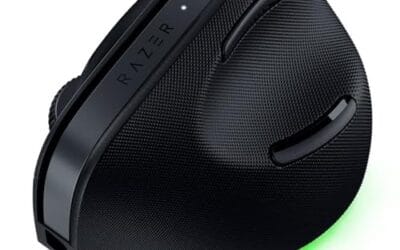
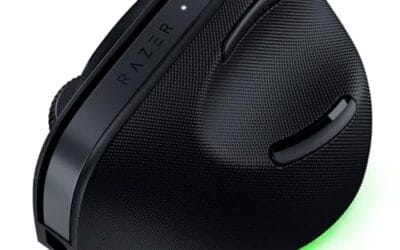
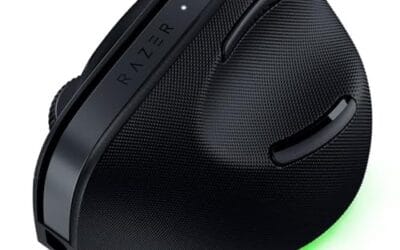
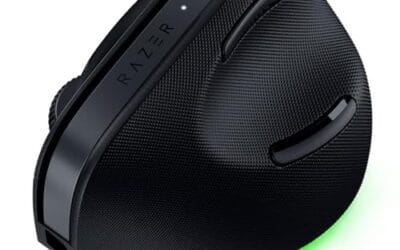
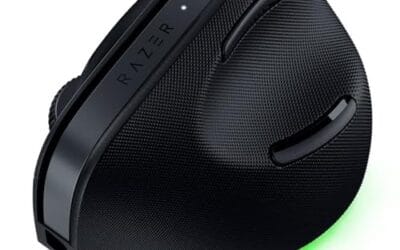
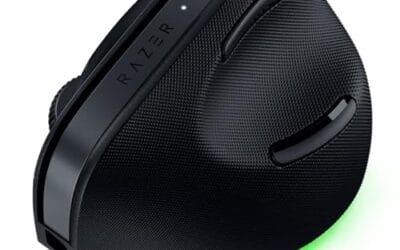
Comfort matters more than people admit, and an ergonomic shape can do more for long-session accuracy than any software tweak. For folks who split time between deadlines and matches, the Razer Pro Click V2 Vertical, around $113.99 with a 4.7 rating, pairs a 6-button ergonomic design with multi-device connectivity over 2.4GHz, Bluetooth, or USB-C wired mode, so you can keep a wired low-latency link for gaming and flip to Bluetooth for a second machine. If a vertical grip appeals to you, our vertical mouse guide for 2026 and the dedicated ergonomic vertical mouse roundup both cover shapes worth considering.

Pros
- Focus Pro 30K sensor handles glass and reflective desks that trip up older vertical mice
- Battery rated up to 6 months, 5 minute top-up returns roughly 3 working days of use
- Three connectivity modes with up to 5 paired devices covers desktop, laptop, and tablet rotation
Cons
- Limited owner feedback at time of writing, so long-term reliability signal is not yet available
- Vertical handshake shape has a real learning curve for existing claw and fingertip grip users
- Mouse weight and max DPI are not specified in source, hard to gauge fast-tracking responsiveness
The Pro Click V2 Vertical is Razer's ergonomic wireless mouse aimed at knowledge workers and creators who log long sessions on Windows or Mac systems. The 6 button layout adds a dedicated AI prompt key tied into Razer Synapse 4 shortcuts for summarizing text and drafting emails.
The defining trait is the angled handshake shell with a wrist base that lifts your palm off the deck, reducing pronation on long days. Razer's Focus Pro 30K optical sensor handles glass and high-gloss surfaces, which vertical mice at this tier often struggle with due to older 3200 to 12000 DPI sensors.
Trade-offs are honest. Vertical shells force a handshake grip, so claw and fingertip users will fight muscle memory for a week or more. Battery is rated up to 6 months, but 18 zone Chroma with full underglow will cut that hard if you leave reactive lighting on. Mouse weight is not specified.
Buy this if you already know a vertical shape helps your wrist and you need one mouse hopping between a Windows tower, a MacBook, and a tablet over Bluetooth. Skip it if you plan to play competitive FPS titles, since vertical shells punish rapid tracking flicks and micro adjustments.
Sensor: Focus Pro 30K optical sensor with a claimed 99.8% resolution accuracy. Razer uses this same sensor family across its high-end lineup, so tracking on glass, mousepads, and gloss desks is realistic. Max DPI and polling rate are not specified in source data.
Switches and Buttons: Mechanical switches rated to a 60 million click lifecycle. Six total buttons include a dedicated AI prompt key mapped through Synapse 4 for text summarization and email drafting shortcuts on Windows.
Connectivity: Three modes ship in the box: 2.4GHz HyperSpeed via bundled dongle, Bluetooth with up to 3 host pairings, and USB-C wired. Combined device ceiling is 5, letting you rotate between desktop, laptop, tablet, and a secondary machine without re-pairing.
Battery and Charging: Rated up to 6 months under standard test conditions, with 5 minutes of USB-C charging yielding roughly 3 working days. The 18 zone Chroma RGB plus full underglow will cut that figure significantly if reactive lighting stays enabled.
What to look for in a gaming mouse setup
Once you’ve decided to run raw input, the hardware around that decision starts to matter. Look for a mouse with a modern optical sensor that advertises zero smoothing and zero acceleration in its spec sheet, plus onboard memory so your DPI setting travels with the device. A comfortable shape you can grip for hours beats a flashy one you fight against, which is why an honest ergonomic mouse pick pays off over a long haul.
Don’t ignore the surface and the cable, either. A consistent mousepad gives the sensor a clean read, and cable drag can mimic the feel of acceleration by tugging your hand at odd moments. That’s where a mouse bungee earns its keep, holding the cord off the desk so every swipe stays weightless. Wireless sidesteps the problem entirely, though a good bungee keeps a wired setup honest for a fraction of the cost.
Common misconceptions
The biggest myth is that acceleration and DPI are the same thing. They’re not. DPI is a fixed multiplier that scales all movement equally, so higher DPI just means the cursor moves farther per inch across the board. Acceleration is the variable one, changing the ratio based on speed. You can run a high DPI with zero acceleration and get perfectly consistent, fast tracking, which is exactly what many pros do.
Another myth: turning acceleration off makes you instantly better. It won’t. What it does is remove a source of inconsistency so your practice actually compounds. You still have to put in the reps. And a final one, that only shooter players care about. Not true. Anyone who relies on precise, repeatable pointer motion benefits, from designers to spreadsheet warriors who want their cursor to land where they expect it every time.
Frequently asked
Should I turn off mouse acceleration for gaming?
For competitive or aim-heavy games, yes. Disable “Enhance pointer precision” in Windows and switch off any acceleration slider in your mouse software. That gives you one-to-one tracking, where identical hand movements always produce identical results, which is the foundation muscle memory is built on.
How do I disable mouse acceleration in Windows?
Open Settings, search for mouse, then open additional mouse settings and the Pointer Options tab. Uncheck “Enhance pointer precision” and apply. It’s worth checking your mouse’s companion app too, since some drivers add their own acceleration layer on top of the OS one.
Does acceleration affect my DPI?
No, they’re separate systems. DPI sets a fixed sensitivity that scales every movement the same way. Acceleration changes sensitivity based on how fast you move. You can keep whatever DPI you like and still run zero acceleration for consistent tracking.
Is some acceleration ever good for aiming?
A tiny minority of players deliberately use a small, tuned acceleration curve, but they’re the exception. For nearly everyone learning to aim, consistency wins, and that means acceleration off. Start with raw input, build your muscle memory, and only experiment later if you’re curious.
Will a better mouse fix acceleration issues?
Hardware alone won’t disable the OS setting, so you still need to uncheck that Windows box. But a quality mouse with onboard memory and a no-smoothing sensor makes clean tracking easy to maintain across machines, and a comfortable shape keeps your hand steady through long sessions. It’s the setting plus the hardware together that gets you there.



























Write Your Review
No reviews yet. Be the first to share your experience!