

DPI, or dots per inch, tells you how far your cursor travels on screen for every physical inch you move the mouse. It’s the single number that decides whether your aim feels twitchy or sluggish, and most people have no idea what their mouse is actually set to. Maybe your pointer suddenly flies across two monitors, or maybe a new headshot-heavy game feels off. Either way, checking your DPI takes about five minutes, needs zero special software in a pinch, and gives you a real number instead of a guess. This walkthrough covers every reliable method, from reading the box to measuring the true value yourself.
Sensitivity matters differently depending on what you do. Competitive players hunting for a gaming mouse often chase low DPI with high in-game sensitivity, while someone shopping for a work mouse usually wants higher DPI for fast spreadsheet navigation across large displays. If wrist strain is part of your story, an ergonomic mouse can change your grip enough that your old DPI feels wrong. Knowing your current number is step zero for any of those decisions.
What you’ll need
Not much. A Windows PC, your mouse, a ruler or tape measure marked in inches, and roughly ten minutes. If your mouse ships with vendor software (Razer Synapse, Logitech G HUB, Corsair iCUE, SteelSeries GG), install it because that’s the quickest route to an exact figure. A blank sheet of paper and a pen help with the manual measurement in Step 4. That’s the whole kit. No hardware to open, no drivers to hunt down beyond the official app. If you don’t know your model name offhand, flip the mouse over. The label on the belly usually prints the exact model number, and that’s all you need to pull up the right software and spec sheet.
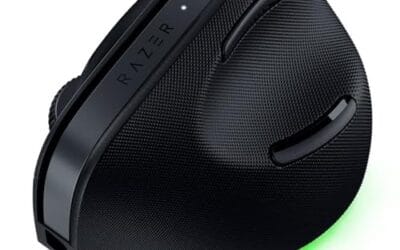
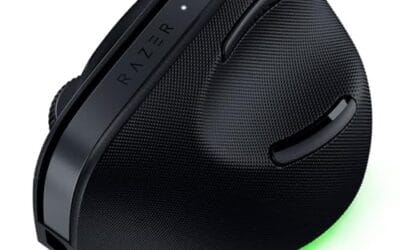
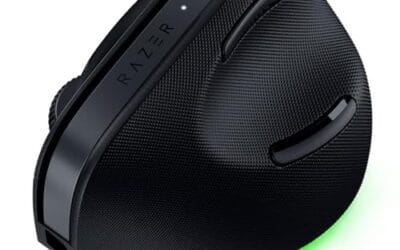
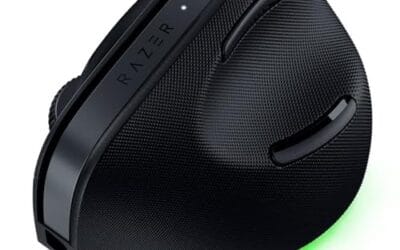
If you’re using this as an excuse to upgrade, a modern programmable mouse makes DPI checking trivial because the setting lives right in the companion app. The Razer Pro Click V2 Vertical is a good example. It’s a 6-button ergonomic vertical design at $113.99 with a 4.7 rating, connects over 2.4GHz, Bluetooth, or USB-C wired, and exposes its DPI stages directly in Synapse. Owner reports point to the tall, hand-supporting shape as the standout for long workdays. Specs show multi-device pairing across Windows and Mac, which is handy if you switch machines.

Pros
- Focus Pro 30K sensor handles glass and reflective desks that trip up older vertical mice
- Battery rated up to 6 months, 5 minute top-up returns roughly 3 working days of use
- Three connectivity modes with up to 5 paired devices covers desktop, laptop, and tablet rotation
Cons
- Limited owner feedback at time of writing, so long-term reliability signal is not yet available
- Vertical handshake shape has a real learning curve for existing claw and fingertip grip users
- Mouse weight and max DPI are not specified in source, hard to gauge fast-tracking responsiveness
The Pro Click V2 Vertical is Razer's ergonomic wireless mouse aimed at knowledge workers and creators who log long sessions on Windows or Mac systems. The 6 button layout adds a dedicated AI prompt key tied into Razer Synapse 4 shortcuts for summarizing text and drafting emails.
The defining trait is the angled handshake shell with a wrist base that lifts your palm off the deck, reducing pronation on long days. Razer's Focus Pro 30K optical sensor handles glass and high-gloss surfaces, which vertical mice at this tier often struggle with due to older 3200 to 12000 DPI sensors.
Trade-offs are honest. Vertical shells force a handshake grip, so claw and fingertip users will fight muscle memory for a week or more. Battery is rated up to 6 months, but 18 zone Chroma with full underglow will cut that hard if you leave reactive lighting on. Mouse weight is not specified.
Buy this if you already know a vertical shape helps your wrist and you need one mouse hopping between a Windows tower, a MacBook, and a tablet over Bluetooth. Skip it if you plan to play competitive FPS titles, since vertical shells punish rapid tracking flicks and micro adjustments.
Sensor: Focus Pro 30K optical sensor with a claimed 99.8% resolution accuracy. Razer uses this same sensor family across its high-end lineup, so tracking on glass, mousepads, and gloss desks is realistic. Max DPI and polling rate are not specified in source data.
Switches and Buttons: Mechanical switches rated to a 60 million click lifecycle. Six total buttons include a dedicated AI prompt key mapped through Synapse 4 for text summarization and email drafting shortcuts on Windows.
Connectivity: Three modes ship in the box: 2.4GHz HyperSpeed via bundled dongle, Bluetooth with up to 3 host pairings, and USB-C wired. Combined device ceiling is 5, letting you rotate between desktop, laptop, tablet, and a secondary machine without re-pairing.
Battery and Charging: Rated up to 6 months under standard test conditions, with 5 minutes of USB-C charging yielding roughly 3 working days. The 18 zone Chroma RGB plus full underglow will cut that figure significantly if reactive lighting stays enabled.
Step 1: Read the manufacturer’s stated DPI
Start with the easy win. Every mouse ships with a rated DPI range printed on the box, the spec sheet, or the product page. Budget office mice usually sit at a fixed 800 or 1000 DPI. Gaming models advertise wild ceilings like 16,000, 20,000, or even 30,000 DPI, though almost nobody runs anywhere near that. Search the exact model name plus “DPI” and you’ll find the official range in seconds.
Here’s the catch. The printed number is the maximum the sensor supports, not necessarily what you’re using right now. A mouse rated to 26,000 DPI might be sitting at 1600 out of the box. So the box tells you what’s possible. It doesn’t tell you your live setting. That’s what the next steps pin down. It’s also worth noting that some brands quote DPI and others quote CPI (counts per inch). They mean the same thing for practical purposes, so don’t let the label swap throw you off when you’re comparing two spec sheets side by side.
Step 2: Check DPI in the manufacturer software
This is the most accurate method for any mouse with onboard settings. Open your vendor app and find the sensitivity or DPI panel. In Razer Synapse, it’s under the Performance tab, where each DPI stage is listed as an exact value. Logitech G HUB shows them under Sensitivity (DPI) as draggable stops. Corsair iCUE files them under the DPI section, and SteelSeries GG uses the CPI slider inside Engine. If none of those apply, check the brand’s support site for the correct download, since a mislabeled generic driver won’t expose the sensor settings you’re after.
Most gaming mice store several DPI stages you cycle through with a button behind the scroll wheel. The software highlights which stage is active, so you can see, for instance, that your third stage reads 1600 DPI and that’s the one you’ve been using. Write those numbers down. Note the full ladder too, since knowing you’ve got stages at 400, 800, 1600, and 3200 helps you understand why the cursor feels different after an accidental button press. While you’re there, glance at the polling rate readout beside the DPI stages. Shown as 125, 500, or 1000 in Hz, it controls how often the mouse reports its position, which affects how smooth fast motion feels even at an identical DPI. If your mouse has no companion app, it’s almost certainly a fixed-DPI device, and you’ll confirm the real value with the manual method in Step 4.
Step 3: Rule out Windows pointer speed first
Before you trust any measurement, separate hardware DPI from Windows pointer speed, because people constantly confuse the two. DPI lives in the mouse sensor. Pointer speed is a software multiplier Windows applies on top. Open Settings, go to Bluetooth & devices, then Mouse, and click Additional mouse settings. Under the Pointer Options tab you’ll see a speed slider with eleven notches.
Set that slider to the sixth notch, dead center, and uncheck “Enhance pointer precision.” That box is mouse acceleration, and it makes cursor distance depend on how fast you flick, which wrecks any consistent DPI reading. With acceleration off and the slider centered, Windows applies a clean 1:1 multiplier. Now whatever you measure reflects the mouse itself, not a Windows tweak layered on top. One more thing worth checking: some laptops and OEM machines bundle their own trackpad or mouse utility that quietly re-enables acceleration after a reboot. If your readings drift between sessions, hunt down that background app and disable its pointer enhancement too, or it’ll keep undoing your work.
Step 4: Measure your true DPI by hand
This method works on any mouse, even a cheap one with no software, and it verifies whether the advertised number is honest. You’ll need an online DPI analyzer (search “mouse DPI analyzer”) and your ruler. These free browser tools ask you to set a target distance, usually two or three inches, then drag your mouse that exact physical distance across the pad while the page tracks pixel movement.
Place the ruler flat next to your mousepad. Put the mouse at the zero mark, enter your expected DPI and the travel distance into the tool, then slowly slide the mouse exactly two inches in a straight line and release. The analyzer reports your actual DPI based on the pixels counted. Do it three or four times and average the results, since a single wobbly drag skews the reading. Keep the movement slow and level, and lift the mouse cleanly at the end instead of dragging it back, because that return swipe adds phantom distance the tool can’t tell apart from your real stroke. If the tool says 1580 when your software claims 1600, that’s normal sensor tolerance. If it says 800 when you expected 1600, your Windows slider or acceleration is still interfering, so revisit Step 3.
No internet handy? You can run the same idea offline in MS Paint. Open Paint, maximize it, and watch the pixel coordinate readout in the bottom-left corner. Line your ruler up along the pad, hold the left button with the cursor at the far left of the canvas, then drag exactly one inch right and read the X coordinate Paint reports. That pixel count is your DPI at one inch of travel, and it needs nothing you don’t already have installed.
Step 5: Set the DPI you actually want and lock it in
Now that you know your real number, dial in something deliberate. For general desktop work on a 1080p monitor, 800 to 1200 DPI feels controlled. On a 1440p or 4K display, or across dual monitors, 1600 to 2400 keeps travel comfortable without endless mouse lifts. First-person shooter players often drop to 400 to 800 DPI and raise in-game sensitivity, which gives finer aim per pixel. There’s no universal correct value, only what matches your display resolution and grip.
This is where DPI and in-game sensitivity stop being separate ideas. Games multiply your hardware DPI by an in-app sensitivity slider, so 800 DPI at 2.0 sensitivity moves the same on-screen distance as 1600 DPI at 1.0. Shooter players track the combined figure called eDPI, which is DPI times in-game sensitivity. Run 800 DPI and 0.5 sensitivity and your eDPI is 400. Recording that one number lets you match a pro’s setup even when their raw DPI differs from yours. In your vendor software, set a single clean DPI stage rather than juggling five, then save it to the mouse’s onboard memory if the app offers that option. Onboard storage means the setting follows the mouse to another PC without the app installed. Try a few cursor sweeps, open a game or your usual apps, and confirm it feels right. Adjust in small increments of 100 to 200 DPI rather than big jumps, because your hand adapts to sensitivity faster than you’d think. Give any new value a full day of normal use before deciding, since a DPI that feels sluggish in the first ten minutes often feels perfect once your muscle memory recalibrates.
Troubleshooting common issues
My cursor speed changes on its own
You’ve probably got a DPI-cycle button behind the scroll wheel and you’re bumping it. Many gaming mice ship with multiple stages mapped to that button, so one accidental press jumps you from 800 to 3200. Either remap that button in the software or delete the extra stages so only one DPI value exists. Problem gone.
The measured DPI doesn’t match the software
Small gaps of a few percent are normal sensor variance and nothing to worry about. Big gaps almost always trace back to Windows. Recheck that “Enhance pointer precision” is unchecked and the pointer speed slider sits centered. Also confirm the analyzer’s distance setting matches the inches you actually dragged. If you used the Paint method, remember it reads raw pixels only when the app window spans your full native resolution, so a scaled canvas will under-report your real DPI.
My mouse has no software at all
Plenty of office and budget mice are fixed-DPI with no app. That’s fine. The manual analyzer method in Step 4 is your source of truth, and the manufacturer’s spec page confirms the single rated value. If you want adjustable stages and onboard profiles, that’s a hardware limitation you’d solve by upgrading, not a setting you can toggle.
High DPI feels jittery or shaky
Cranking DPI past what your task needs amplifies tiny hand tremors into visible cursor shake, especially above 4000 on a 1080p screen. Drop back to a moderate value and let in-game sensitivity do the rest. A lower DPI paired with a higher polling rate almost always feels cleaner than a sky-high DPI on a slow report rate.
Wrapping up
Checking your mouse DPI comes down to three honest sources: the manufacturer’s rated range, the live value in the vendor software, and the true number you measure with a ruler and a browser analyzer or MS Paint. Cross-check those and you’ll know exactly what your sensor is doing, not what a marketing box claims. Neutralize the Windows pointer slider and acceleration first, or every reading lies to you.
Once you know your number, matching it to your resolution and grip is the fun part. If checking DPI has you eyeing a replacement, the same principles apply whether you land on a wireless gaming mouse for low-latency aim, a vertical mouse to ease wrist strain, or a mouse bungee to keep a wired cable from dragging and skewing your movement. Know your DPI, set it with intent, and your cursor stops fighting you for good.



























Write Your Review
No reviews yet. Be the first to share your experience!