

If you’ve shopped for a gaming mouse lately, you’ve probably seen “optical switches” splashed across the spec sheet like it’s a badge of honor. It sounds fancy. It sounds expensive. And it leaves a lot of buyers wondering what the term actually changes for the person clicking the button. The short version: an optical switch mouse uses light instead of physical metal contact to register your clicks, and that one design choice fixes the single most annoying failure that kills mechanical mice. Once you know why it matters, the marketing stops being noise and starts being a real buying signal.
This guide breaks down what an optical switch really is, why manufacturers moved toward it, and when it’s worth paying for. We researched how these switches behave over time and pulled real specs from current products so you can decide with your eyes open. If you’re still weighing overall shape and grip, our roundups of the best gaming mouse picks and the best wireless gaming mouse models pair nicely with everything below.
The short answer
An optical switch mouse detects your clicks with an infrared light beam. Inside a traditional mechanical switch, two tiny metal leaves physically touch to complete a circuit. Inside an optical switch, pressing the button breaks or unblocks a beam of light, and a sensor reads that change as a click. No metal-on-metal contact. That’s the whole trick, and it’s why optical switches don’t suffer from the “double-click” problem that plagues aging mechanical mice, where one press suddenly registers as two.
Because there are no physical contacts to wear down or oxidize, optical switches tend to last far longer and fire a hair faster. You’ll see rated lifespans climb into the tens of millions of clicks, often two to three times what a comparable mechanical switch promises. For anyone who has thrown out an otherwise great mouse because the left button went haywire, that reliability is the entire pitch. You’re paying to never think about the click again.

Pros
- Silent primary switches noticeably reduce click noise for shared spaces and streaming setups.
- 4800 DPI adjustable range is generous for a mouse at this budget tier.
- Rechargeable 400mAh cell with usable wired mode during charging avoids downtime.
- Broad compatibility across Windows, macOS, Linux, and Chromebook via included USB receiver.
Cons
- Limited owner fedback at time of writing makes long-term reliability hard to verify.
- Sensor model, polling rate, and weight are not specified, unusual for a gaming-labeled mouse.
- Random-cycling RGB with no software profile limits customization typical at this price tier.
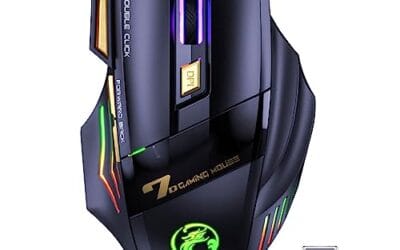
The VEGCO C26 is a budget wireless gaming mouse aimed at casual players and work-from-home users who want quiet clicks without paying flagship money. Core specs include a 4800 DPI adjustable sensor, seven buttons plus a dedicated double-click key, RGB lighting, and a 400mAh rechargeable cell. Target buyer is a light gamer or office user, not a competitive FPS player.
The defining feature here is the silent switch implementation on both primary buttons, which meaningfully cuts audible click noise during late sessions or shared rooms. The 4800 DPI ceiling is workable for 1080p and 1440p tracking in slower-paced titles. Sensor model and polling rate are not specified, so expectations for esports-tier tracking should stay modest.
Trade-offs are typical at this tier. RGB cycles randomly with no listed software suite, weight is not specified, and there is no confirmed high poling rate or PTFE fet spec. Wireless latency figures are absent from source data, so competitive shooter use is a gamble. Owner feedback volume is limited at time of writing, which weakens confidence in long-term switch and battery durability.
Buy this if you want a quiet wireless mouse for browsing, office work, and casual gaming with occasional shooter sessions. Skip this if you playranked FPS titles, need a documented sensor like PixArt PMW395, or require a lightweight sub-70g shell for claw-grip flick shots.
Sensor and DPI: Source data lists a 4800 DPI adjustable ceiling with no named sensor model. Budget wireless mice in this tier typically ship with entry-level optical sensors adequate for 1080p desktop use, but not competitive-grade tracking. Confirm step increments in the manual before maping DPI to in-game sensitivity.
Buttons and layout: Seven standard buttons plus a dedicated double-click key on the upper left, useful for repeat inputs in file management, browsers, and semi-auto weapons. Silent switches on both left and right primaries are the headline mechanical feature, appropriate for shared offices, streaming mics, or households sensitive to click noise.
Wireless and battery: A 400mAh lithium cell is rated for roughly 31 days per full charge under unspecified usage. Wired pass-through operation during charging avoids downtime. Poling rate and wireless latency figures are not specified, so treat competitive FPS suitability with caution and expect standard 2.4GHz receiver behavior.
Shape and compatibility: Weight, length, and grip style (palm, claw, or fingertip) are not specified in source data, which limits fit guidance for hand sizes above roughly 19cm. Compatibility is broad, covering Windows 7 through 10, macOS, Linux, and Chromebook, with RGB that cycles automatically rather than through named software.
The longer explanation
Every mouse button has to answer one question millions of times: is the button down or up? Mechanical switches answer it with a spring-loaded metal contact. When you press, two conductive pieces snap together and current flows. The problem is that metal contacts bounce microscopically when they meet, and they corrode, pit, and deform over months of use. Dust and skin oil creep into the housing. Tiny arcs of current pit the surface a little more with every click. Slowly, the contact that used to snap cleanly starts making unreliable connections.
To hide that bounce, firmware adds a “debounce” delay. When the controller sees the contact close, it waits a few milliseconds and ignores any extra flickering before it accepts the click as real. That delay works fine on a fresh switch. But as the metal degrades, the flickering gets worse and lasts longer than the debounce window can cover, so phantom clicks slip through. That’s the moment a beloved mouse starts double-clicking on single presses, and no amount of software tuning brings it back for good.
Optical switches sidestep the whole cycle. A small infrared LED shines across a gap toward a photosensor. The click mechanism moves a shutter through that beam. Light blocked, light restored, the sensor reports the state instantly. There’s nothing to bounce because nothing conductive is touching, and there’s nothing to corrode because the beam never physically wears. That lets engineers shrink or drop the debounce delay entirely, which is where the “faster response” marketing comes from. It’s a real difference, though a small one measured in single-digit milliseconds.
How it works
Picture a doorway with a laser tripwire. When nobody’s standing in it, the beam reaches the far wall. Step into the doorway and the beam breaks, and an alarm knows instantly. An optical mouse switch works the same way at a tiny scale. The button plunger carries a little flag or gate. At rest, it either blocks or clears the infrared path. Press down, the flag moves, the beam state flips, and the mouse’s controller reads a clean, unambiguous click signal with no flickering to filter out.
The tactile feel still comes from a physical spring and often a small metal leaf that gives you that satisfying snap. So an optical switch doesn’t feel mushy or weird. It clicks like you expect. The optical part only handles the electrical detection, not the sensation under your fingertip. That’s an important detail, because a lot of people assume optical switches feel different. Most don’t. The plunger, spring tension, and click travel are all engineered the same way they are in a good mechanical switch, so the physical experience carries over almost exactly.
Why it works this way
Light-based detection is binary and clean. A beam is either interrupted or it isn’t, with no gray zone, no bounce, no gradual electrical decay. That’s why makers can advertise huge click-lifespan ratings while also promising the double-click issue simply won’t happen. Contacts can’t fail if there are no contacts. The failure mode that ends most mechanical mice just doesn’t exist in the optical design, which is a genuinely different reliability story rather than a spec-sheet flex.
There’s a second reason the industry leaned in: consistency across a product’s life. A mechanical switch feels crisp on day one and slightly different two years later as the metal fatigues, and the actuation timing drifts as the debounce window fights a worsening bounce. An optical switch’s detection stays identical from the first click to the last, since the light path doesn’t wear. For competitive players who train muscle memory around a specific click response, that stability matters more than the raw speed number on the box. The click you learn is the click you keep.
When you’d want this
You want an optical switch mouse if you click a lot and you’re tired of replacing hardware. Heavy gamers, anyone who’s already suffered a double-click death, and people who keep a mouse for years all benefit most. If you fire thousands of clicks a session in an FPS or a click-heavy strategy game, the durability and the slightly quicker actuation are worth the small premium. Over a two- or three-year span of hard use, the longer lifespan often means one mouse instead of two.
That said, don’t overthink it for light use. A budget wireless mouse with a solid mechanical switch is perfectly fine for browsing and office work, and plenty of well-reviewed options cost very little. The VEGCOO C26, for example, runs $16.99, holds a 4.3 rating, offers 4800 DPI adjustable sensitivity, RGB lighting, and a dedicated double-click key, which is a rechargeable, quiet pick for casual play even without optical switches. If your daily click count is measured in hundreds rather than thousands, a mechanical switch will likely outlive the rest of the mouse anyway. Match the tech to how hard you actually push your gear.

Pros
- Presents as a generic HID mouse, bypassing endpoint software that blocks jiggler apps
- Two modes in one button: cursor movement for sleep prevention and 5 Hz auto-click
- Zero driver overhead, no background process, no admin rights required to run
- Cross-platform support spanning Windows, macOS, Linux, and Android hosts
Cons
- Limited verified owner feedback at time of writing, so reliability signal is thin
- Undetectability claim depends on IT stack, MDM tools and behavior analytics may still flag activity
- Auto-click fixed at 5 Hz with no adjustable interval or dwell settings specified
The Cloudeck Mouse Jiggler is a budget hardware USB dongle in the mouse-mover category, combining a sleep-prevention jiggler with a 5 clicks per second auto-clicker in a single-button housing. It targets remote workers keping Teams or Slack indicators green, plus casual users automating repetitive clicks in browser tasks.
Its defining trait is hardware-level operation: the device enumerates as a standard HID mouse rather than running software on the host, which sidesteps endpoint tools that block jiggler executables. Based on the listed feature set, cursor nudges appear continuous rather than time-gaped, and the auto-click mode toggles in via a double press.
Trade-offs are typical at this tier. The 100 percent undetectable claim is marketing shorthand, corporate MDM, behavior analytics, and webcam presence detection can still flag idle-avoidance paterns regardless of HID enumeration. Click cadence is fixed at 5 Hz with no adjustable interval disclosed, and cable length, dimensions, and waranty are not specified in source data.
Buy this if you need a driverless, cross-platform hardware jiggler for keeping a personal laptop awake or running low-effort auto-click tasks. Skip this if your workplace uses activity analytics beyond simple idle timers, or if you need adjustable click intervals, macro support, or verified long-term reliability data.
Device Class: Enumerates as a standard HID mouse over USB, per the listing, which is why it runs without drivers or admin rights. No sensor model, DPI, or poling rate is specified in the source, expected for a jiggler rather than a pointing device intended for user tracking.
Jiggle Behavior: The unit simulates pointer movement to defeat OS sleep and scrensaver timers. Cadence, pixel travel distance, and pattern are not disclosed in source data. Jiglers at this tier typically produce small periodic offsets suficient to reset idle counters in Windows, macOS, and common chat clients.
Auto-Click Mode: Double pressing the button engages continuous clicks at a stated 5 times per second, roughly 200ms between actuations. There is no documented adjustment for interval, burst length, or button (left versus right), which limits use for games or tools requiring specific cadence.
Compatibility and Build: Works with Windows, macOS, Linux, and Android hosts that accept USB HID input. A non-slip pad on the underside keeps the housing planted during button preses. Cable length, connector type (USB-A versus USB-C), weight, and dimensions are not specified.
What to look for in an optical switch mouse
Start with the rated click lifespan. Good optical switches list numbers well into the tens of millions of clicks, and higher is better for heavy users. Treat that figure as a durability floor rather than a promise, since real-world life depends on how the switch is mounted and how much grime reaches it, but a higher rating still signals a more serious component. Next, check the actuation feel described in owner reports, because some optical switches feel lighter or “clackier” than the mechanical switches you’re used to. Feel is personal, so read how real buyers describe the click before committing.
Then weigh the usual mouse fundamentals that optical switches don’t change: sensor quality, weight, shape, and wireless latency. A great switch bolted into a poorly shaped shell is still uncomfortable, and no click technology rescues a mouse that cramps your hand after an hour. If ergonomics rank high for you, cross-shop our best ergonomic mouse guide, since switch type and hand comfort are separate decisions you shouldn’t blend together. Nail the fit first, then let switch type break the tie between two shells you already like.
Common misconceptions
The biggest myth is that “optical switch” and “optical sensor” are the same thing. They’re not. Nearly every modern mouse already uses an optical sensor to track movement across your desk. That’s been standard for two decades. Optical switches are about the buttons, not the tracking. A mouse can have an optical sensor and old-school mechanical buttons at the same time, and most affordable ones do. When a listing brags about “optical,” check whether it means the tracking sensor or the click switches, because the two describe completely different parts.
The second myth is that optical switches will transform your aim. They won’t. The response gain is small and mostly about consistency, not a magic accuracy boost. And the last myth: that optical means silent. Nope. Loudness depends on the click mechanism’s spring and housing, not the light sensor. If quiet clicks are your goal, look for a mouse marketed as silent specifically, which is a separate feature entirely and often uses a dampened mechanical switch rather than an optical one.
Frequently asked
Do optical switches really stop double-clicking?
Yes, that’s their headline benefit. Double-click faults come from worn or dirty metal contacts inside mechanical switches. Optical switches have no metal contacts to fail, so the phantom double-click issue effectively disappears. It’s the number one reason people upgrade.
Are optical switch mice worth the extra money?
For heavy or competitive users, usually yes. You get longer life and a small speed edge. For casual desktop use, a good mechanical mouse like the $16.99 VEGCOO C26 does the job fine. Buy based on how many clicks you actually put down per day.
Do optical switches feel different to click?
Not dramatically. The tactile snap still comes from a physical spring, so most feel familiar. Some owners describe optical clicks as slightly lighter or crisper, but it’s subtle. If feel matters to you, read owner impressions of the specific model first.
Can I use an optical switch mouse wirelessly?
Absolutely. Switch type and connection type are independent. Plenty of wireless gaming mice ship with optical switches, and the light-based detection sips very little power. Wireless models with these switches are common across every price tier now.
Will an optical switch mouse work with a jiggler or anti-sleep device?
Yes. Accessories like the Cloudeck USB mouse mover, a $13.98 plug-and-play device rated around 4 stars, simulate pointer movement to keep a PC awake, and they don’t care what switches your mouse uses. The two work side by side without any conflict.



























Write Your Review
No reviews yet. Be the first to share your experience!