

You’re reading a long article, you scroll down two lines, and the page snaps back up one. Or you nudge the wheel once and it flies past six paragraphs. Scroll wheel jumping is one of the most common mouse complaints out there, and it’s maddening because the rest of the mouse still works fine. The good news? Most cases trace back to two or three fixable causes, and you can rule them out in about ten minutes without opening anything up.
We researched the usual failure points, from dust in the encoder to driver settings nobody remembers changing, and sorted them roughly by how likely they are. If you’re already shopping for a replacement because the old rodent has served its time, our roundups of the best ergonomic mouse picks and the best mouse for work options are worth a look. But don’t buy anything yet. Chances are this is cheaper to fix than you think.
First check the obvious (the 30-second check)
Before you blame the hardware, plug the mouse into a different USB port, ideally one directly on the motherboard rather than a front-panel hub or an unpowered dock. Flaky power and cheap hubs cause weird input glitches all the time, and a marginal port can starve the sensor just enough to garble the wheel signal. If it’s wireless, swap the battery or charge it fully, since a dying cell can make the wheel register phantom ticks that look exactly like a hardware fault.
Next, borrow a second mouse for two minutes and see if the jumping follows the hardware or stays with the computer. If a known-good mouse scrolls fine on the same machine, the problem is your mouse. If both jump, the issue is software or a setting, and you can skip the cleaning steps entirely. That single swap saves you a lot of guesswork, and it tells you which half of this guide to actually read. Do it before you spend a cent.
Cause #1: Dust and debris in the scroll encoder
This is the number-one culprit, full stop. Your scroll wheel spins a tiny optical or mechanical encoder that counts each notch as the wheel turns. Skin oil, dust, pet hair, and food crumbs work their way into that narrow gap over months of use, and once the encoder gets gunked up it starts misreading the direction of travel. That’s the jump you feel. One notch forward reads as two forward and one back, or a smooth roll turns into a stutter that hops between paragraphs.
Static and a dirty desk surface make it worse. A mouse that lives on a bare particleboard desk picks up far more grit than one on a cloth pad, and dry winter air builds up enough static charge to attract fine dust straight into the wheel seam. So the first real fix is a can of compressed air. Hold the can upright so it sprays gas and not liquid propellant, aim short bursts into the seam on both sides of the wheel while spinning it slowly by hand, and give it four or five passes. Rotating the wheel as you blow works loose the debris packed against the encoder shaft, which a single static blast never reaches. A lot of people report the jumping vanishes right there.
If air alone doesn’t do it, step up to isopropyl alcohol at 90 percent or higher. Put a drop on a cotton swab, wipe it along the exposed wheel axle on each side, and spin the wheel through several full rotations so the alcohol carries the sticky oil film off the shaft. Do not soak it, and never drip alcohol down into the mouse body. High-percentage isopropyl flashes off fast, but you still want to let everything dry fully for a couple of minutes before plugging back in, because trace moisture across the encoder contacts can throw its own false reads. This whole routine costs a couple of dollars and fixes maybe half of all cases we looked at.
Cause #2: Driver, software, and Windows settings
If the jumping followed the computer instead of the mouse during your swap check, start here, because no amount of cleaning will help a software problem. Open your mouse settings and look at the lines-per-scroll value first. Windows defaults to three lines per notch, and some app or driver update quietly bumps it to a higher number or flips on smooth scrolling, which can feel like jumping even when the hardware is spotless. A single notch that suddenly moves ten lines reads as a lurch, not a scroll. Set it back to three and disable any “smooth scroll” toggle in your browser to compare the feel.
While you’re in there, check the “scroll inactive windows when I hover over them” option in Windows mouse settings. When that’s on, moving the cursor between panels can hand your scroll input to a background window mid-motion, so a single roll appears to jump because it split across two places at once. Toggling it off is a clean way to confirm whether that’s what you’re actually seeing. It’s a favorite gotcha on multi-monitor setups where the cursor drifts over a second app without you noticing.
Then update, or better yet reinstall, the mouse driver. Corrupt vendor software from brands like Logitech, Razer, or Corsair is a frequent offender, and their config apps sometimes fight with Windows over scroll behavior. Uninstall the utility, unplug the mouse, reboot, and let Windows load its generic HID driver first to see if the jump stops. If a clean generic driver behaves and the vendor app doesn’t, you’ve found your answer. A polling-rate setting cranked too high in the vendor software can also produce erratic scroll reads on older systems, so drop it to 500 Hz and check. And if you recently mapped scroll to a macro or gesture in that software, clear the binding, because a half-configured macro can double-fire every notch.
Cause #3: A worn mechanical encoder
When cleaning and drivers both come up empty, you’re likely looking at a physically worn encoder. These little components are rated for a finite number of rotations, and heavy scrollers wear them out in two or three years. The internal metal contacts flatten with use, the signal they send gets noisy, and no amount of compressed air brings them back. You can usually feel it too: a worn encoder loses its crisp notch and goes loose or gritty under your finger. This is the honest end of the line for a cheap mouse.
You can replace the encoder yourself if you’re handy with a soldering iron. A pack of TTC or Kailh scroll encoders runs a few dollars, and there are plenty of teardown guides for popular models that show which three pins to desolder and how to seat the new part. That said, the desoldering is fiddly, the wheel assembly is easy to bend, and for a sub-$40 mouse it’s rarely worth the hour of careful work. Weigh the cost of the part and your time against a new unit before you reach for the iron. If your wheel wear lines up with an aging, uncomfortable mouse anyway, replacing the whole unit is the smarter move. Owners chasing better comfort often step up to a vertical design at this point, and our guide to the best vertical mouse of 2026 covers what changed this year.
Preventive maintenance
A little upkeep buys you years. Blast the wheel seam with compressed air every couple of months, especially if you eat at your desk (guilty). Keep drinks away from the mouse, wash your hands before long sessions to cut down on the oil transfer that feeds the encoder gunk, and store the mouse off the desk if your room is dusty. A cloth mouse pad instead of a bare desk also cuts down on the grit and static that pull debris into the wheel in the first place. For wireless models, don’t let the battery run to zero repeatedly, since deep discharges stress the cell and can introduce the same phantom-tick behavior a dying battery causes.
Cable strain matters too. A wired mouse whose cord gets yanked or pinched under a desk edge can develop intermittent faults that look like scroll glitches but really come from a stressed connector. A simple cable manager keeps tension off the plug, and if you game with a wired mouse our best mouse bungee of 2026 picks solve the drag problem in one accessory. Small habit, real payoff, and it spares the one part of the mouse you can’t clean back to health.
When it’s not fixable: what to replace
If you’ve cleaned it, reset the drivers, checked your Windows scroll settings, and the wheel still jumps, the encoder is done and it’s replacement time. This is also a chance to fix ergonomics you’ve been ignoring. If wrist ache has crept in alongside the scroll trouble, a vertical mouse tilts your hand into a handshake position that eases pressure on the forearm. The best ergonomic vertical mouse of 2026 guide breaks down who benefits most.
The Logitech MX Vertical is the one most people land on. At $68.49 with a 4.8 rating, it sets your hand at a 57-degree angle and pairs across multiple devices, so it’s a reliable long-term daily driver rather than a stopgap. Specs show it charges over USB-C and works wired or wireless, which matters if you’d rather not gamble on battery health again.

Pros
- Limited public review data at time of writing, so verify current owner sentiment before purchase.
- Vertical layout targets wrist pronation strain reported by heavy office and CAD users.
- Bluetooth plus USB receiver gives flexible pairing across laptops, docks, and desktops.
- Four-month typical battery cadence reduces charging friction versus daily-charge gaming mice.
Cons
- Zero visible owner reviews in source, so long-term reliability signal is effectively absent.
- Sensor model, max DPI, poling rate, and weight not specified in source data.
- Vertical shape has a learning curve and does not suit claw or fingertip grip gamers.
The Logitech MX Vertical is an ergonomic productivity mouse aimed at office workers, developers, and creative professionals dealing with wrist or forearm discomfort. It sits in Logitech's mid-range MX ergonomic lineup, offering wireless connectivity through Bluetooth or a USB receiver and cross-platform support for Windows and Mac desks.
The defining feature is the angled vertical shell, which shifts the hand into a more neutral handshake posture and reduces forearm pronation during long sessions. Based on typical vertical-mouse ergonomics, users transitioning from a flat mouse should expect a short adjustment period before cursor precision in tasks like document editing and photo work returns to baseline.
Trade-offs are real at this tier. Logitech does not publish sensor model, max DPI, polling rate, or weight in the provided source, which maters for buyers comparing tracking specs. The shape also favors palm grip, so claw and fingertip users, and gamers chasing esports poling rates, will find it a por fit versus a symetrical gaming mouse.
Buy this if you spend long hours in office aps, code editors, or creative suites and want a vertical grip with dual Bluetooth and USB receiver support. Skip this if you need documented gaming-grade sensor specs, low click latency, or a shape optimized for claw and fingertip grip styles.
Sensor and DPI: Logitech lists only an unspecified optical sensor in the source, with no max DPI, polling rate, or lift-off distance provided. MX-series ergonomic mice at this tier typically ship with 400 to 4000 DPIranges tuned for office precision rather than the20000-plus DPI figures sen on gaming rivals.
Wireless connectivity: Dual-mode support covers Bluetooth Low Energy and a 2.4GHz USB receiver, letting one mouse move between a docked laptop and desktop without repairing. Wireless latency is not specified, but Logitech ergonomic mice at this tier areuned for productivity, not competitive first-person shooter response windows.
Battery life: Rated at roughly four months of typical use on a full charge, which lines up with once-per-quarter charging cadence for eight-hour workdays. Actual runtime will drop with heavy Bluetooth use, higher DPI settings, or frequent wake cycles across multiple paired devices during the day.
Shape and grip fit: The vertical shell is engineered around a palm grip with angled thumb rest. Weight, length, and grip width are not specified in the source, so hand-size fit should be validated in person, especially for users with hands under about 17 centimeters.
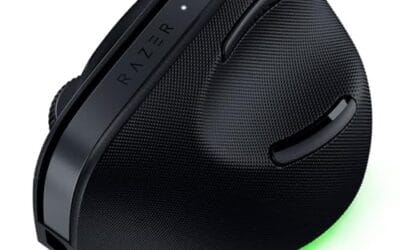
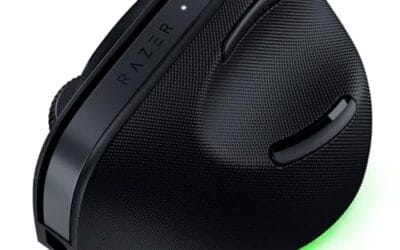
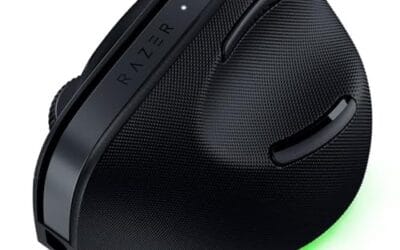
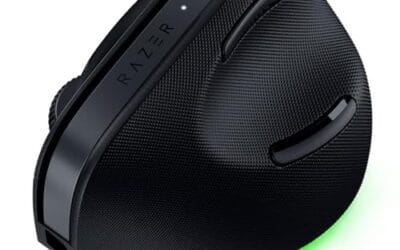
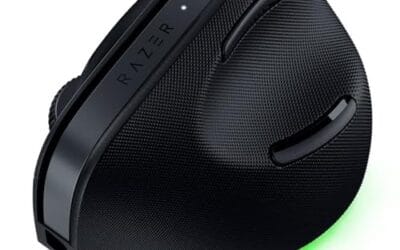
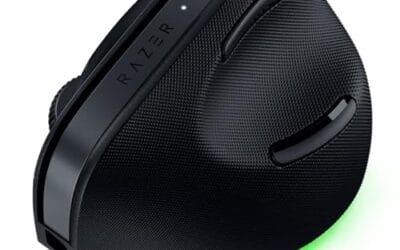
If you want the same upright ergonomics with a more feature-loaded build, the Razer Pro Click V2 Vertical is the step up. It runs $113.99 with a 4.7 rating and packs a 6-button ergonomic layout, a dedicated AI-prompt button, and triple connectivity over 2.4GHz, Bluetooth, or USB-C wired mode. It leans toward productivity users who live in browsers and documents all day, and the Chroma RGB is there if you want it. For hardcore play instead of work, weigh it against our best gaming mouse shortlist, since a competition-focused sensor may suit you better than an ergonomic shape.

Pros
- Focus Pro 30K sensor handles glass and reflective desks that trip up older vertical mice
- Battery rated up to 6 months, 5 minute top-up returns roughly 3 working days of use
- Three connectivity modes with up to 5 paired devices covers desktop, laptop, and tablet rotation
Cons
- Limited owner feedback at time of writing, so long-term reliability signal is not yet available
- Vertical handshake shape has a real learning curve for existing claw and fingertip grip users
- Mouse weight and max DPI are not specified in source, hard to gauge fast-tracking responsiveness
The Pro Click V2 Vertical is Razer's ergonomic wireless mouse aimed at knowledge workers and creators who log long sessions on Windows or Mac systems. The 6 button layout adds a dedicated AI prompt key tied into Razer Synapse 4 shortcuts for summarizing text and drafting emails.
The defining trait is the angled handshake shell with a wrist base that lifts your palm off the deck, reducing pronation on long days. Razer's Focus Pro 30K optical sensor handles glass and high-gloss surfaces, which vertical mice at this tier often struggle with due to older 3200 to 12000 DPI sensors.
Trade-offs are honest. Vertical shells force a handshake grip, so claw and fingertip users will fight muscle memory for a week or more. Battery is rated up to 6 months, but 18 zone Chroma with full underglow will cut that hard if you leave reactive lighting on. Mouse weight is not specified.
Buy this if you already know a vertical shape helps your wrist and you need one mouse hopping between a Windows tower, a MacBook, and a tablet over Bluetooth. Skip it if you plan to play competitive FPS titles, since vertical shells punish rapid tracking flicks and micro adjustments.
Sensor: Focus Pro 30K optical sensor with a claimed 99.8% resolution accuracy. Razer uses this same sensor family across its high-end lineup, so tracking on glass, mousepads, and gloss desks is realistic. Max DPI and polling rate are not specified in source data.
Switches and Buttons: Mechanical switches rated to a 60 million click lifecycle. Six total buttons include a dedicated AI prompt key mapped through Synapse 4 for text summarization and email drafting shortcuts on Windows.
Connectivity: Three modes ship in the box: 2.4GHz HyperSpeed via bundled dongle, Bluetooth with up to 3 host pairings, and USB-C wired. Combined device ceiling is 5, letting you rotate between desktop, laptop, tablet, and a secondary machine without re-pairing.
Battery and Charging: Rated up to 6 months under standard test conditions, with 5 minutes of USB-C charging yielding roughly 3 working days. The 18 zone Chroma RGB plus full underglow will cut that figure significantly if reactive lighting stays enabled.
Gamers who scroll-jump mid-match have a slightly different calculus, because latency and wheel feel both matter. A fresh cordless unit from our best wireless gaming mouse roundup gets you a clean encoder plus a modern sensor in one buy. Match the shape to your grip and you won’t miss the old one.
A few more questions
Why does my scroll wheel jump up when I scroll down?
Almost always a dirty or worn encoder misreading direction. Dust in the wheel gap makes one clean notch register as a forward-then-back motion, so the page snaps the wrong way. Clean the seam with compressed air first. If it persists after cleaning and a driver reset, the encoder contacts are worn and the mouse needs replacing.
Can compressed air really fix scroll jumping?
Yes, and it’s the first thing to try. Roughly half the cases we researched cleared up with a few short bursts into the wheel seam while spinning it. Keep the can upright to avoid spraying liquid, and follow up with a swab of high-percentage isopropyl alcohol if air alone doesn’t cut the sticky residue. It’s a two-dollar fix that beats buying new hardware.
Is it worth repairing a mouse or just replacing it?
For anything under about $40, replacing usually wins once cleaning fails, since swapping the encoder means soldering and an hour of work. For a pricier ergonomic or gaming mouse, a $5 encoder pack and a teardown guide can be well worth it. If the wheel wear coincides with an old, uncomfortable shape, treat it as a reason to upgrade rather than repair.



























Write Your Review
No reviews yet. Be the first to share your experience!