

Picking a gaming mouse sounds simple until you open a store page and hit forty options that all claim to be the fastest, lightest, and most precise thing ever molded from plastic. The goal here is narrow and useful: help you match a mouse to your actual hand, your actual games, and your actual desk, so you stop guessing and buy once. A good mouse should feel invisible after ten minutes. A bad one reminds you it exists every time you flick or reload. This walkthrough moves in order, from the part that matters most (shape) to the part everyone obsesses over too early (DPI numbers), and it points you toward deeper roundups like our best gaming mouse guide when you’re ready to compare specific models.
We researched dozens of current mice, owner reports, and manufacturer spec sheets to build this. You don’t need to memorize sensor model numbers or read a physics paper. Follow the five steps below, answer a few honest questions about how your hand sits and what you play, and you’ll land on the right shape and feature set. If your priority is comfort over raw speed, the same logic applies, and our best mouse for work picks overlap more than you’d expect.
What you’ll need before you decide
Not much. A ruler or tape measure, five minutes to check your grip style, and a rough budget. Measure your hand from the base of your palm (the wrist crease) to the tip of your middle finger, and again across the widest part of your palm. Write both numbers down in millimeters. That’s the single most useful data point most buyers skip. You’ll also want to know your main game genres and whether your desk has room for wide, low sweeps or forces you into tight wrist movement. If you already own a mouse that almost works, keep it nearby so you can compare size and button placement directly.
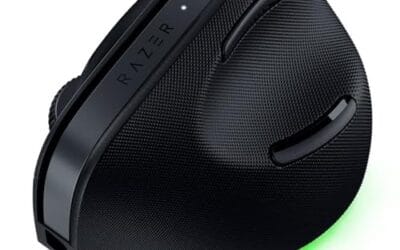
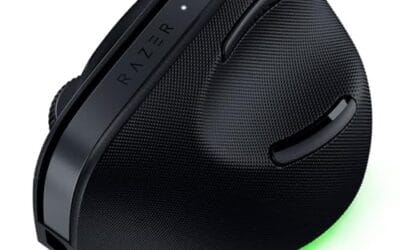
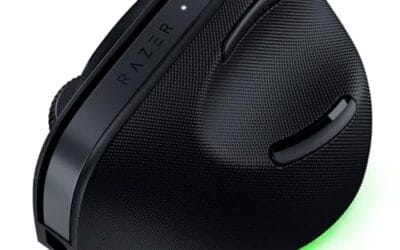
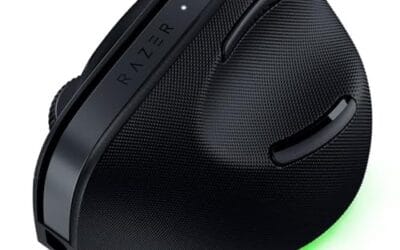
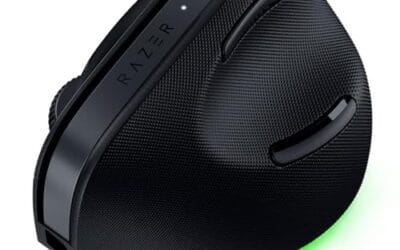
If comfort and ergonomics rank above competitive twitch aim, it’s worth having an ergonomic reference point on hand while you shop. The Razer Pro Click V2 Vertical Wireless is a useful example of the ergonomic end of the spectrum, a 6-button vertical design that connects over 2.4GHz, Bluetooth, or USB-C wired, and lists around $113.99 with a 4.7 rating. It isn’t a featherweight esports mouse, but it shows what a wrist-friendly build looks like when you’re comparing shapes.

Pros
- Focus Pro 30K sensor handles glass and reflective desks that trip up older vertical mice
- Battery rated up to 6 months, 5 minute top-up returns roughly 3 working days of use
- Three connectivity modes with up to 5 paired devices covers desktop, laptop, and tablet rotation
Cons
- Limited owner feedback at time of writing, so long-term reliability signal is not yet available
- Vertical handshake shape has a real learning curve for existing claw and fingertip grip users
- Mouse weight and max DPI are not specified in source, hard to gauge fast-tracking responsiveness
The Pro Click V2 Vertical is Razer's ergonomic wireless mouse aimed at knowledge workers and creators who log long sessions on Windows or Mac systems. The 6 button layout adds a dedicated AI prompt key tied into Razer Synapse 4 shortcuts for summarizing text and drafting emails.
The defining trait is the angled handshake shell with a wrist base that lifts your palm off the deck, reducing pronation on long days. Razer's Focus Pro 30K optical sensor handles glass and high-gloss surfaces, which vertical mice at this tier often struggle with due to older 3200 to 12000 DPI sensors.
Trade-offs are honest. Vertical shells force a handshake grip, so claw and fingertip users will fight muscle memory for a week or more. Battery is rated up to 6 months, but 18 zone Chroma with full underglow will cut that hard if you leave reactive lighting on. Mouse weight is not specified.
Buy this if you already know a vertical shape helps your wrist and you need one mouse hopping between a Windows tower, a MacBook, and a tablet over Bluetooth. Skip it if you plan to play competitive FPS titles, since vertical shells punish rapid tracking flicks and micro adjustments.
Sensor: Focus Pro 30K optical sensor with a claimed 99.8% resolution accuracy. Razer uses this same sensor family across its high-end lineup, so tracking on glass, mousepads, and gloss desks is realistic. Max DPI and polling rate are not specified in source data.
Switches and Buttons: Mechanical switches rated to a 60 million click lifecycle. Six total buttons include a dedicated AI prompt key mapped through Synapse 4 for text summarization and email drafting shortcuts on Windows.
Connectivity: Three modes ship in the box: 2.4GHz HyperSpeed via bundled dongle, Bluetooth with up to 3 host pairings, and USB-C wired. Combined device ceiling is 5, letting you rotate between desktop, laptop, tablet, and a secondary machine without re-pairing.
Battery and Charging: Rated up to 6 months under standard test conditions, with 5 minutes of USB-C charging yielding roughly 3 working days. The 18 zone Chroma RGB plus full underglow will cut that figure significantly if reactive lighting stays enabled.
Step 1: Match the shape to your grip and hand size
Shape decides everything else. Get it wrong and no sensor or button count saves the experience. Start with your grip. Palm grip means your whole hand rests on the shell, fingers flat, and you steer from the wrist. Claw grip arches the fingers and lifts the palm slightly, mixing wrist and finger motion. Fingertip grip floats the palm entirely and controls the mouse with fingertips alone. Most people fall somewhere between palm and claw without realizing it, and the safest move is to watch your own hand during a normal match rather than trusting a label.
Now bring in those hand measurements. As a rough guide, hands under about 17cm long do well with small or medium shells, 17 to 19cm suits most mediums, and anything longer wants a larger body or a pronounced hump. Palm-grippers generally want a taller back that fills the hand so the shell supports the whole palm. Claw and fingertip users tend to prefer flatter, shorter shells they can flick freely, since a tall hump gets in the way of quick finger lifts. Width counts too: a shell that’s too wide splays your thumb and pinky, and that spread quietly drains grip strength over a long night. If your wrist aches after long sessions, look hard at ergonomic and vertical designs, and read our best ergonomic mouse breakdown before committing. Vertical shapes go a step further by rotating the hand into a handshake position, which our best vertical mouse 2026 roundup covers in detail.
One habit helps here more than any spec chart. If you can, hold the mouse before you buy, or at least mimic its dimensions with a shell you already own. Numbers give you a shortlist, but the hand makes the final call. Pay attention to where your thumb naturally lands and whether your ring and pinky fingers have somewhere to rest. A shell that ignores your last two fingers forces a tense grip you won’t notice in the store and will absolutely notice after a three-hour session. Ambidextrous shapes suit some hands fine, but righties with larger hands often do better with a contoured right-handed body that supports the thumb.
Step 2: Decide wired vs wireless and how much weight you’ll accept
This step used to be easy. Wireless meant lag, so competitive players stayed wired. That’s no longer true. Modern 2.4GHz wireless mice run latency low enough that even top-tier players use them, and the freedom from cable drag genuinely helps aim consistency. The difference now sits in the single-digit millisecond range, which no human reflex resolves, so the old fear is mostly dated advice. Bluetooth is the exception. It polls far slower and adds noticeable delay, so keep it as a secondary connection for a second device, not your main link during a match.
Weight matters more than most beginners think. Light mice (under about 65 grams) reward fast flicks and change direction with less inertia, and they’ve become the default for shooters. Heavier mice (85 grams and up) feel more planted for slower, tracking-heavy aim. There’s no universally correct number, only what your hand prefers, and grip style feeds into it: a fingertip player tires faster under extra grams than a palm-gripper. Wireless internals add a little mass, so a light wireless mouse usually costs more. If you go wireless, factor in a solid mousepad and, if you keep a charging cable, a bungee to stop cable snag. Our best mouse bungee 2026 guide explains why that small accessory helps. For a full wireless shortlist, the best wireless gaming mouse comparison is the faster route.
Step 3: Check the sensor, DPI, and polling rate (but don’t overrate them)
Here’s the truth nobody selling you a mouse wants to say plainly: almost every modern gaming sensor is excellent. The marketing war over 26,000 or 30,000 DPI is mostly theater. DPI, sometimes labeled CPI, counts how many steps the sensor reports per inch of movement, so a higher number just means the cursor travels farther for the same hand motion. Real players use 400 to 1,600 DPI, and most sit around 800, because low settings give finer control over long, deliberate aim. The headline DPI number tells you very little about whether a mouse tracks well.
What actually matters is a clean sensor with no spin-outs, no acceleration, and consistent tracking at the speeds you move. A low-DPI player who makes big arm sweeps can outrun a weak sensor, and then the cursor jumps or stalls. Any current flagship sensor from a reputable brand clears that bar. Polling rate is similar. The old 1,000Hz standard means the mouse reports its position once every millisecond, and that’s smooth for nearly everyone. Newer 4,000Hz and 8,000Hz options exist, but they demand a strong CPU and deliver gains most people can’t feel. Treat sky-high DPI and polling numbers as tiebreakers, not deciding factors.
Step 4: Count the buttons your games actually use
Button count should follow your genre, not your ego. A twitchy shooter needs almost nothing: left, right, scroll click, and two thumb buttons is plenty. Adding a dozen buttons to that setup just gives you more edges to misclick. If you mostly play FPS or fast platformers, a clean six-button layout is the right call, and lighter shells usually come that way anyway.
MOBA and MMO players live in a different world. An MMO mouse with a 12-button thumb grid maps entire ability bars to your thumb, a real advantage in raids or team fights. The tradeoff is weight and a learning curve, so don’t buy a 17-button monster for a game that uses three. Also check the click switches. Optical switches use a beam of light to register a press, so there’s no metal contact to wear out, and they sidestep the double-click failures that plague older mechanical switches. It’s a small spec that decides how long the mouse stays reliable, so confirm it before you pay.
Step 5: Set your budget and confirm the extras
You can get a genuinely great gaming mouse for $40 to $70. Spending more buys lighter materials, better wireless, and premium switches, but the jump from good to great is smaller than the price gap suggests. Set a ceiling before you shop so specs don’t talk you into $150 you didn’t need to spend. A vertical or ergonomic option like the Razer Pro Click V2 near $114 makes sense when comfort is the priority, while a pure-performance shooter mouse can cost far less.
Before you check out, confirm three extras. First, the software. Good companion software lets you remap buttons, save DPI stages, and store profiles onboard so your settings follow the mouse to another PC without reinstalling anything. The best versions keep several profiles per game and switch between them with a button. Second, the feet (the skates on the bottom). Smooth PTFE feet glide better, wear evenly, and swap out for cheap aftermarket sets when they slow down, so tired feet are a five-dollar fix rather than a reason to upgrade. Third, the charging setup if you went wireless, including whether it uses standard USB-C and how long a full battery lasts under real play. These small things separate a mouse you tolerate from one you forget about entirely, which is the whole point. If you want a truly wrist-neutral build, the best ergonomic vertical mouse 2026 guide is the last stop before buying.
Troubleshooting common issues
My new mouse feels too big or too small
Go back to your measurements. If the shell feels cramped, your hand is likely longer than the mouse suits, and you’re probably clawing a palm-grip shape or vice versa. Sizing rarely lies. Return it inside the window rather than forcing your grip to adapt for weeks. A mismatched shape causes more long-term discomfort than any sensor ever will.
My aim feels worse after switching
Give it time and reset your settings first. Match the new mouse to your old effective sensitivity (DPI times in-game sens) so your muscle memory transfers. A week of adjustment is normal, especially if you moved from a heavy mouse to a light one. If it still feels off after that, the shape or weight probably doesn’t suit you, not your skill.
The wireless connection stutters or drops
Move the USB dongle to a front port or use the included extender so it sits closer to the mouse. USB 3.0 ports and hubs can cause 2.4GHz interference, so try a different port. Keep the receiver away from your phone and other wireless clutter. If you’re on Bluetooth for gaming, switch to the 2.4GHz dongle. That alone fixes most latency complaints.
Double-clicks or missed clicks appear over time
That’s usually switch wear, and it’s exactly why optical switches are worth prioritizing at purchase. If your mouse is still under warranty, claim it. If not, some models let you swap switches yourself. It’s a repairable problem, but the easier fix is buying a mouse with durable switches in the first place.
Wrapping up
Choosing a gaming mouse comes down to a short, honest checklist. Measure your hand and know your grip. Pick a shape that fits both. Go wireless if you can, choose a weight that matches your aim style, and don’t let DPI marketing steer you. Match button count to your genre, confirm the switches and software, and set a budget before specs get loud. Do that and you’ll skip the expensive trial-and-error most people go through. Your hand is the real spec sheet here. Everything else just has to fit it.



























Write Your Review
No reviews yet. Be the first to share your experience!