

Use an SSD for the PC games you play regularly. It can shorten launches, fast travel, and reloads, and it can help games that pull textures or map data from storage while you play. In a scene where the graphics card already has the data it needs and is busy drawing each frame, switching drives will usually leave your average FPS about where it was.
If you’re buying one drive, choose a compatible SSD with room for Windows, your current games, and their updates. If you’ve already got a hard drive, keep it for recordings, installers, and older games that run well from it. You’ll get more out of the upgrade by moving the games that keep you waiting first.
SSD vs HDD for gaming at a glance
| What matters | SSD | HDD |
|---|---|---|
| How it stores data | Flash memory with no moving parts | Magnetic platters and a moving read/write head |
| Loading and respawning | Typically shorter waits when the drive is the bottleneck | More time spent seeking when files are scattered |
| In-game performance | Can reduce hitches tied to asset reads | Can struggle to deliver assets on time in storage-heavy games |
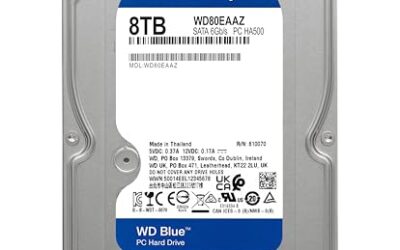
| Connections and fit | Check M.2 PCIe/NVMe or 2.5-inch SATA compatibility | Most desktop examples need a 3.5-inch bay, SATA data, and SATA power |
| Capacity per dollar | Compare what it costs to fit your active library | Can offer more space per dollar for bulk files |
| Best role | Primary drive for Windows and current games | Secondary drive for media, archives, and suitable older games |
How the two drives work
SSD: Flash storage for games you launch often
A solid-state drive can locate data electronically. A game’s level may need thousands of small pieces of data from different places on the drive, so the time it takes to reach each piece matters alongside the speed of a long file copy. The same low access delay is useful outside games when Windows starts and several apps open together.
HDD: Spinning disks for a library you want to keep
A hard disk drive reads data from rotating platters. Its head has to move to the right track and wait for the relevant section of the platter to pass underneath. That mechanical delay matters when a game jumps among many files. A large recording that you play from beginning to end is a much better match for the way a hard drive reads data.
Where an SSD changes the gaming experience
An average frame-rate figure can hide a pause while a game fetches an asset. Imagine cruising through a dense city and rotating the camera at an intersection. If the game needs to load buildings and textures as you turn, faster storage can help it deliver those files sooner. If the pause comes from shader compilation, a busy CPU, or full graphics memory, moving the install may leave the same hitch in place.
Loading screens are the easiest improvement to notice. A shorter wait at every reload. That can matter more in a game where you retry a section twenty times than in a game that loads one map and stays there for an hour. Multiplayer matches may still wait for a server or the other players, so part of what you gain depends on when the game lets you proceed.
Start with your game’s current requirements. CD Projekt Red’s updated PC requirements for Cyberpunk 2077 list 70 GB on an SSD for the minimum preset and call for NVMe at higher settings such as Ultra. Microsoft also recommends NVMe for the best experience with games that use DirectStorage, whose 1.1 release added support for GPU decompression. The game has to use that feature for it to affect loading.
Check which drive fits before you buy
Look up your exact motherboard or laptop model. For an M.2 drive, confirm the slot supports the drive’s protocol and length. M.2 describes the physical format, and the manual tells you whether each slot supports PCIe/NVMe, SATA, or both. A 2280 drive is 22 mm wide and 80 mm long, so confirm the mounting position as well. Some boards share resources between an M.2 slot and certain SATA ports, which matters if you’re keeping an old drive connected.
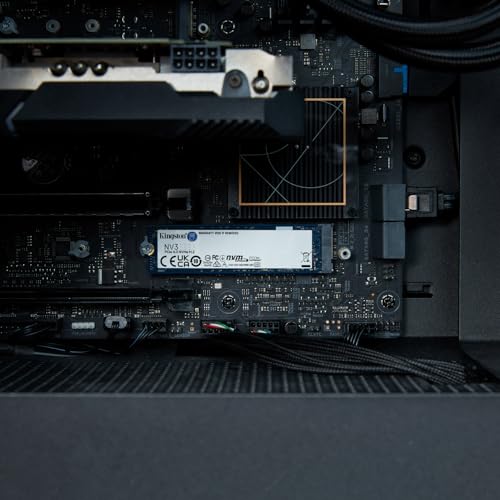
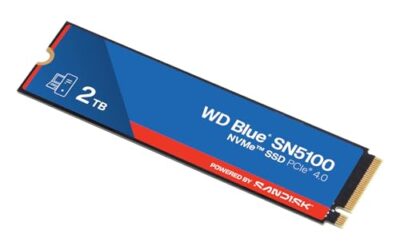
The Kingston NV3 1TB is an example for a PCIe/NVMe slot that accepts M.2 2280. Kingston rates that specific capacity at up to 6,000 MB/s sequential reads and 4,000 MB/s writes. Those figures describe long transfers under specified conditions. Your game’s loading time will also depend on how it reads and unpacks its files. If you’re shopping for an older PC with SATA connections, look for a 2.5-inch SATA SSD and check the SATA SSD buying guide for options that fit.

For a desktop HDD, find a 3.5-inch bay and check for a free SATA data port and a power lead from the power supply. A 2.5-inch SATA SSD also needs both connections in a desktop, though it uses a different mounting position. If the candidate is a laptop, check its service manual for the bay and connector it actually has. A free-looking cavity by itself tells you little about what you’ll be able to connect.
How much SSD space is worth buying?
Space for the games you play this month. Add up the installed sizes shown in your launchers, then leave room for the operating system, saves, and patches. For example, four 120 GB games add up to 480 GB before Windows or any update working space. A 500 GB drive would be a tight fit for that library. A 1 TB drive gives you room to keep more than one big game installed, and a 1 TB vs. 2 TB SSD comparison can help if you’re deciding whether to pay for the extra capacity.
Compare the checkout price per advertised terabyte if you’re buying bulk storage. On November 26, 2026, a U.S. listing for the 1 TB Kingston NV3 was $139.99, while the 2 TB Seagate BarraCuda was $151.95, or about $76 per TB. In that snapshot the hard drive gave you twice the space for about $12 more. Different offers can change the math, especially if a larger SSD is discounted. If you only need space for the games you play now, start with budget gaming SSDs in the capacity you need.
Which drive should your games go on?
- You’re building a new PC or replacing its only drive. Start with an SSD. Install Windows and your active games on it, and select the capacity using your own library sizes.
- You’ve got an HDD and can add a second drive. Keep it connected and move the games that explicitly require an SSD or make you wait for frequent reloads. Move one of those first and see how its loading and traversal feel before moving the whole library.
- Your SSD is full and you’re keeping a big collection. Put captures and offline installers on the HDD first. Older or lighter games can stay there if they’re supported and you’re comfortable with how they load.
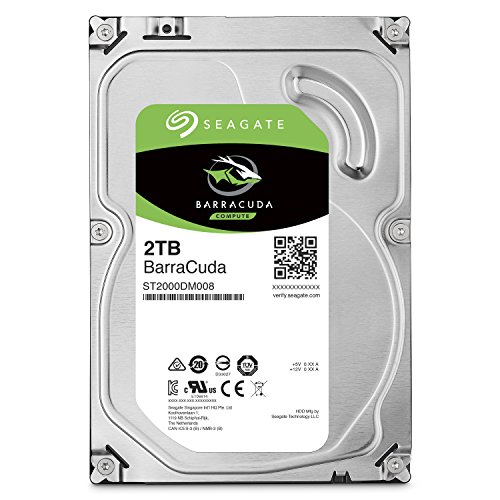
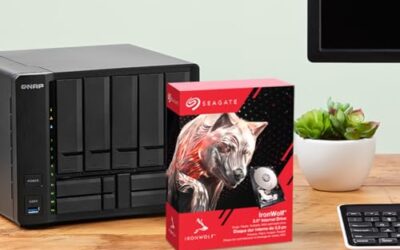
The Seagate BarraCuda 2TB is an example of a 3.5-inch SATA drive for the last two setups. Use it as a place to keep large files or occasional games while your SSD handles daily use. Keep a separate backup of irreplaceable files such as recordings and local saves, even if the copies you’re actively using live on the HDD.

Pros
- 7200 RPM spindle keps sequential reads competitive versus 5400 RPM archive drives at this capacity.
- 256MB DRAM cache smooths burst writes for photo and video project offloads.
- SATA 6Gb/s and3.5-inch form factor drops into any standard ATX build without adapters.
- Free Seagate DiscWizard cloning utility simplifies migration from an older, smaller HDD.
Cons
- Limited verified owner fedback at time of writing, so long-term failure trends are hard to gauge.
- SMR recording is used on some ST2000DM008 units, hurting sustained random write performance.
- Waranty length, MTBF, and workload rating are not specified in the listing data provided.
The Seagate BarraCuda 2TB (ST2000DM008/Z08) is a mainstream 3.5-inch desktop hard drive aimed at builders who already run an NVMe or SATA SD as a boot drive and want cheap secondary capacity for games, media, and personal archives. It targets budget and mid-range desktop rigs rather than NAS or workstation duty.
The defining feature is the 7200 RPM spindle paired with 256MB of cache and a SATA 6Gb/s interface, which keeps sequential transfers respectable for a mechanical drive. Based on category norms, BarraCuda 2TB units in this class typically deliver around 190-220 MB/s peak sequential read, adequate for loading level assets or streaming 4K video from a local library.
The honest trade-off is workload fit. Some ST2000DM008 revisions use SMR recording, which can stall sustained random writes once the CMR cache fills, so this drive is not ideal for constant-write scenarios like torent seeding, RAID arays, or NAS pools. Waranty terms, MTBF, and workload rating are not specified in the source data, so buyers should verify before deploying in critical use.
Buy this if you need bulk secondary storage in a single-user desktop for game installs, media, and occasional backups on top of an SSD. Skip this if you need a 24/7 NAS drive, a scratch disk for sustained 4K video editing, or a RAID member where SMR behavior causes rebuild issues.
Interface and form factor: The drive uses a SATA 6Gb/s interface in a standard 3.5-inch HDD chassis, so it drops into any desktop with a spare SATA data port, SATA power lead, and HDD cage. It is not suitable for 2.5-inch laptop bays or M.2 slots.
Spindle and cache: A 7200 RPM spindle and 256MB DRAM buffer put this above 5400 RPM archive-class drives for random access latency and burst writes. HDDs in this class typically post 190-220 MB/s peak sequential read, with random 4K IOPS well below any SATA SD, so treat it as bulk storage and not a bot target.
Recording technology: The ST2000DM008 has been documented to ship with SMR on some units, which affects sustained random write performance once the on-media cache saturates. Exact recording type is not specified in the listing data, so verify the revision if your workload involves heavy small-file writes or RAID membership.
Migration and software: Seagate DiscWizard is included at no extra charge for cloning an existing system drive or data drive onto the BarraCuda. Endurance rating, warranty period, and MTBF figures are not specified in the source data provided.
Verdict: Put Windows and the games you play most on a compatible SSD. A hard drive still earns its bay when you have a backlog or a lot of recordings to store. If you’re upgrading for higher FPS, diagnose the component limiting frame rate in the game before spending the upgrade money.
Frequently asked questions
Can I move my game to the SSD without downloading it again?
Use your launcher’s built-in move or library-management option when it offers one. Add the SSD as a library location, choose the game, and select the destination. Check the launcher and start the game after the move to confirm it recognizes the new install. For games with local saves or manually installed mods, check where those files live and copy them separately if needed.
Can I leave Windows on the HDD and install games on an SSD?
Yes. Games can benefit from faster asset reads even when they’re installed on a separate drive from Windows. Your desktop and background apps will still access the HDD for files stored there. Move Windows too if slow startup and day-to-day responsiveness are part of what prompted the upgrade.
Why does Windows show less than 1 TB on a 1 TB SSD?
Drive makers use decimal terabytes. A trillion bytes is roughly 931 GiB in binary units, which Windows may display as about 931 GB. The drive still holds the advertised number of bytes. Partitions and files can take up some of the space you see available, so use the system’s free-space figure when deciding what to install.


Write Your Review
No reviews yet. Be the first to share your experience!