

A thousand dollars used to feel tight for gaming. It isn’t anymore. With today’s parts, a $1,000 budget buys a machine that plays modern titles at 1080p on high settings, and often stretches into 1440p if you shop smart. The tricky part isn’t the money. It’s knowing which specs actually move the needle and which ones are marketing noise designed to pad a spec sheet. This walkthrough breaks the decision into clear steps so you don’t overpay for a flashy case while the graphics card quietly underperforms.
We researched dozens of prebuilt configurations and component combinations to map out where your dollars do the most work. If you’d rather assemble parts yourself, our best gaming PC build under 1000 guide covers a hand-picked parts list, and the best AMD prebuilt gaming PC roundup is worth a look if you lean toward Ryzen. Either way, the priorities below stay the same. Let’s get into what to check, in order.
What you’ll need before you shop
You don’t need tools for this. You need a short checklist and a little patience. Decide your target resolution first (1080p or 1440p), because that single choice reshapes everything downstream. Then know your must-play games, since a competitive shooter and a heavy single-player RPG stress hardware differently. Keep a browser tab open for real-world frame-rate figures, and set a hard ceiling so shipping and tax don’t push a “$999” cart past your limit. That’s the whole kit: a resolution goal, a game list, and discipline.
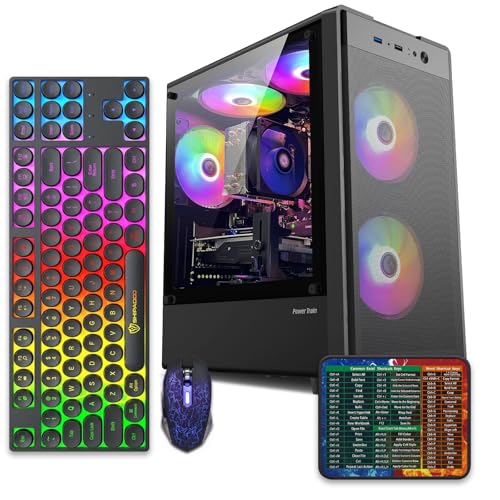
To ground the numbers, it helps to have a real reference point. The abytespark Prebuilt Gaming PC Desktop lands at $499.99 with a 4.4 rating, built around an Intel Core i7 in a compact tower. At that price it leaves plenty of headroom under $1,000 for a stronger GPU or an upgrade later, and it’s a useful baseline for judging whether a pricier box is actually giving you more.
Pros
- 512GB SSD bot drive avoids the HDD bottleneck common in budget prebuilts
- RX 590 8GB VRAM buffer handles 1080p textures better than 4GB budget cards
- Complete bundle with RGB peripherals means no extra spend to start using
- Genuine Windows 11 Home 64-bit preinstalled, no activation hassle out of box
Cons
- Limited owner feedback at time of writing, verify seller reputation before purchase
- Core i7-4770 is Haswell era LGA150, no upgrade path and weak IPC versus modern CPUs
- Windows 11 on 4th-gen Intel is unsupported by Microsoft and may miss feature updates
- No CD/DVD-ROM support and RAM/GPU generation limits future workload headroom
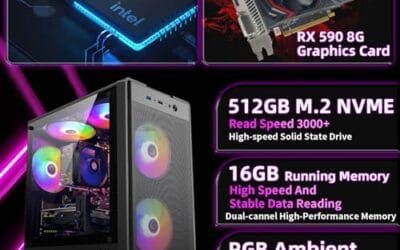
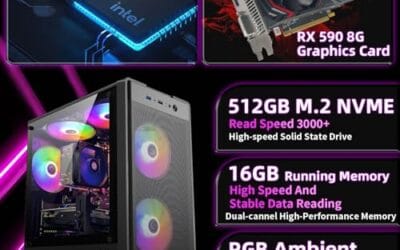
This is an entry-tier prebuilt tower built around an Intel Core i7-4770 Haswell CPU, 16GB RAM, a 512GB SSD, and an AMD Radeon RX 590 8GB GDDR5 GPU. It targets budget buyers who need a working office and light gaming PC with peripherals bundled, not enthusiasts chasing current-gen performance.
The defining feature is the RX 590 8GB paired with a 512GB SSD, an uncommon combo at this price band. Cards in this class typically handle 1080p esports titles at 60+ FPS on medium to high, matching the vendor claim for CS:GO, League of Legends, Apex, and Overwatch. Newer AA titles will need lowered settings.
Trade-offs are significant. The i7-4770 launched in 2013, so IPC, single-thread performance, and platform features like NVMe bot, PCIe Gen4, and modern USB are limited. Windows 11 runs here but sits outside Microsoft's official supported CPU list. There is no realistic CPU or socket upgrade path on LGA1150.
Buy this if you need a plug-and-play 1080p esports and office tower with keyboard, mouse, and RGB included at a low outlay. Skip this if you want current-gen platform support, sustained AA 1440p gaming, or a build with a meaningful upgrade runway.
GPU class: The AMD Radeon RX 590 8GB GDDR5 is a Polaris-refresh card roughly equivalent to a GTX 1060 6GB tier. Expect 1080p 60+ FPS in esports titles like CS:GO, Overwatch, Apex, League, and Fortnite on medium settings, matching the listing's claims.
AAA and modern titles: The vendor lists GTA V, Warzone, Hogwarts Legacy, and The Division 2. Realistically, these run at 1080p low to medium with FSR upscaling where suported.Ray tracing is unsupported on RX 590. No DLSS, no frame gen, no AV1 encode.
CPU bottleneck: The Core i7-4770 quad-core with 8threads at up to 3.9GHz will bottleneck the RX 590 in CPU-heavy titles like Warzone and Escape from Tarkov. Expect frame time inconsistency in large team fights even when average FPS looks aceptable.
Storage and RAM fit: 512GB SSD holds Windows plus 3 to 5 modern game installs before space pressure. 16GB DR3-era RAM is adequate for current esports but leaves no headroom for heavy streaming, browser tabs, and OBS NVENC alongside a game session.
Step 1: Set your resolution and frame-rate target
Everything starts here. At 1080p, a $1,000 budget can chase 100-plus frames per second in most titles, which suits fast-paced multiplayer. At 1440p, you’re usually aiming for a smooth 60 to 90 FPS on high settings, trading raw frame count for a sharper image. Pick one. Trying to max both at this price forces compromises that leave you unhappy with either.
Your monitor matters as much as the tower. There’s no point buying a system tuned for 144 FPS if your screen refreshes at 60Hz. Match the panel to the goal. If you already own a 1440p display, that decision is basically made for you, and the build should follow.
Be honest about the games you actually play, too. A competitive shooter like Valorant or CS2 runs at hundreds of frames on modest hardware, which frees budget for a sharper monitor. A demanding open-world game with ray tracing turned on will tax the same rig hard. Write your five most-played titles down and let the most demanding one set the bar. Plan for the ceiling, not the floor, and you won’t be surprised on launch day.
Step 2: Put the graphics card first
In a gaming PC, the GPU is the star. It’s the component that most directly sets your frame rates, and it’s where the bulk of a $1,000 budget should go, typically $350 to $500 of it. A card with 8GB of VRAM is the floor for comfortable 1080p today, and 12GB gives you breathing room at 1440p and for the next few years of games that keep getting hungrier.
Watch for a common trap. Sellers love pairing a fast processor with a weak GPU because CPUs sound impressive on a listing. Flip that logic. A modest processor with a strong graphics card will out-game a fancy chip stuck behind an entry-level card every single time. If a prebuilt hides its exact GPU model behind vague phrasing like “dedicated graphics,” treat that as a warning sign and dig for the specific card name.
One more thing worth checking is whether the card is a genuine desktop GPU. Some budget towers slip in laptop-class chips or older refreshed models that share a name with something faster but perform well below it. Look up the exact model’s real-world benchmarks before you trust any frame-rate promise on the box. Two minutes of searching separates a card that’ll last three years from one that’s already behind.
Step 3: Match the processor without overspending
The CPU’s job is to feed the graphics card and handle everything the game world throws at it. For gaming under $1,000, a current-generation six-core chip is plenty; think a recent Intel Core i5 or Ryzen 5. Spending up to a Core i7, like the one in the abytespark tower mentioned earlier, makes sense if you also stream, edit video, or run heavy multitasking alongside your games.
Don’t chase the highest core count you can find. Most games barely use more than six to eight cores, so paying for a 12-core chip at this budget usually steals money the GPU needed. If your interests run past gaming into content work, the best streaming PC build and best workstation PC build guides show where extra cores genuinely pay off. For pure gaming, keep the CPU sensible and let the graphics card eat the budget.
Step 4: Nail memory and storage
16GB of RAM is the standard for gaming right now, and it’s non-negotiable at this budget. Aim for a dual-channel kit (two sticks) running at DDR4-3200 or faster, or DDR5 on newer platforms, because dual-channel meaningfully lifts frame rates over a single stick. Some bargain prebuilts ship a lonely 16GB stick to cut cost. That’s a corner you’ll feel in stutters.
For storage, insist on a solid-state drive, and specifically an NVMe SSD of at least 512GB. Modern games routinely swallow 80GB to 150GB each, so 512GB fills faster than you’d think; 1TB is the comfortable target if the price allows. Avoid any build that still uses a mechanical hard drive as the boot drive. Load times on an SSD are night and day, and you won’t want to go back.
A smart middle ground some builds use is a smaller NVMe drive for the operating system and a second larger drive for your library. That’s fine, as long as the boot drive is the fast one. If a listing brags about “1TB storage” without saying SSD or HDD, assume the worst and confirm. Storage is cheap to add later, so don’t let a thin drive kill an otherwise strong deal, but do know exactly what you’re getting before checkout.
Step 5: Check the power supply, cooling, and upgrade path
These are the boring parts that decide whether your PC lasts. A quality power supply in the 550W to 650W range with an 80 Plus Bronze rating or better protects your components and leaves room for a future GPU upgrade. Cheap, no-name units are the single most common source of instability in budget builds, so this isn’t a place to save $15.
Cooling and expandability round it out. The case should have real intake and exhaust airflow, not just RGB fans behind a glass panel that looks pretty and vents nothing. Check that there’s a spare RAM slot and an extra drive bay so you can grow the system instead of replacing it. A compact tower like the abytespark model is fine for gaming, but confirm the GPU clearance before you commit to a bigger card down the line. If space is your real constraint, the best mini PC 2026 picks show how small a capable machine can get.
Troubleshooting common issues
The listing hides the exact GPU or PSU
Vague specs almost always mean the seller is hiding something cheap. If you can’t find the precise graphics card model or the power supply’s wattage and rating, message the seller or walk away. A confident brand lists every part by name. Silence on the parts that matter tells you what you need to know.
The price looks too good to be true
A $600 machine promising 1440p ultra performance is usually leaning on a last-generation GPU or skimping on RAM and storage. Cross-check the frame-rate claims against independent benchmarks for the actual card inside. Real numbers don’t lie, and a quick search saves you from a purchase you’ll regret in a month.
You’re torn between two solid configs
When two systems land close, let the graphics card break the tie, then storage capacity, then warranty length. Those three settle most stalemates. Everything else, from case color to bundled peripherals, is a rounding error next to raw gaming performance.
Before and after: what to expect
Get these steps right and a sub-$1,000 gaming PC delivers years of smooth play. You’ll launch modern titles at 1080p high or 1440p medium-to-high and see steady frame rates, quiet fans under load, and fast boots thanks to that NVMe drive. Skip the steps and you get the opposite: stutters, thermal throttling, and a machine that feels dated within a year. The difference isn’t the budget. It’s the choices.
Variations and stepping up later
Your needs will change, and a well-chosen build can grow with them. If you find yourself wanting more headroom for high-refresh 1440p, the best 9800X3D build under 1500 and best 9800X3D build under 2000 guides map the next two tiers cleanly. The habits from this walkthrough carry straight up: GPU first, sensible CPU, fast storage, honest power. Only the numbers get bigger.
Common questions
Is $1,000 really enough for a good gaming PC in 2026?
Yes, comfortably. A $1,000 budget covers a strong 1080p machine and often a capable 1440p one, provided the money is weighted toward the graphics card. It’s the sweet range where prebuilt value peaks, so you’re not fighting scarcity at either extreme.
Should I buy a prebuilt or build it myself?
Building yourself usually squeezes out more performance per dollar and teaches you the machine inside and out. A prebuilt trades a little of that value for convenience, a single warranty, and no assembly. If you’re short on time or confidence, a well-specced prebuilt like a $499.99 Core i7 tower is a reasonable starting point you can upgrade later.
How much of my budget should the GPU take?
Roughly 35% to 50%. On a $1,000 build that’s $350 to $500 on the graphics card alone. It’s the component you feel most in every game, so shorting it to fund a fancier CPU or case is the classic budget mistake.
Can I upgrade a cheap prebuilt into something stronger?
Often, yes, but check three things first: the power supply wattage, the case’s GPU clearance, and whether there’s a free RAM slot and drive bay. A $500 tower with those boxes ticked can accept a better card and more storage down the road, which is why the upgrade path in Step 5 matters so much.



























Write Your Review
No reviews yet. Be the first to share your experience!