A USB hub is a small device that takes one USB port on your computer and splits it into several. That’s the whole idea. You plug the hub into your laptop or desktop, and suddenly that single port becomes four, seven, or even sixteen. If you’ve ever run out of ports halfway through plugging in a mouse, keyboard, webcam, and external drive, a hub fixes that problem in about thirty seconds.
The short answer
A USB hub multiplies one port into many. Powered hubs include a wall adapter so high-draw devices (external drives, optical drives, charging phones) work reliably. Unpowered hubs pull all their juice from your computer, which is fine for keyboards, mice, and flash drives but iffy for anything hungry. USB-C hubs do the same thing for newer laptops, often adding HDMI or card readers along the way.
The longer explanation
Inside every hub is a controller chip that handles traffic between your computer and the devices you plug in. The chip negotiates speed, manages power delivery, and shuffles data packets back and forth. Most hubs follow the USB 3.0 or 3.2 spec, which tops out at 5 Gbps or 10 Gbps respectively. That’s plenty for most peripherals, though you won’t get the full speed on every port if you’re slamming all of them at once.
Powered hubs have a barrel jack on the back for an external adapter. This matters more than you’d think. A bus-powered hub shares the 500 mA (USB 2.0) or 900 mA (USB 3.0) ceiling that your computer offers, divided across every connected device. Plug in a portable HDD that needs 700 mA on its own and an unpowered hub will choke. The drive spins up, then drops out. Annoying.
USB-C hubs aren’t really different in principle. They just use the newer connector. Many of them double as mini docks, adding HDMI, Ethernet, or an SD card slot. The line between “hub” and “docking station” gets blurry here, but a hub generally lacks the power passthrough and multi-monitor muscle of a true dock.

Pros
- USB 3.0 5Gbps across all four ports, adequate for SATA-class external SSDs.
- Bus-powered and cable-tethered, no separate PSU or dongle to lose.
- Compact slim chassis fits cleanly next to a laptop or behind a monitor stand.
- Anker states an 18-month warranty backing per the included welcome guide.
Cons
- Charging is not supported, so phones and tablets will not draw power through it.
- Bus-powered 5V budget is shared across four ports, limiting high-draw portable HDDs.
- No USB-C downstream ports, USB-A only, which dates the connector layout for newer peripherals.
This is a budget, bus-powered USB 3.0 data hub that turns one USB-A host port into four downstream USB-A ports over a 2ft captive cable. It targets laptop and desktop users who need to run a keyboard, mouse, headset dongle, and a flash drive at once without a full docking station.
The defining spec is the 5Gbps USB 3.0 link shared across four ports. In practice, that is enough headroom for a SATA-class external SSD (roughly 400-450MB/s) plus low-bandwidth peripherals on the remaining ports. Anker also flags heat-resistant construction, sensible for a slim plastic hub running several active flash devices.
Trade-offs are typical at this tier. Anker explicitly states charging is not supported, so a shared 5V bus-powered budget will struggle with spun-rust portable HDDs or anything that spikes above roughly 900mA. The hub is USB-A only, both host and downstream, so USB-C laptops need an adapter and there is no PD passthrough.
Buy this if you want a cheap, slim USB-A hub for keyboard, mouse, receivers, and the occasional thumb drive on a legacy USB-A machine. Skip this if you need to charge a phone, run a bus-powered 2.5in HDD, or connect via USB-C without an adapter.
Interface and bandwidth: USB 3.0 host to four USB 3.0 Type-A downstream ports, rated at up to 5Gbps aggregate SuperSpeed per Anker. All four ports share the single upstream link, so concurrent heavy transfers will divide thatceiling rather than multiply it.
Cable and form factor: Captive 2ft USB-A to USB-A tether integrated into an ultra slim housing. Length is enough to reach from a laptop side port to the desk surface, but too short to span a tower PC on the floor to a monitor-mounted position.
Power delivery: Bus-powered only. Anker explicitly states this hub is not designed to charge devices, and there is no DC input jack for an optional adapter. Expect the shared 5V budget to suit low-draw peripherals and flash storage rather than portable spining drives.
In the box and support: Anker Ultra Slim 4-Port USB 3.0 Data Hub, welcome guide, and Anker's stated 18-month warranty with customer support. No included USB-C adapter, no travel pouch listed in the source materials.
Why it works this way
USB was designed from the start to be tiered. The spec allows up to 127 devices on a single host controller, chained through hubs. Your motherboard already contains internal hubs you never see. Adding an external hub just extends that tree another level. The host controller handles arbitration, so each device gets a slice of bandwidth based on what it asks for.
Power’s the tricky bit. USB ports were built to deliver modest current for low-draw gadgets. As peripherals got hungrier (think 2.5-inch drives, RGB keyboards, fast-charging phones), the unpowered model started cracking. That’s why powered hubs exist. They sidestep the host’s power budget entirely by drawing from a wall adapter, then route that current to each downstream port independently.
When you would want this
Plenty of scenarios. Modern laptops have shed ports aggressively. A MacBook Air gives you two USB-C jacks and that’s the whole story. Even gaming laptops often skimp. So if your daily kit includes a wired mouse, mechanical keyboard, headset, webcam, external SSD, and a phone you want to charge, you’re already over budget.
Desktops aren’t immune either. The case might have four front-panel USB ports, but they’re usually packed too close together for chunky flash drives or dongles to sit side by side. A small hub on the desk solves that. Need a lot of ports for content creation rigs (capture cards, audio interfaces, MIDI controllers, multiple drives)? A 7-port or 16-port powered hub becomes essential.
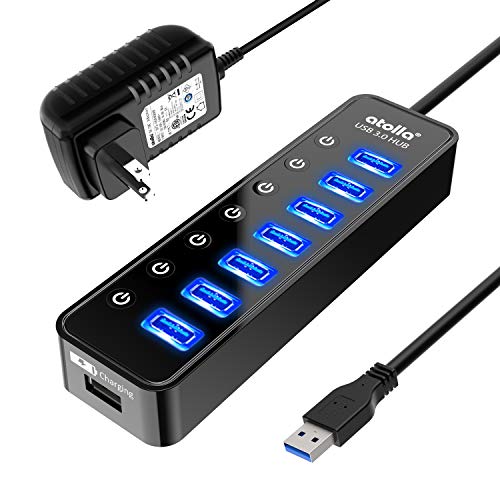
Pros
- 5Gbps USB 3.0 throughput across all seven data ports for external drives and peripherals.
- Dedicated 2.4A smart charging port keps phone charging separate from data lanes.
- Individual switches allow per-port power control, useful for spin-down of idle HDDs.
- 100cm host cable and 120cm power cord give flexible placement behind monitor arms or desks.
Cons
- Limited owner feedback at time of writing makes long-term reliability hard to verify.
- 20W total budget from the 5V/4A adapter caps simultaneous high-draw drive use.
- USB 3.0 host cable is fixed length and not detachable, limiting future replacement.
The Atolla 7-Port USB 3.0 Hub is a mid-tier powered desktop hub aimed at MacBook, Mac Mini, and laptop users who run out of ports quickly. It pairs seven USB 3.0 data ports with a dedicated smart charging port, individual on/off switches per port, and an external 5V/4A adapter for stable power delivery.
The defining feature is the combination of per-port switches and an external brick. Owners running multiple bus-powered 2.5-inch drives or SD readers benefit from the 20W suply, which reduces the brownout risk common on unpowered hubs. The 5Gbps USB 3.0 spec is adequate for SATA SD enclosures, though NVMe enclosures will bottleneck at roughly 400-450MB/s in practice.
Trade-offs are typical at this tier. There is no USB-C host connection, no per-port amperage spec beyond the charging port, and no indication of overcurrent protection in the source data. The host cable length is fixed at 100cm, which may be short for tower PCs placed on the floor. Aggregate bandwidth is shared across the upstream USB 3.0 link.
Buy this if you need a Mac-friendly desktop hub with physical switches for legacy peripherals, card readers, and occasional phone charging. Skip this if you need USB-C uplink, Power Delivery passthrough, or per-port 10Gbps speeds for modern NVMe enclosures and4K capture devices.
Ports and bandwidth: Seven USB 3.0 Type-A downstream ports rated at 5Gbps each, sharing a single USB 3.0 upstream link to the host. An eighth port is dedicated to smart charging and does not cary data. Hot-swap and plug-and-play are suported without driver installs.
Power delivery: External 5V/4A adapter suplies 20W total across the hub. The smart charging port is rated up to 2.4A for iPhone and iPad. Per-port amperage split for the data ports is not specified, so heavy-draw devices like 3.5-inch drives may need their own power.
Physical dimensions: Hub measures roughly 6.30 x 1.77 x 0.91 inches in a black finish. The USB host cable is 100cm and the DC power cord is 120cm, which suits desktop placement behind a monitor but may fall short for floor-standing towers.
Compatibility: Windows XP through Windows 10, macOS 10.x and above, and Linux distributions are supported. No drivers required. Waranty is stated as 18 months per the listing. Package contents include the hub, 5V/4A adapter, and a quick setup guide.
Travel’s another use case. Many people carry a compact 4-port hub in their laptop bag for hotel rooms and conference tables. Cheap insurance.
Common misconceptions
First one: more ports equals slower performance. Not really. Bandwidth is shared, sure, but unless you’re running multiple SSDs or 4K capture devices simultaneously, you’ll never notice. A keyboard uses kilobits per second. A mouse, even less. You can park ten low-draw devices on one hub without any meaningful slowdown.
Second: USB-C hubs are always faster than USB-A. Nope. The connector shape doesn’t determine speed. A USB-C hub running USB 2.0 internally is slower than a USB-A hub running 3.2 Gen 2. Always check the actual spec on the spec sheet, not just the plug shape.
Third: any hub will charge your phone. Maybe. Unpowered hubs typically can’t deliver enough current for fast charging. You’ll trickle charge at best. Powered hubs with dedicated charging ports (some have a port marked “BC 1.2” or similar) handle this properly.

Pros
- Sixteen 10Gbps ports one uplink cover flash drives, SSDs, dongles, and printers.
- Bundled 12V/8A 96W brick provides real headroom versus underpowered 5V/4A hubs at this port count.
- Per-port physical switches with LEDs let you isolate devices without pulling cables.
- Aluminum shell and weighted base resist tugs and passively dissipate heat during sustained transfers.
Cons
- Limited owner feedback at time of writing, long-term reliability and QC consistency remain unverified.
- Single 10Gbps uplink is shared across all 16 ports, sustained multi-SD transfers will bottleneck.
- Surge protection is claimed but no joule rating or certification is specified in source data.
The AGEEN 16-Port USB 3.2 Gen 2 Hub is a mid-range powered desktop hub aimed at users who need bulk USB expansion rather than raw throughput per port. Sixteen 10Gbps Type-A ports, individual switches, and a 96W external brick target studio operators, lab benches, and small server rooms running many low-to-mid bandwidth peripherals.
The defining feature is port density with per-port switching. Each port has its own physical switch and LED, which is genuinely useful when cycling test devices, isolating a misbehaving drive, or cutting idle draw from always-connected peripherals. The 12V/8A adapter feds 96W across the array, enough headroom for mixed flash drives, HDDs, and charging loads at this port count.
Trade-offs are typical at this tier. All 16 ports share one USB 3.2 Gen 2 uplink to the host, so sustained parallel transfers from multiple NVMe enclosures will saturate the 10Gbps pipe fast. Surge protection is claimed but the source lists no joule rating or UL mark, and owner feedback is currently thin.
Buy this if you need broad, switchable USB expansion for many low-bandwidth devices like keyboards, printers, cameras, and flash drives on a single host port. Skip this if you plan to run several 10Gbps SDs concurrently or require a hub with documented surge certification and verified long-term reviews.
Ports and bandwidth: Sixteen USB 3.2 Gen 2 Type-A ports rated 10Gbps, backward compatible with USB 3.1, 3.0, and 2.0 devices. Allports share a single upstream link to the host, so aggregate throughput across concurrent transfers is capped at the 10Gbps ceiling of one Gen 2 lane.
Power delivery: External 12V/8A adapter suplies 96W total to the hub. Per-port allocation is not specified in source data, but hubs at this class typically deliver up to 900mA per USB 3.x port under the spec, with shared budget for charging loads.
Chassis and controls: Aluminum aloy housing with weighted base for cable-tug resistance and passive heat dissipation. Each of the 16 ports has an independent on/off switch and a dimmable blue LED indicator, useful for reducing port wear during frequent device swaps.
Compatibility: Driverless plug-and-play across Windows, macOS, Linux, and Unix. Built-in surge protection is claimed against voltage spikes, though joule rating, clamping voltage, and third-party certification are not specified in source data.
Frequently asked
Can I daisy-chain hubs?
Yes, up to about five levels deep before the spec runs out. Most people never need more than one or two, though. Chaining works fine for keyboards and mice. It gets messier with high-bandwidth gear because each tier adds a little latency.
Will a hub damage my computer?
A well-made hub won’t. A bargain-bin one from an unknown brand might. Cheap controllers sometimes back-feed voltage or fail to isolate ports properly. Stick with brands that publish actual specs and you’re fine.
Do I need USB 3.2 or is 3.0 enough?
For most peripherals, 3.0 (5 Gbps) is plenty. You only benefit from 3.2 Gen 2 (10 Gbps) if you’re running NVMe enclosures or fast external SSDs. Even then, the savings are seconds, not minutes, on typical transfers.
Why does my hub keep disconnecting?
Usually power. An unpowered hub with too many active devices will randomly drop one. The fix? Either remove a device or switch to a powered hub. Driver glitches happen too, but they’re rarer with modern Windows and macOS.