You hit play on a video and get nothing. No sound from your PC speakers. The volume slider says 100, the headphone jack looks fine, and yet your desktop is silent. It’s one of those problems that feels catastrophic for about ten minutes until you realize it’s almost always a software setting, not a blown driver or a dead speaker.
We’ve walked friends and family through this dozens of times. Here’s the order to work through. Start with the easy stuff, then move to the deeper fixes if Windows is still playing dead.
First check the obvious
Before anything else, click the speaker icon in your taskbar and look at the output device name. Windows loves to switch outputs without telling you. If you plugged in a monitor with HDMI audio, a USB headset, or a Bluetooth speaker recently, Windows may have shoved audio to that device and never switched back. Click the device name dropdown and pick your actual speakers from the list.
Next, check the physical cable. Unplug the 3.5mm jack or USB cable and reseat it. Audio jacks oxidize, and a half-seated connector cuts signal entirely. If your speakers have their own volume knob or power switch, verify it’s on and turned up. Sounds basic, but we’ve all been there.
Try plugging headphones into the same port. If you hear sound through headphones but not speakers, the issue is downstream of Windows. If both are silent, Windows is the problem.
Cause #1: Windows is sending audio to the wrong device
This is the single most common reason for silent PC audio. Windows picks a default output, and that default often isn’t what you’d expect. HDMI displays announce themselves as audio devices. USB hubs sometimes register virtual audio endpoints. A Bluetooth headset that’s still paired but powered off can leave Windows insisting it’s the active output.
Right-click the speaker icon in the system tray and choose Sound settings. Scroll to “Choose where to play sound” and pick your actual speakers. Play something and confirm you can hear it. If the speakers don’t appear in the list at all, click “More sound settings,” then go to the Playback tab. Right-click in the empty space and enable both “Show disabled devices” and “Show disconnected devices.” Your speakers may have been disabled, often by a driver install that defaulted to a different output.
Right-click your speakers, hit Enable, then Set as Default Device. While you’re there, also set them as the Default Communication Device so Discord and Zoom don’t yank audio elsewhere.

Pros
- Driverless install across Windows, Linux, and Mac OSX saves setup time
- USB bus powered, no wall adapter or extra cable clutter
- USB Audio Class 1.0 compliance means near universal OS detection
- Cheap salvage path when a laptop headphone jack physically breaks
Cons
- Limited owner fedback at time of writing, real world reliability unverified
- Mono only microphone input, stereo mics or line level sources not supported
- USB Audio Class 1.0 caps sample rate, no high resolution audio at this tier
The SABRENT AU-MMSA is a budget tier external USB sound adapter aimed at users who need a fast fix for a dead onboard audio jack or a laptop lacking a combo headset port. It exposes a stereo 3.5mm output and a separate mono 3.5m mic input over USB Type-A.
The defining feature is driverless operation across Windows 98SE through 8, Linux, and Mac OSX, made possible by USB Audio Device Class 1.0 compliance. In practice this means the OS treats it as a generic USB headset, so Zoom, Discord, and system audio route without vendor software. Adapters at this tier typically cap at 16bit 48kHz.
Trade offs are typical for the class. The mic input is mono only, so stereo condenser mics or line level sources will not work correctly. USB Audio Class 1.0 also rules out high resolution playback, and the unit is unshielded plastic, so nearby USB 3.0 ports can inject noise into the analog output on some hosts.
Buy this if you need a cheap functional replacement for a broken 3.5mm jack on a laptop or desktop, or a spare headset dongle for a travel bag. Skip this if you want DAC quality gains, low impedance headphone drive, or a stereo microphone input.
Connectors: USB Type-A on the host side, one 3.5mm stereo output jack, and one 3.5mm mono microphone input jack. There is no combo TRS port, so gaming headsets with a single 4pole plug need a splitter cable before connection.
Compliance: Reverse compliant with USB Audio Device Class Specification 1.0. That standard is the reason no driver install is required on Windows 98SE,ME, 2000, XP, Server 2003, Vista, 7, 8, Linux, or Mac OSX, and it also caps this class of device around 16 bit 48kHz stereo.
Power: USB bus powered, no external power brick required. Current draw stays within the USB 2.0 500mA budget, so it works from unpowered hubs and laptop ports without host warnings.
Microphone path: Mono input only, sized for headset bom mics and basic desktop electret microphones. Stereo field recording mics, XLR sources, and line level inputs are not in scope for this tier.
If you don’t see your speakers anywhere, even with disabled devices visible, the driver isn’t loaded. Move to cause two.
Cause #2: Audio driver is broken or stale
Driver corruption happens after Windows updates, after a Realtek or NVIDIA installer steps on the audio stack, or after a sleep/wake cycle goes sideways. You can usually fix it in five minutes without downloading anything from a sketchy site.
Right-click the Start button and open Device Manager. Expand “Sound, video and game controllers.” You should see entries like “Realtek High Definition Audio” or “AMD High Definition Audio Device” alongside any USB or HDMI audio devices. If anything has a yellow warning triangle, that’s your problem.
Right-click the affected device and choose Uninstall device. Check “Delete the driver software” if the option appears. Reboot. Windows will reinstall a generic driver on startup, and most of the time that’s enough to bring sound back.
If sound still doesn’t work, go to your motherboard manufacturer’s website (or your laptop OEM’s support page) and download the latest audio driver for your exact model. Don’t trust generic Realtek downloads from third parties. They’re often outdated or bundled with junk. Install, reboot, and you should be in business.
For USB DAC users: try a different USB port, ideally a USB 2.0 port directly on the motherboard rear panel. USB 3.0 ports sometimes cause interference with audio interfaces.
Cause #3: Windows audio enhancements or exclusive mode
If the driver is fine and the right device is selected but sound is still silent (or distorted to the point of being inaudible), the culprit is usually Windows’ audio enhancement layer. Spatial sound, Dolby Atmos add-ons, and Realtek’s own DSP can lock the audio stream in ways that produce no output.
Open Sound settings, click your speaker device, scroll to “Audio enhancements,” and switch it off. Some Windows builds bury this under “Device properties” and an Enhancements tab. Either way, disable every enhancement and reboot.
Then check the exclusive mode setting. Sound control panel, Playback tab, right-click your speakers, Properties, Advanced tab. Uncheck “Allow applications to take exclusive control of this device” and “Give exclusive mode applications priority.” When a misbehaving app grabs exclusive control and crashes, Windows can’t release the stream and every other app goes silent until you reboot. Disabling exclusive mode prevents that lock-up.

Pros
- USB power removes the need for a separate wall adapter or PSU outlet
- Dual diaphragm layout with bosters aims for clearer mids than single-driver soundbars
- 3.5mm AUX plus Bluetooth covers PCs, laptops, phones, and tablets without dongles
- 30 degree upward tilt aims audio at ear level when placed under a monitor
Cons
- Limited owner feedback at time of writing, so long-term reliability signal is thin
- No published driver size, wattage, frequency response, or SNR figures from the brand
- Bluetooth codec support (SBC, AAC, aptX) is not specified, so latency for gaming is unclear
The SOULION R50 is a budget USB-powered PC soundbar aimed at desktop users who want a step up from tiny monitor speakers without running a dedicated 2.1 setup. It targets students, work-from-home users, and casual gamers with a single monitor who need Bluetooth, 3.5mm AUX, and simple RGB in one compact bar.
The defining feature is input flexibility: USB provides power while audio routes through either 3.5mm AUX or Bluetooth, toggled by the M button. Bluetooth range is rated at 10 meters (33 feet) line of sight, which is typical at this tier. SOULION cites dual independent diaphragms with boosters, though driver size and wattage are not specified.
Trade-offs are what you would expect at this price. There is no published frequency response, SNR, or Bluetooth codec list, so low-end extension and gaming latency are unknown. USB-only power caps total output versus AC-powered bars, and the fabric grille plus plastic shell prioritize cost over rigidity. Owner feedback is thin, so build consistency is hard to verify.
Buy this if you want a slim under-monitor bar with Bluetooth and RGB for general desktop audio and light gaming. Skip this if you need documented wattage, low-latency codecs like aptX Low Latency, or bass output for music production or competitive FPS positional cues.
Drivers and tuning: SOULION lists two independent diaphragms paired with internal boosters, but does not publish driver diameter, RMS wattage, or frequency response. Expect a mid-forward tuning typical of sub-25dollar USB bars, with limited sub-100Hz output and no dedicated subwoofer channel.
Connectivity: Three modes are supported. USB provides 5V power only, with audio delivered via a 3.5mm AUX cable in AUX mode or wirelessly in Bluetooth mode with a rated 10 meter (33 fot) range. The M key cycles inputs, and holding the light key for three seconds clears Bluetooth pairing memory.
Controls and lighting: A physical volume knob handles level, while a dedicated light button toggles four RGB modes: gradient, breathing, rhythm, and monochrome fixed. The light can be switched off entirely, which is useful for work cals or dark rooms.
Placement: The chassis uses a 30 degree upward tilt with a fabric grille to angle sound toward seated ear height and reduce dust ingress. Exact length, height, and weight are not specified, so verify clearance under low-profile monitor stands before ordering.
While you’re in there, set the default format to 24-bit, 48000 Hz. Some apps choke on 96k or 192k sample rates and refuse to output anything.
When to replace
If you’ve cycled drivers, reset Windows audio, swapped USB ports, and tried different cables, and still no sound, the hardware may genuinely be dead. Plug your speakers into a phone, tablet, or another PC. If they don’t work on anything else, they’re cooked.
Laptop speakers fail more often than most users realize. The voice coils are tiny and a single bad drop can blow them. If your laptop’s built-in speakers are silent but USB or Bluetooth output works fine, the internal speaker is the problem. A replacement speaker module runs 15 to 40 dollars and takes about 30 minutes if you’re comfortable opening the chassis.
Pros
- Preassembled left and right unit reduces install time versus sourcing individual drivers separately.
- 4 Ohm, 2W matches HP OEM spec, no risk of amplifier overload.
- Broad compatibility across Pavilion 15-FD, 15-FC, 250 G10, and 255 G10 chassis.
- Multiple cross-reference part numbers make identifying the correct replacement more straightforward.
Cons
- Limited owner feedback at time of writing, long-term durability signal is not yet established.
- Screws not included, reuse of original hardware required during reinstallation.
- Third-party OEM-style part, HP factory quality control and burn-in testing not guaranteed.
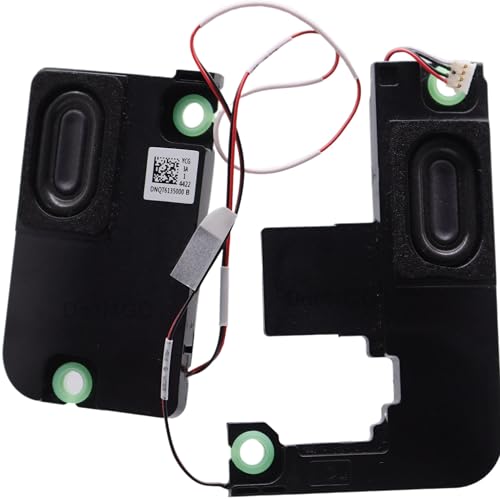
This is a budget-tier internal speaker replacement assembly for HP 15-inch consumer and business laptops, specifically the Pavilion 15-FD, 15-FC, 15z-FC TPN-Q287 (2023) series, plus the 250 G10 and 255 G10 SKUs. It targets DIY repair users and small repair shops fixing distorted output or complete audio failure on N36066-001 units.
The defining feature is drop-in compatibility with the HP wire-to-board 4-pin connector, meaning no soldering or adapter work. The 4 Ohm, 2W driver spec matches HP factory tuning, so the onboard amplifier sees the load it expects. Based on part-number cross-referencing (DNQT6135000, DNPB2514020), fitment appears to cover the full 2023 15-inch lineup.
Trade-offs are typical of aftermarket OEM-style parts at this tier. Screws are not included, so the original mounting hardware must be retained during teardown. Long-term coil and cone durability is unverified given limited owner feedback, and there is no factory HP QC stamp. Buyers replacing under warranty should confirm this does not void remaining coverage.
Buy this if your HP 15-FD, 15-FC, 250 G10, or 255 G10 has confirmed speaker failure and you have basic laptop teardown experience. Skip this if your audio issue traces to the codec, cable, or Windows driver stack, since a new speaker will not resolve non-hardware faults.
Part Numbers: Primary spare part N36066-001, with compatible cross-reference part numbers DNQT6135000 and DNPB2514020. Confirm the sticker on your existing speaker matches one of these codes before ordering to avoid connector or mounting-tab mismatches on non-listed HP 15 variants.
Electrical Spec: 4 Ohm impedance rated at 2W continuous. This matches the HP factory driver load, so the integrated Realtek codec and amplifier operate within their designed range. Substituting with 8 Ohm units would reduce output level and risk audio clipping at higher volumes.
Connector and Fitment: 4-wire, 4-pin wire-to-board connector plugging directly into the motherboard header. Supplied as a matched left and right assembly. Verified compatibility spans Pavilion 15-FD0099NR, 15-FD1070NR, 15-FD0107DX, 15-FC0093DX, 15-FC0039WM, 15-FC0025DX, and 15-FC0105CL.
What Is Included: One pack contains a single left plus right speaker assembly. Mounting screws are not suplied, the original screws from the laptop must be retained. No tools, adhesive strips, or replacement gaskets are included in the package.
For desktop speakers, a budget 2.0 set replaces aging logitechs for under 30 dollars. Don’t sink hours into reviving a 15-year-old pair when a fresh set sounds better for the price of dinner.
Common questions
Why does sound work in some apps but not others?
Usually exclusive mode. One app grabbed the audio stream and didn’t release it. Reboot to clear the lock, then disable exclusive mode in Sound properties so it can’t happen again.
My HDMI monitor has no speakers but Windows keeps picking it as the default. How do I stop that?
In Sound settings, right-click the HDMI audio device and choose Disable. Windows won’t switch to it on reconnect. You can re-enable later if you ever attach a TV with real speakers.
Could a Windows update have broken my audio?
Yes, it’s surprisingly common. If sound died right after an update, roll back the audio driver in Device Manager (right-click, Properties, Driver tab, Roll Back Driver). That usually fixes it without waiting for Microsoft to patch.
Do I need to reinstall Windows to fix audio?
Almost never. Sound issues are nearly always fixable through driver reinstall and settings cleanup. Save the nuclear option for when nothing else works.