Walk past any coffee shop in 2026 and count the laptops. Half of them now have a tiny black slab plugged in – no function row visible, no arrow keys poking out, no numpad anywhere. That’s the 60% keyboard explosion, and it isn’t slowing down. Sixty to sixty-five keys total. Roughly thirty centimeters wide. Fits in a hoodie pocket without a sleeve. The form factor jumped from custom-keyboard hobby forums to mainstream desks in about three years, and the price floor crashed from $150 builds to $25 prebuilts. Here’s what 60% actually means, what’s missing, what you give up, and which budget picks are worth grabbing if you’ve been curious but haven’t pulled the trigger yet.
The short answer
A 60% keyboard keeps the full alphabet block plus your standard modifiers – Shift, Ctrl, Alt, Win, Enter, Backspace, Tab. That’s it. No function row across the top. No dedicated arrow cluster. No navigation island with Home, End, Insert, Delete, Page Up, Page Down. No numpad on the right side. Everything that got cut lives on a secondary FN layer – hold the FN key, press a number, get F1 through F12. The whole board measures about 30cm across versus 44cm for a full-size.
The longer explanation
Standard 60% layouts ship with 61 keys. Five rows. Bottom row holds Ctrl, Win, Alt, spacebar, Alt, FN, Menu, Ctrl in various orderings depending on the manufacturer. The alpha block is identical to what you’d find on a full-size board – same key spacing, same staggered rows, same muscle memory for typing actual words.
Where things get interesting is the 65% variant. 65% adds back an arrow cluster on the right side plus a few navigation keys – usually Delete, Page Up, and Page Down stacked vertically. You’re looking at 68 keys instead of 61. Width grows by about 2cm. For anyone who edits text constantly, those arrows alone justify the larger footprint.
The FN-layer concept is what makes any of this work. Hold FN and the number row becomes F1-F12. Hold FN and WASD becomes arrows on most boards. FN plus Backspace deletes forward. FN plus the bracket keys handles brightness or media. You’re not losing functions, you’re stacking them under a modifier. Desk space recovery is real – that’s 14cm of mouse runway you didn’t have before, which competitive FPS players care about enormously. Portability’s the other half. A 60% slides into the laptop sleeve next to your machine.
Switch options have exploded too. Mechanical Cherry MX clones still dominate the budget tier. Magnetic Hall-effect switches showed up around 2023 and now run as low as $35 prebuilt, offering adjustable actuation points the older mechanical switches can’t match.

Pros
- 0.02mm rapid trigger resolution enables very fast re-actuation, a real advantage in CS2 and Valorant movement mechanics.
- Hot-swappable magnetic switches mean you can swap in different hall effect units without touching a soldering iron.
- Web-based driver avoids the bloatware overhead common at this tier and works across Windows, macOS, and Linux browsers.
- SOCD, DKS, and MT modes are advanced features rarely included at this price point, adding meaningful input flexibility.
Cons
- Zero verified owner reviews at time of writing, so real-world durability, flex, and acoustics remain unconfirmed.
- Rapid trigger accuracy listed at 0.02mm versus 0.01mm on pricier siblings in the same lineup, a measurable step down.
- 60% layout omits arrow keys and function row natively, which requires layer switching for non-gaming workflows.
The Aula WIN60 HE is a budget-tier 60% hall effect keyboard targeting competitive FPS players who want magnetic switch technology and advanced input features without the price tag of established hall effect boards. Its defining specs are an 8000Hz polling rate and hot-swappable magnetic switches in a compact wired USB-C layout.
The standout feature is rapid trigger at 0.02mm resolution. In practice, that means re-actuation can fire faster than most hall effect boards at higher price points allow, which matters in CS2 counter-strafing and Valorant movement. The board also includes SOCD filtering, dynamic keystroke binding up to four functions per key, and a toggle switch mode, features that typically appear on boards costing considerably more.
The 0.02mm rapid trigger accuracy sits one step below the 0.01mm offered by the WIN60 HE PRO and other siblings in the lineup, a genuine spec difference rather than marketing rounding. With no owner reviews available yet, claims about build quality, acoustics, and stabilizer tuning cannot be independently verified. PBT keycaps are listed, which is appropriate at this tier, but thickness and legends quality are not specified.
Buy this if you want a hall effect 60% board with SOCD and rapid trigger for competitive FPS and are comfortable being an early adopter with limited community feedback. Skip this if you need arrow keys natively, require sub-0.02mm trigger precision, or want a board with an established reliability record before purchasing.
Switch Technology: Hall effect magnetic switches (Gray Wood variant) use positional magnet sensing rather than physical contact points. Actuation point is adjustable via the web driver, and the switch design is rated for a longer theoretical lifespan than standard mechanical contacts. Switch feel details such as pre-travel distance and actuation force are not specified in source data.
Polling Rate and Latency: The WIN60 HE runs at 8000Hz with a listed latency of 0.3ms. Rapid trigger resolution sits at 0.02mm, compared to 0.01mm on the PRO variant. At 8000Hz, input latency is well below perceptible thresholds for competitive play, though the gap versus 0.01mm RT boards is measurable in back-to-back testing.
Layout and Build: The 60% layout covers approximately 61 keys, omitting the function row, arrow cluster, and numpad. Connectivity is wired USB-C only. Keycaps are PBT material, which resists shine and oil absorption better than ABS. Case material and gasket or tray mount details are not specified in the source data.
Customization: The web-based driver supports key remapping, RGB configuration across 16.8 million colors, macro creation, and advanced input modes including DKS, MT, TGL, and SOCD. No desktop software installation is required, and the driver is compatible with any device running a modern browser.
Why it works this way
There’s a real argument behind the cuts, not just aesthetics. Most typing sessions never touch the function row. Most coding sessions barely touch the numpad. Most browsing sessions don’t need Insert or Scroll Lock. Strip the keys you rarely press and you’ve reduced the total surface area your hands have to navigate by roughly 25%. Hand travel drops. Mouse hand moves closer to your typing hand. Shoulder posture relaxes a notch.
Travel ergonomics is the underrated piece. Anyone who’s tried to work on a hotel desk knows the pain of a full-size board hogging real estate. A 60% leaves room for a notebook, a coffee, and your phone without anything stacking up. Backpack weight drops by 200-300 grams versus a TKL.
The custom keyboard community is what dragged this form factor mainstream. Started on Reddit’s r/MechanicalKeyboards around 2017-2018. GMK doubleshot keycap sets, Tofu aluminum cases, lubed Cherry MX clones, custom coiled cables – the whole rabbit hole grew up around 60% PCBs because they were cheap to produce and easy to mod. Group buys for a single keycap set would hit $200+. The hobby’s still there, but the cheap commercial spillover means you can get 90% of the typing feel for $30 instead of $300.

Pros
- Compact 68 key layout retains dedicated arrows and F row unlike most 60% boards
- Linear red switches deliver smooth actuation without tactile bump for quick key taps
- Detachable USB 2.0 cable simplifies transport and cable replacement if damaged
- Plug and play across Windows, Linux, and Mac with no driver install needed
Cons
- Limited owner feedback at time of writing makes long term reliability hard to gauge
- Single color blue backlight only, no per key RGB customization at this tier
- Switches are not hot swappable, so worn or failed switches cannot be replaced easily
The MageGee MK-Box is a budget tier 60% wired mechanical keyboard with a 68 key layout, linear red switches, and single color blue LED backlight. It targets entry level buyers, students, and small desk users who want mechanical feel over membrane without steping up to a hot swap enthusiast board.
The defining feature is the compact footprint that still keps dedicated arrow keys and the F1 to F12 row accessible via Fn, which many true 60% boards drop. Red linear switches typical of this tier actuate around 45g with no tactile bump, making rapid double taps in esports titles easier than membrane alternatives.
Trade offs are visible at this price point. The backlight is blue only across 16 preset modes, not per key RGB, and switches are soldered rather than hot swappable. Build materials and plate stiffness are not specified, and boards in this tier typically use ABS keycaps that shine over time with heavy use.
Buy this if you want a portable mechanical keyboard for a laptop bag or dorm setup and can accept fixed switches and blue lighting. Skip this if you need per key RGB, hot swap sockets, wireless connectivity, or a documented switch lifespan rating for daily heavy typing.
Switch and Feel: Mechanical red linear switches with no tactile bump and light resistance, tuned for fast repeated actuation in FPS and MOBA titles. Actuation force and travel are not specified by MageGee, but linear reds at this tier typically sit near 45g force and 4m total travel.
Layout and Ergonomics: 68 key60% layout retains dedicated arrows plus a Fn accessed F1 to F12 row, avoiding the pure 60% compromise. Double kickstand fet allow two typing angles, and ergonomic suspension keycaps with double color injection molding resist legend wear better than pad printed caps.
Backlight and Controls: Blue LED backlight with roughly 16 preset modes. Fn plus Ins cycles modes, Fn plus left or right adjusts speed, Fn plus up or down adjusts brightness. No per key RGB, no software layer, and no onboard profile storage at this tier.
Connectivity and Compatibility: Wired USB 2.0 with a detachable cable, plug and play across Windows 2000 through8, Linux, and Mac with no driver required. Full 68 key anti ghosting is claimed, though N key rollover count over USB is not specified.
When you’d actually want this
Travel and cafe work is the obvious one. You’re hauling a laptop daily, you want a mechanical feel, and you don’t want a third item in your bag. A 60% solves it. Competitive FPS players are the other big buyer – in CS2, Valorant, Apex, arrow keys don’t matter and that extra mouse space does. Pro players have run 60% for years.
Custom keyboard hobbyists start here because the PCB ecosystem is largest at 60%. Hot-swap sockets, switch variety, keycap compatibility, case mods – everything’s cheapest and easiest at this size. Aesthetic minimalists go 60% for the clean desk photo. Anyone working at a tiny apartment desk or shared workspace gets real square-inch returns.
Who shouldn’t buy one? Anyone doing serious data entry will hate losing the numpad – go full-size or grab a separate numpad. Spreadsheet-heavy accounting work has the same problem. Writers and editors who hammer arrow keys for cursor positioning will fight the FN layer for about two weeks before either adapting or giving up. Heavy macro users who’ve built workflows around F-row shortcuts have to remap everything. CAD operators usually need the numpad too.
The honest middle ground for arrow-dependent users is 65% instead of straight 60%. You keep the compact aesthetic, lose the numpad, but the arrows stay accessible without FN gymnastics.
Pros
- Hot-swap PCB supports 3-pin and 5-pin switches for cheap modding upgrades later
- Compact 60% footprint clears room for low-sens FPS mouse arcs
- Linear red switches are quiet enough for shared rooms and late sessions
- Onboard RGB control with twenty presets works without installing any drivers
Cons
- Limited owner fedback at time of writing, long-term reliability signal is thin
- 60% layout drops function row and arrows, ads Fn-layer learning curve
- Build material, plate type, and keycap profile are not specified by the source
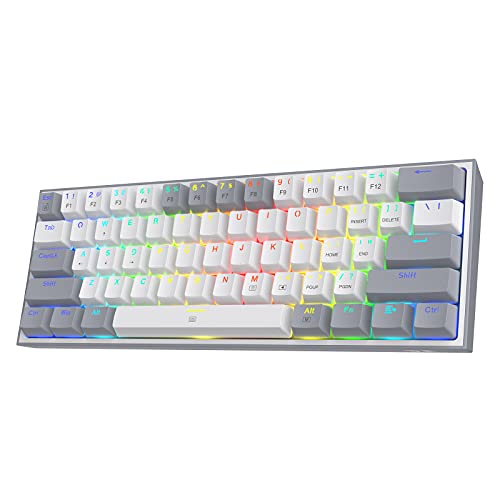
The Redragon K617 Fizz is a budget 60% wired mechanical keyboard with 61 keys, hot-swap sockets, per-key RGB, and stock linear red switches in a white and grey keycap scheme. It targets FPS players on small desks and first-time mechanical buyers who want a compact board with room to mod later.
The defining feature is the hot-swap PCB accepting both 3-pin and 5-pin switches, which is uncommon at this price. Stock red linears offer smooth, quiet actuation suited to sustained gaming input. Boards in this tier typically ship with ABS keycaps and a plastic case, so expect a lighter feel than premium gasket builds.
Trade-offs are typical of 60% layouts and entry pricing. The missing function row, arrow cluster, and navigation keys push common shortcuts onto an Fn layer, which slows productivity work until muscle memory sets in. Source data does not specify polling rate, N-key rollover, cable type, or plate material, so verify these if they matter to you.
Buy this if you want a cheap hot-swap 60% for FPS play and plan to experiment with switches down the line. Skip this if you need arow keys, a numpad, or documented specs like NKRO, aluminum plate, or PBT keycaps for daily typing work.
Switches: Ships with Redragon-branded linear red mechanical switches, quiet and smooth through the travel with no tactile bump. Actuation force and travel distance are not specified, though red linears in this class typically sit near 45g actuation with 4m total travel.
Hot-swap sockets: The PCB accepts both 3-pin and 5-pin MX-style switches, so Gateron, Kailh, Outemu, and mostftermarket linears or tactiles drop in without soldering. That flexibility matters if you plan to move to silent linears or heavier tactiles later.
Layout and gaming fit: The 61-key 60% layout removes the function row, arrow cluster, and navigation block, leaving space for a low-sens mouse arc. Everything above the alphas is accessed through an Fn layer, which is fine for gaming binds but slower for spreadsheet and coding work.
Lighting and software: Twenty onboard RGB modes with adjustable brightness and animation speed run without drivers. Redragon's optional software adds macro recording and custom effects. Polling rate, NKRO status, and cable type are not specified in the source data.
Common misconceptions
“60% is unusable without arrows.” False. FN+WASD or FN+IJKL handles cursor movement on every 60% board sold today. Two weeks of daily use and the muscle memory clicks. By week three you’ll catch yourself reaching for FN combos on full-size boards too.
“All 60% keyboards are basically the same.” Wrong by a wide margin. Hot-swap socket type varies (3-pin vs 5-pin, MX vs magnetic). Switch options range from clicky blues to linear reds to Hall-effect magnetics. RGB lighting differs – some have per-key, some have side underglow, some have neither. Cable position matters more than you’d think – center USB-C is best for ambidextrous use, left-corner placement crowds your mouse.
“60% means it’s a gaming keyboard.” Not really. The form factor’s gaming-popular but plenty of 60% builds are pure productivity setups with quiet linear switches and PBT keycaps. The shape doesn’t dictate the use case.
“60% saves you money.” Mostly false. Yes, budget prebuilts start around $25-30. But the custom 60% rabbit hole goes deep – a fully modded board with premium switches, doubleshot PBT keycaps, an aluminum case, and a coiled cable can clear $400 fast. The form factor doesn’t have a price ceiling, it has a price floor.

Pros
- Adjustable actuation 0.02mm to 3.44mm in 0.1mm steps enables fine Rapid Trigger tuning per key.
- 8000Hz polling with 0.3ms claimed latency is well above typical 1000Hz gaming keyboards.
- Web driver requires no local install and exposes RT, SOCD, DKS, MT, and TGL functions.
- Compact 68-key 60% layout retains arrow keys and uses a detachable USB cable for transport.
Cons
- Limited owner feedback at time of writing, so long-term switch consistency and QC are unverified.
- Web driver is Windows-only, leaving macOS users without RT, macro, or key remap support.
- Wired-only 60% layout with no dedicated function row will slow productivity and coding workflows.
The AULA WIN68 HE is a budget 60% Hall Effect gaming keyboard aimed at competitive FPS players who want Rapid Trigger and adjustable actuation without paying flagship prices. It runs a 68-key layout with magnetic switches, an 8000Hz polling rate, RGB backlight, and a detachable USB cable, targeting Valorant, CS2, and Apex players on a tight budget.
The defining feature is the magnetic switch with 0.02mm to 3.44mm adjustable actuation in 0.1mm steps. Combined with the advertised 8000Hz polling and 0.3ms latency, it puts Rapid Trigger, SOCD, DKS, and multi-trigger behavior on the table at an entry price. Hall Effect boards in this tier typically fel lighter and more linear than traditional mechanical switches.
Trade-offs are visible. The web driver is Windows-only, so macOS users lose RT, remap, and macro control. The 60% form factor drops the function row and nav cluster, which slows coding and spreadsheet work. AULA does not publish plate material, case weight, keycap profile, or PBT/ABS spec, which are meaningful blind spots at this tier.
Buy this if you want a cheap entry point to Hall Effect Rapid Trigger for competitive shooters on Windows and can accept unverified long-term QC. Skip this if you need macOS driver support, a TKL or larger layout for productivity, or documented keycap and plate specs before purchase.
Switches and actuation: Hall Effect magnetic switches with adjustable actuation from 0.02mm to 3.44mm, tunable in 0.1mm increments. Press and reset sensitivity can be set independently per key via the driver, which suports Rapid Trigger tuning for strafing in CS2 and Valorant.
Polling and latency: AULA lists an 8000Hz polling rate and 0.3ms latency, roughly 8x the1000Hz standard on mainstream gaming boards. Realized latency will depend on USB controller, CPU load, and game engine, but the headroom benefits high-refresh 240Hz and360Hz displays.
Layout and connectivity: 60% form factor with 68 keys retains arrow keys, with FN layers covering function row and navigation. Wired only via a detachable USB cable, no wireless or Bluetooth listed. Compact footprint frees roughly 40% of desk width versus a full-size board for low-sensitivity mouse arcs.
Software and lighting: Browser-based driver on Windows handles RT, SOCD, DKS, MT, TGL, key mapping, macros, and RGB with no install. South-facing RGB LEDs cover 16.8 million colors across 14 presets. macOS is not supported, and keycap material, plate, and case weight are not specified.
Frequently asked
How long does it take to adapt to no arrow keys?
About two weeks of daily use for most people. The first three or four days are rough – you’ll reach for arrows that aren’t there and feel slow editing text. Week two the FN+WASD muscle memory starts forming. By week three it’s automatic. If you’re not past the awkwardness after 30 days of consistent use, 65% with dedicated arrows is probably the better pick.
60% vs 65% – which should I buy first?
If you edit text, code, or write for a living, start at 65%. The arrow keys save you from the FN-layer adaptation curve, and you keep most of the compact aesthetic. If you’re a competitive FPS player, hobbyist, or pure-minimalist, go straight 60%. Both sizes have similar prices in the budget tier, so the choice comes down to whether you’ll miss arrows.
Can I program custom FN-layer mappings?
Depends on the board. Cheap prebuilts often lock the FN layer to factory defaults. Mid-tier boards ship with manufacturer software – Razer Synapse, Logitech G Hub, Keychron Launcher – that handles remapping through a GUI. The custom keyboard side runs QMK or VIA firmware, which lets you program every key on every layer including macros, tap-dance, and modifier holds.
Is hot-swap worth the extra $10?
Yes if you’re new to mechanical keyboards. Hot-swap sockets let you pull and replace switches without soldering, so you can try linears, tactiles, and clickies on the same board for the cost of a switch pack. If you already know exactly which switches you want and you’ll never change them, soldered boards are fine and sometimes feel slightly more rigid.