You hop on a Zoom call and your face never shows up. Or Teams says “Camera not found” while the indicator light stays dark. Webcam failures in Windows 11 usually trace back to one of three things: a privacy toggle blocking the app, a driver gone sideways, or a hardware fault you can isolate in five minutes. Here’s the order I’d work through it.
First check the obvious
Is there a physical privacy shutter on your laptop or external camera? Some Lenovo, HP, and Dell notebooks ship with a slide cover above the lens, and external models like the NexiGo N60 have a built-in shutter you can flick closed without noticing. Look at the camera. If the lens is covered, slide it open. Done.
Next, try the Camera app built into Windows. Press Start, type Camera, hit Enter. If the Camera app shows your face, the hardware’s fine and the issue lives in whichever conferencing tool you were using. That single check saves hours of unnecessary driver hunting.
Cause #1: Windows privacy settings are blocking the app
Windows 11 ships with camera access locked down per-app by default. Settings, Privacy and security, Camera. The master toggle at the top has to be on. Below that, “Let apps access your camera” needs to be on. And further down, each individual app you care about (Zoom, Teams, Chrome, Discord) needs its own toggle flipped.
Browser-based meetings hide a second layer of permission. In Chrome, go to chrome://settings/content/camera and confirm your meeting site is allowed. Edge uses a similar path under edge://settings/content/camera. Firefox stores permissions per-site under Settings, Privacy and Security. Granting OS-level access doesn’t auto-grant browser-level access. You’ve gotta do both.

Pros
- Fixed-focus 3.6mm glass lens keps desk-distance framing sharp without hunting autofocus.
- Driverless USB install works across Windows, macOS, Linux, Chrome OS, and Android 4.0+.
- Physical privacy cover addresses lens-blocking needs without tape or third-party accessories.
- Onboard mic removes the need for a headset on casual conference calls.
Cons
- Limited owner fedback available at time of writing, so long-term reliability is unclear.
- Fixed focus and 2MP sensor cap image quality below 1440p and60fps competitors.
- Not compatible with XBOX, PS4, or PS5,ruling out console streaming use.
The NexiGo N60 is an entry-level 1080p USB webcam aimed at remote workers and students who need a step up from a built-in laptop camera. It runs a 2MP CMOS sensor at 1920x1080 30fps through a 3.6mm fixed-focus glass lens, with a built-in mic and manual privacy shutter.
The defining trait is simplicity: USB 2.0/3.0 plug and play with no driver install, and a focus range tuned between 19.6 inches and 13 feet. That range matches typical monitor-mounted desk use, so framing at arm's length stays crisp without autofocus hunting during cals on Zoom, Teams, or Skype.
Trade-offs are typical at this tier. There is no autofocus, no HDR, and the 2MP sensor will show noise under warm indoor lighting or backlit windows. NexiGo notes potential audio delay resolved via firmware update through support, which suggests mic sync is not always dialed in out of the box. Console users are excluded, since XBOX and PlayStation are unsupported.
Buy this if you want a driverless 1080p 30fps webcam with a physical privacy cover for conference cals and online classes. Skip this if you stream on Twitch or YouTube at 1080p60, need autofocus for variable working distances, or plan to use it with a PS5 or XBOX.
Sensor and optics: A 2MP CMOS captures up to 1920x1080 at 30fps through a 3.6mm glass lens. Focus is fixed, optimized from 19.6 inches to 13 feet, which covers standard seated desk distance but rules out close-up product shots or whiteboard work beyond that range.
Microphone: The integrated noise-cancelling mic is intended for Zoom, FaceTime, OBS, Twitch, and general conferencing. NexiGo explicitly flags that firmware updates through support can resolve audio delay, so buyers experiencing lip-sync drift have a documented remediation path rather than a hardware swap.
Connectivity and OS support: USB 2.0/3.0, UVC class driverless. Verified compatible with Windows 7, 8, 10, and 11, macOS 10.7 and later, Linux kernel 2.6.24, Chrome OS 29.0.1547, Ubuntu 10.04 and later, and Android 4.0and later. XBOX, PS4, and PS5 are not suported.
Privacy and mounting: A sliding privacy cover physically blocks the lens when idle, an option missing on many sub-tier webcams. Exact mount clip dimensions, cable length, tripod thread, and field of view degree are not specified in the source data.
Cause #2: Driver corruption or wrong driver loaded
Windows Update sometimes ships a generic UVC driver that fights with the manufacturer’s bundled one. The symptom: camera shows in Device Manager but throws “We can’t find your camera” or error code 0xA00F4244 in the Camera app. Diagnostic: open Device Manager, expand Cameras, right-click your webcam, Properties, Driver tab. If the provider says Microsoft and the date is recent, that’s likely the generic UVC driver overriding what you want.
Fix: click Roll Back Driver if it’s available. If not, hit Uninstall device and tick “Attempt to remove the driver for this device.” Reboot. Windows will redetect the camera and reinstall a fresh driver. For Logitech cameras specifically, grab Logi Tune or G HUB from logitech.com. Those bundles ship the manufacturer-blessed driver and unlock extra controls like field of view and exposure compensation.
Cause #3: USB power or port issue
External webcams pull more current than you’d expect, especially 1080p models with onboard mics. If you’re feeding the camera through an unpowered USB hub or a daisy-chained dock, voltage sag can drop the device off the bus mid-call. Symptom: the camera works for a few minutes then disappears with no warning.
Plug the webcam directly into a rear motherboard port on a desktop, or into a USB-A 3.0 port on a laptop. Skip hubs and docks for this. If the camera now works for a full session, the hub’s your weak link. A self-powered USB 3.0 hub with its own wall brick handles bus-powered peripherals far better than a passive splitter.
Cable matters too. The braided 5-foot cable that came with your camera is fine. The 10-foot extension you added isn’t. Anything past 3 meters on plain USB 2.0 degrades signal quality and can cause enumeration failures.

Pros
- 1080p/30fps output is a clear step up from typical laptop 720p sensors
- Stereo dual-mic array picks up voice cleanly in normal office rooms
- Autofocus plus HD light correction adapts to backlit and low-light desks
- Wide platform support including Switch 2 GameChat, Mac, tablets, and Windows 11
Cons
- Limited owner fedback at time of writing, so long-term reliability signal is thin
- Locked to 1080p/30fps, no 60fps mode for smoother streaming or motion
- No physical privacy shuter, users will need a stick-on cover or software toggle
The Logitech C920x HD Pro is a mainstream USB webcam sitting in the mid-range of Logitech's video-call lineup. It captures Full HD 1080p at 30fps with stereo dual mics and autofocus, aimed at remote workers, hybrid-office users, and casual streamers who want an obvious upgrade over a built-in laptop camera.
The defining feature is the 1080p/30fps pipeline paired with HD light correction. In practice, webcams in this tier typically deliver usable exposure in mixed daylight and overhead LED lighting, with autofocus locking on the subject at desk distance. Based on category norms, expect softer detail and more noise onceambient light drops toward evening desk-lamp levels.
Trade-offs are typical at this tier and worth flagging. There is no 60fps mode, no 1440p or 4K capture, and no physical privacy shutter, which is a real omission at this price band. Stereo mics are convenient, but a dedicated USB mic will still sound better for streaming. Mounting relies on the standard clip plus tripod thread.
Buy this if you need a reliable 1080p/30fps webcam for Zoom, Teams, Meet, or Switch 2 GameChat and want stereo audio without a separate mic. Skip this if you stream seriously and need 1080p/60fps, HDR, or a built-in shutter for privacy compliance.
Video capture: Full HD 1080p recording and caling at 30fps, with autofocus and HD light correction handling exposure automatically. There is no advertised 1080p/60fps or 4K mode, which caps its usefulness for high-motion streaming or content that will be cropped and rescaled in post.
Microphone array: Dual mics deliver stereo audio for cals and recorded video, suficient for one-on-one metings and casual streams. Owner-typical fedback on this class of webcam suggests voice pickup is clean at arm's length, but a dedicated USB condenser still wins for podcasting or content work.
Software and compatibility: Ships with a 3-month XSplit VCam license for background blur, replace, and removal without a green screen. Listed compatibility covers Windows 11, macOS, tablets, and Nintendo Switch 2 GameChat mode, plus Microsoft Teams, Google Meet, and Zoom via standard UVC.
Physical and mounting: Connects via USB and uses Logitech's universal clip design, standard at this tier for monitors and laptop lids. Note there is no privacy shutter included, so a third-party slide cover is worth budgeting if your workplace requires physical camera coverage.
Cause #4: Another app holding the camera hostage
Only one app can grab the camera stream at a time on most systems. If you ran a Teams call earlier and Teams didn’t fully release the device, Zoom will report the camera as in use or missing. Open Task Manager, Details tab, and look for any background instances of MS Teams, Zoom, OBS, NVIDIA Broadcast, or Snap Camera. End those processes, then reopen your meeting app.
NVIDIA Broadcast and Snap Camera both create virtual cameras that wrap your real one. If you’ve ever installed either, check whether your meeting app is set to the virtual device instead of the physical webcam. Inside Zoom: Settings, Video, Camera dropdown. Pick the actual model name, not “NVIDIA Broadcast” or “Snap Camera.”
When to replace
Replace the webcam if it fails on three separate machines, all running fresh drivers, with the privacy stack confirmed open. Replace the cable first if it’s a model with a detachable USB lead. Built-in laptop webcams that die usually mean a flex cable behind the screen has cracked from hinge wear, and that’s a repair shop job unless you’re comfortable with notebook teardowns. An external USB webcam plugged into a working port is the cheaper path for most folks.
Budget shooters can grab a $20 plug-and-play 1080p model. Folks running daily client calls or streaming should jump to a stitched fabric-cabled model with autofocus and decent low-light correction. The price gap pays back in the first week of meetings where nobody asks you to “say that again, you froze.”
Pros
- Plug and play USB operation on Windows, macOS, and Switch 2 GameChat without extra drivers.
- RightLight 2 auto exposure noticeably helps in mixed or underlit home office lighting.
- Compact clip design fits thin laptop lids and folds down for shelf placement.
Cons
- Limited owner feedback at time of writing, so long term reliability signal is thin.
- Caped at 720p/30fps, so it will look soft next to 1080p webcams on large monitors.
- Fixed focus and55 degree FOV are tight for two person framing or whiteboard use.
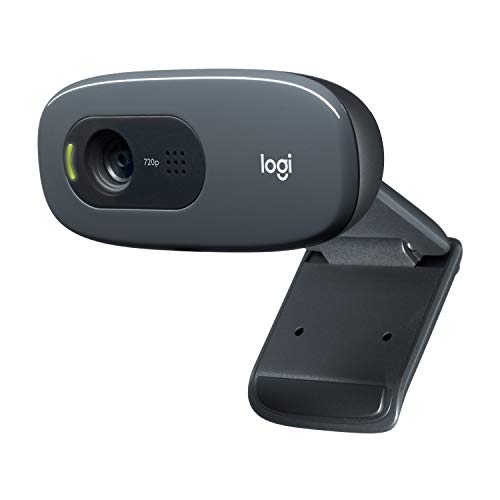
The Logitech C270 is a budget tier fixed focus USB webcam aimed at users who need basic video calling on a PC, Mac, laptop, or Nintendo Switch 2 with GameChat. Core specs are modest: 720p at 30fps capture, a 55 degree diagonal field of view, and a mono noise reducing microphone rated to 1.5 meters.
The defining feature is RightLight 2 auto light correction, which lifts exposure in dim rooms and tames backlight from windows. Based on category norms, sensors at this tier typically deliver aceptable 720p output in well lit rooms but visibly soften in low light. Framing suits one person head and shoulders at a normal desk distance.
Trade offs are typical at this price band. Resolution tops out at 720p, focus is fixed rather than autofocus, and the 55 degree FOV is narow for two person shots or a whiteboard. The mono mic handles calls but is not a substitute for a headset or USB mic in noisy rooms, and there is no privacy shuter listed.
Buy this if you need a cheap, driver free720p camera for Zoom, Skype, or Switch 2 GameChat on a secondary laptop or kid's PC. Skip this if you stream, present on a 1440p or4K monitor, or need autofocus, 1080p, or stereo audio for content creation.
Video capture: The sensor tops out at 720p at 30fps with a 55 degree diagonal field of view, tuned for single person framing at roughly 50to 80 cm from the lens. Focus is fixed, so documents held close to the camera will drift out of sharpness compared to autofocus rivals.
Light correction: RightLight 2 automatically adjusts exposure and contrast to compensate for dim or uneven lighting. Expect usable image quality in a normally lit home office, with visible noise and reduced detail onceambient light drops below typical evening desk lamp levels.
Microphone: A single built in noise reducing mic is rated to pick up voice clearly up to 1.5 meters. It is mono only, so it suits cals and GameChat, not music or stereo content capture. In busy rooms, a dedicated headset mic will still outperform it.
Mounting and compatibility: The universal hinge clip attaches to laptop lids and monitor bezels or folds flat for shelf placement. Listed compatibility covers PC, Mac, MacBook, tablet, Zoom, Skype, and Nintendo Switch 2 GameChat over USB, with no driver install required on mainstream OS versions.
Common questions
Why does my webcam work in Zoom but not Teams?
Per-app permissions in Windows Privacy settings. Teams probably got toggled off during a recent privacy sweep. Settings, Privacy and security, Camera, scroll to Microsoft Teams, flip it on.
Can antivirus block my webcam?
Yep. Kaspersky, ESET, Bitdefender, and Norton all ship webcam-protection modules that block apps from accessing the camera until you whitelist them. Check your security suite’s privacy panel and add your meeting apps to the trusted list.
Why is my webcam upside down?
Driver flag misread. Open the camera manufacturer’s utility (Logitech Capture, NexiGo software) and look for an image rotation toggle. Some laptops let you rotate via Intel Graphics Command Center under Display, Image Rotation.
Does Windows 11 need a special webcam driver?
Most UVC-compliant cameras run fine on Windows 11’s built-in driver. Manufacturer drivers add features (HDR, presets, firmware updates) but aren’t required for basic video. If the built-in driver isn’t working, the manufacturer’s version is your next try.
What does error 0xA00F4244 mean?
“We can’t find your camera.” It’s Windows’ generic catch-all for any device that should exist but isn’t responding. The cause is almost always one of three things: privacy permissions blocked, driver corruption, or another app holding the device. Work the three causes above in order and you’ll clear the error.
Can I use my phone as a webcam instead?
Yep, and it’s often the fastest fix when the built-in camera dies mid-meeting. Apps like Camo, EpocCam, and DroidCam turn an iPhone or Android into a USB or WiFi webcam, and the image quality usually beats budget USB models. Windows 11 also has native phone-as-webcam support if you’ve got an Android device linked through Phone Link.