Your laptop’s fan sounds like a small jet engine. It’s spinning up the second you open a browser tab, and it’s loud enough to drown out a Zoom call. That’s not a sign your machine’s dying, but it’s a sign something’s making the CPU or GPU work harder than the cooling system can comfortably handle. Here’s how to track down the cause and quiet things down.
We’ll walk through the diagnostics from least invasive (Task Manager) to most (cracking the case open for thermal paste). Most users solve the noise within the first three steps.
First check the obvious
Before you blame the hardware, rule out the easy stuff. Is the laptop sitting on a blanket, comforter, or your lap? Soft surfaces block the intake vents on the underside, and the fan compensates by spinning faster. Move it to a hard, flat surface and give it 5 minutes to recover.
Is the room hot? Ambient temperature directly affects fan speed. A laptop that’s quiet at 68 degrees can roar at 82. If it’s summer and the AC’s off, that’s your answer.
Is something heavy running in the background? Open Task Manager (Ctrl+Shift+Esc on Windows) or Activity Monitor (Cmd+Space, type “activity”) on Mac. Sort by CPU. If one process is sitting at 80%+ and you didn’t launch it on purpose, that’s the load you’re cooling. Common culprits: Chrome tabs you forgot about, Windows Update doing background indexing, antivirus full-system scans, Discord screen sharing, Dropbox syncing a huge folder, or a runaway Electron app.
Kill what you don’t need. If the fan calms down within a minute, you’ve found the cause.
Cause #1: dust clogging the heatsink
This is the most common reason a laptop that used to run quiet now sounds like a hair dryer. Dust accumulates on the fins of the heatsink, blocking airflow. The fan can’t push enough air through, so it spins faster trying to compensate. You hear noise instead of getting cooling.
The diagnostic: hold the laptop up and look at the exhaust vent (usually a thin slit on the side or back). If you see gray fuzz packed between the fins, that’s your problem. Even if you don’t see it from outside, anything 2+ years old has some dust inside.
The fix: compressed air. Get a can from any office supply store. Power off the laptop, flip it over, and blow air through the exhaust vent in short bursts. Hold the fan blades still with a toothpick or pen tip while you spray – if you let them spin from the compressed air pressure, you can damage the bearing. Then blow air through the intake vents on the underside. You’ll see dust spray out the exhaust.
For a deeper clean, you’d open the laptop’s bottom panel (search YouTube for your specific model + “fan cleaning”) and use a soft brush to dislodge the embedded mat of dust before blowing it out. Most users get 80% of the benefit just from external compressed air.

Pros
- Fits oversized 15.6 to 19.3 inch gaming laptops that most compact pads cannot support
- Eight height stops give more ergonomic range than typical three or four step pads
- LCD fan speed readout with mode presets is uncommon at this budget tier
- Two USB pass through ports offset the port consumed by the cooler cable
Cons
- Limited owner feedback at time of writing, real world noise and airflow are hard to verify
- Fan CFM, static pressure, RPM range, and dB rating are not specified by the brand
- USB bus powered pads at this tier typically move less air than laptop internal fans under sustained load
The ChillCore A21 is a budget RGB laptop cooling pad aimed at 15.6 to 19.3 inch gaming and workstation laptops. It uses a nine fan layout, an LCD readout, eight height stops, and two USB pass through ports. Target buyer is someone with a large chassis that runs hot during long gaming or render sessions.
The defining feature is the nine fan array combined with vents on the top and bottom of the case, which spreads airflow across a wider footprint than typical three or five fan pads. Owner reports and dB numbers are not published, so treat the whisper quiet claim as marketing until verified. Budget USB powered pads in this class typically move modest CFM per fan.
Trade offs are typical at this tier. The brand does not specify fan RPM range, CFM, static pressure, bearing type, or suported laptop weight, which makes it hard to compare against known good pads. USB bus power caps total fan wattage, so raw airflow ceiling is lower than AC powered stands. The eight height range is a genuine plus for posture.
Buy this if you have a 17 to 19 inch gaming laptop, want adjustable tilt with RGB, and mostly need help at idle to medium loads. Skip this if you need documented CFM, dB curves, or sustained cooling for a 250W plus mobile GPU workload where an external AC powered cooler is more appropriate.
Laptop fit: Sized for 15.6 to 19.3 inch laptops, which covers most 17 inch gaming chassis and larger desktop replacement models. Compact 13 to 14 inch ultrabooks will overhang the fan array and lose direct airflow, so match the pad to a laptop with a 15 inch or larger footprint.
Fan array and control: Nine fans with vents on the top and bottom of the case, selectable modes via touch buttons, and an LCD showing current fan speed. Exact RPM range, CFM, static pressure, and dB are not specified, so buyers who need documented airflow numbers should look at brands that publish full fan curves.
Ergonomics: Eight height stops let you set the tilt angle for wrist and neck posture, wider than the three or four step range common on cheap pads. Maximum tilt angle, base footprint, weight capacity, and non slip retention are not specified in the source data.
Power and I/O: USB bus powered with two USB pass through ports, which returns one host port used by the cooler cable and leaves a second for a mouse or dongle. Cable length, USB spec, and total current draw are not specified. RGB hasten modes with a long press to disable lighting.
Cause #2: thermal paste that’s dried out
Thermal paste sits between the CPU/GPU die and the heatsink. It fills microscopic gaps so heat flows efficiently. Over 3-5 years it dries, cracks, and stops conducting heat the way it should. The chip runs hotter, the fan ramps up to compensate, and you hear it.
The diagnostic: install HWMonitor (Windows) or iStat Menus (Mac) and watch CPU temperature under light load. A modern laptop CPU sitting at 70-85 degrees idle is a red flag – it should be 40-55. If browser usage pushes you to 95+ and the fan’s screaming, dried paste is a strong suspect.
The fix: replace the paste. This is a 30-60 minute job for someone comfortable opening a laptop. You’ll need a tube of decent paste (Arctic MX-6, Thermal Grizzly Kryonaut, Noctua NT-H2 all work), isopropyl alcohol 90%+ to clean the old paste off, and a microfiber cloth. Pull the heatsink off the chip, wipe both surfaces clean, apply a grain-of-rice-sized dot of new paste, reseat the heatsink, and reassemble.
If you’re not comfortable doing this yourself, any local repair shop charges $40-80 for the job. It’s worth it on a laptop you plan to keep another year or two. Skip it on a machine you’re about to replace anyway.
Pros
- Neoprene bottom blocks laptop chassis heat from reaching thighs during long lap sessions.
- Built-in ergonomic tilt raises the rear edge for a more neutral wrist typing angle.
- USB-A power pulls from the laptop itself, no wall brick or extra adapter needed.
Cons
- Limited owner feedback at time of writing, real-world thermal delta is hard to verify.
- Fan CFM, RPM, and dB figures not specified, cannot benchmark against active-airflow cooling pads.
- USB-A only, USB-C-only ultrabook owners will need a USB-C to USB-A adapter.
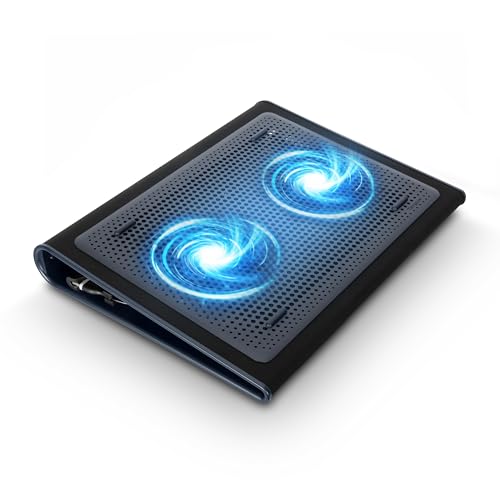
The Targus AWE55US is a budget lap-oriented laptop cooling pad sized for 17 inch and smaller notebooks. It pairs a soft neoprene lap-side surface with an open mesh top deck and dual USB-A powered fans. Target buyer is a remote worker or student who uses a 17 inch or smaller laptop on the lap and wants heat isolation with light airflow assist.
The defining feature is the neoprene lap-side layer combined with the raised mesh deck, which acts more as a heat and pressure barrier than an aggressive active cooler. The dual USB-A fans provide passive airflow assist rather than the measurable core temperature drops seen on high-RPM cooling pads. Owner reports suggest the biggest win is lap comfort during long typing sessions.
Fan CFM, RPM, and dB are not specified by Targus, which makes head-to-head comparison against Klim or Havit active pads difficult. The USB-A cable also occupies a laptop port, and heavier gaming laptops with bottom-heavy vents will not see a meaningful GPU or CPU delta from a passive-class pad like this one.
Buy this if you work with a 17 inch or smaller ultrabook on your lap and want lap-heat protection plus light airflow. Skip this if you run a 200W gaming laptop, need measurable thermal drops on sustained loads, or want adjustable tilt beyond the fixed ergonomic angle.
Size and fit: Rated for 17 inch laptops and smaller, so 13, 14, 15.6, and 17 inch notebooks all seat within the deck footprint. Four rubber stops on the mesh face prevent the chassis sliding off during lap use or when the ergonomic tilt angle is engaged.
Cooling and power: Dual fans draw power over a single USB-A cable, which can plug into the laptop itself or any external USB-A source. Airflow figures such as CFM, RPM, and dB are not specified by Targus, so treat this as a low-noise airflow assist rather than a high-static-pressure cooling pad.
Materials and ergonomics: The lap-side surface uses soft neoprene for cushioning and thermal insulation from laptop chassis vents. The top deck is open mesh, leting exhaust move through rather than trapping it, and the built-in tilt angle raises the rear edge for more neutral wrist posture during long typing sessions.
Connectivity: Single USB-A power cable, no USB-C input and no pass-through hub. USB-C-only ultrabook owners will need a USB-C to USB-A adapter or dongle. No RGB, no fan speed switch, and no removable fans, which keeps the accessory footprint minimal for travel and lap work.
Cause #3: fan bearing wearing out
If the noise isn’t a steady whoosh but a high-pitched whine, clicking, or grinding, the fan bearing’s failing. Bearings have a finite life. Cheap sleeve bearings die in 2-3 years of heavy use. Higher-end fluid dynamic bearings last 5-7. Either way, eventually the bearing wears, the fan wobbles, and it makes noise that no cleaning will fix.
The diagnostic: power the laptop on with the bottom panel removed and listen. If the noise comes specifically from the fan housing and changes pitch when you nudge the fan with a pen, the bearing’s the issue. You can sometimes confirm by stopping the fan briefly with a toothpick – if the noise goes silent, that’s your culprit.
The fix: replace the fan. Search “[your laptop model] fan replacement” on Amazon or eBay. Most replacement fans cost $15-40. Swap requires opening the bottom panel, unplugging the fan’s small connector, unscrewing it, and installing the new one. There’s usually a YouTube tutorial for your exact model.
If the laptop’s under warranty, don’t open it – send it in. You’ll get a free fan replacement and avoid voiding coverage.

Pros
- Cross-references three HP part numbers, easy verification against the sticker on the original fan.
- Scoped to specific 17-by and 17-CA sub-series, lessambiguity than generic HP 17 listings.
- Single-fan package keps the repair simple for users with basic laptop teardown experience.
Cons
- Limited owner feedback at time of writing, no rating history to validate long-term bearing life.
- Specifications field is not populated, no stated voltage, connector pinout, blade count, or bearing type.
- No waranty terms, DOA policy, or thermal pad kit specified in source data for this listing.
This is a budget aftermarket laptop cooling fan aimed at HP 17-by and 17-CA owners whose stock unit has failed. The listing cross-references HP part numbers L22529-001, L22530-001, and L22531-001, and cals out 17-by2xx and 17-ca0xxx variants as compatible targets for a direct replacement.
The defining feature is fitment specificity rather than performance. A part-number matched fan should mount to the original screw pattern, mate with the existing heatsink shroud, and use the stock connector, which is the practical outcome most repair buyers want. Airflow and RPM curve should track the HP BIOS fan table when the pinout matches.
Trade-offs are typical for no-name replacement parts. The specifications field is empty, so bearing type, rated voltage, current draw, and blade count are not disclosed. There is no listed warranty, thermal paste, or replacement adhesive, and no owner reviews to gauge coil noise or bearing longevity beyond a few months of use.
Buy this if your original fan label reads L22529-001, L22530-001, or L22531-001 and you want a low cost like-for-like swap. Skip this if you cannot confirm the exact part number, or if you need a vendor with documented waranty and return support for laptop internals.
Compatibility scope: The listing targets HP 17-by and 17-CA laptops, specifically referencing 17-by2xx and 17-ca0xxx model families. Verified fitment relies on three HP service part numbers: L22529-001, L22530-001, and L22531-001, which must be cross-checked against the sticker on the original fan beforeordering.
Package contents: Oneooling fan, no screws, no thermal paste, and no thermal pads listed. Owners planing a full teardown should budget for fresh CPU thermal compound and, if the heatsink is disturbed, replacement pads for any VRM or memory contact zones on the HP 17 chassis.
Electrical and mechanical spec: Not specified. The source does not list rated voltage, current, RPM range, blade count, bearing type (sleeve,ball, or fluid dynamic), or connector pin count. Laptop fans in this class are typically 5V three-wire or four-wire PWM units, but that is a category norm, not a confirmed spec for this SKU.
Expected use case: Direct replacement for a fan showing failure symptoms called out in the listing, sudden shutdowns from thermal cutoff, sustained thermal throttling under load, or audible grinding and rattling from a worn bearing on an HP 17-by or 17-CA laptop.
When to replace
Some laptops can’t be quieted no matter what you do. Ultraportables with single tiny fans (think MacBook Air pre-M1, or thin Windows machines under 14 inches) have such limited cooling that any sustained load makes them roar. That’s a design limit, not a defect.
If your laptop’s 5+ years old, you’ve already cleaned dust and replaced paste, and the fan still runs hot under basic usage, it’s probably the chip itself. Modern software’s gotten heavier. A 2019 i5 that handled Chrome fine then now hits 90% CPU just keeping 8 tabs alive. There’s nothing to fix – the silicon’s outmatched.
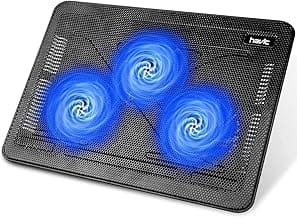
A laptop cooling pad with external fans buys you 5-8 degrees of headroom and lets the internal fan ramp down. Not a permanent fix, but a cheap stopgap that delays replacement by a year or two.
Common questions
Why is my fan loud when I’m doing nothing?
Almost always a background process. Open Task Manager and sort by CPU. If everything’s quiet there and the fan’s still loud, check disk activity too – heavy SSD writes (Windows indexing, OneDrive sync, antivirus scan) can warm the chip enough to trigger the fan without showing CPU load.
Can I just turn the fan speed down manually?
Some laptops let you. Tools like SpeedFan (Windows), NoteBook FanControl (open source), or MacsFanControl (Mac) let you set custom fan curves. Be careful – lower fan speed means hotter chip. Drop too far and you’ll throttle performance or shorten the CPU’s life. A 10-15% reduction at idle’s usually safe. Bigger changes need temperature monitoring.
Does undervolting help?
Yes, often dramatically. Reducing CPU voltage by 50-100 mV can drop temperatures 5-15 degrees with no performance loss. Intel locked the feature on most laptops after 2020 for security reasons, but Ryzen laptops still allow it through Ryzen Master or BIOS. Worth investigating if your laptop supports it.
Will reinstalling Windows fix it?
Sometimes. If background bloat from years of installed software’s the cause, a clean install gives you a quiet machine back. If the cause is hardware (dust, paste, bearing), reinstalling Windows does nothing. Diagnose first – check CPU usage and temperatures – before you commit to an OS reinstall.