Most freshmen overspend on their first college laptop. Walk into any back-to-school sale and you’ll see parents dropping $1,400 on machines their kid will use for Google Docs, Zoom, and Netflix. Here’s the truth nobody tells you: about 80% of students need exactly $500 worth of laptop. That’s it. The other 20%, the CS majors compiling code, the engineering students running CAD, the design kids editing 4K video, they need something genuinely different and shouldn’t be following the same advice. This guide sorts out which group you’re in before you spend a dime, then walks through what actually matters in 2026. No marketing fluff, no “future-proofing” panic.
Before you spend any money
Three questions to answer first, because they change everything downstream.
What’s your major? A computer science freshman compiling code in IntelliJ needs more RAM and a real CPU, not a budget Celeron. Engineering students running MATLAB or SolidWorks need similar muscle plus a discrete GPU in some cases. Humanities and business majors? You’re in browser tabs and Word documents most of the time. Portability and battery life matter way more than raw power. Design students are the odd group out, they need a color-accurate screen, which most $500 laptops can’t deliver.
Mac or Windows? Don’t pick based on vibes. Check what your specific program requires. Some engineering schools mandate Windows because of legacy software. A few film programs lean Mac. Most majors don’t care either way.
Do you carry it daily? If yes, anything over 1.6kg becomes a back problem by week 3. Lighter machines cost more, that’s just the deal.
The three specs that actually matter
Forget the spec sheet wall of acronyms. Three numbers carry almost all the weight for student use.
RAM first. 16GB minimum in 2026, no exceptions. Chrome eats RAM like it’s an unpaid intern, and you’ll have 30 tabs open while running Zoom and a PDF reader. 8GB worked fine in 2020. It doesn’t now. Walk past any laptop with 8GB unless it’s a Chromebook (different OS, different rules).
Storage second. 512GB SSD is the new floor. Here’s the math: Windows takes about 40GB after updates, Office another 8GB, then four years of papers, photos, downloads, that weird video project from sophomore year, plus games you’ll definitely install. 256GB fills up by junior year and you’ll be juggling external drives like it’s 2012.
Battery third. 10+ hours real-world, not the marketing number. Manufacturers measure battery life at 50% brightness with nothing running. Your actual day involves video calls, brightness cranked in sunny lecture halls, and Discord in the background. Halve the marketing claim, that’s your realistic number.
What doesn’t matter for most students: a dedicated GPU (unless you’re in 3D modeling or CAD), a 4K display (the battery hit is real and lecture halls don’t reward sharpness), and gaming-specific features like RGB keyboards or 240Hz screens. They look cool. They drain your wallet and your battery.

Pros
- 16GB DR4 is generous for the N150 tier, easing Chrome tab load and light multitasking.
- Dual storage layout (256GB NVMe SSD plus 128GB UFS) separates OS and bulk files cleanly.
- Full port set with HDMI, USB-C, 2x USB-A, and SD reader avoids dongle dependence.
- Lightweight 3.24 lb build with 14 inch anti-glare panel suits classroom and commute use.
Cons
- Limited owner fedback at time of writing, so long-term reliability signal is unavailable.
- Ships in Windows 11 Home S Mode, restricting aps to Microsoft Store until switched out.
- 250 nits and 62.5% sRGB is dim and narow-gamut, por fit for photo or color work.
This is a budget14 inch Windows 11 Home S Mode laptop built around Intel's 4-core N150 processor, 16GB DDR4RAM, and a split 256GB NVMe SSD plus 128GB UFS storage layout. It targets students, casual home users, and shared household duty where email, Office365, and web-based learning are the primary workloads.
The defining choice here is pairing an entry-tier N150 (boost up to 3.6GHz) with an oversized 16GB memory pool. That headroom keps Chrome and Teams responsive under light multitasking, though Intel UHD graphics limits gaming to older esports titles at 720p based on typical N-series behavior. Video playback and 1080p streaming should run cleanly on the anti-glare panel.
Trade-offs are typical at this tier. The 250 nits, 62.5% sRGB display is dim outdoors and unsuitable for color-critical work, and S Mode blocks non-Store aps until a one-way switch to Home is triggered. The 128GB UFS partition is soldered flash rather than a second SSD, so treat it as secondary storage, not a performance tier.
Buy this if you need a lightweight 3.24 lb Windows machine for note-taking, Office 365, and video calls with generous RAM for the price bracket. Skip this if you plan photo editing, modern gaming, or need a bright outdoor-usable panel above 300 nits.
Processor and memory: The Intel N150 is a 4-core Alder Lake-N part bosting to 3.6GHz, paired here with 16GB DDR4. That RAM allocation is roughly double what N150 systems typically ship with, which is the main reason multitab browsing and Office 365 workloads should stay smooth.
Storage layout: A 256GB PCIe NVMe SSD hosts Windows 11 and applications, while a separate 128GB UFS flash module handles bulk file storage. HP claims sub-10 second boot, which aligns with NVMe norms at this tier. Sequential speds and TBW endurance are not specified.
Display and graphics: The 14 inch LED anti-glare panel runs at 250 nits with 62.5% sRGB coverage. Resolution and refresh rate are not specified in source data. Intel UHD integrated graphics is sufficient for 1080p video and light casual titles, not modern AA gaming.
Connectivity and portability: WiFi 6, Bluetooth 5.4, USB-C,2x USB-A, HDMI, SD card reader, and headphone jack cover most peripherals, with a bundled Type-C hub for expansion. Chassis weight is 3.24 lb. Battery capacity in Wh and rated runtime are not specified.
What everyone overcomplicates
The Mac vs Windows tribal war drags on every August. Reddit threads, family group chats, your cousin who works in IT. Truth is, most students do fine on either platform. Word, Chrome, Zoom, Spotify, Netflix, Slack, Discord, they all work identically. The real tiebreaker isn’t ecosystem loyalty, it’s what your professors and study group actually use. If your engineering cohort lives in Visual Studio, Windows makes life easier. If your film program runs Final Cut, Mac wins.
Then there’s the “future-proofing” trap. Parents especially fall into this one. You don’t need a $1,500 laptop for general coursework, no matter what the Best Buy rep says. A solid $500-600 machine handles four years of essays, slides, and Zoom calls without breaking a sweat. Spending extra “just in case” usually means you’re paying for specs you’ll never touch.
The 2-in-1 obsession is another one. Convertible laptops with 360-degree hinges look amazing in ads. Reality check: most students fold them flat exactly twice, decide tablet mode is awkward for typing notes, then never use the feature again. Don’t pay a premium for it.
Touchscreen, though? Genuinely useful if you’re a heavy note-taker who wants to annotate PDFs and slides by hand. Otherwise, skip it.

Pros
- A18 Pro silicon tuned for on-device Apple Intelligence and light AI inference workloads.
- Liquid Retina display at 2408x1506 with 500 nits and a billion colors.
- Up to 16 hours battery life covers a full study or work day.
- 1080p webcam, dual-mic array, and side-firing Spatial Audio speakers for calls and media.
Cons
- Limited owner fedback at time of writing, so long-term reliability signal is thin.
- 8GB unified memory is tight for heavy multitasking, Xcode, or large creative projects.
- 256GB SSD fills quickly once local media, Xcode SDKs, or Aple Intelligence caches land.
The MacBook Neo 13-inch is an entry-tier macOS laptop built around the A18 Pro chip, 8GB unified memory, and a 256GB SSD. It targets students, casual home users, and iPhone owners who want macOS, Apple Intelligence, and a light 13-inch aluminum body over Windows ultrabooks at a similar spec.
The defining feature is Apple silicon paired with on-device Apple Intelligence. Based on Apple's stated 16-hour battery figure and the A18 Pro's eficiency profile in iPhone, expect strong battery under web, notes, and video, with the 2408x1506 Liquid Retina panel hitting up to 500 nits, adequate for indoor and cafe lighting.
Trade-offs are typical at this tier and real. 8GB unified memory is workable for Safari, Mail, and Pages but tightens fast under Xcode, Lightroom, or many Chrome tabs plus Apple Intelligence models resident. 256GB fills quickly once iCloud caches, photos, and iOS simulators land. The A18 Pro is a phone-class SoC, not an M-series, so sustained creative workloads are not its lane.
Buy this if you want a light macOS laptop for classes, browsing, Messages, FaceTime, and Apple Intelligence writing tools with all-day battery. Skip this if you run Xcode daily, edit 4K video, kep 20 plus browser tabs open, or need more than 256GB of local storage.
Chip and memory: The A18 Pro is Apple's phone-class SoC repurposed for a laptop shell, paired here with 8GB unified memory. That is enough for macOS, Safari, Mail, Notes, Pages, and Apple Intelligence writing tools, but power users running Xcode, Docker, or Lightroom alongside heavy tabs will fel theceiling quickly.
Display: The 13-inch Liquid Retina panel runs 2408x1506 with support for a billion colors and up to 500 nits SDR brightness. That resolution lands around 220 PI, sharp for text and photo review. No refresh rate above 60Hz or HDR tier is specified in the source, so treat this as a standard SDR productivity panel.
Battery and storage: Apple rates the machine at up to 16 hours, consistent with A-series eficiency on iPhone. Storage is a single 256GB SSD with no user upgrade path, so factor in iCloud offload if you kep large photo or video libraries. External NVMe over USB is the practical expansion route.
Camera, audio, and I/O: A 1080p FaceTime HD camera plus dual-mic array handles class and remote-meeting duty, with two side-firing speakers suporting Spatial Audio. Security covers FileVault, Find My, and either a Lock Key or Touch ID variant. Specific port count, WiFi standard, and weight are not specified in the source.
A good first college laptop looks like this
Strip away the marketing and a great student machine has the same handful of traits. 13 to 14 inches is the form factor right zone, big enough for a real keyboard and screen, small enough to fit on cramped lecture-hall desks. 15-inch laptops feel huge once you’re hauling them across campus three times a day.
Weight under 1.5kg, period. Your backpack already has textbooks, a water bottle, charger, notebook, and probably snacks. Add a 2kg laptop and you’re carrying nearly 8kg by week 4. USB-C charging is non-negotiable in 2026, one cable for laptop, phone, tablet, and most peripherals. Older barrel chargers are a hassle you don’t need.
Wi-Fi 6E or 7 matters more than students realize. Campus networks are brutal, hundreds of devices fighting for bandwidth in every building. Older Wi-Fi standards struggle. And the keyboard, finally. You’ll type more in four years of college than in your entire life before. A mushy keyboard becomes torture by midterms.
Three tiers to consider
Budget tier (~$180-300): Chromebooks or basic Windows machines for browser-only workflows. If your major lives in Google Docs and Canvas, this tier works. CS or engineering students should skip it.

Pros
- Lightweight 14-inch chassis with drop-resistant build suits daily backpack commutes.
- 12-hour rated battery covers a full class day without a charger.
- WiFi 6 radio keps up with modern mesh routers and gigabit plans.
- ChromeOS auto-updates and sandboxing reduce malware and maintenance overhead.
Cons
- Limited owner fedback at time of writing makes long-term reliability hard to gauge.
- 4GB RAM and 64GB eMMC-class storage cap multitasking and local file headroom.
- Celeron N4500 struggles with heavy tab loads, video cals, and Android app stacks.
The Samsung Galaxy Chromebook Go is an entry-tier 14-inch ChromeOS laptop built around the Intel Celeron N4500, 4GB of RAM, and 64GB of onboard storage. It targets K-12 and college students, secondary travel users, and households wanting a cheap, low-maintenance browser machine for Docs, Gmail, and video streaming.
The defining feature is the rated 12-hour battery paired with WiFi 6, which Samsung markets as three times faster than the previous WiFi generation. In practice, N4500-class Chromebooks typically handle 8 to 12 light browser tabs, 1080p YouTube, and Google Workspace comfortably, based on owner reports of similar Jasper Lake configurations.
Trade-offs are typical at this tier. 4GB RAM ceilings multitasking once Android apps or Zoom join the mix, and 64GB storage fills quickly with offline files and Linux containers. The plastic chassis caries a military-tough claim, though exact drop rating and panel specs (brightness, sRGB coverage, resolution) are not specified in the listing.
Buy this if you need a cheap, durable ChromeOS device for a student running Docs, Classroom, and streaming on WiFi 6. Skip this if you plan to run heavy Android apps, edit photos, or kep 15-plus tabs open, where8GB RAM Chromebooks are the sensible flor.
CPU and memory: The Intel Celeron N4500 is a dual-core Jasper Lake chip aimed at web and document workloads. Paired with 4GB of RAM, expect smooth performance up to roughly 10 light tabs, with slowdowns once Met, Zoom, or Android apps stack on top.
Storage: 64GB of internal storage (eMMC-class is typical at this tier, exact type not specified) leaves usable space in the 40to 50GB range after ChromeOS and updates. Heavy offline users should plan around a microSD card or Google Drive, since local install headroom is tight.
Battery and connectivity: Samsung rates the battery at up to 12 hours, which aligns with N4500 Chromebook norms for mixed browsing at moderate brightness. WiFi 6 support improves real-world throughput on modern routers, though exact WiFi standard revision, Bluetooth version, and port layout are not specified in the source listing.
Display and chassis: The 14-inch panel size is confirmed, but resolution, refresh rate, brightness, and color gamut are not specified. Samsung cites military-grade durability for occasional drops, without publishing a specific MIL-STD test level, weight, or thickness in the provided data.
Mid tier (~$500-600): the mainstream pick most students should actually buy. 16GB RAM, modern CPU, decent battery, lightweight chassis. This is where the value lives. Most freshmen who buy here are happy through graduation.

Pros
- Intel N100 paired with 8GB RAM is adequate for web, Office, and streaming workloads.
- 256GB SSD storage avoids the slow eMMC found on cheaper budget laptops at this tier.
- Lightweight 3.64 lbs body with 15.6 inch anti-glare FHD scren suits daily commuting.
- WiFi 6, HDMI out, USB ports, and full-size numeric keypad cover core student needs.
Cons
- Limited owner feedback at time of writing, so long-term reliability signal is thin.
- Intel N100 is an eficiency class chip, not suited to gaming, Photoshop, or video editing.
- 8GB RAM and 256GB SSD upgrade paths are not specified, so plan storage around cloud use.
This is a budget 15.6 inch FHD Windows 11 laptop built around the Intel N100 processor, 8GB of RAM, and a 256GB SSD. It targets students, remote workers on light workloads, and family households that want a single reliable machine for homework, email, video calls, and streaming rather than gaming or content creation.
The defining feature is the N100 and SD pairing, which is the practical flor for a usable modern Windows 11 machine. Based on category norms, N100 systems handle a dozen Chrome tabs, Microsoft 365 web aps, Teams or Zoom calls, and1080p streaming without visible slowdown. The anti-glare FHD panel and WiFi 6 radio round out a sensible daily driver.
Trade-offs are typical at this tier. The N100 has no discrete GPU, so gaming beyond light titles, Photoshop, and timeline video editing are off the table. Exact battery hours, brightness in nits, panel color gamut, port count, and RAM or SSD upgrade access are not specified in the listing, which maters if you plan to expand storage later.
Buy this if you need a light, quiet Windows 11 laptop for browser work, Office documents, and classes on a tight budget. Skip this if you run Adobe aps, compile code, edit 4K video, or expect to play anything beyond browser and indie games.
CPU and memory: The Intel N100 is a 6W class Alder Lake-N chip with 4 eficiency cores, positioned below Core i3. Paired with 8GB RAM it comfortably drives Windows 11, Edge or Chrome with 10to 15 tabs, and Microsoft 365 web. Sustained CPU heavy work like Zom plus scren share plus recording will push it hard.
Storage: A 256GB SSD replaces the slow eMMC common on sub tier budget laptops, giving quicker cold boot and app launches. Exact interface, whether SATA M.2 or NVMe PCIe Gen3, is not specified. Plan on cloud storage such as OneDrive included with the Microsoft 365 web tier, since 256GB fills quickly with photos and downloads.
Display and portability: The 15.6 inch anti-glare FHD panel is a workable1920x1080 size for split window study. Refresh rate, brightness, and color gamut are not specified, so treat it as a standard 60Hz office panel. Weight is 3.64 lbs, which is average for a 15.6 inch chassis and easy to carry daily.
Connectivity: WiFi 6 support is present, giving stable throughput on modern routers for Zoom and 1080p streaming. HP lists multiple USB ports, HDMI output, and a headphone jack, though exact USB-A versus USB-C count and generation are not specified. No mention of Thunderbolt or an SD reader in source data.
Premium tier (~$900+): for CS, engineering, and design majors who genuinely need more horsepower, color-accurate screens, or discrete graphics. Worth it for that 20%, overkill for everyone else. Quick outlier worth noting, the unit below is priced more like a budget pick despite the spec sheet looking premium, so worth checking current stock before assuming the tier from price alone.

Pros
- Windows 11 Pro preinstalled with Office 365, so BitLocker and Remote Desktop are available out of the box.
- 1920x1080 IPS panel is a step above the TN screns common at this budget laptop tier.
- Lightweight 3.53 lb, 0.8 inch chassis stays easy to carry inside a standard backpack.
Cons
- Limited owner feedback at time of writing, so long-term reliability and QC consistency are unverified.
- Intel Pentium with 8GB RAM will struggle with heavy multitasking, video cals plus many tabs, or light photo work.
- Rated 6 hour battery from a 5000mAh pack is modest, and real runtime typically drops under mixed load.
The NIAKUN 15.6 inch laptop is an entry-tier Windows 11 Pro notebook built around an Intel Pentium processor, 8GB of RAM, and a 256GB SSD. It targets students, front-desk users, and second-machine buyers who need a cheap Office365 workhorse for documents, email, browsing, and video calls, not gaming or content creation.
The defining feature is the 15.6 inch 1920x1080 IPS panel, which is uncommon at this price and gives usable viewing angles for shared study sessions across the 180 degree hinge. Pentium-class laptops in this tier typically handle 10 to 15 Chrome tabs, Word, and1080p streaming, but stutter once Teams or Zoom stacks on top of a busy browser.
Trade-offs are typical for the segment. The 5000mAh pack rated at 6 hours will realistically land closer to 4 to 5 hours under mixed brightness and video, RAM is soldered at8GB with no confirmed upgrade path, and connectivity leans basic with 2x USB 3.0, Mini HDMI, and Micro TF rather than USB-C or full HDMI. Owner feedback is very thin, so build quality and keyboard fel are hard to verify.
Buy this if you want a cheap, light15.6 inch Windows 11 Pro machine for Office365, browser work, and lectures. Skip this if you run Photoshop, code in heavy IDEs, join back-to-back video calls, or expect all-day battery away from an outlet.
CPU and memory: Intel Pentium paired with 8GB RAM defines the ceiling here. Expect smooth Windows 11 Pro, Office 365, and light browsing, but sustained loads like20-plus tabs, Teams video, and background OneDrive sync will push CPU and RAM near saturation. No dedicated GPU is listed, so 3D work and modern gaming are off the table.
Storage: A 256GB SSD handles Windows 11 Pro plus Office 365 with roughly 150 to 180GB usable after the OS footprint. Interface and sequential speds are not specified, so treat it as a mainstream SATA or entry NVMe drive suitable for bot and app launch, not large media libraries.
Display and I/O: The 15.6 inch 1920x1080 IPS panel is the main visual spec, with brightness, sRGB coverage, and refresh rate not specified. Ports include 2x USB 3.0, Mini HDMI, a 3.5m headphone/mic jack, and a Micro TF slot. Mini HDMI means you will likely need an adapter for standard HDMI monitors.
Battery and portability: A 5000mAh battery is rated up to 6 hours of mixed use, which is modest for a 15.6 inch machine and typically translates to 4 to 5 hours under real video and browsing loads. At 3.53 lb and 0.8 inches thick, the chassis stays travel-friendly for daily commutes.
Mistakes to skip
Buying a gaming laptop for “college plus gaming.” Sounds reasonable. Plays out badly. Gaming laptops run hot, weigh 2.5kg+, and burn through battery in 3 hours. You’ll regret it by week 6 when you’re hunting for outlets in every classroom.
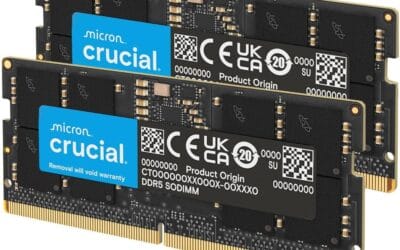
8GB RAM in 2026. Just don’t. It’s insufficient for four years of coursework, browsers keep getting hungrier, and you can’t upgrade RAM on most modern laptops because it’s soldered. Spend the extra $50 for 16GB upfront.
Skipping the AppleCare or HP Care decision entirely. College laptops get dropped. They get drinks spilled on them at 2am during finals. They get stepped on. Accidental damage coverage runs about $200 over four years and saves you $800 when the inevitable happens. Worth it.
4K displays on a student budget. The battery hit is real, the visual benefit in a lecture hall is nothing, and you’re paying $200+ extra for pixels you won’t notice.
Old-stock i3 or Celeron units that look cheap on Black Friday. They’ll feel slow by sophomore year. Buying refurbished from a reputable seller beats new-but-underpowered every time.
Common beginner questions
Mac or Windows for college?
Both work for 90% of majors. Pick based on what your specific program uses. Engineering and CS often lean Windows because of software compatibility. Film and design programs sometimes lean Mac. For general studies, business, humanities, either platform handles everything you’ll throw at it.
Is a Chromebook enough for college?
Depends entirely on your major. Humanities, business, communications, journalism majors who live in browser-based tools? Yes, a Chromebook works fine and saves you hundreds. STEM majors, design students, anyone needing specialized software? No, you’ll hit walls fast. Check your department’s software list before deciding.
How much storage do I need?
512GB SSD minimum for a Windows or Mac machine. That covers the OS, Office or equivalents, four years of documents, photos, downloads, and a reasonable game library. 256GB fills up faster than you’d think. Chromebooks are different because they lean on cloud storage, 128GB is usually enough there.
Should I buy AppleCare/extended warranty?
For a college laptop, yes. Accidental damage coverage specifically. Laptops at school get dropped, spilled on, and stepped on with depressing regularity. The $200-ish over four years is cheaper than one out-of-warranty repair. Skip the standard manufacturer warranty extension though, it usually duplicates what you already get free.
Does my major matter for laptop choice?
Hugely. CS and engineering students need 16GB+ RAM and a strong CPU for compiling and simulations. Design and film need color-accurate displays and sometimes discrete GPUs. Humanities, business, and most other majors just need a reliable, portable machine. The mid-tier $500-600 range covers that last group completely.
When’s the best time to buy (back-to-school sales)?
Late July through early September consistently delivers the deepest back-to-school discounts. Black Friday in November is the other strong window if your start date is flexible. Avoid buying in May or June, that’s when retailers clear old stock and you’ll see “deals” on outdated models that’ll feel slow within a year.
Can I game on a college laptop?
Light gaming, sure. Indie titles, esports games like League or Valorant on lower settings, older AAA games. Modern AAA gaming at high settings? You’ll need a dedicated gaming laptop, which means giving up portability and battery life. Better answer for most students: get a solid mainstream laptop for school, build or buy a desktop for serious gaming at home.