Touchscreen laptops used to be a niche pick. In 2026, they’re showing up across nearly every price tier, from $400 Chromebooks to $2,500 Surface Studios. The question isn’t whether you can find one anymore – it’s whether you actually need the touch layer for what you do, or whether you’re paying for hardware that’ll stay unused 99% of the day.
Who actually benefits from touch
Touchscreen laptops earn their price tag for specific workflows. Design students sketching in Photoshop or Procreate need pen and touch input – it’s faster than any trackpad. Onenote and Notability users who handwrite class notes get a real productivity boost from inking on screen. Architects and engineers marking up CAD drawings find pen input cuts hours off review cycles.
For everyone else? The honest answer is that touch on a clamshell laptop is mostly a feature you’ll use to scroll a recipe page once a week. You’re not poking the screen during a Zoom call. You’re not swiping through your inbox. Your hands stay on the keyboard 95% of the time because reaching up to touch a vertical screen is awkward and tiring.
Clamshell vs 2-in-1
Touchscreen laptops come in two physical formats, and the choice matters more than people realize.
Clamshell touchscreen laptops keep the traditional laptop hinge but add a touch layer to the display. You can poke the screen, but you can’t flip it backward or fold it flat. These are the cheapest touch laptops, often $50-100 over the non-touch equivalent. Honestly, if you’re going clamshell, the touch upgrade rarely justifies itself unless your job requires it.
2-in-1 convertibles have a 360-degree hinge that lets the screen flip all the way around so the laptop becomes a tablet. Some have detachable keyboards (think Surface Pro). These are where touch actually shines – in tablet mode, you’re using touch the way you’d use an iPad, which is comfortable and natural. The premium runs $150-300 over a non-touch clamshell.
Pen input matters more than touch
Here’s the thing nobody tells you upfront: if you’re buying a touchscreen laptop, what you really want is pen support. Finger touch is fine for scrolling and tapping buttons, but pen input is where these devices become genuinely useful. Pressure sensitivity for drawing, accurate handwriting recognition, palm rejection so your hand can rest on the screen while you write – these are the features that separate “occasional touch” from “actually changes how you work.”. Artists who want pressure sensitivity should look at a dedicated pen display instead, which we cover in our best drawing tablets guide.
Not all touchscreen laptops support pen input. Cheaper models often skip it. The good ones use either Microsoft Pen Protocol (MPP), Wacom AES, or USI standards. The cheapest pens cost around $40; premium ones with thousands of pressure levels and tilt detection run $100+.
Battery and weight tradeoffs
Touchscreen laptops pay two real costs: battery life and weight. The touch layer adds maybe 100-200 grams to the screen, and the digitizer electronics burn additional power. You’ll typically lose 1-2 hours of battery compared to the same laptop without touch. On a 10-hour rated machine, that means 8 hours of real-world use instead of 10.
For 2-in-1 convertibles, the hinge mechanism adds another 100-150 grams and increases thickness slightly. A 14-inch convertible typically weighs 1.4-1.6 kg, while the equivalent clamshell sits around 1.2-1.3 kg. Doesn’t sound like much until you’ve carried it across a campus for a semester.
Operating system matters
Windows 11 is genuinely good for touch and pen. Microsoft has spent years polishing the tablet experience, and apps like OneNote, Whiteboard, and the Edge browser all handle touch well. The Windows ink platform supports pressure, tilt, and palm rejection across most touch laptops.
ChromeOS has decent touch support but limited pen tooling outside Google’s own apps. If you want to ink your way through productivity, Windows is the better bet.
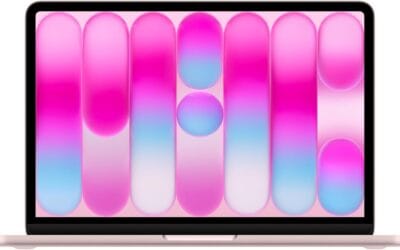
macOS doesn’t support touchscreen on MacBooks at all. Apple keeps insisting iPad is the touch device and Mac is the keyboard device. If you want touch + macOS, you’d need a Mac plus an iPad with Sidecar, which is a workable but more expensive route.
When to skip touchscreen entirely
Don’t buy a touchscreen laptop if any of these describe you:
You spend 99% of your time typing and reading. Coders, writers, accountants, and most office workers fall in this camp. The touch layer adds cost and reduces battery for no real return.
You want maximum battery life. Skipping touch gives you an extra hour or two per charge – sometimes the deciding factor between making it through a workday.
You’re price-sensitive. A non-touch laptop in the same spec tier saves $50-150 you can put toward more RAM, better storage, or a faster CPU. For most students and office workers, those upgrades matter more than touch.
You hate fingerprints. Touch screens collect smudges. If you’re the kind of person who wipes your phone screen six times a day, a laptop touchscreen will drive you slightly insane within a week.
When touchscreen pays off
A touchscreen laptop genuinely justifies its price if:
You handwrite notes during lectures or meetings. Inking on a screen with palm rejection is faster than typing for many people and produces searchable, organized notes through OneNote or Notion.
You’re an artist or illustrator who wants a laptop and drawing tablet in one. A 2-in-1 with pen support replaces both an iPad Pro and a MacBook for many digital artists, saving $1,000+ in combined hardware.
You give presentations and want to draw on slides live. Touch and pen input make annotated walkthroughs effortless.
You travel and want one device that handles both work and content consumption. A 2-in-1 in tablet mode replaces an e-reader for plane rides while still doing real work at the office.
Frequently asked
Is a touchscreen laptop worth the extra cost?
For most people, no. The $50-150 premium for a touchscreen on a clamshell laptop rarely pays back in real productivity. Unless you specifically need pen input for note-taking, drawing, or markup work, the money’s better spent on RAM, storage, or a faster CPU. For 2-in-1 convertibles, the premium runs $150-300 and only makes sense if you’ll actually use tablet mode regularly.
Do touchscreen laptops have shorter battery life?
Yes, by about 1-2 hours compared to identical non-touch models. The touch digitizer draws constant low-level power, and the slightly thicker screen assembly adds weight that affects portability. If maximum battery life is your priority, skip touch. If touch matters more, factor the battery hit into your buying decision.
Should I get 2-in-1 or clamshell?
If you’ll genuinely use tablet mode (reading, drawing, watching movies in bed), go 2-in-1. If you’re just looking for occasional touch, a clamshell touchscreen is lighter, cheaper, and has better battery life. Most people who buy 2-in-1s end up using clamshell mode 95% of the time, so be honest about your real usage before paying the convertible premium.
Does macOS support touchscreen?
No. Apple deliberately keeps macOS keyboard/trackpad only and pushes iPad as the touch device. If you want touch with Apple, the move is a MacBook plus an iPad using Sidecar to extend or mirror the screen. It works well but costs more than a single Windows touchscreen laptop.