

Getting a headset working on a PC sounds like it should be a two-second job, and half the time it is. Plug it in, hear sound, done. The other half of the time you’re staring at a device that shows up but pipes no audio, a mic that Windows refuses to acknowledge, or a wireless dongle that pairs and then goes silent. This walkthrough covers every connection type you’ll run into, wired 3.5mm, USB, and wireless, plus the settings that trip people up after the cable is in. By the end you’ll have both ears and the mic working, with the right device set as default so games and calls actually route through it.
What you’ll need
Not much. Your headset and its cable or dongle, an open port, and a few minutes in Windows sound settings. Know which connector you’ve got: a single 3.5mm plug (combined audio and mic), a split pair of green and pink plugs, a USB-A or USB-C plug, or a 2.4GHz wireless dongle. That one detail decides which steps below apply to you. A modern versatile headset covers most of these at once. The Picun G2, for instance, connects three ways, 2.4GHz wireless, Bluetooth 5.4, and wired, so you’re not locked to a single port. It runs $59.99, carries a 4.5 rating, and packs 7.1 virtual surround, a 100-hour battery, and an ENC noise-canceling mic, which makes it a flexible pick if you bounce between a PC, a PS5, and a Switch. If you’re still shopping, our roundup of the best wireless gaming headsets lines up options across price tiers.

Pros
- Three connection modes on a single headset: 2.4GHz dongle, Bluetooth 5.4, and 3.5mm wired fallback.
- Vendor-rated 5ms 2.4GHz latency keps audio synced in competitive shooter scenarios.
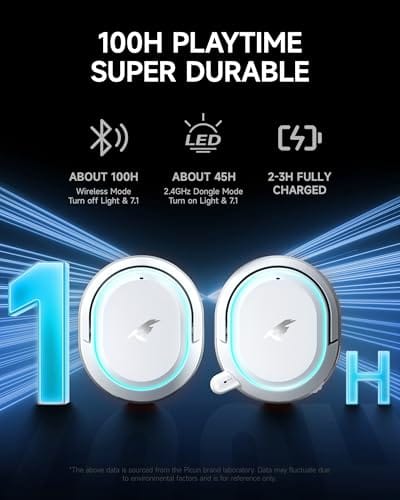
- Long rated runtime, up to 100 hours in Bluetooth with RGB disabled for travel use.
- RetractableENC microphone tucks away, useful when switching between gaming and general listening.
Cons
- Limited owner feedback at time of writing, real-world reliability and QC signal is unverified.
- 7.1 surround is virtual DSP, not true multi-driver, so positional accuracy varies by title andear.
- RGB lighting materially cuts battery life, cited100-hour figure requires lighting turned off.
The Picun G2 is a budget-tier wireless gaming headset built around 40mm drivers, virtual 7.1 surround, and tri-mode connectivity across2.4GHz, Bluetooth 5.4, and 3.5m wired. Target buyer is a multi-platform player rotating between PC, PS5, PS4, and Switch who wants low-latency wireless without moving up to established brand pricing.
The defining feature is the tri-mode radio stack. The 2.4GHz USB-A or Type-C dongle is rated at 5ms latency, which is competitive for the tier and adequate for most FPS titles, while Bluetooth 5.4 handles phones and tablets. Headsets in this class typically deliver serviceable rather than reference-grade imaging, and virtual 7.1 leans on DSP rather than discrete drivers.
Trade-offs are typical at this tier. Battery figures are optimistic: 100 hours assumes Bluetooth with RGB off, and 2.4GHz drops the number to 42 to 45 hours. Driver material, impedance, frequency response, clamp force, and weight are not specified, so tonal balance and long-session comfort cannot be verified from source data alone.
Buy this if you want one headset that jumps between a PS5, a Switch dock, and a work laptop over Bluetooth, and you accept spec-sheet-only marketing. Skip this if you rely on measured frequency response, discrete suround, or detachable bom mics with broadcast-grade pickup for streaming.
Drivers and tuning: Picun specifies 40mm dynamic drivers paired with virtual 7.1 surround processing. Impedance, sensitivity, and frequency response are not specified, so bass extension and treble air cannot be quantified from source. Virtual 7.1 is DSP-based positional widening, useful for FPS cues but not equivalent to true multi-driver surround.
Connectivity and latency: Three modes are covered: 2.4GHz via USB-A or USB-C dongle, Bluetooth 5.4, and 3.5mm analog. The 2.4GHz link is rated at 5ms latency. Bluetooth codec support (SBC, AAC, aptX) is not specified, which maters for wireless music quality on phones and tablets.
Battery and power: Rated up to 100 hours on Bluetooth with RGB off, and 42 to 45 hours on 2.4GHz wireless. Play-while-charging is supported, so a USB cable can extend sessions past the rated ceiling. Charge time and battery capacity in mAh are not specified.
Microphone: Retractable omnidirectional bom with ENC noise reduction. Sample rate, bit depth, and pickup pattern beyond omni are not specified.ENC filtering targets background noise on the transmit side, adequate for party chat but below dedicated USB mic quality.
Step 1: Identify your connector and port
Look at the end of your headset cable first. A single 3.5mm plug with three black bands is a combo jack, carrying both audio and mic on one connector, and it’s what laptops and newer motherboards expect. A pair of plugs, one green and one pink, is the older split style that wants two separate jacks. USB headsets end in a rectangular USB-A or an oval USB-C plug. Wireless kits come with a small USB dongle instead of a plug on the headset itself.
Now find the matching port. On a desktop, the rear panel jacks are color-coded: green for headphone-out, pink for mic-in. Front-panel jacks work too but sometimes aren’t wired to the board, so if the front gives you nothing, move to the rear. Laptops almost always use a single combo jack. Match the plug to the port before anything else, because half of all no-audio complaints trace back to a cable in the wrong hole.
Step 2: Make the physical connection
For a 3.5mm combo plug, push it firmly into the headset jack until it seats with a soft click. These plugs need a full insertion; stop short and you’ll get audio in one ear or a mic that’s dead. If your desktop only has separate green and pink jacks and your headset has a single combo plug, you’ll need a combo-to-dual splitter adapter. Going the other way, a headset with two plugs into a laptop’s single jack, needs a two-into-one adapter instead.
USB headsets are simpler. Plug into any open USB port and Windows loads the driver automatically, usually with a short chime and a pop-up. For a 2.4GHz wireless model, insert the dongle into a USB port, power the headset on, and let it pair. Give it five to ten seconds. Most dongles bind at the factory, so pairing is automatic, but if it doesn’t connect, look for a small pairing button on the dongle or headset and hold it until the light blinks.
Bluetooth is the outlier. If your headset connects over Bluetooth 5.4 rather than a dongle, open Settings, Bluetooth and devices, click Add device, and pick the headset from the scan list while it’s in pairing mode. Bluetooth carries a little more latency than a 2.4GHz dongle, which matters in fast games, so for competitive play the dongle or a wire is the better call. Save Bluetooth for casual listening or when you’re short a USB port.
Step 3: Set your headset as the default device
This is the step people skip, and it’s why a perfectly connected headset stays silent. Windows doesn’t always switch to a new device on its own. Right-click the speaker icon in the taskbar and open Sound settings. Under Output, pick your headset from the list. If you don’t see it, scroll, because USB and wireless units sometimes register under their own product name rather than a generic label.
Then set the input. In the same panel, under Input, choose your headset’s microphone. For a combo 3.5mm connection the mic and audio share one entry; for split plugs and USB they’re listed separately. Confirm the change by playing a short clip. Sound should route to your ears, not the speakers. If it still comes out of the wrong device, you’ve likely got a second audio output grabbing default, so set the headset explicitly rather than relying on Windows to guess.
A quick note on drivers. Plain 3.5mm and most USB headsets work on the generic audio driver Windows ships with, no download needed. Wireless and higher-end USB models sometimes come with companion software that unlocks the EQ, surround modes, and mic settings. It’s optional for basic sound, but worth grabbing if you want the full feature set. If a device shows up with a yellow warning in Device Manager, a driver didn’t load cleanly, and a quick right-click uninstall followed by a reboot usually forces Windows to reinstall it fresh.
Step 4: Check the microphone and audio balance
With the device set, confirm the mic actually captures. In Sound settings, click your headset’s input and watch the volume meter while you talk. A bouncing bar means Windows hears you. A flat line means the mic is muted, unplugged at the pink jack, or set too low. Nudge the input volume up and check for a physical mute switch on the cable or ear cup, which is the single most common reason a working mic seems dead.
While you’re here, balance the output volume so it’s comfortable and not clipping. If your headset has 7.1 virtual surround like the Picun G2, enable it in the companion software or Windows Sonic under the output device’s spatial-sound menu, then confirm both ears carry equal level. Uneven audio usually means a half-seated 3.5mm plug, so push it home and retry. A quick voice recording in the built-in Voice Recorder app gives you a clean playback to verify both directions at once.
Step 5: Configure per-app and in-game audio
Setting the system default gets you most of the way, but games, Discord, and browsers often keep their own audio device settings. Open Discord’s Voice and Video settings and pick your headset for both output and input. In games, dig into the audio menu and select the headset if a device dropdown exists. Some competitive titles default to whatever was active at launch, so if you connected the headset after opening the game, restart the game or reselect the device.
Windows also lets you route audio per app. In Sound settings, under Advanced, the app volume and device preferences page shows every program making sound and lets you assign each one to a specific output. That’s handy when you want game audio in the headset but music through desktop speakers. Once your defaults and per-app routing line up, the setup holds through restarts. A proper headset stand keeps the cable off the desk and the plug from working loose between sessions.
One setting people miss lives in the recording side: sidetone, or mic monitoring. Some headsets and their software let you hear your own voice in the earcups, which stops you shouting on calls. If your headset supports it, enable it in the companion app or through the microphone’s Listen tab in Windows sound properties. And if a game uses push-to-talk, bind the key before your first match so you’re not fumbling for it mid-round. These are small touches, but they’re the difference between a headset that merely works and one that feels dialed in.
Troubleshooting common issues
Headset connected but no sound
Nine times out of ten it’s the default device. Reopen Sound settings and confirm the headset, not your monitor’s HDMI audio or motherboard speakers, is the selected output. Also check the physical plug is fully seated and the in-line volume dial isn’t turned all the way down. If it’s USB, try a different port, since a flaky front-panel header can enumerate the device without passing audio.
Mic not detected or picking up nothing
Start with the mute switch, because it’s the usual culprit. Then confirm the pink plug is in the mic jack on split-connector setups, or that Windows privacy settings allow microphone access under Settings, Privacy, Microphone. Raise the input level and watch the meter. If Windows still shows no device, the mic boom may need to be unmuted in the headset’s own software.
Wireless dongle won’t pair
Reseat the dongle in a rear USB port and power-cycle the headset. Hold the pairing button on both the dongle and the headset if auto-binding fails. Low battery blocks pairing on some units, so charge for a few minutes first. Keep the dongle away from a USB 3.0 port cluster if you get dropouts, since those ports can generate interference that muddies 2.4GHz signals.
Only one ear works
A single-ear symptom on a 3.5mm connection almost always means the plug isn’t fully inserted. Push it in until it clicks, then check the L/R balance slider in Windows sound properties, which can drift to one side. If both are fine and it’s still one-sided, try the headset on a phone to rule out a broken cable.
Audio crackles or cuts out intermittently
Crackling on a wired headset usually points to a loose plug or a worn cable near the connector. Flex it gently and listen; if the noise tracks the movement, the cable’s failing. On wireless, stutter comes from range or interference, so move the dongle to a front port on an extension or away from a USB 3.0 cluster. A sample-rate mismatch can also cause pops, so set the output to a standard 48000 Hz in the device’s advanced properties and see if it clears.
Wrapping up
Connecting a headset comes down to three things: match the plug to the right port, set the device as default in Windows, and confirm both the audio and mic route correctly. Get those right and everything downstream, Discord, games, recording software, falls into place. Wired combo jacks are the quickest path, USB skips the split-plug guesswork, and a modern wireless kit like the Picun G2 gives you the freedom to move without cables while still dropping to wired mode when the battery runs low. If your current headset is fighting you at every step, it may be worth upgrading; the best budget gaming headsets deliver clean audio and a reliable mic without a premium price. Plug in, set your default, and you’re done.































Write Your Review
No reviews yet. Be the first to share your experience!