You’re 30 seconds into a Discord call and three people start asking if you’re still there. Your headset audio’s fine, but nobody hears you. That’s the classic “headset mic not working” panic.
Good news. About 80% of dead-mic cases come down to four issues: a flipped mute switch, wrong default input in Windows, an app blocking microphone access, or a bad 3.5mm TRRS contact at the jack. None of those need a repair shop. You can fix them in under ten minutes once you know where to look.
We’ve researched the seven most common failure points across USB, wireless 2.4GHz, Bluetooth, and 3.5mm wired headsets. This guide runs the checks in support-agent order: simple stuff first, then Windows audio, app permissions, and hardware faults. Grab your headset. That decision gets its own treatment in our wired vs wireless headset latency guide.
First check the obvious
Before you touch any settings, run these four checks. Tech support reps call them the “embarrassment list” because the fix is here about half the time.
- Mute switch on the cable or earcup. Most gaming headsets put a slider on the in-line remote or a button on the left earcup. Flick it. Watch the LED change.
- Plug seating. On 3.5mm, pull the plug halfway out and push back firmly. You should feel two clicks for a 4-pole TRRS jack. Try a different port, ideally back of the desktop.
- Mic boom position. Flexible booms have a sweet point about 2 cm from your mouth. Pointed at the ceiling or pushed into the “mute” detent (common on Logitech, HyperX), audio drops to zero.
- App permission popup. Windows 11 and macOS throw an “allow microphone” prompt the first time an app launches. Dismiss it and the app can’t see your mic even if Windows can.
Two minutes here? Now we go deeper.
Cause #1: Wrong default input device in Windows
This is the biggest reason a working headset goes silent. Windows doesn’t always auto-switch the input when you plug something new in, especially with a webcam, a laptop’s built-in array, and a USB headset all visible at once. Your voice gets routed to a mic pointed at your monitor, and you sound like you’re three rooms away. Here’s how to fix it on Windows 11 (Windows 10 steps match closely):. We break the options down further in our roundup of the webcam not working fix.
- Right-click the speaker icon in the system tray, choose Sound settings.
- Scroll to the Input section. You’ll see a list of available microphones, each with a live volume meter beside it.
- Speak normally. The meter on the correct device should bounce between 30% and 70%. If it’s flat-lined, that input isn’t getting signal.
- Click your headset’s mic, then scroll down and hit Set as default. On older builds, you’ll need to click the device, open its properties, and check Use this device as the default communication device too. Those are two separate flags.
Still flat-lined? Check the input volume slider. Windows sometimes drops it to 2 after a driver update, close enough to zero that nobody hears you. Push it to 80-100. Open Microphone properties, hit Levels, and confirm Microphone (0-100) and Microphone Boost (+0 to +30 dB) aren’t muted by the tiny speaker icon. A typical electret capsule wants 60-80 on the main slider and 0 to +10 dB on boost. Past +20 dB you’ll pick up your own breathing.
One more gotcha. If your USB headset shows up twice (once as “Headset” and once as “Headphones”), Windows treats it as two endpoints. You want the Headset or Communications entry for the mic, and Headphones for output. That’s about 1 in 5 “my mic doesn’t work after I swapped headsets” tickets.
Cause #2: App-level mic permissions blocked (Discord, OBS, browser)
Windows can route audio perfectly and the app still hears silence. Each app has its own permission flag, and they don’t share state. Discord can be fine while Chrome is muted. OBS can record desktop audio but capture nothing from the mic.
Start with the Windows global toggle. Open Settings, Privacy & security, Microphone. The top switch is Microphone access. If it’s off, no app gets audio. Below that is the per-app list, plus a separate Let desktop apps access your microphone toggle at the bottom that catches Discord, Steam voice chat, and most game launchers.
Now check the app itself:
- Discord. Settings, Voice & Video. Input Device should match your headset’s exact name. Click Let’s Check, the mic meter should bounce. If dead, hit Reset Voice Settings at the bottom.
- OBS Studio. Settings, Audio. Mic/Aux device should show your headset, not “Default”. A mid-session swap leaves OBS pointing at the old device.
- Chrome / Edge. Lock icon, Site settings, Microphone: Allow. Browser permission is per-site, so meet.google.com isn’t the same as web.whatsapp.com.
- Zoom / Teams. Both have a mic check button that records 3 seconds and plays back. Silent playback means the app permission’s the issue, not hardware.
Reboot after Windows-level permission changes. Some apps cache the deny state until restart.
Cause #3: Failed mic boom or 3.5mm TRRS/TRS contact
Software’s fine, permissions are open, Windows sees signal at 0%. Now we’re into hardware. On a 3.5mm wired headset, the most common culprit is the boom or the contact ring at the plug. Booms get yanked and twisted at the base, where a thin ribbon cable runs through a 4-5 mm channel. After 18 months of daily flexing, that ribbon develops a microfracture: intermittent or zero mic signal, even though headphones still play fine. Here’s how to confirm it’s the boom and not the cable:
- Wiggle the boom at its base while watching the Windows input meter. If it spikes intermittently as you flex, the ribbon’s cracked.
- Plug into a phone with a 3.5mm jack or a CTIA-compatible USB-C adapter. Phones expect 4-pole TRRS (Tip Ring Ring Sleeve). If the phone records you fine, the issue’s on the PC. If the phone’s also silent, the boom or cable is shot.
- Inspect the plug. TRRS has three black insulator rings. TRS has two and carries stereo audio only, no mic. A TRS plug into a combo jack sends nothing back. You’ll need a TRRS-to-dual-TRS splitter or a USB DAC with a CTIA combo jack.
For headsets with a detachable boom (Turtle Beach Recon, Stealth, Battle Buds, most Razer Kraken from 2018 onward), the boom plugs into a 3.5mm socket on the left earcup, and the spring contacts fatigue. A replacement runs 12-20 dollars and clips in within 5 seconds. The AKKE 3.5mm Detachable Gaming Microphone Boom fits the Turtle Beach Recon/Stealth lineup, handles 100Hz-10kHz at -42 dB sensitivity, and matches the original spec close enough that you won’t need to retune Windows boost.
For non-detachable booms (built into the earcup, no plug), the repair path is either soldering inside the earcup (not fun) or replacing the whole headset. We’ll cover that under Tools.
Preventive maintenance
Headsets last roughly 3-5 years with daily use, but you can stretch that meaningfully with five habits.
- Stop yanking the cable. The number one killer of 3.5mm headsets is pulling the wire instead of gripping the plug. Yank ten times and the strain relief splits, exposing wires. Always pull at the rigid plastic shell.
- Park the boom at 90 degrees. Don’t fold it flat against the earcup at storage. That flex point above the hinge is where the ribbon fails first.
- Foam covers matter. The black windscreen blocks pop and keeps dust, skin flakes, and breath moisture out of the capsule mesh. Swap every 6 months. A 5-pack costs 4 dollars.
- Wipe earcup grilles monthly. Dust kills speakers, and people often misdiagnose a partial speaker failure as a mic issue.
- Power-cycle wireless headsets weekly. 2.4GHz dongles and Bluetooth chipsets cache pairing state. A 10-second power off clears stuck audio routing.
Bonus tip. Keep the Windows Privacy & security, Microphone per-app list trimmed. A forgotten old app can occasionally hold an exclusive lock on the device. Revoke anything you haven’t used in 90 days.
When to call a pro
Most mic issues are software or a single-component hardware swap. But there’s a short list where a repair shop or a warranty claim makes more sense than DIY.
- Mic died after a Windows update and driver rollback doesn’t fix it. That’s a kernel audio stack issue. Faster to take it to a shop than spend six hours in Device Manager.
- USB headset triggers “device not recognized” on every port, every PC, every cable. The internal USB controller’s failed. Out of warranty: replace. Under warranty: claim it.
- Non-detachable boom on a 150-dollar-plus headset. Re-soldering ribbons inside a sealed shell cracks housings. A shop charges 30-50 dollars and it’s worth it.
- Dead 2.4GHz dongle. Some brands sell replacements for 25 dollars. Contact support before paying for diagnosis.
Rule of thumb: if the repair quote exceeds 40% of a new headset, replace.
Tools needed
You don’t need much for a headset mic repair. Here’s the short list:
- A second device. Phone with 3.5mm or USB-C adapter, or a spare laptop. Isolates hardware from software in 30 seconds.
- A 3.5mm TRRS-to-dual-TRS splitter (“headset adapter”). 6-10 dollars. Plugs a 4-pole gaming headset into a desktop with separate pink/green jacks.
- A USB DAC with a CTIA combo jack. Solves flaky laptop combo jacks. 20-30 dollars, 16-bit/48kHz minimum, fine for voice.
- Compressed air. Blow out the PC’s 3.5mm port and the boom socket. Lint and crumbs are real culprits.
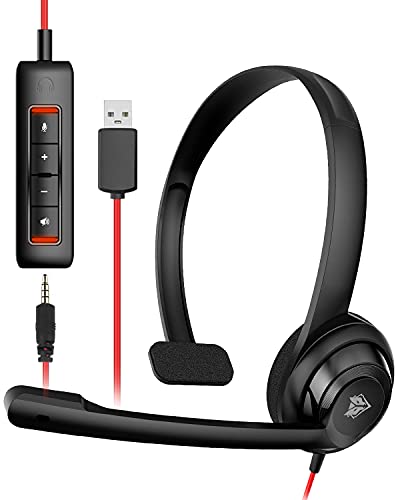
- A reliable replacement. Sometimes the fastest fix is admitting the old unit’s done. The NUBWO HW02 USB headset uses a USB-A 2.0 plug, has an in-line volume/mute remote, and the boom sits at -38 dB sensitivity with 50Hz-16kHz response. Solid voice quality at the price.
Pros
- Detachable USB dongle lets you switch between smartphone 3.5mm and PC USB use
- Inline mute and volume with LED indicator reduces fumbling during live cals
- Very light on-ear frame at 60 grams reduces clamp fatigue over long shifts
- Bom mic is adjustable and positioned for major VoIP platforms like Teams and Zoom
Cons
- Limited owner feedback at time of writing makes long-term reliability hard to verify
- Driver size, frequency response, and mic pattern are not specified by NUBWO
- On-ear pads at this tier typically offer minimal passive isolation in open offices
The NUBWO HW02 is a budget wired on-ear computer headset aimed at home-office callers, call center agents, and remote learners. It ships with a 3.5mm plug plus a detachable USB inline control module, targeting buyers who move between a laptop USB port and a phone or tablet audio jack.
The defining feature is the USB control box housing a small digital signal sound card, which routes around weak onboard laptop codecs and ads hardware mute and volume keys. NUBWO lists a 60 gram body, which based on category norms should keep clamp pressure low across back-to-back meetings on Teams, Zoom, or Skype.
Trade-offs are typical at this tier and worth flagging. Driver diameter, frequency response, mic polar pattern, and cable length are not specified in the source data, so audio tuning and noise rejection cannot be verified. On-ear pads at this price point generally provide limited passive isolation, and owner feedback is too sparse to confirm build longevity.
Buy this if you need a cheap secondary USB headset for VoIP calls on a work laptop and want a detachable 3.5mm option for mobile. Skip this if you need documented mic noise cancellation performance, certified Teams tuning, or a headset for music-critical listening.
Drivers and tuning: NUBWO does not specify driver diameter, impedance, or frequency response. The marketing references a digital signal sound card inside the USB inline module, which typically outputs 16-bit stereo suitable for voice and casual media, not reference-grade music playback.
Microphone: The headset uses an adjustable boom mic marketed as noise cancelling for MS Teams, Skype, and Zoom. Polar pattern, sensitivity in dBV/Pa, and sample rate are not disclosed, so expect voice-band pickup consistent with entry-tier office headsets rather than broadcast quality.
Connectivity: A fixed 3.5mm TRRS plug handles smartphones and tablets, while the detachable USB inline module ads PC and MAC support with hardware mute and volume keys. Cable length is not listed in the source data, and there is no wireless, Bluetooth, or 2.4GHz option.
Fit and wear: On-ear form factor with a listed weight of 60 grams, positioned by NUBWO for all-day call use. Ear cup material, headband pading, and clamping force are not specified, so isolation in open offices is likely modest at this tier.
To skip wires entirely, Bluetooth or 2.4GHz removes the cable failure point. Just remember Bluetooth voice runs HFP/HSP at 8-16 kHz, lower fidelity than wired. Fine for meetings, not for streaming.
Common questions
Why does my headset mic work in Discord but not in games?
Most games pull from the Windows default communications device, not the regular default. Discord pulls from whatever you’ve manually selected. Open Sound Control Panel, Recording tab, right-click your mic, pick Set as Default Communication Device. That second flag catches about 30% of “works in app X but not Y” issues.
Can a single broken cable cause both audio and mic loss?
Yes. A 4-pole TRRS cable has four conductors: left audio, right audio, mic, ground. A break in the mic conductor leaves headphones working. A break in ground kills everything (both speakers and mic share the ground return). Lost audio AND mic but plug’s seated? Suspect the ground conductor at the strain relief or boot.
My Bluetooth mic sounds terrible on calls but fine for music. Is it broken?
Not broken, it’s the Bluetooth profile. Music streams A2DP at high bitrate. Calls switch to HFP/HSP at 8-16 kHz mono, collapsing your mic and speaker output to phone-quality. No headset-side fix, it’s a protocol limit. Workaround: wired headset for calls, or a model with LE Audio LC3 codec.
Does Windows mic boost damage the headset?
No. Boost is digital gain applied after the analog signal hits the sound card, so it can’t push voltage back into the capsule. It does amplify noise floor and room echo alongside your voice. Keep boost at 0 to +10 dB and crank the main slider first. Past +20 dB to be heard? The capsule itself is dying.

Pros
- USB adapter bypasses spotty onboard Bluetooth and maintains connection in interference-heavy offices
- 50-hour battery outlasts typical 8-12 hour models, practical for truckers or multi-day field work
- 0.39oz weight minimizes ear fatigue compared to over-ear or bulkier single-ear designs
Cons
- Zero verified owner reviews at time of writing, making real-world reliability and mic clarity uncertain
- Single-ear design limits stereo audio quality for music or gaming beyond voice calls
- Noise cancellation claims lack third-party verification or specific dB reduction data
The Ngsod V5.4 is a budget single-ear Bluetooth headset with USB dongle targeting remote workers, truckers, and field professionals needing extended battery life and stable connectivity. At 0.39oz, it sits at the lighter end of the single-ear category, with Bluetooth 5.4 and a USB adapter for environments where native Bluetooth fails or lags. The 50-hour talk time spec positions it for multi-day use without daily charging.
The USB dongle addresses the common pain point of spotty laptop Bluetooth or signal drop in cluttered office spaces. Paired with the claimed 90% noise reduction mic, this setup aims to deliver consistent call quality for Zoom and Teams users. The independent mute button and one-tap call controls reduce fumbling during back-to-back meetings. Owner reports of actual mic clarity and connection stability remain unavailable at launch.
Single-ear designs inherently sacrifice stereo separation and passive noise isolation compared to over-ear or dual-driver models. The in-ear fit may cause discomfort for users with narrow ear canals or those sensitive to silicone tips during 8-plus-hour shifts. The 50-hour battery assumes moderate volume levels, real-world runtime will drop with max volume or constant ANC use. Zero verified reviews mean long-term durability and firmware stability are unproven.
Buy this if you need a lightweight headset for voice-heavy work, prioritize USB dongle stability over wireless freedom, and accept the risk of unverified performance claims. Skip this if you require stereo audio for media consumption, need proven reliability from established brands like Jabra or Poly, or work in extremely noisy environments where passive isolation matters more than active noise cancellation.
Bluetooth & Connectivity: Bluetooth 5.4 with USB-A dongle supports dual-mode pairing (direct Bluetooth or dongle-based 2.4GHz). The dongle enables connection on PCs with disabled or absent Bluetooth radios, typical in corporate IT lockdowns. Pairing range and latency specs not provided, standard Bluetooth 5.4 delivers roughly 10-meter range and sub-100ms latency for voice.
Microphone Performance: Boom mic claims 90% background noise reduction via unspecified DSP or beamforming technology. Actual dB attenuation or wind noise handling not documented. Single-mic designs typically underperform dual-mic arrays in chaotic environments like truck cabs or open offices. Owner feedback on call clarity unavailable at time of review.
Battery & Charging: 50-hour talk time and 200-hour standby via charging case. LED display shows remaining percentage, avoids guesswork. Charging time and port type (USB-C or Micro-USB) not specified. Real-world runtime depends on volume level, ANC usage, and codec (SBC vs AAC). These figures assume moderate use, not max-volume streaming.
Run these checks top to bottom and you’ll catch the issue within 15 minutes. Bookmark this page for the next dead-mic call.