

MSAA at 4x can eat 20% to 30% of your frame rate. TAA costs roughly 5% to 10% and softens fine detail while it does the job. Those two numbers settle most arguments about the best anti-aliasing settings before anyone opens a graphics menu, and they’re also why the whole answer shifted once GPU vendors started shipping neural upscalers that clean edges for free. The best anti-aliasing mode in 2026 isn’t one toggle. It’s a short decision chain: which GPU generation you own, what resolution your panel runs at, and how many frames you’re willing to trade for clean geometry.
So this guide answers the settings question first and only gets to hardware where silicon sets the ceiling. If you’re on an RTX 20-series card or newer, you already own the cleanest anti-aliasing available, and it probably isn’t the option the game picked for you. If you’re on a GTX 1060 or an RX 580, no menu is going to fix what the card can’t render. Panel choice pulls weight too, which is why our Gaming Monitors category and our best GPUs for 1080p gaming breakdown are useful company to this one.
What to switch on, sorted by GPU generation
Your card decides the ceiling, so start there rather than in the menu.
RTX 50 and RTX 40 series: use DLAA when the game exposes it and you’re already clearing your refresh rate, DLSS Quality when you aren’t. DLAA runs the same neural network as DLSS but at native resolution, so nothing is reconstructed from a smaller buffer and edge shimmer drops below what any TAA implementation manages. NVIDIA’s GeForce RTX card pages document Multi Frame Generation on the 50-series, which inserts up to three generated frames per rendered one. Worth being blunt about: frame generation multiplies frame counts, it doesn’t clean a single edge. The anti-aliasing happens in the DLAA or super-resolution pass, and people conflate the two constantly.
RTX 20 and RTX 30 series: you get more than most owners realize. The transformer-based DLSS 4 super-resolution model runs on every RTX card, not just the newest ones, and it can be forced into older DLSS titles through the driver override. Same performance class, noticeably sharper reconstruction, less of the ghosting trail behind moving foliage. Only Multi Frame Generation is locked to 50-series hardware.
Radeon RX 9000 series: FSR 4 is the pick, and it needs RDNA 4 silicon to run its machine-learning upscaler. That’s a correction worth making, because plenty of guides still describe FSR 4 as vendor-agnostic. On RX 7000 and RX 6000 cards the fallback is FSR 3.1 Quality or the engine’s own TAA with a sharpening pass behind it. AMD’s Radeon desktop graphics lineup lists which models carry the newer architecture.
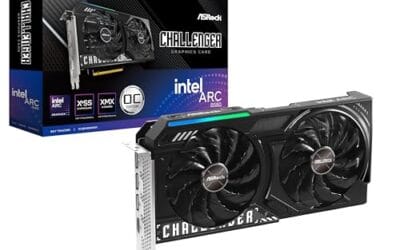
Intel Arc B-series: XeSS 2, which is the only one of the three that also runs in a slower compatibility path on non-Intel cards. And on a GTX 10-series card or an integrated GPU, avoid TAA at 1080p. It smears more than it repairs at that pixel count. SMAA if the game offers it, FXAA as a grudging last resort, and drop a shadow tier to afford a higher render scale instead.
TAA, SMAA and MSAA are fixing three different problems
MSAA samples geometry edges multiple times per pixel. That’s all it does. It has no effect on shader aliasing, specular flicker on wet surfaces, or the crawling you see on chain-link fences and distant foliage, which is exactly where modern engines alias worst. Deferred renderers make MSAA expensive to implement at all, so most 2026 releases either bury it or drop it. Where it survives, 4x MSAA runs 20% to 30% of frame rate, and on the mid-tier cards sitting in the middle of Tom’s Hardware’s GPU hierarchy, that’s the gap between 60 fps and about 43.
SMAA works differently. It’s a post-process pass that detects edge patterns in the finished frame and blends across them, costing 2% to 3% at most. Cheap, sharp, and it does nothing about temporal shimmer, because it only ever sees one frame. FXAA is the older, blurrier version of the same idea.
TAA is the one everyone complains about, and it’s also the only classic mode that fixes shimmer. It reuses samples from previous frames, accumulating detail over time, which is why it kills crawling edges that SMAA can’t touch. The cost lands elsewhere: ghost trails behind fast movement, mushy text on distant signage, and a general softness that gets worse the lower your frame rate goes. A 45 fps TAA image looks meaningfully worse than the same TAA at 120 fps, since there’s less recent history to draw from. That single fact explains most of the “TAA looks terrible” complaints on budget hardware.
Upscaling became the anti-aliasing layer
Here’s the part that reframes the whole question. DLSS, FSR and XeSS are temporal anti-aliasing solutions that happen to change resolution along the way. The neural network resolves subpixel detail across accumulated frames, then outputs at your display resolution, so the anti-aliasing is not a separate step you enable afterward. Switch DLSS on and the game’s TAA slider usually greys out, because the job’s already done.
The proportions are worth knowing. DLSS Quality renders at roughly 67% of output resolution on each axis, so a 4K frame is reconstructed from a 1440p buffer, and 1440p output comes from about 1707×960. Performance mode halves each axis instead. DLAA and FSR Native AA skip the scaling entirely and spend the whole budget on image reconstruction, which is why they’re the answer for anyone with frames to spare.
Ray-traced lighting raised the stakes here. Denoised reflections and path-traced shadows shimmer in motion in a way rasterized lighting never did, and NVIDIA’s RTX ray tracing developer documentation covers the reconstruction work that replaced hand-tuned denoisers. If you’re running ray tracing in a supported title, Ray Reconstruction does more for perceived image stability than any anti-aliasing dropdown will.
One cost nobody advertises: temporal reconstruction keeps motion vectors and a frame history resident, and that memory sits alongside 2026’s texture packs. On an 8GB card at QHD with ray tracing on, video memory pressure shows up as stutter and texture pop-in rather than a clean frame rate drop, which is the failure people misdiagnose as a broken upscaler.
Frame cost of each mode, side by side
| Mode | How it works | Typical frame impact | Main artifact | Best for |
|---|---|---|---|---|
| FXAA | Single-frame edge blur | -1% to -2% | Softens textures and text | Very old GPUs, last resort |
| SMAA | Single-frame pattern detection | -2% to -3% | Ignores temporal shimmer | Pre-RTX cards, competitive shooters |
| TAA | Samples across previous frames | -5% to -10% | Ghosting, motion blur | Non-RTX cards at 1440p or higher |
| MSAA 4x | Multiple geometry samples per pixel | -20% to -30% | No effect on shader aliasing | Older forward-rendered engines |
| DLAA / FSR Native AA | Neural reconstruction at native res | -8% to -15% | Rare trailing on transparency | RTX 20-series and up, RX 9000, with headroom |
| DLSS 4 / FSR 4 Quality | Neural reconstruction from a smaller buffer | +25% to +40% frames | Occasional shimmer on fine wires | Almost everyone with supported hardware |
| DSR / VSR downsampling | Renders above native, then scales down | -35% to -60% | Brutally expensive | Older titles on overpowered cards |
Read the fifth and sixth rows again. Upscaling AA is the only entry on that list that hands frames back while improving edge quality, which is why “anti-aliasing costs performance” is now an outdated assumption rather than a rule. The numbers move by engine and by scene, so treat them as ranges published measurements land in, not as fixed constants.
Pixel density does part of the work before software touches it
A 27-inch panel at 2560×1440 works out to 108.8 pixels per inch. The same size at 1920×1080 gives you 81.6. That’s a 33% jump in density, and it shrinks every staircase edge proportionally, which means the aliasing you’d be fighting with software is partly gone before you enable anything. Higher density doesn’t remove shimmer, since crawling edges are a temporal problem rather than a spatial one, but it lowers the amplitude of what remains.
This is where the money question gets uncomfortable. Moving from a 24-inch 1080p panel to a 27-inch QHD one costs less than the GPU tier you’d need to brute-force clean edges at 1080p with supersampling. The Acer Nitro XV272U W2 is a reasonable example of the class: 27-inch IPS, 2560×1440, a 240Hz ceiling over DisplayPort 1.4, 0.5ms GTG response, FreeSync Premium. Owner feedback on it is still thin, so weigh the specs more heavily than the review pool for now.
Refresh rate matters here for a reason that isn’t obvious. Sample-and-hold persistence blur scales with how long each frame stays lit, and RTINGS documents how refresh rate affects motion clarity independently of response time. Run TAA at 60Hz and you’re stacking temporal blur on top of persistence blur, then blaming the anti-aliasing for all of it. Our best 1440p gaming monitor guide covers the panel side in depth, and the gaming monitors under $200 shortlist is where to look if the budget won’t stretch to a 240Hz QHD panel yet.
If your card predates DLSS 4 and FSR 4
Everything above collapses into one hard limit: the best modes need hardware that can run them. On a GTX 1660 or an RX 5700 XT you’re choosing between blurry TAA and cheap SMAA that leaves shimmer intact, and no amount of menu tuning changes that. Here’s the upgrade path that actually opens the good options, plus the accessories that come up alongside it.

Pros
- Genuine plug-and-play setup with no software or configuration required, works inline between console and TV HDMI port
- Three distinct modes cover modern widescreen consoles, retro 4:3 systems, and a clean pass-through option in one device
- Upscales to 1440p/60Hz with anti-aliasing, visibly reducing jagged edges and softness on Nintendo Switch and older consoles
- Ultra-low power draw of 1W maximum means it can be powered from a spare USB port on most TVs
Cons
- Rating sits in the mid-range for this category, and a meaningful portion of owner feedback raises questions about consistency of visual improvement across all TV and console combinations
- AC power adapter is not included, and retro consoles require a separate HDMI adapter that is also not bundled, adding to the real-world cost
- Upscaling tops out at 1440p/60Hz rather than native 4K, which may disappoint buyers expecting a full 4K output on large screens
The Marseille mClassic OG is a small HDMI inline upscaler aimed at console gamers who want improved image quality without the complexity or cost of a dedicated video processor. It sits between your console's HDMI output and your TV's HDMI input, drawing power from a micro-USB port, and applies real-time anti-aliasing and upscaling up to 1440p/60Hz. It is best suited for Nintendo Switch owners gaming in docked mode and retro enthusiasts connecting older hardware to modern flat-panel displays via HDMI adapters.
Based on owner reports, the visual improvement is most noticeable on the Nintendo Switch, where the anti-aliasing reduces the soft or jagged look common when the console outputs at 720p or 1080p. The retro mode's 4:3 preservation is a practical touch for SNES and N64 content. The honest caveat is that results vary by TV model and source resolution, and the mid-range rating across a large owner base suggests the improvement is real but not universally dramatic. Skip this if you own a 4K TV and expect native 4K output, or if your TV already applies strong upscaling internally.
Chip: VTV-1224 by Marseille Inc, HDMI 1.4b Receiver and Transmitter, HDCP 1.4, 4K Chroma 4:4:4 Scaler Processor, 120 FPS Graphic Post-Processor
Connectivity: HDMI male input, HDMI female output, Micro-USB 5V power
Max Output Resolution: 1440p/60Hz on supported displays
Power Consumption: 0.1W idle, 1W maximum at full upscale load
Dimensions: 2.2 x 1.6 x 0.8 inches (55 x 40 x 21 mm)
Weight: 1 oz (28g)
Modes: Mode 1 - Pass-through (no enhancement), Mode 2 - Widescreen Enhancement (green LED), Mode 3 - Retro 4:3 Mode (blue LED)
Compatible Consoles: Nintendo Switch, Xbox, PlayStation, GameCube, N64, Wii, SNES, NES, Sega Genesis, PS2, and any console with HDMI output
Buy the mClassic OG if: You play Nintendo Switch docked on a 1080p or 1440p display and want visibly sharper output with reduced aliasing. It also makes sense if you connect retro consoles via HDMI adapters and want a single device that handles both 4:3 and widescreen content. The pass-through mode means you never need to unplug it when you want unprocessed output.
Consider alternatives if: Your primary goal is native 4K upscaling, as the mClassic OG caps at 1440p/60Hz. If your TV already has a strong built-in upscaler or you use a dedicated retro scaler like the RetroTINK series, the incremental benefit may not justify the price. Also note that retro console users will need to budget separately for HDMI adapters and potentially an AC power adapter, neither of which is included in the box.
Compatibility note: The mClassic OG requires an HDMI signal from the source. Most retro consoles need a third-party HDMI adapter before the mClassic can process the signal. Verify your console's HDMI adapter compatibility before purchasing.
Pros
- Zinc alloy build offers genuine structural rigidity compared to plastic alternatives
- 72-128mm height adjustment range covers the majority of modern GPU form factors
- Toolless setup with a release button makes installation and reconfiguration quick and clean
- Included spirit level adds a practical alignment aid not commonly found in competing brackets
- Aura Sync ARGB integration allows lighting to match other ASUS components without extra software
Cons
- ARGB lighting requires ASUS Armoury Crate software, which adds overhead and may not appeal to non-ASUS builds
- At its price point, buyers without ASUS ecosystems may find the RGB feature unnecessary and could opt for a simpler bracket
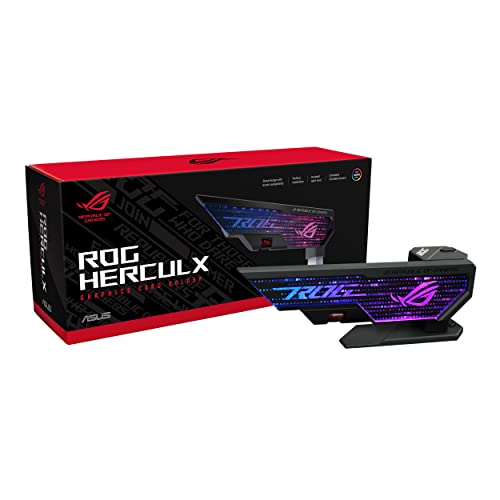
The ASUS ROG Herculx is a GPU anti-sag support bracket built from solid zinc alloy and designed for PC builders who want a reliable, aesthetically integrated solution. Its adjustable height range of 72 to 128mm covers the vast majority of modern GPU sizes, and the toolless wheel-and-button mechanism makes it genuinely easy to install or remove without reaching for a screwdriver. The included magnetic spirit level is a thoughtful addition that helps ensure your GPU sits perfectly level, a detail most competing brackets skip entirely. It does not occupy any PCIe slots, keeping your expansion options fully intact.
In practice, owner feedback at this volume and rating level points to consistent satisfaction with build quality and ease of use. The ARGB element syncs with ASUS Aura Sync via Armoury Crate, which is a genuine benefit for ASUS-heavy builds but adds software dependency for others. If you are not in the ASUS ecosystem, the RGB feature may go unused. Skip this if you want a no-frills, budget bracket. Buy it if you want a premium, well-engineered support with lighting that actually integrates with your system.
Who should buy the ROG Herculx? This bracket is best suited for enthusiast PC builders running high-end GPUs, particularly RTX 40-series or AMD RX 7000-series cards that are large and heavy enough to cause measurable PCIe slot sag over time. If your GPU weighs over 1.5kg or has a triple-fan cooler extending well beyond the PCB, a support bracket is a practical investment rather than an optional accessory.
ASUS ecosystem consideration: The ARGB lighting and Aura Sync integration add real value if you already use ASUS motherboards, coolers, or peripherals. If your build is MSI, Gigabyte, or a mixed brand setup, the RGB will still function as a static or basic effect, but full sync requires Armoury Crate. Factor this in before purchasing.
Chassis compatibility: The 72-128mm height range covers most standard ATX and mid-tower cases. Measure the distance from your case floor to the underside of your GPU before purchasing to confirm fit, especially in compact or non-standard chassis designs.

Pros
- 1440p 240Hz over DisplayPort 1.4 pairs well with current-gen 70-class GPUs at high settings.
- IPS panel with 99% sRGB coverage handles esports and content editing without visible color shift.
- Full ergonomicErgostand includes 4.7-inch height range, 360-degree swivel, and 90-degree pivot support.
- Three video inputs (1 DisplayPort 1.4, 2 HDMI) plus included cables cover most PC and console pairings.
Cons
- Limited owner fedback at time of writing makes long-term panel uniformity and QC hard to verify.
- HDMI ports cap at 2.0 and 144Hz despite the title referencing HDMI 2.1, so 240Hz requires DisplayPort.
- DisplayHDR 400 lacks local dimming, so HDR contrast is closer to bright SDR than true HDR.
The Acer Nitro XV272U W2bmiiprx is a mid-range 27-inch 1440p IPS gaming monitor targeting high-refresh esports and mixed-use buyers. It runs up to 240Hz over DisplayPort 1.4, quotes a 0.5ms GtG response with overdrive, and carries DisplayHDR 400 plus AMD FreeSync Premium certification for adaptive sync.
The defining feature is the 1440p at 240Hz pipeline. That refresh ceiling matches an RTX 4070,X 4070 SUPER, or RX 7800 XT class GPU pushing competitive titles like Valorant, CS2, or Apex above 200FPS. IPS panels in this tier typically deliver 350 nits SDR brightness and roughly 1000:1 static contrast, based on category norms.
Trade-offs are typical at this price bracket. HDMI ports are limited to 2.0 and 144Hz, so consoles running 120Hz work fine but PC users must use DisplayPort for the full 240Hz. DisplayHDR 400 without local dimming means HDR content looks like elevated SDR rather than true high dynamic range. Speakers are 2W each, adequate for system sounds only.
Buy this if you want a 1440p 240Hz IPS panel with a full ergonomic stand for a competitive PC setup driven by a 70-class or better GPU. Skip this if you need genuine HDR performance, factory-calibrated DCI-P3 coverage for color-critical work, or 240Hz over HDMI for a PS5 Pro.
Panel and resolution: 27-inch IPS panel at 2560x1440 native, giving a 0.233m pixel pitch and roughly 109 PI. That density is the accepted sweet spot for 27-inch gaming without requiring desktop scaling, and IPS keps off-axis color shift minimal compared with VA alternatives at the same tier.
Refresh and response: 240Hz refresh over DisplayPort 1.4, dropping to 144Hz on either HDMI 2.0 input. Response time is rated 1ms GtG standard and0.5ms GtG with maximum overdrive, though aggressive overdrive on IPS panels in this tier typically introduces some inverse ghosting in darker transitions.
HDR and color: DisplayHDR 400 certification with 99% sRGB coverage. Without local dimming zones or a peak brightness above 400 nits, HDR mode functions closer to bright SDR. sRGB coverage is sufficient for web content and1080p video editing, but DCI-P3 gamut is not specified.
Connectivity and ergonomics: 1 DisplayPort 1.4, 2 HDMI 2.0, and a 3.5mm audio out. The Ergostand supports 4.7-inch height range, -5 to 15 degree tilt, 360-degree swivel, and 90-degree pivot in either direction. VESA 100x100 mounting is included for arm or wall installs.

Pros
- GDDR7 memory provides meaningfully higher bandwidth than GDDR6 at a comparable price tier
- 0dB fan technology keeps the card completely silent during light loads and desktop use
- 2.5-slot SFF-Ready form factor fits cases where full 3-slot coolers cannot
- Dual BIOS gives users hardware-level control over thermal and noise priorities without software
Cons
- No buyer reviews available at time of writing, so real-world thermal and noise performance cannot be independently verified
- 8GB VRAM may become a limiting factor in GPU-heavy titles at 1440p as texture budgets increase
- RTX 5060 sits at the lower end of the RTX 50 series lineup, so users targeting high-refresh 1440p or 4K gaming should consider stepping up
The ASUS Dual RTX 5060 8GB OC Edition is a mid-range GPU built on NVIDIA's Blackwell architecture, targeting 1080p and entry-level 1440p gamers who want modern AI features in a compact chassis. Its 2.5-slot SFF-Ready design makes it one of the more accessible Blackwell cards for small form factor builds. DLSS 4 with multi-frame generation and 623 AI TOPS are the headline specs, and the GDDR7 memory bus delivers a real bandwidth advantage over the GDDR6 cards it replaces at this price tier.
Based on ASUS's published specifications, the dual Axial-tech fans with 0dB technology and dual ball bearings suggest a well-engineered cooling solution, and the dual BIOS switch adds practical flexibility. However, with no owner reviews available at the time of writing, thermal and noise claims cannot yet be independently confirmed. Skip this card if you need verified reliability data before purchasing, or if your workloads regularly push beyond 8GB VRAM at higher resolutions.
Architecture: NVIDIA Blackwell
VRAM: 8GB GDDR7
Boost Clock (OC Mode): 2565 MHz
Boost Clock (Default Mode): 2535 MHz
AI Performance: 623 AI TOPS
Interface: PCIe 5.0
Display Outputs: HDMI 2.1b, DisplayPort 2.1b
Slot Width: 2.5-slot
Fan Technology: Dual Axial-tech with 0dB mode (stops below 50C, restarts above 55C)
Fan Bearings: Dual ball bearings
BIOS Modes: Performance and Quiet via hardware switch
Backplate: Vented, with stainless steel grade 304 bracket
Manufacturing: ASUS Auto-Extreme single-pass soldering
SFF-Ready: Yes
Who should consider this GPU: Builders upgrading from RTX 30 or older RTX 40 cards who want DLSS 4 and GDDR7 bandwidth gains without moving to a larger or more expensive card. The 2.5-slot design is a genuine advantage for ITX and mATX cases where 3-slot coolers physically cannot fit.
Who should look elsewhere: If you primarily game at 1440p with high texture settings or plan to run GPU-accelerated creative workloads, 8GB VRAM may create bottlenecks sooner than expected. Users targeting high-refresh 1440p or any 4K gaming should budget for an RTX 5070 or higher. Additionally, buyers who rely on a large pool of verified owner feedback before purchasing should wait until more reviews accumulate for this specific model.
Pairing recommendations: This card pairs well with a mid-range CPU such as a Ryzen 5 or Intel Core i5 to avoid CPU bottlenecks at 1080p. A 650W to 750W PSU is a reasonable target based on NVIDIA's guidance for the RTX 5060 platform.

Pros
- 16GB VRAM buffer suits 1440p ultra and modest 4K workloads without texture swaping
- WINDFORCE triple-fan cooler with Hawk Fan geometry targets quieter acoustics under load
- Thermal conductive gel on memory and VRAM improves durability versus traditional thermal pads
- PCIe 5.0 x16 interface pairs with current AM5 and LGA1851 platforms cleanly
Cons
- Limited owner feedback at time of writing makes long-term reliability hard to verify
- Radeon stack still trails NVIDIA in ray tracing and upscaling image quality at this tier
- Length and slot width not specified in source, verify case clearance before ordering
The GIGABYTE Radeon RX 9060 XT Gaming OC 16G is a mid-range PCIe 5.0 GPU built on AMD's RX 9060 XT silicon with a 16GB GDDR6 frame buffer. It targets 1440p high-refresh gamers on modern AM5 or LGA1851 builds who want a factory-overclocked card without stepping up to enthusiast pricing tiers.
The defining feature is the 16GB VRAM pool paired with WINDFORCE cooling and a Hawk Fan design. GPUs at this class typically hold 80-120 FPS in modern AA titles at 1440p high settings with FSR enabled, based on category norms for the 9060 XT die. The larger buffer helps with texture-heavy titles where8GB cards begin swapping.
Trade-offs are typical at this tier. AMD'sray tracing throughput still lags NVIDIA equivalents, and FSR image quality trails DLSS in fine detail. Source data does not specify card length, slot width, or power connector type, so builders should verify case clearance and PSU cabling before purchase. Pair with a PSU rated well above the GPU TGP for transient headroom.
Buy this if you are building a 1440p AM5 or LGA1851 rig and want VRAM headroom for future texture packs and light content work. Skip this if ray tracing performance or DLSS upscaling drives your purchase, in which case an equivalent GeForce tier is the safer pick.
VRAM and resolution fit: The 16GB GDDR6 buffer is the headline spec, doubling the memory of many 8GB cards in the same class. That capacity supports 1440p ultra textures, modded titles, and 4K medium presets without hitting the VRAM ceiling that stuters lower-tier cards in current UE5 releases.
PCIe 5.0 interface: Native PCIe 5.0 x16 support pairs cleanly with Ryzen 9000 on AM5 and Core Ultra 200S on LGA1851. Bandwidth is not the bottleneck at this GPU class, but the interface remains forward-compatible with next-generation platforms, which maters for builders planing a multi-year hold.
Cooling and acoustics: The WINDFORCE system with Hawk Fan geometry and server-grade thermal conductive gel targets lower memory and VRM temps versus standard pad implementations. Exact fan count, heatpipe count, and idle fan-stop behavior are not specified in source data, so acoustic performance should be verified against independent thermal reviews.
Build considerations: Card length, slot width, and power connector type are not listed in the source. Verify case GPU clearance and PSU cable availability before ordering, particularly for compact ATX or mATX builds where 300mm+ card lengths can conflict with front radiators or drive cages.
For most builders the ASUS Dual RTX 5060 is the cheapest entry into full DLSS 4 with Multi Frame Generation, and it pairs 8GB of GDDR7 with a PCI Express 5.0 interface plus a 0dB idle fan mode. The 8GB buffer is the honest limitation. At 1080p it’s fine for years; at QHD with ray tracing and high-resolution texture packs, you’ll meet the memory wall described earlier. Owner ratings sit near 4.6 out of 5, which is a solid signal for a card at this tier.
The GIGABYTE RX 9060 XT Gaming OC answers that limitation with 16GB of GDDR6 and native FSR 4 support, rated around 4.7 out of 5 across roughly 700 owner reviews. It costs more than the RTX 5060. If you play open-world titles at QHD or expect to inside two years, the extra memory is the more durable purchase, and it’s the natural partner for a FreeSync panel. Independent frame analysis still gives DLSS 4 a small image-quality edge at matched settings, so this is a trade rather than a clear win either way.
Two products in that list solve problems outside the PC settings menu. The Marseille mClassic OG sits inline on a console’s video output and applies its own edge treatment while scaling to 1440p60, which is genuinely useful for Switch, GameCube, Wii and N64 signals on a modern TV where no software option exists at all. Skip it if you only game on PC. The ASUS ROG Herculx bracket is the other one, and it’s mundane: severe slot flex on a heavy triple-fan card can produce intermittent contact, which shows up as artifacting rather than a clean failure. We treat that symptom separately in our GPU artifacting fix guide. Zinc alloy, toolless, roughly 4.7 out of 5 from nearly 2,000 owners, and cheap next to what it’s holding up.
The mistake worth naming: people spend an hour comparing TAA against FXAA on a 1080p panel driven by a five-year-old card, when the two variables that would fix the image are the panel’s pixel density and whether the GPU supports neural reconstruction at all. Wrong lever, right effort.
Cleaning up TAA smear without switching AA off
Disabling anti-aliasing to escape blur trades one problem for a worse one, so work through these instead.
Turn off in-game motion blur first. It’s a separate effect that gets blamed on TAA constantly, and on a lot of engines it’s on by default. Next, find the sharpness slider, which most Unreal Engine and id Tech titles expose somewhere near the AA option, and nudge it up in small steps until distant text firms up without edges starting to shimmer again. Then raise your render or resolution scale before touching anything else, because TAA quality is bound to how much frame history it has to work with.
On any RTX card, the highest-value single change is forcing the newest DLSS model through the driver override in older titles. Games that shipped against the 2022-era CNN model get the transformer model’s cleaner reconstruction with no patch from the developer, and the difference is most visible on hair, fences and rain.
One trap worth flagging. If the smear only appears on fast horizontal camera pans and looks like a trail behind moving objects rather than softness across the whole frame, that’s probably the panel, not the renderer. Overdrive tuning fixes it, and our monitor ghosting fix walkthrough covers the settings involved. People swap anti-aliasing modes for weeks chasing a display artifact.
Where these numbers came from
Nobody here benched these parts on a shared rig, and this guide doesn’t pretend otherwise. What it does is line up published measurements from outlets that ran them: Tom’s Hardware GPU benchmark data, Digital Foundry’s frame-by-frame comparisons of DLSS 4 against FSR 4, GamersNexus thermal and power figures, and RTINGS motion measurement methodology for the display claims. Vendor documentation covers the feature-support questions, since AMD and NVIDIA are the only reliable authorities on which of their own cards run which upscaler.
Owner reports were weighted by volume and recency instead of cherry-picked, and where a product’s review pool is too small to conclude anything, that’s stated in the text rather than smoothed over. Affiliate commissions may apply to the purchase links above; no brand in this article has any editorial input, sponsored or otherwise. Same standard applies across the site, including our best gaming monitors under $500 and budget monitor picks under $300.
Common questions
Which anti-aliasing method has the lowest performance cost?
FXAA and SMAA are the cheapest classic options at 1% to 3% of frame rate, but neither one addresses temporal shimmer. TAA runs 5% to 10% and does. MSAA at 4x is the expensive outlier at 20% to 30%, and it only touches geometry edges. The genuinely cheapest route is DLSS or FSR Quality mode, which returns frames instead of consuming them while doing the anti-aliasing work in the same pass.
Is DLSS or FSR considered anti-aliasing?
Yes. Both are temporal anti-aliasing techniques that also change resolution, which is why enabling either usually disables the game’s separate AA dropdown. DLAA and FSR Native AA are the same reconstruction pipelines with the upscaling removed, running at your display’s native resolution. On an RTX card with frames to spare, DLAA produces the cleanest image available in most engines.
Why does my game look blurry with TAA enabled?
TAA accumulates samples from earlier frames, so fast motion leaves ghost trails and fine detail gets averaged into softness. It gets noticeably worse at low frame rates because there’s less usable history per frame. Switch in-game motion blur off, raise the sharpness slider if the title has one, and bump the render scale. If your GPU supports it, swapping TAA for DLAA removes the problem outright.
Does anti-aliasing matter at 4K?
Less than at 1080p, but it’s still visible on foliage, power lines and thin railings. And a 4K frame produced by DLSS Quality is reconstructed from a 1440p buffer, so the anti-aliasing pass is doing real work even when the output resolution looks high enough to skip it. At 1080p and 1440p on modern engines, some form of temporal AA is effectively mandatory.
Should I force anti-aliasing from the GPU driver control panel?
Usually not. Driver-forced MSAA is silently ignored by most deferred-rendering engines, and in the titles where it does apply it can break post-processing or transparency effects while costing frames anyway. The one driver-level override worth using is DLSS model selection on RTX cards, which upgrades reconstruction quality in older games without touching the game files. Leave the rest of the anti-aliasing settings to the in-game menu.



























Write Your Review
No reviews yet. Be the first to share your experience!