A pixel that needs 14 ms to swing from dark gray to light gray is sitting on a panel that hands it a fresh frame every 6.9 ms. It can’t finish the move. Part of the old frame is still lit when the new one shows up, so anything that moved drags a faint second copy behind it. Flick the mouse 90 degrees in a shooter and enemy outlines smear. Pan the camera through a corner in a racing game and the track edge doubles.
Not the GPU. Not the game engine. It’s the panel’s pixel response time losing a race against the refresh rate, and most of the time you fix it for $0 by changing one firmware setting. A VESA-certified DisplayPort 1.4 cable costs $12 if the signal turns out to be the culprit. Replacing the monitor is the $200-to-$600 option, honest for a narrow slice of panels covered further down. Owner reports across IPS, VA, and OLED monitors keep landing on the same three causes. Work the sequence in order.
The 60-second check before you change a single setting
Open Blur Busters’ UFO motion page in a browser and set it to your panel’s native refresh rate. Watch the trailing edge of the moving object, not the object itself.
Three outcomes, three different problems. A long trail at 60 Hz that mostly cleans up at 144 Hz means pixel response, so overdrive is the next stop. An identical trail at every refresh rate points at the cable or at an overdrive level that isn’t responding. A trail that comes and goes, sometimes with a black flash, is a signal fault.
Confirm the refresh rate actually engaged, because Windows quietly reverts displays to 60 Hz after driver updates. Settings, System, Display, Advanced display, then match the active rate against the panel spec. Check the desktop mode in NVIDIA Control Panel or AMD Adrenalin too.
Then the cable rating. HDMI 1.4 tops out at 1080p 120 Hz or 1440p 75 Hz, so a 144 Hz panel fed through it either drops to 60 Hz silently or runs with chroma subsampling that reads as smear. DP 1.4 or HDMI 2.0 is the minimum for 1440p 144 Hz.
Trailing smear or bright halo: which one you actually have
This distinction decides which direction you move overdrive. Getting it backwards is how people spend a week making things worse.
True ghosting sits behind the moving object, in the direction it came from. Dimmer than the object, same hue, fading out like a comet tail. Move a white box left to right across a dark background and the trail is gray, following on the left. It worsens on bigger color jumps and at lower refresh rates.
Overshoot, which people call inverse ghosting, sits at the leading edge and it’s brighter or color-inverted rather than dimmer. That same white box gains a hard pale halo in front of it, sharp-edged instead of fading. On a dark object crossing a light background the halo goes dark. That’s overdrive voltage pushing the pixel past its target before walking it back.
One more separator. Ghosting eases as refresh rate climbs; overshoot often worsens at both ends. Drop overdrive one notch: artifact gone means overshoot, artifact worse means true ghosting.
Phone slow-motion settles arguments. 240 fps capture on an iPhone 12 or newer resolves single frames well enough to show which edge the artifact is on.
Cause one: the factory overdrive level is wrong for how you play
Overdrive is firmware pushing a pixel with more voltage than its target color needs so it arrives sooner. Too little and the pixel lags, which is ghosting. Too much and it flies past, which is overshoot. Most monitors ship on the lowest setting because that looks safest under showroom lighting with static content.
Find it in the OSD using the physical buttons or joystick on the monitor. Manufacturers can’t agree on a name: Overdrive, Response Time, OD, Trace Free on Asus, AMA on BenQ, MPRT on various Acer and MSI models. MPRT isn’t overdrive, incidentally. It’s backlight strobing, it cuts brightness 40% to 60%, and does nothing for pixel response.
Cycle every level with the ghosting pattern running at native refresh, judging each one on the leading edge rather than the trail. The right setting is the highest level that produces no visible bright halo. One notch above that is where people land by accident, because a shorter trail feels like progress until the halo becomes the thing you can’t stop seeing.
Starting points from published measurements: a 144 Hz IPS panel usually wants the middle setting, often labeled Fast or Level 2, where gray-to-gray lands near 5 ms with overshoot under 10%. Push the same panel to Extreme and overshoot climbs to 20% or 30% for a 1 ms gain nobody perceives. VA wants more overdrive and tolerates less of it.
If the OSD offers Variable Overdrive, use it, but only with G-Sync or FreeSync active. It retunes the voltage pulse as framerate moves, which a fixed level can’t do.
Then save it. Plenty of monitors dump the overdrive choice when you switch picture mode, so park the picture mode on whichever profile holds your setting.

Pros
- 27-inch IPS panel with 99% sRGB coverage handles wide viewing angles for shared desks
- 120Hz refresh over DisplayPort supports smother desktop feel and casual gaming
- Adaptive-Sync reduces tearing when paired with compatible NVIDIA or AMD GPUs
- HDMI, DisplayPort, and VGA inputs cover modern laptops and legacy office hardware
Cons
- Limited owner feedback at time of writing makes long-term reliability hard to gauge
- 1080p across 27 inches yields lower pixel density than 1440p panels at similar size
- 1ms MPRT typically relies on backlight strobing, not true GtG response at this tier
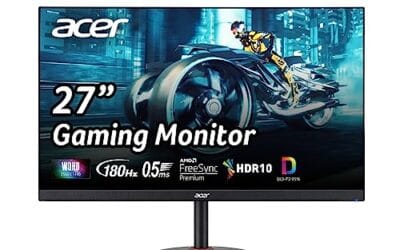
The ASUS VA279QG is an entry-level 27-inch 1080p IPS monitor pitched at home office, student, and casual gaming buyers. Core specs include a Full HD resolution, 120Hz refresh, 1ms MPRT response, Adaptive-Sync, and 99% sRGB coverage. It targets shoppers who want IPS color and viewing angles over TN sped or higher-resolution panels.
The defining feature is the 120Hz IPS panel with Adaptive-Sync, which makes desktop scrolling and casual esports titles noticeably smoother than a stock 60Hz office monitor. Based on category norms, IPS panels at this tier typically deliver 250to 300 nits SDR brightness with no HDR certification, so expect standard indoor viewing rather than sunlit rooms.
Trade-offs are typical at this tier. 1080p stretched across 27 inches gives roughly 81 PI, which looks softer than 1440p at the same size for text work. The 1ms figure is MPRT, not GtG, and usually depends on backlight strobing with brightness penalties. Owner feedback is limited so panel uniformity and backlight bleed cannot be confirmed yet.
Buy this if you want a large IPS second scren for office work, study, and casual gaming, and value HDMI, DisplayPort, and VGA one panel. Skip this if you plan to game above 120FPS on an RTX 4070 class GPU, need HDR, or want sharp1440p text at 27 inches.
Panel and resolution: ASUS specifies a 27-inch IPS panel at 1920x1080 Full HD, giving roughly 81 PPI. IPS wide viewing angles suit shared desks and reference work, though at this pixel density text will look softer than a 1440p panel of the same size, especially at typical 60to 70 cm viewing distance.
Refresh and response: The panel runs at 120Hz with 1ms MPRT response and Adaptive-Sync. That combination targets tearing-free casual gaming when paired with an NVIDIA or AMD GPU capable of driving 1080p above 100 FPS. True GtG figures are not specified, so pixel overshoot behavior at120Hz cannot be confirmed from source data.
Color and eye care: ASUS quotes 99% sRGB coverage with TÜV-certified Low Blue Light and Flicker-Free operation. That coverage is adequate for web content, Office work, and casual photo viewing, but no DCI-P3 figure, factory calibration report, or HDR tier is listed, so this is not a color-critical panel for print or video grading.
Connectivity and mounting: Inputs include HDMI, DisplayPort, and VGA, with built-in speakers and VESA mount support for wall or arm setups. Note that only DisplayPort is guaranteed to hit 120Hz at 1080p on most sources; VGA is analog and typically caps at 60Hz. Exact VESA pattern and stand ergonomics are not specified.
Why VA panels smear worst on dark transitions specifically
VA owners describe something oddly specific. Motion looks clean in daylight scenes and turns to mud in a cave, a night map, or a dark corridor. That’s real, and no overdrive setting fixes it properly.
Vertically aligned liquid crystal sits perpendicular to the glass when the pixel is black, and it has to twist to pass light. That’s slower than a partial move between mid-tones. RTINGS’ response-time measurements show the pattern across VA models: a mid-gray transition might land near 6 ms while the 0-to-20% dark transition on the same panel runs 25 ms to 35 ms. One frame at 144 Hz is 6.9 ms, so a 30 ms transition smears across four of them.
Overdrive can’t rescue that, because the voltage headroom isn’t there. Push harder from black and you get black-crush overshoot instead, dark halos that read as dirty edges.
What helps, in order of effect: raise in-game brightness or gamma so fewer transitions start from near black, switch off local dimming on edge-lit implementations, and keep framerate high. Some VA models also hide a real difference between picture modes, where an sRGB or gaming preset uses a gentler gamma curve and dark smear drops noticeably. Worth an evening of cycling presets.
IPS trades this away in the other direction. Contrast is roughly 1000:1 against 3000:1 to 4000:1 on VA, so blacks look grayer, but the dark transitions don’t collapse. If dark-scene smear is what bothers you on a VA panel, that’s a technology mismatch rather than a defect. The one case where the OSD isn’t the answer and neither is an RMA.
Cause two: framerate and refresh rate aren’t lining up
A 144 Hz monitor whose overdrive was tuned at 144 Hz behaves badly at 60 Hz. The voltage pulse calibrated to land a transition inside 6.9 ms now sits on the pixel for 16.7 ms, so it overshoots. Run that same panel at 40 fps inside a VRR window and the interval stretches to 25 ms. Fixed-overdrive monitors often look cleaner in a 140 fps game than a 60 fps one, even though fewer frames sounds like less work.
Cap framerate three below the panel’s ceiling. 141 fps on 144 Hz, 237 on 240 Hz. RivaTuner Statistics Server gives the cleanest frametime cap, since in-engine limiters run a frame or two looser. If the artifact drops away at the cap, the cause was mismatch and not the panel.
Turn variable refresh on in both places, GPU driver and monitor OSD. One without the other does nothing, and the OSD toggle is the one people miss, often buried under a submenu named after the panel’s marketing feature instead of Adaptive Sync.
VRR also has a floor. Below roughly 48 fps most implementations hand off to low framerate compensation, duplicating frames to stay inside the panel’s range. LFC stops tearing, but those duplicates arrive at intervals the overdrive was never tuned for, and some panels ghost more with it engaged.
Framerate does more work here than most people credit. A frame held for 4.2 ms at 240 Hz gives your eye less time to integrate a smear than one held for 16.7 ms, which is why high-refresh panels read as clearer even when their measured pixel response is mediocre. If a game is CPU-bound at 60 fps on a 240 Hz screen, cutting resolution scale to clear 100 fps does more than any OSD change.
Pros
- 240Hz IPS at FHD suits competitive shooters where reaction time matters more than pixel density.
- 0.5ms rated response with FreeSync Premium keeps motion tracking clean during fast pans.
- Dual HDMI plus DisplayPort 1.4 covers a PC and two consoles without cable swapping.
Cons
- Limited owner feedback at time of writing, verify panel uniformity and backlight bled after unboxing.
- FHD on a 27-inch panel lands near 81 PPI, desktop text and UI edges look softer.
- Tilt-only stand with no height, swivel, or pivot forces a monitor arm for ergonomic setups.
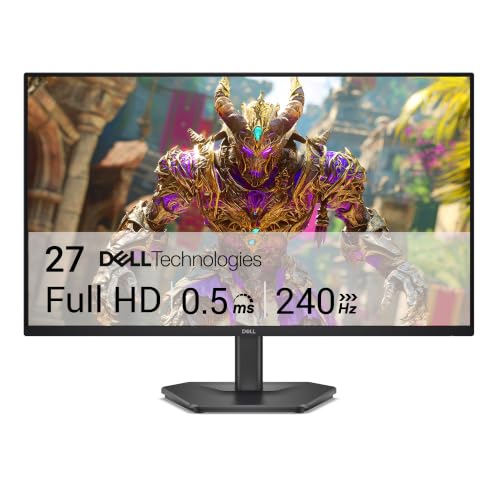
The Dell SE2726HG is a budget 27-inch FHD gaming monitor built around a Fast IPS panel with a 240Hz refresh rate and a rated 0.5ms response time. It targets competitive esports players on tighter budgets who value refresh rate and motion clarity over resolution or HDR performance.
The defining spec is 240Hz on IPS at this tier. In titles like Valorant, CS2, and Rocket League, a mid-range GPU such as an RTX 4060 or RX 7600 can push frame rates that actually feed the panel. FreeSync Premium and HDMI VRR keep tearing off both PC and console feeds.
FHD on a 27-inch panel is the honest trade-off. Pixel density lands near 81 PPI, so desktop text and UI elements look softer than on a 1440p 27-inch. Brightness, contrast, and HDR tier are not specified, and Fast IPS monitors at this level typically cap around 300 nits SDR with no meaningful HDR.
Buy this if you want a 240Hz esports panel at 27 inches and can accept FHD sharpness for the refresh rate gain. Skip this if you sit close to the screen, need color-critical work beyond sRGB, or want height and swivel adjustment without ading a monitor arm.
Panel and refresh: Fast IPS at 1920x1080 with 240Hz refresh and a 0.5ms rated response time. Manufacturer response figures are typically overdrive best-case, so expect real-world GtG closer to 3-5ms based on Fast IPS norms at this tier. Motion clarity should still outperform 144Hz VA gaming panels.
Color and eye comfort: 99% sRGB coverage rated for accurate sRGB workflows, with no DCI-P3 or Adobe RGB figures provided. HDR tier is not specified, and TÜV Rheinland 3-star low blue light certification targets eye strain rather than color depth. Peak brightness and contrast ratio are not disclosed.
Adaptive sync: FreeSync Premium requires low framerate compensation and at least 120Hz refresh, both satisfied here. HDMI VRR extends the same benefit to PS5 and Xbox Series X. NVIDIA GPU owners can enable G-SYNC Compatible mode over DisplayPort 1.4.
Ports and stand: 2x HDMI plus 1x DisplayPort 1.4 covers a gaming PC, a console, and a laptop dock. The stand is tilt-only with no height, swivel, or pivot adjustment listed. VESA mount pattern is not stated in source data, so confirm before buying a monitor arm.
Cause three: how a dying cable looks different from a dying panel
Both produce smear, in completely different patterns. Five minutes of watching tells you which one you own.
Panel-side ghosting is boring and reliable. Same artifact, same severity, every session, every game, on the same color transitions. It never blacks out. Wiggle the cable and nothing changes.
A failing DisplayPort cable is erratic. The signature is a brief black screen of half a second to two seconds, often with an audible click as the monitor re-syncs, followed by degraded motion until the next reboot. Signal loss also shows as sparkles, small bright dots over dark areas, or horizontal snow near the top of the frame. Symptoms track physical events: nudging the desk, a fan spinning up, the room warming. A bad cable makes the monitor renegotiate downward. That downgrade is the fingerprint.
Read what the link actually settled on. NVIDIA Control Panel, Change Resolution, then check color format and bit depth: full RGB at 8-bit with dithering or 10-bit is healthy. YCbCr 4:2:2, 4:2:0, or a drop to 6-bit means the link ran out of bandwidth. Cross-check the monitor’s OSD information page, which reports the incoming signal independently of what Windows believes.
Swap in a VESA-certified DP 1.4 cable and repeat the checks. Club3D, Cable Matters, and StarTech certified cables run $15 to $25 for six feet and hold 1440p 240 Hz without complaint. The $5 no-name cables print DP 1.4 on the sleeve and fail under sustained bandwidth, exactly the condition that produces intermittent smear. Passive DisplayPort beyond 3 meters also gets unreliable at high refresh.
Shine a flashlight into the port before blaming anything else. DisplayPort connectors are tight and their pins bend, pin 20 especially. A bent pin is permanent, so move to a different port. DP-to-HDMI adapters cap 4K at 60 Hz, and people who forget lose a weekend to a refresh-rate ceiling.
Keeping motion clarity from drifting back
Monitor firmware fixes overdrive bugs more often than release notes suggest. LG, Gigabyte, and MSI have all shipped updates in the past 18 months that retuned response on panels already in the field, trimming 1 ms to 3 ms off gray-to-gray with no hardware change. Check your model number on the support page twice a year.
Kill the picture modes you don’t use. Reader and Eco cut overdrive hard, and several models re-enable them on the next cold boot. Build one profile, name it, lock it as the startup default.
Replace cables every three to five years. Foil shielding cracks at the strain relief behind the connector, the degradation stays invisible while there’s bandwidth headroom, then the link starts renegotiating. $15 against a week of confusion.
Stay current on GPU drivers without being first in line. Branch changes have broken VRR ranges on specific monitors more than once.
The panels no setting is going to save
Some monitors work exactly as designed and the design is slow. Knowing which bucket you’re in stops you tuning forever.
Budget VA panels from 2022 and earlier are the biggest group. Measured gray-to-gray on that generation frequently ran 12 ms to 18 ms with dark transitions past 30 ms, and there’s no firmware path to faster liquid crystal. Second group: 60 Hz office IPS, where response is fine but every frame sits on screen for 16.7 ms and the persistence blur that creates won’t answer to overdrive. Third, any panel whose overdrive has two states, off and one aggressive level with 30% overshoot.
There’s a fourth case that is a genuine fault. Smear confined to one region of the screen, or smear that arrived suddenly on a panel clean for two years, points at degradation in the row drivers rather than a settings mistake.
Warranty claims on motion do get honored. LG, ASUS, Samsung, and Dell will take a response-time complaint if you can show the artifact running against the published spec, and a 240 fps phone video is the evidence that works. Thirty minutes to file.
When replacement is the answer, the money goes toward panel type and refresh rate rather than brand. Fast IPS at 144 Hz or higher handles motion competently, and OLED removes pixel response from the conversation entirely at $600 and up. There are workable options under $200 now carrying response figures that would have been flagship numbers in 2020.
Don’t pay a repair shop for this. Nothing a technician can change is out of your reach from the OSD and the support page.
What you’ll want on hand
Software costs nothing. Blur Busters’ browser motion suite covers the UFO pattern and frame-skipping detection. RivaTuner Statistics Server for framerate caps. NVIDIA Control Panel or AMD Adrenalin to read color depth and confirm VRR. A phone that shoots 240 fps for documenting anything you’ll argue about with a manufacturer.
Hardware comes to $0 in most cases, $40 at the top end. A certified DP 1.4 cable is $15 to $20 for six feet, a reputable HDMI 2.1 cable $20 to $25. Anything advertised as 8K at $7 isn’t carrying 48 Gbps.
A few more questions people ask
Is ghosting just motion blur under another name?
No. Ghosting is a trail from slow pixel transitions, so it’s a panel property you can partly tune. Motion blur is the smear your eye creates while tracking an object across a screen that holds each frame for 16.7 ms at 60 Hz or 6.9 ms at 144 Hz. Higher refresh rate cuts blur. Overdrive tuning cuts ghosting.
Do OLED monitors ghost at all?
Effectively no. OLED transitions finish in well under 1 ms, so classic trailing is invisible. What OLED owners sometimes report is near-black smearing, which looks similar but only appears in dark scenes. There’s no setting for it, and no overdrive menu to hunt for either.
Is HDMI worse for ghosting than DisplayPort?
Not the interface itself. But HDMI 2.0 caps at 1440p 144 Hz with 8-bit color, so it can force the monitor into a subsampled mode whose color fringing on moving edges looks a lot like ghosting. DP 1.4 carries 32.4 Gbps and leaves headroom for high refresh plus 10-bit plus HDR at once.
Does a faster graphics card reduce ghosting?
Indirectly, and more than you’d guess. A faster card holds framerate inside the VRR window and shortens how long each frame persists. The ghosting itself is generated at the panel, so a 5090 on a slow VA monitor still smears on dark transitions.
Why did ghosting appear on a monitor that was clean last month?
Three suspects, in order of likelihood. A driver update reset the refresh rate to 60 Hz or dropped color format to YCbCr. A firmware update or picture-mode change reset overdrive to factory. Or the cable finally lost enough margin to renegotiate downward, the one that adds intermittent black flashes to the smear.