

If your frame rates feel low and you’ve heard that AMD’s FidelityFX Super Resolution can claw back performance for free, the first question is simple: is FSR actually available and running on your machine? Checking takes a few minutes, and you don’t need an AMD card to benefit. FSR is an open upscaler, so it runs on a wide range of hardware, including plenty of NVIDIA and Intel GPUs. This walkthrough shows you how to confirm FSR support on your PC, find it inside a game, verify it’s genuinely doing something, and pick the right quality mode for your resolution.
The confusing part is that FSR lives in two places at once: your graphics driver and each individual game. A title has to build in support, and your GPU has to be new enough to handle the version that game ships. That’s why one game shows an FSR toggle while another doesn’t. If you’re still shopping for hardware and want the best upscaling experience across the board, our roundups of the best GPU deals and the best GPU for gaming and streaming are worth a look before you spend a dime. For now, let’s confirm what your current rig can do.
What you’ll need
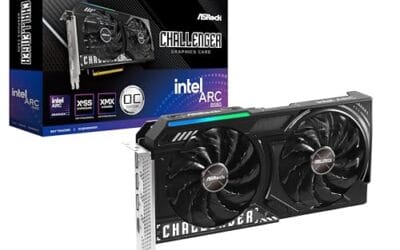
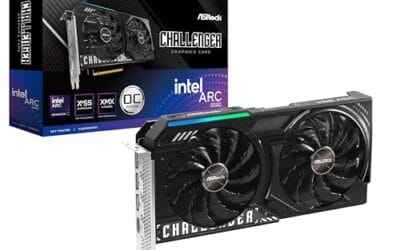
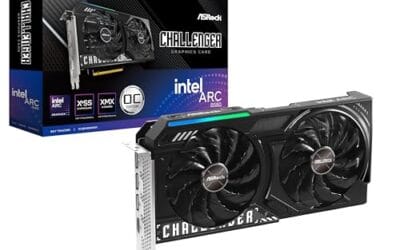
Not much, honestly. You’ll want your PC powered on, an internet connection to grab the latest graphics driver, and at least one game installed that supports FSR. It helps to know your GPU model before you start, so keep a note of that handy. A capable modern card makes the whole thing smoother, since newer silicon supports FSR 3 and frame generation rather than just the older spatial upscaling. The ASRock Intel Arc B580 Challenger, for example, is a 12GB GDDR6 card with a 192-bit bus and Xe2-HPG architecture running at 2740MHz, and at $309.99 with a 4.3 rating it’s a solid budget option that handles modern upscaling well. If you’re weighing an upgrade alongside this check, it’s worth having on the shortlist.

Pros
- 12GB VRAM on 192-bit bus gives headroom over8GB rivals at 1440p.
- Single 8-pin connector and 650W PSU target means broad build compatibility.
- DisplayPort 2.1 with UHBR13.5 suports high-refresh QHD and 4K panels natively.
- 2-slot 249mm length fits compact ATX and many mATX chassis without clearance issues.
Cons
- Limited owner feedback at time of writing makes long-term reliability signals thin.
- PCIe 4.0 x8 interface can bottleneck slightly on older PCIe 3.0 platforms.
- Intel Arc driver maturity in older DX9/DX11 titles still trails NVIDIA and AMD.
The ASRock Arc B580 Challenger 12GB OC is a mid-range 1440p GPU built on Intel's Xe2-HPG architecture with 20 Xe cores, 160 XMX engines, and a 2740MHz boost clock. It targets QHD gamers and content creators who want more VRAM than 8GB competitors offer at this bracket, without moving up to a 200W-plus card.
The defining feature is the 12GB GDDR6 pool on a 192-bit bus running at 19 Gbps, which gives real texture and framebuffer headroom at1440p. Combined with XeSS 2 AI upscaling and DirectX 12 Ultimate support, Arc B580 cards in this tier typically handle modern raster titles at high settings QHD, based on Intel's reference silicon behavior.
Trade-offs are typical for Intel Arc at this stage. The PCIe 4.0 x8 interface can shave frames on PCIe 3.0 boards, and driver polish on legacy DX9/DX11 games still lags competing vendors. The card requires a single 8-pin, 650W recommended PSU, and 249mm length, so verify chassis clearance and rail headroom before pairing with older bronze-tier supplies.
Buy this if you want a 1440p card with 12GB VRAM, DP 2.1 outputs, and XeSS 2 support on a modern PCIe 4.0 platform. Skip this if your library leans heavily on older DirectX 9 or 11 titles, or your motherboard is PCIe 3.0.
Resolution target: With 12GB GDDR6 on a 192-bit bus at 19 Gbps, this card is positioned for 1440p high settings in modern raster titles, with XeSS 2 upscaling extending playable framerates in heavier ray-traced workloads. 1080p esports at high refresh is well within scope.
Power and PSU pairing: ASRock lists a 650W recommended PSU and a single 8-pin connector. GPUs in this class typically draw around 190W board power, so pair with a quality 650W to 750W unit to leave transient headroom on ATX 3.0 or olderATX 2.x rails.
Build clearance: The2-slot cooler measures 249mm long, 132mm wide, and 41mm high. That fits most mid-towers and many mATX cases, but confirm front-radiator or HDD-cage clearance in compact builds beforeordering, especially SFF chassis rated under 250mm GPU length.
Display outputs: Three DisplayPort 2.1 ports (one primary up to UHBR13.5) plus one HDMI 2.1a drive up to four displays with resolutions up to 8K. UHBR13.5 suports high-refresh 4K and 1440p panels natively without DSC compromises.
Everything past this point is software. No screwdriver, no case-opening. Just a driver update and a few menus. One more thing worth knowing before you start: FSR doesn’t care much about your CPU brand or your RAM, since it’s a GPU-side technique. So don’t waste time chasing settings elsewhere. The card and the game are the only two variables that decide whether FSR shows up.
Step 1: Identify your GPU and current driver
Press the Windows key, type “Device Manager,” and open it. Expand the Display adapters entry and you’ll see your graphics card’s exact name. Write it down. This matters because FSR support scales with hardware age: FSR 1 and 2 run on almost anything from the last decade, while FSR 3 with frame generation wants a reasonably recent card. If you’re on an RTX 5060 Ti, a 9800X3D build, or something older like an RX 580, this one line tells you which tier you’re working with.
Next, check your driver. Right-click the desktop and open your control panel of choice, or head to your GPU vendor’s app. Note the driver version number and its date. FSR itself isn’t installed by a driver, but an outdated driver can break game compatibility, cause stutter, or hide options that should be there. It’s the single most common reason an FSR toggle goes missing. We’ll update it in the next step.
Step 2: Update your graphics driver
Grab the newest driver straight from your vendor. AMD users pull it from the Adrenalin software, NVIDIA users from the NVIDIA app or GeForce Experience, and Intel Arc owners from the Intel Graphics Software utility. Don’t rely on Windows Update alone, because it lags weeks behind the direct releases. Download the current package, run a clean install if the option appears, and reboot when it’s done.
Why does this step come before touching any game? Because FSR compatibility gets validated against driver versions, and studios patch upscaler support regularly. A three-month-old driver can leave you staring at a grayed-out FSR option, convinced your card can’t do it, when a five-minute update fixes the whole thing. Reboot, confirm the version number changed, then move on. If you’re researching a fresh build entirely, our guide to the best GPU for a 9800X3D pairs current cards with a top-tier CPU and saves you the guesswork.
Step 3: Confirm the game supports FSR
Here’s the catch a lot of people miss. FSR is per-game, not system-wide. Your card can support FSR 3 all day long, but if the title you’re playing never added it, there’s no toggle to find. So before you go digging through menus, verify the game itself ships FSR.
The fastest way is to search the game’s name plus “FSR” and check what the developer or the AMD GPUOpen game list says. Look for the specific version too, since FSR 1, 2, and 3 look and perform differently. FSR 2 and up use temporal data for sharper motion, while FSR 1 is a simpler spatial upscale. Most big releases from the last two years include at least FSR 2. If a game only offers FSR 1, you can still use it, just expect softer edges in motion. Titles built for 4K displays lean on this heavily, which is why our best GPU for 4K gaming picks all favor cards with strong upscaling.
Step 4: Find and enable FSR in the game’s settings
Launch the game and open its graphics or video settings. FSR usually sits under a heading called Upscaling, Image Scaling, Super Resolution, or sometimes just inside the anti-aliasing dropdown. Look for “AMD FidelityFX Super Resolution” or a plain “FSR” label. Once you spot it, you’ve confirmed FSR is live on your PC for that title. That’s the answer to the main question right there.
Now pick a quality mode. FSR offers presets that trade sharpness for speed: Native AA or Ultra Quality keep the most detail, Quality and Balanced sit in the middle, and Performance or Ultra Performance push frame rates hardest at the cost of clarity. For 1080p, Quality mode looks great. At 1440p, Quality or Balanced. At 4K, even Performance mode holds up well because there are more pixels to work with. Set your target render resolution, apply, and you’re done with the setup. If a game also exposes an FSR sharpness slider, nudge it to taste; around 60 to 70 percent is a comfortable default.
Step 5: Verify FSR is actually working
Enabling a toggle and seeing a real effect are two different things. To confirm FSR is doing its job, turn on an FPS overlay. AMD Adrenalin has a built-in performance overlay, NVIDIA users can use the app’s overlay, and Intel Arc ships one in its software. MSI Afterburner with RivaTuner works across all vendors.
With the counter visible, note your frame rate at native resolution, then switch FSR to Quality or Performance and watch the number jump. A genuine FSR gain shows up as a clear frame-rate increase, often 30 to 60 percent depending on the mode and your GPU load. If the number barely moves, you may be CPU-limited rather than GPU-limited, which means upscaling won’t help much. Look at the image quality too. Slight softening in fast motion is normal and expected. That softness is the visual signature that upscaling is engaged. Once you see both the frame-rate bump and that subtle motion behavior, you’ve verified FSR end to end.
For a more rigorous check, run a repeatable in-game benchmark if the title includes one, or replay the same 30-second scene twice: once at native, once with FSR on. Keep every other setting identical so the comparison is clean. Compare the average and the 1 percent low numbers, not just the peak, because the 1 percent lows tell you how smooth the game actually feels. A good FSR result lifts both. If only the average climbs while the lows stay flat, something else is stuttering, and that’s worth chasing separately before you blame the upscaler.
Troubleshooting common issues
Most FSR problems trace back to one of a few culprits. Here’s how to sort them fast.
The FSR option is grayed out or missing
Nine times out of ten this is a stale driver or a game that hasn’t been updated. Reinstall the newest driver, then verify the game is fully patched through Steam, Epic, or its launcher. Some games also lock FSR behind a specific upscaling dropdown that only appears when you first set another option, like disabling a built-in anti-aliasing method. If it’s still absent, that game simply doesn’t support FSR, and no setting will summon it.
Frame rate didn’t improve after enabling FSR
You’re likely CPU-bound. FSR reduces the GPU’s rendering workload, so if your processor is the bottleneck, the extra headroom does nothing. Check your GPU usage in the overlay; if it’s already under 90 percent at native resolution, the card isn’t the limiting factor. This is common in older builds pairing a strong card with a weak CPU. Balanced hardware matters, which is part of why prebuilt shoppers like our best RTX 5070 Ti prebuilt PC picks for a matched setup.
The image looks blurry or shimmery
Drop to a higher-quality FSR preset. If you were on Performance, move to Balanced or Quality. Shimmering on thin objects like fences or foliage points to FSR 1 rather than a temporal version; there’s not much you can do beyond raising the sharpness slider. Motion blur stacked on top of FSR can also muddy things, so try turning that off. And confirm your monitor is running at its native resolution, since a mismatched output scale makes everything look worse than FSR ever would.
Frame generation causes input lag
FSR 3 frame generation inserts synthetic frames, which can add perceived latency. If controls feel mushy, enable your vendor’s anti-lag feature or leave frame generation off and use the upscaling portion alone. Frame gen shines when your base frame rate is already above 50 or 60; below that, the latency cost outweighs the smoothness gain.
Wrapping up
Checking FSR on your PC boils down to three truths: your GPU needs a current driver, the game has to include FSR, and the toggle lives in that game’s graphics menu. Confirm all three, flip it on, and verify the frame-rate gain with an overlay. Most people who thought their card couldn’t do it were just running an old driver. That’s it.
Once you’ve got FSR humming, you’ll want to keep it that way across your whole library, so make driver updates a monthly habit and revisit each game’s settings after big patches. And if this whole process convinced you that your aging card is holding you back, a modern GPU with full FSR 3 and frame-generation support changes the math entirely. Our guides to the best RTX 5060 Ti prebuilt PC and the best RTX 5080 prebuilt PC cover matched systems at both ends of the budget, so you can spend smart. Either way, you now know exactly how to check, enable, and confirm FSR on any PC you touch.



























Write Your Review
No reviews yet. Be the first to share your experience!