Walk into any developer’s home office in 2026 and you’ll spot at least one monitor standing tall instead of wide. That’s a vertical monitor, and it’s not some exotic piece of hardware. It’s a regular display rotated 90 degrees so the long edge runs up and down. Coders use it to read more lines of code without scrolling. Writers stack a full page of a Word doc on screen. Twitch streamers park their chat window there so they can read viewer messages without squinting. Social media managers scroll TikTok and Instagram feeds at native aspect ratio. The setup looks unusual the first time you see it, but once you’ve worked with one for a week, going back to pure landscape feels cramped.
The short answer
Almost any modern monitor can be a vertical monitor. You rotate it 90 degrees on its stand, plug it in, and let Windows or macOS handle the orientation change in display settings. The catch is the stand. Cheap monitors ship with tilt-only bases that won’t pivot. You’ll either need a model with a built-in pivot stand or a VESA-compatible monitor arm that lets you rotate the panel manually. That’s the whole trick.
The longer explanation
Two paths get you to portrait orientation. The first is buying a monitor with an ergonomic stand that includes pivot in the spec sheet, alongside height, tilt, and swivel adjustments. Press the panel up to its maximum height, then rotate it clockwise until it locks at 90 degrees. Done. The second path is grabbing a third-party monitor arm. Anything VESA 100×100 or 75×75 mounting compatible will work, and most arms include a rotation joint at the panel head. You’re not limited to “vertical monitors” as a product category – you’re just rotating a regular monitor.
Software handles the rest. Windows 11 auto-detects rotation on some models with built-in sensors, but most people manually flip orientation under Settings, System, Display, Display orientation, then pick Portrait. macOS lives under System Settings, Displays, Rotation. Linux distros vary, but xrandr or the GUI display tool both work. Once flipped, your taskbar, windows, and cursor all behave normally – they just live in a taller, narrower frame.

Pros
- VA panel offers strong contrast ratios typical for office and media use at this size.
- 100Hz refresh combined with Adaptive Sync improves motion clarity over 60Hz models.
- Wide 178/178 viewing angles support consistent color from offset positions.
- LowBlue Mode and flicker-free design address basic eye comfort needs.
- Compact 22 inch footprint fits small desks while providing Full HD resolution.
Cons
- Only HDMI and VGA ports limit connectivity with newer DisplayPort-only devices.
- No height or tilt adjustment on the stand restricts ergonomic positioning options.
- Response time and overdrive tuning are not specified, typical limitation at budget tier.
- 22 inch size and 1080p resolution suit basic tasks but fall short for detailed creative work.
This is a budget-tier 22-inch monitor using a VA panel at 1080p resolution with a 100Hz refresh rate. It targets office workers, students, and casual users who need reliable daily display performance without advanced gaming features.
The standout characteristic is the VA panel's contrast performance paired with Adaptive Sync, which delivers smoother motion than standard 60Hz office monitors while keeping input lag low enough for light productivity tasks.
Build quality centers on a thin profile with a simple stand, and the wide viewing angles help maintain image consistency when colleagues or family view the screen from different positions in a shared workspace.
At this price point trade-offs include limited port selection and basic ergonomics that lack height or pivot adjustments common on higher-tier models.
Buy this if you need an affordable secondary display or primary screen for spreadsheets and web browsing. Skip this if you require DisplayPort input, adjustable stand height, or faster pixel response for competitive gaming.
| Panel Type | VA |
| Screen Size | 22 inch class (21.5 inch viewable) |
| Resolution | 1920 x 1080 |
| Refresh Rate | 100Hz |
| Viewing Angle | 178/178 degrees |
| Color Support | 16.7 million colors |
| Sync Technology | Adaptive Sync |
| Ports | HDMI x1, VGA x1 |
| Mounting | VESA compatible |
| Eye Care | LowBlue Mode, flicker-free |
Video inputs: HDMI port connects to recent laptops and desktops while VGA supports legacy systems without adapters.
Mounting options: Standard VESA holes allow attachment to third-party monitor arms or wall mounts for improved desk ergonomics.
Stand limitations: Fixed stand provides basic tilt only, so users needing height adjustment should plan for an aftermarket arm.
OS compatibility: Works with Windows, macOS, and Linux distributions without special drivers beyond standard display detection.
Power and placement: Compact chassis fits small desks but leaves little room for cable management behind the panel.
Why it works this way
Aspect ratio is the whole story. A standard 16:9 monitor in landscape gives you 1920 pixels wide and 1080 tall (or 2560×1440 at higher resolutions). Rotate it and those numbers swap. You’re suddenly working with 1080 wide and 1920 tall, or 1440×2560. That’s roughly the shape of a sheet of paper, a phone screen, or a chat window. Content shaped like a column finally fits its container.
Code is the classic example. A function might run 60 or 80 lines top to bottom but rarely needs more than 100 characters of horizontal space. In landscape, you waste half the screen and scroll constantly. In portrait, the whole function sits in view. Same logic applies to legal documents, news articles, PDFs, Slack threads, Twitter feeds, and Discord channels. Anything that scrolls vertically benefits from a tall display.

Pros
- VA panel typically produces deper blacks and higher static contrast than IPS at thisier.
- 100Hz refresh over HDMI gives a noticeable smoothness bump versus 60Hz office displays.
- EasyRead mode adjusts the image for paper-like long-document reading during office sessions.
Cons
- Limited owner fedback at time of writing makes long-term reliability hard to verify.
- Only one HDMI and one VGA input, no DisplayPort or USB hub for modern multi-device desks.
- VA response times typically trail IPS and TN, so fast-paced esports may show smearing.
The Philips 241V8LB is a budget24 inch office monitor built around a Full HD VA panel running at 100Hz. It targets home office users, students, and small businessyers who need a second scren for documents, spreadsheets, and light media rather than competitive gaming or color-critical creative work.
The defining feature is the VA panel paired with a 100Hz refresh rate at 1920x1080. VA typically delivers stronger static contrast than IPS at this price tier, which helps dark UI themes and video. The 100Hz ceiling makes cursor movement and scrolling feel cleaner than 60Hz office panels, based on category norms.
Trade-offs are typical at this tier. Connectivity is limited to one HDMI and one VGA, with no DisplayPort, USB-C, or hub. VA panels usually post slower GtG response times than IPS, so fast esports titles may show ghosting. Source data does not specify brightness, response time, or stand adjustment range, so treat those as unverified.
Buy this if you want an affordable 24 inch FHD second monitor for office tasks and casual use with VESA mounting flexibility. Skip this if you need color-accurate work, HDR, USB-C docking, or high-refresh gaming above 100Hz on a single primary display.
Panel and resolution: A 23.8 inch VA panel at 1920x1080 gives roughly 92 PI, which is standard for 24 inch FHD. VA typically outperforms IPS on contrast at this tier, useful for dark rooms and video, though viewing angles trail IPS despite the rated 178/178 degrees.
Refresh rate and motion: The 100Hz refresh rate is a step above the 60Hz baseline common on office displays. Source data does not specify GtG response time or adaptive sync support, so treat competitive gaming suitability as unverified. For scrolling documents and casual play, 100Hz should fel appreciably smoother.
Color and HDR: Philips lists 16.7 million colors, indicating an 8-bit or 6-bit plus FRC pipeline typical at this price. No sRGB, DCI-P3, or HDR certification is stated in the source, so assume standard SDR coverage suitable for office work rather than color-managed photo or video editing.
Connectivity and mounting: Inputs are one HDMI and one VGA, with no DisplayPort, USB-C, or USB hub listed. The panel suports VESA mounting for arms and wall brackets. Stand adjustment range, weight, and included cables are not specified in the source data.
When you would want this
Coders see the biggest productivity bump. Reading a stack trace, scanning a config file, or following a long Git diff is dramatically easier when 80+ lines fit without scrolling. Most developers pair one landscape monitor (browser, terminal, Slack) with one portrait monitor (code editor). It’s become the default dev setup at companies like GitHub and Microsoft.
Writers love portrait for drafting. A 1440p panel rotated vertical shows roughly two full pages of a manuscript at readable zoom. You’re not piecing together paragraphs across page breaks – you can see your argument flow.
Streamers use vertical monitors as dedicated chat readers. OBS or Streamlabs eats up most of the main display, so a second screen rotated tall holds Twitch chat, Discord, and donation alerts in one glance.
Social media managers and content creators editing for TikTok, Reels, or Shorts work in 9:16 aspect ratio. Editing vertical video on a vertical display means you’re seeing the actual finished product at native size instead of letterboxed in landscape.

Pros
- 1440p 240Hz over DisplayPort 1.4 pairs well with current-gen 70-class GPUs at high settings.
- IPS panel with 99% sRGB coverage handles esports and content editing without visible color shift.
- Full ergonomicErgostand includes 4.7-inch height range, 360-degree swivel, and 90-degree pivot support.
- Three video inputs (1 DisplayPort 1.4, 2 HDMI) plus included cables cover most PC and console pairings.
Cons
- Limited owner fedback at time of writing makes long-term panel uniformity and QC hard to verify.
- HDMI ports cap at 2.0 and 144Hz despite the title referencing HDMI 2.1, so 240Hz requires DisplayPort.
- DisplayHDR 400 lacks local dimming, so HDR contrast is closer to bright SDR than true HDR.
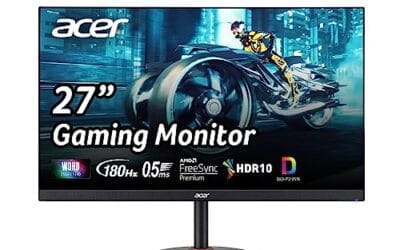
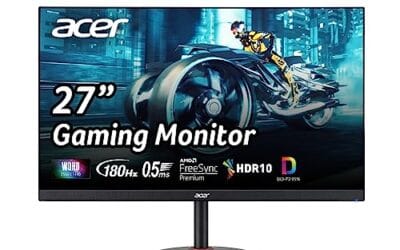
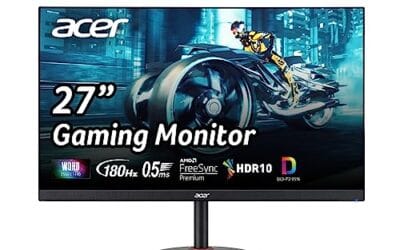
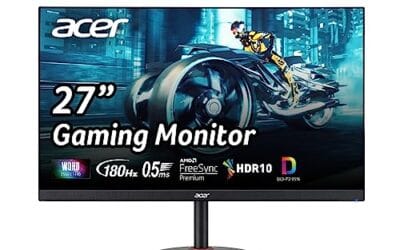
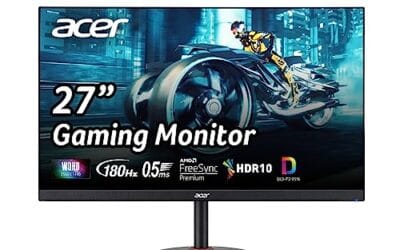
The Acer Nitro XV272U W2bmiiprx is a mid-range 27-inch 1440p IPS gaming monitor targeting high-refresh esports and mixed-use buyers. It runs up to 240Hz over DisplayPort 1.4, quotes a 0.5ms GtG response with overdrive, and carries DisplayHDR 400 plus AMD FreeSync Premium certification for adaptive sync.
The defining feature is the 1440p at 240Hz pipeline. That refresh ceiling matches an RTX 4070,X 4070 SUPER, or RX 7800 XT class GPU pushing competitive titles like Valorant, CS2, or Apex above 200FPS. IPS panels in this tier typically deliver 350 nits SDR brightness and roughly 1000:1 static contrast, based on category norms.
Trade-offs are typical at this price bracket. HDMI ports are limited to 2.0 and 144Hz, so consoles running 120Hz work fine but PC users must use DisplayPort for the full 240Hz. DisplayHDR 400 without local dimming means HDR content looks like elevated SDR rather than true high dynamic range. Speakers are 2W each, adequate for system sounds only.
Buy this if you want a 1440p 240Hz IPS panel with a full ergonomic stand for a competitive PC setup driven by a 70-class or better GPU. Skip this if you need genuine HDR performance, factory-calibrated DCI-P3 coverage for color-critical work, or 240Hz over HDMI for a PS5 Pro.
Panel and resolution: 27-inch IPS panel at 2560x1440 native, giving a 0.233m pixel pitch and roughly 109 PI. That density is the accepted sweet spot for 27-inch gaming without requiring desktop scaling, and IPS keps off-axis color shift minimal compared with VA alternatives at the same tier.
Refresh and response: 240Hz refresh over DisplayPort 1.4, dropping to 144Hz on either HDMI 2.0 input. Response time is rated 1ms GtG standard and0.5ms GtG with maximum overdrive, though aggressive overdrive on IPS panels in this tier typically introduces some inverse ghosting in darker transitions.
HDR and color: DisplayHDR 400 certification with 99% sRGB coverage. Without local dimming zones or a peak brightness above 400 nits, HDR mode functions closer to bright SDR. sRGB coverage is sufficient for web content and1080p video editing, but DCI-P3 gamut is not specified.
Connectivity and ergonomics: 1 DisplayPort 1.4, 2 HDMI 2.0, and a 3.5mm audio out. The Ergostand supports 4.7-inch height range, -5 to 15 degree tilt, 360-degree swivel, and 90-degree pivot in either direction. VESA 100x100 mounting is included for arm or wall installs.
Common misconceptions
The first myth is that any monitor can pivot. It can’t – not without help. If your monitor’s stand only tilts forward and back, you’re stuck unless you buy a VESA arm. Before you assume your current display rotates, check the spec sheet for the word “pivot” and look up the VESA mount pattern (75×75 or 100×100 are the common ones). Some ultrawides physically can’t rotate without hitting the desk.
The second myth is that portrait orientation destroys color accuracy. This one’s outdated. It came from older TN panels where viewing angles were narrow and rotating the screen shifted colors weirdly. Modern IPS, VA, and OLED panels handle rotation just fine. You’ll see the same color and brightness sideways as you did flat – that’s the point of wide viewing angles.
The third myth is that you need a “vertical monitor” as a specific product. Manufacturers don’t really sell those. They sell monitors with pivot stands. The panel itself doesn’t know which way is up. A $70 office monitor and a $700 professional display both rotate the same way if the stand allows it. Don’t overpay for marketing.
Pros
- QHD resolution at 240Hz in one panel
- Three-sided frameless design, VESA 100x100mm ready
- Dual HDMI 2.0 plus DisplayPort 1.4 connectivity
Cons
- Review count still building; long-term data limited
- 300-nit brightness modest for bright room use
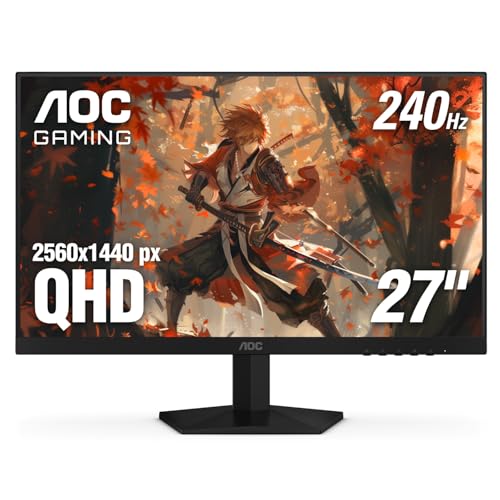
The AOC Q27G41ZE targets competitive gamers who want QHD resolution without sacrificing refresh rate. Its 27-inch IPS panel runs 2560x1440 at 240Hz natively via DisplayPort 1.4, with an overclock option pushing 260Hz, and the 0.3ms MPRT rating keeps motion blur controlled during fast-paced sessions. Adaptive-Sync covers both AMD and NVIDIA GPUs, reducing tearing across most mid-to-high-end builds. Based on current owner reports, the panel's color accuracy and viewing angles satisfy the IPS expectation, though 300 nits of peak brightness appears limiting in well-lit environments. Skip if HDR performance or height-adjustable ergonomics are priorities.
Frequently asked
Do I need a special stand for vertical?
You need a stand that supports pivot, but it doesn’t have to be special-purpose. Many mid-range monitors include pivot in their ergonomic stand, alongside height and tilt. If yours doesn’t, any VESA 75×75 or 100×100 monitor arm under $40 will do the job. Check your monitor’s back panel for the mounting holes before ordering.
Does Windows auto-rotate when I pivot?
Sometimes. Some monitors include an orientation sensor that triggers Windows 11’s auto-rotate feature. Most don’t. You’ll typically need to manually switch orientation under Settings, System, Display, then choose Portrait from the dropdown. It’s a five-second job and Windows remembers your choice.
Will portrait mode hurt image quality?
No, not on any monitor made in the last decade. The old TN panels had viewing-angle issues that made rotation look weird, but every IPS, VA, and OLED display sold today maintains color and contrast at any rotation. You won’t see banding, color shift, or backlight bleed from pivoting.
Best size for vertical use?
24 to 27 inches at 1440p is the right zone. Smaller panels feel cramped in portrait, and 32-inch displays tower uncomfortably tall and force you to tilt your head up and down. 1080p works at 24 inches; bump up to 1440p once you go 27 inches so text stays crisp. Avoid ultrawides – they’re too tall in portrait.