Your PC boots, fans spin up, the hard drive whirs, the RGB does its little dance. But the monitor sits there black or flashes “No Signal” and walks away. Frustrating, but the fix is almost always one of three boring things: wrong input source, a flaky cable, or a graphics driver that didn’t wake up properly. We’ve talked dozens of friends through this exact panic, and we rarely get past step three. So let’s hit those first, then poke at the rarer hardware stuff if your setup is being weird about it.
The quick diagnosis (30-second check)
Before you yank cables or start Googling RMA forms, do this. Check the monitor’s power LED. It’s a separate light from the signal status, and if it’s off, you’ve got a power issue, not a PC issue. Next, hit the monitor’s INPUT or SOURCE button and cycle through every option: HDMI 1, HDMI 2, DisplayPort, VGA, whatever it has. Monitors love defaulting to the wrong one after a power blip. Then unplug both ends of the video cable, blow on the ports, and reseat them firmly. If you’ve got a spare cable lying around, swap it in. Here’s the tell: if the monitor flashes a “No Signal” message at any point during this, the panel is alive. That means the problem is upstream at the PC or cable, not the monitor itself. That’s good news. It narrows things down fast.
Most likely cause – wrong input source or bad cable
The number one fix we see, by a mile: the monitor’s input is set to HDMI, but the cable’s plugged into DisplayPort. Or vice versa. People move setups, swap GPUs, change desks, and the input setting doesn’t follow. Press SOURCE, scroll through, watch the screen wake up. Done. Embarrassing how often that’s it.
Number two: cable failure. HDMI and DisplayPort cables degrade with use, especially if you unplug them regularly or they’re bent sharply behind the desk. The inner pins corrode, the shielding frays, and signal drops. Spec mismatches sneak in too. A passive HDMI 1.4 cable physically connects to your 4K 144Hz monitor and your shiny new GPU, but it can’t carry that signal. You’ll get black screen, flicker, or a lower resolution forced down. Swap in a known-good cable from another setup, even if it’s just to confirm. Cheap DisplayPort-to-VGA adapter cables die especially fast, since they’ve got active conversion electronics inside that fry out.
If you’re running an older monitor or projector that only takes VGA, a fresh adapter cable is worth keeping around as a diagnostic spare.
Pros
- Active IC chip handles DP to VGA conversion without needing an external USB power tap
- Single 1.8m cable design reduces adapter clutter behind laptops and small form factor PCs
- DisplayPort latch with release button prevents accidental disconnects during cable management
Cons
- Limited owner feedback on this listing at time of writing, long-term reliability unclear
- One-way only, will not drive a DisplayPort monitor from a VGA source or from HDMI or USB
- Caped at 1080p 60Hz, unsuitable for 1440p, 4K, or high-refresh VGA CRT enthusiast use
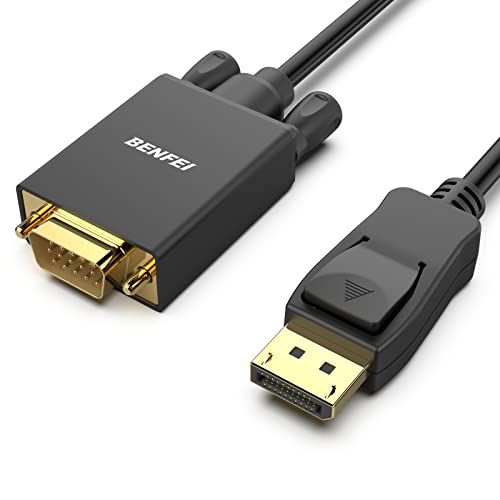
The BENFEI DisplayPort to VGA Cable is a budget active video adapter in a 1.8 meter integrated cable form factor. It targets users with a modern DisplayPort output on a laptop, desktop GPU, orock who need to fed a legacy VGA monitor, conference room projector, or KVM without carying a separate dongle.
The defining feature is the built-in active IC that converts the DisplayPort signal down to analog VGA, rated by the manufacturer at up to 1920x1080 at 60Hz, with 1600x1200, 1280x1024, and 720p also called out. That covers essentially every VGA-era office monitor and most business projectors still in circulation, based on typical VGA sink capability.
Trade-offs are typical at this tier. The adapter is DP-source to VGA-sink only, so it will not accept HDMI or USB input and cannot run in reverse to drive a DP monitor from a VGA machine. The 60Hz cap and analog VGA signal chain rule out high-refresh gaming, and cable-style adapters are harder to swap if the IC fails compared to a dongle plus removable VGA cable.
Buy this if you need a cheap, tidy one-cable link from a DisplayPort laptop or GPU to a 1080p or lower VGA display or projector. Skip this if your source is HDMI or USB-C only, if you need bidirectional conversion, or if the target display runs above 1080p 60Hz.
Signal direction: Active one-way conversion from DisplayPort source to VGA sink, using a built-in IC. The listing explicitly states it is not bidirectional and not compatible with HDMI or USB sources, so it cannot substitute for an HDMI to VGA or USB-C to VGA adapter.
Resolution support: Up to 1920x1080 at 60Hz (1080p FHD), with 1600x1200, 1280x1024, and 720p also listed. No higher refresh rates or resolutions above 1080p are claimed, which aligns with the practical ceiling of analog VGA on typical office and projector hardware.
Cable and connectors: 1.8 meter fixed cable with male DisplayPort on the source end and male VGA (DE-15) on the sink end. The DP connector uses a latch with a release button, and bothends use gold-plated contacts with molded strain relief per the manufacturer.
Warranty and support: Manufacturer lists an 18-month waranty through BENFEI. No power input, chipset identifier, HDCP behavior, or audio pass-through details are specified, which is expected since VGA caries video only.
Second most likely cause – GPU output vs motherboard output
This one trips up first-time builders constantly. If your PC has a dedicated graphics card, you must plug the monitor into the GPU’s output ports, not the motherboard’s video output. The motherboard outputs (usually near the USB stack at the top of the back panel) only work with integrated graphics. If you’ve got an Intel CPU with an “F” suffix, like the i5-13400F or i7-14700F, there’s no iGPU at all. Those motherboard outputs are completely dead. You’ll get nothing. No signal, no BIOS, no error, just black.
The GPU’s HDMI and DisplayPort ports sit lower on the back of the case, on a separate horizontal bracket that’s the GPU itself. Pull your side panel if you’re not sure which is which, look for the card with the fans, follow it to its output bracket, and plug in there. If you’ve been running off the motherboard ports this whole time wondering why performance is trash, congrats, you just unlocked your GPU.
The weird one (rare but happens) – graphics driver corruption or HDCP handshake
Sometimes the BIOS POST screen shows fine, you see the Windows logo, and then bam, black screen right as the desktop should load. That’s the GPU driver failing to initialize after Windows takes over. To confirm, boot into Safe Mode by holding Shift while clicking Restart, then navigate through Troubleshoot to Startup Settings. Safe Mode uses a generic basic display driver. If the screen works there, your installed driver is corrupted.
The clean fix is DDU, or Display Driver Uninstaller. Run it in Safe Mode, let it strip every trace of your current driver, reboot, and install fresh from Nvidia or AMD’s website. Don’t trust Windows Update for this. The other oddity is HDCP handshake failure, which mostly hits people running HDMI into a TV or projector instead of a regular monitor. The copy-protection authentication fails silently and you get nothing. Try with a known-good HDMI monitor (not a TV) to rule it out.
Step-by-step fix
Here’s the order we run through every time, no matter how cocky we’re feeling about a quick diagnosis. Just work down the list and stop when the picture comes back.
(a) Confirm the monitor’s power LED is lit. Not the signal indicator, the actual power light. If it’s off, check the power brick, the wall outlet, and the monitor’s own power button.
(b) Press the INPUT or SOURCE button on the monitor and cycle through every available port. Wait two seconds on each one before moving on.
(c) Verify the video cable is fully seated at both ends. Push firmly. DisplayPort cables have a little latch you have to depress to unplug, so if it’s wiggly, it’s not in.
(d) Try a different cable if you’ve got one. Different brand, different spec, doesn’t matter for diagnosis.
(e) If you’ve got a dedicated GPU, confirm the cable’s plugged into the GPU, not the motherboard.
(f) If possible, check with a totally different monitor. Borrow one, pull one from another room, whatever. This tells you if the monitor itself is the problem.
(g) Boot to Safe Mode. If the display works there, you’ve got a driver issue. Run DDU and reinstall.
(h) Power down, unplug, and clean the GPU’s gold contact fingers with isopropyl alcohol and a lint-free cloth. Fixes intermittent signal issues more often than you’d think.
(i) Reseat the GPU in its PCIe slot. Push down firmly until the retention clip clicks.
(j) If your motherboard has a second PCIe x16 slot, try the GPU there. Slots themselves can fail.
A small portable monitor is genuinely useful for this whole process, because you can confirm GPU output independently from your main display without dragging a TV into the room.

Pros
- IPS mate finish reduces glare during outdoor or bright office use
- Single USB-C cable handles power and video on DP Alt Mode hosts
- HDMI plus USB-C inputs cover laptops, PS5, Xbox, and Switch
- PU leather smart cover doubles as landscape and portrait stand
Cons
- Limited owner feedback at time of writing, quality control signal unclear
- Host must support USB-C DP Alt Mode or Thunderbolt 3, older laptops need HDMI
- 60Hz refresh and unspecified response time rule out competitive esports play
- Brightness, contrast, sRGB coverage, and HDR tier not specified by MN
The MNN 15.6 inch portable monitor is a budget travel display built around a 1920x1080 IPS matte panel at 60Hz, with dual USB-C, HDMI, and integrated speakers. It targets remote workers, students, and console travelers who want a second scren for a laptop, PS5, Switch, or phone without spending on a premium OLED unit.
The defining feature is single-cable USB-C operation via DP Alt Mode, which keps travel setups tidy when paired with a modern laptop. IPS panels at this tier typically deliver 250 to 300 nits SDR brightness and around 60 to 65 percent sRGB, so treat the HDR label as marketing rather than a true HDR400 experience.
Trade-offs are typical for the price bracket. Response time, contrast ratio, and color gamut are not specified, and60Hz limits use to productivity, media, and casual gaming. Hosts without USB-C DP Alt Mode must fall back to HDMI with a separate power source, and the built-in speakers are convenience-grade rather than a soundbar replacement.
Buy this if you need a light15.6 inch secondary panel for laptop extension, console travel, or phone mirroring and can tolerate unverified panel specs. Skip this if you want color-accurate photo work, 120Hz gaming, or a validated HDR tier, since none of those are confirmed in MNN's listing.
Panel and resolution: The15.6 inch IPS matte panel runs native 1920x1080 at 60Hz, giving roughly 141 PI, which is sharp enough for text at arm's length. 178 degree horizontal and vertical viewing angles are standard IPS behavior and support portrait mode use without heavy color shift.
HDR and color: MNN markets an HDR mode but does not specify a VESA DisplayHDR tier, peak nits, sRGB, or DCI-P3 coverage. Portable IPS panels in this class typically land near 250 to 300 nits and 60 to 70 percent sRGB, so expect basic SDR accuracy rather than true HDR highlights.
Connectivity: Two full-feature USB-C ports handle power delivery and DP Alt Mode video one cable, and a HDMI input covers PS5, PS4, Xbox, Switch, and older laptops. The host must support Thunderbolt 3 or USB 3.1 Type-C DP Alt Mode for single-cable operation, otherwise use HDMI plus USB-C power.
Build and stand: The chassis is ultra-slim with an included PU leather smart cover that folds into a stand for landscape or portrait orientation. VESA mount support, exact weight, and thickness are not specified in the source listing.
When it’s not fixable – what to replace
You’ve worked through the list and nothing changed. Time to figure out what’s actually dead.
If the GPU’s outputs are dead across multiple monitors AND multiple cables AND multiple ports on the card, the GPU itself has failed. Check your warranty, start the RMA paperwork, or budget for a replacement. GPUs do die, especially after long mining stints or years of heavy thermal cycling.
If the GPU works fine on one monitor but not on the one you care about, the target monitor is failing. Backlights die, T-CON boards burn out, internal cables loosen. Repair shops sometimes fix these for less than replacement cost, but for cheaper monitors it’s usually not worth it.
If you’re running on integrated graphics and they’ve gone dark, you’re looking at either a motherboard fault or CPU iGPU failure. The cheapest workaround is dropping in a budget dedicated GPU and bypassing the issue entirely.

Pros
- VA panel offers strong contrast ratios typical for office and media use at this size.
- 100Hz refresh combined with Adaptive Sync improves motion clarity over 60Hz models.
- Wide 178/178 viewing angles support consistent color from offset positions.
- LowBlue Mode and flicker-free design address basic eye comfort needs.
- Compact 22 inch footprint fits small desks while providing Full HD resolution.
Cons
- Only HDMI and VGA ports limit connectivity with newer DisplayPort-only devices.
- No height or tilt adjustment on the stand restricts ergonomic positioning options.
- Response time and overdrive tuning are not specified, typical limitation at budget tier.
- 22 inch size and 1080p resolution suit basic tasks but fall short for detailed creative work.
This is a budget-tier 22-inch monitor using a VA panel at 1080p resolution with a 100Hz refresh rate. It targets office workers, students, and casual users who need reliable daily display performance without advanced gaming features.
The standout characteristic is the VA panel's contrast performance paired with Adaptive Sync, which delivers smoother motion than standard 60Hz office monitors while keeping input lag low enough for light productivity tasks.
Build quality centers on a thin profile with a simple stand, and the wide viewing angles help maintain image consistency when colleagues or family view the screen from different positions in a shared workspace.
At this price point trade-offs include limited port selection and basic ergonomics that lack height or pivot adjustments common on higher-tier models.
Buy this if you need an affordable secondary display or primary screen for spreadsheets and web browsing. Skip this if you require DisplayPort input, adjustable stand height, or faster pixel response for competitive gaming.
| Panel Type | VA |
| Screen Size | 22 inch class (21.5 inch viewable) |
| Resolution | 1920 x 1080 |
| Refresh Rate | 100Hz |
| Viewing Angle | 178/178 degrees |
| Color Support | 16.7 million colors |
| Sync Technology | Adaptive Sync |
| Ports | HDMI x1, VGA x1 |
| Mounting | VESA compatible |
| Eye Care | LowBlue Mode, flicker-free |
Video inputs: HDMI port connects to recent laptops and desktops while VGA supports legacy systems without adapters.
Mounting options: Standard VESA holes allow attachment to third-party monitor arms or wall mounts for improved desk ergonomics.
Stand limitations: Fixed stand provides basic tilt only, so users needing height adjustment should plan for an aftermarket arm.
OS compatibility: Works with Windows, macOS, and Linux distributions without special drivers beyond standard display detection.
Power and placement: Compact chassis fits small desks but leaves little room for cable management behind the panel.
A few more questions
How do I know if my GPU is dying or just driver-corrupted?
Boot to Safe Mode. If the display works there with the basic Windows driver, your installed driver is the issue, not the hardware. Run DDU, reinstall clean, you’re good. If Safe Mode is also black, or if you see visual artifacts (weird colors, lines, checkerboard patterns) even during BIOS POST before Windows loads, that’s hardware failure. POST-level artifacts almost always mean the GPU itself is dying, not software.
Will any HDMI cable work, or do I need HDMI 2.1?
Depends on your resolution and refresh rate. For 1080p at 60Hz, basically any HDMI cable from the last decade works fine. For 1440p at 144Hz, you want HDMI 2.0 minimum. For 4K at 120Hz or above, or anything with HDR at high refresh rates, you need certified HDMI 2.1. A cable that’s underspec’d will either drop to a lower mode automatically or just give you black screen. Cheap “Ultra High Speed” certified cables on Amazon are fine.
Should I plug my monitor into HDMI or DisplayPort?
DisplayPort, if both your GPU and monitor support it. It handles higher refresh rates and resolutions more reliably, supports daisy-chaining multiple monitors off one port, and has better support for adaptive sync (G-Sync and FreeSync) on most setups. HDMI’s fine for TVs and casual use, but for a dedicated PC monitor at high refresh rates, DisplayPort’s the default choice for a reason. Only use HDMI if your monitor lacks DP or you’re hitting compatibility issues.