

A tidy power supply is the difference between a build that breathes and a build that looks like a bird’s nest. Good PSU cable management isn’t about winning photo contexts. It’s about airflow, easier upgrades later, and not fighting a tangle every time you swap a part. Messy cables block fans, trap heat around your GPU and drives, and turn a five-minute upgrade into an hour of untangling. This walkthrough covers how to route and tidy power supply cables cleanly, step by step, so the finished build stays cool and stays easy to work in. If you’re still choosing a unit, our guides to the best modular PSU picks and the best 1000W PSU for 2026 point you toward models with flat, flexible cables that route far more neatly than stiff round bundles.
What you’ll need
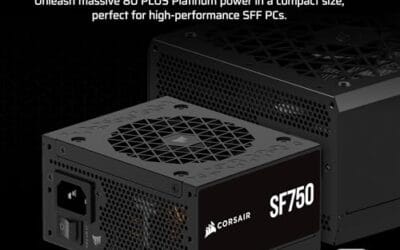
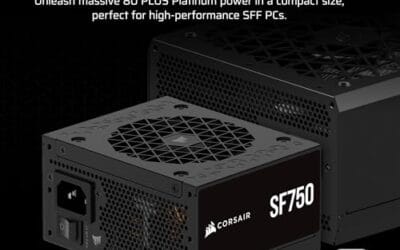
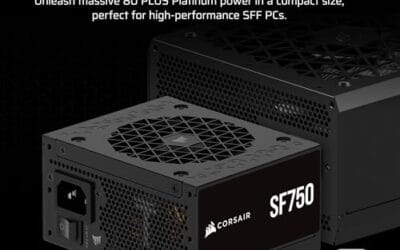
Grab a Phillips screwdriver, a handful of Velcro straps or reusable zip ties, and a pair of flush cutters if you use rigid ties. That’s the core kit. A modular power supply makes the whole job dramatically easier, because you only install the cables you actually use instead of stuffing a permanent bundle of unused leads behind the tray. Something like the Corsair SF750, a fully modular SFX 80 Plus Platinum unit that’s ATX 3.1 compliant and PCIe 5.1 ready at $159.99 with a 4.1 rating, is a good example: it ships with a bracket and only the connectors you need, which keeps the back of the case clear. A few zip-tie anchor points or the case’s built-in tie-downs round out the list.


Pros
- ATX 3.1 compliant with PCIe 5.1 support, resists transient spikes from RTX 50 and RX 9000 series GPUs.
- Zero RPM Mode eliminates fan noise at low and medium loads, a real advantage in acoustically sensitive SFF builds.
- Fully modular design with short SFX cables reduces cable management friction in sub-10-liter cases.
- 105 degree C Japanese capacitors indicate quality component selection typical of high-tier SFX units.
Cons
- Limited owner feedback at time of writing; real-world noise, ripple, and transient performance are unverified by community data.
- Short SFX cables are unsuitable for mid-tower or full-tower cases without aftermarket cable extensions.
- 750W ceiling may fall short for extreme SFF builds pairing a 300W-plus TGP GPU with a high-core-count CPU.
The Corsair SF750 (2024) is a high-end SFX PSU targeting SFF builders who need substantial wattage in a compact footprint. With 80 Plus Platinum certification and ATX 3.1 compliance, it sits at the upper tier of the SFX market, aimed at builders pairing it with current-gen discrete GPUs inside sub-10-liter cases.
The most defining specification here is ATX 3.1 compliance combined with PCIe 5.1 readiness. This means the unit is rated to handle the sharp transient power spikes that RTX 50 and RX 9000 series GPUs can produce, where non-compliant PSUs may trigger overcurrent protection. At 750W, it covers most single-GPU SFF configurations without derating concerns.
The honest trade-off is the review data gap. At time of writing, no substantial owner feedback exists to validate Corsair's noise and ripple claims under real load. The Zero RPM Mode claim and 92mm fan acoustics are based on spec sheets only. Buyers should also note that SFX cable lengths are intentionally short and will not reach connectors in mid-tower or larger cases without extensions.
Buy this if you are building an SFF PC around a single high-TGP GPU and need confirmed ATX 3.1 compliance in a modular SFX unit. Skip this if you want a large ATX case build, need more than 750W for a dual-component high-wattage system, or require extensive owner testing before purchasing.
Form Factor and Mounting: This is a standard SFX form factor PSU, not SFX-L. Verify your case specifies SFX compatibility before purchasing. An SFX-to-ATX bracket is included, allowing installation in ATX-footprint cases, though short cable lengths will require extensions in anything larger than a compact SFF enclosure.
Power Standard and Connector: ATX 3.1 compliant with PCIe 5.1 readiness. The unit supports the 12V-2x6 connector standard, relevant for RTX 40 and RTX 50 series GPUs as well as AMD RX 7000 and RX 9000 cards with high transient draw. Non-ATX 3.1 units can trigger OCP shutdowns above 150 percent peak load spikes.
Efficiency and Thermal Operation: 80 Plus Platinum certification indicates roughly 92 percent efficiency at 50 percent load under 115V. The 92mm PWM fan uses a fluid dynamic bearing and Zero RPM Mode activates at low loads, which in SFF cases where airflow is restricted can noticeably reduce system acoustic output.
GPU Wattage Pairing: At 750W, this PSU pairs appropriately with GPUs up to approximately 300W TGP when combined with a mid-range CPU. For a 320W-plus TGP GPU alongside a 65W-plus CPU, headroom becomes tight and a higher-wattage SFX unit should be considered instead.

Step 1: Plan the routing before you plug anything in
Don’t start connecting cables randomly. Lay the case on its side, open both panels, and look at where each cable needs to end up. You’ve got four main runs to think about: the big 24-pin motherboard connector, the 8-pin (or 4+4) CPU power at the top of the board, the PCIe power for the GPU, and SATA or peripheral power for drives. Trace the shortest clean path for each from the PSU to its destination, and note which routing holes and grommets you’ll thread them through. Two minutes of planning saves twenty minutes of rerouting.
If you’re using a modular unit, only pull the cables you’ll actually connect. A typical mid-tower build needs the 24-pin, one CPU cable, one or two PCIe cables, and maybe a single SATA chain. Leave the rest in the box. Fewer cables means less to hide.
Step 2: Route the 24-pin and CPU cables first
Start with the two thickest, most awkward cables because they’re the hardest to hide later. Feed the 24-pin motherboard connector through the grommet nearest the middle-right edge of the board, so it enters with minimal slack showing on the front. The CPU 8-pin usually routes up behind the motherboard tray to the cutout at the top-left corner. This one is often a tight reach, so connect it before the board is fully surrounded by other components. Many builders forget it and have to partially disassemble later.
Pull each cable snug from behind so the front side sits flat against the case with no loops bulging out. You want the connector to emerge, make a short clean bend into its socket, and disappear. Slack lives behind the tray, not in front of it.
A quick tip on the 24-pin: it’s the stiffest cable in the build, so it fights you the most. Bend it gently into shape before you seat it rather than forcing the curve at the connector. If your case has a grommet right beside the board edge, use that one, because entering close to the socket hides almost all the visible length. Some builders route the 24-pin behind the tray and only bring it through at the last inch. That’s the cleanest look if your cable is long enough to allow it.
Step 3: Handle the GPU and PCIe power
The GPU cable is the one everyone sees through the glass, so give it the most care. Route the PCIe power up through the grommet closest to the graphics card, leaving just enough length for a gentle bend into the connector. Avoid sharp kinks right at the plug, especially with the newer 12VHPWR and 12V-2×6 connectors, which need the cable seated fully and bent no closer than about 35mm from the plug. A loose or angled high-power connector is a real safety concern, so confirm it clicks home.
If your card draws a lot of power, don’t daisy-chain a single cable across two connectors when a demanding GPU is involved. Run separate cables where the card and PSU support it. For high-draw cards specifically, our guide to the best 1000W PSU for a high-end GPU covers headroom and cable count in more detail.
Step 4: Connect SATA, peripheral, and front-panel power
Now handle the smaller stuff. SATA power chains feed 2.5-inch SSDs and any 3.5-inch drives, and they route best along the back of the tray, popping through only at each drive bay. Plan the order so one chain hits all your drives in sequence without doubling back. If you have RGB controllers, fan hubs, or a pump that needs SATA or Molex power, tuck those onto the same run where you can. Keep these thin cables flat against the tray rather than letting them float, since loose SATA leads are the ones that end up brushing a fan blade.
Double-check every connector is fully seated before moving on. A half-plugged SATA power lead is a classic cause of a drive that randomly disappears.
One habit worth building: label nothing, but count everything. Confirm each drive has both its data and power cable before you close up, because it’s easy to run the SATA data lead and forget the power, or vice versa. If you’re using front-panel USB-C, fan headers, or an AIO pump, route those thin cables now too while the tray is still accessible. They tuck neatly along the same channels as the SATA chain, and dealing with them now beats fishing a forgotten header out from behind a closed panel later.
Step 5: Bundle, strap, and close the back panel
This is the finishing stage. Behind the motherboard tray, gather the slack from every cable and strap it down to the case’s tie-down points with Velcro or zip ties. Work in sections: bundle the 24-pin slack, then the CPU and PCIe runs, then the SATA chain. Keep bundles flat and spread rather than one fat rope, because the back panel has limited clearance and a single thick bundle can stop the panel from closing. Snug the straps enough to hold, not so tight they crush the wires.
Trim any excess zip-tie tails flush so nothing snags later. Then try to close the back panel. If it bulges, open it, find the thickest spot, and redistribute that bundle wider. A back panel that closes easily is the sign you did it right. For a compact SFF build where space behind the tray is minimal, our notes on the best 1000W PSU for small form factor builds explain why short, flat cables matter even more.
Troubleshooting common issues
The back panel won’t close
Almost always a single overstuffed bundle. Open it up, find the thickest cluster, and spread it into two or three flatter runs strapped separately. Move some slack to a different channel if the case has more than one. On tight cases, routing unused cable length down into the PSU shroud instead of behind the tray frees up the clearance you need.
A fan is ticking or clicking
A loose cable is catching a blade. Power down, find the stray lead (usually a SATA or fan cable), and strap it flat against the tray or a nearby anchor so it can’t drift back into the fan path. This is exactly why loose cables get tied down rather than left floating.
Cables are too short to route cleanly
Some stock PSU cables barely reach the far grommet. If a cable is fighting you, either route it a shorter way (accepting it shows a bit more on the front) or pick up a set of extension cables. Modular units let you swap in longer custom cables entirely. This is one more reason a quality modular PSU pays off on complex builds.
Before and after expected outcomes
Done right, the front of the case shows clean, short cable runs with no loops, no slack piles, and unobstructed airflow across the board and GPU. The back looks organized rather than crammed, and the panel closes without a fight. Beyond looks, you’ll notice slightly cooler component temps because fans move air freely, and your next upgrade becomes a quick job instead of an archaeology dig. That’s the real payoff.
Variations and advanced setups
Enthusiasts take it further with custom-sleeved cables in matched colors, cable combs that hold each wire in a flat ribbon, and 90-degree adapters that let the 24-pin or GPU power exit straight into the grommet with zero visible bend. These are cosmetic upgrades, not requirements. If you’re building an SFF or ITX system, the priorities flip: there’s barely any room behind the tray, so ultra-short flat cables and a compact modular unit do most of the work for you. For a build that spends a lot of time under heavy load, pairing tidy routing with a strong unit like those in our best 1000W PSU for overclocking guide keeps both airflow and power delivery solid.
Common questions
Do I need a modular PSU for good cable management?
No, but it makes life much easier. With a non-modular unit you’re stuck hiding every attached cable, used or not, so you’ll spend more time bundling the unused leads behind the tray or down in the PSU shroud. A fully or semi-modular unit lets you install only what you need, which cuts the clutter at the source. It’s the single biggest convenience upgrade for a clean build.
Are zip ties or Velcro straps better?
Velcro straps win for most people because they’re reusable. When you upgrade a part, you just unwrap and rewrap instead of cutting and replacing. Zip ties hold a slightly cleaner, tighter line and cost less, so they’re great for permanent runs you won’t touch again. Many builders use both: zip ties for the fixed backbone, Velcro for anything they expect to change.
How tight should I strap the cables?
Snug enough to hold the bundle in place, loose enough that you’re not denting or crushing the insulation. If a strap is squeezing the wires into a visible pinch, back it off. Over-tightening on the high-power GPU cable is worth avoiding entirely, since those connectors want gentle, unstressed routing near the plug.
Will better cable management actually lower temperatures?
Yes, though modestly. Clearing cables out of the fan paths and away from the GPU exhaust lets air move the way the case designer intended, and that’s usually worth a few degrees on the components that matter. The bigger practical wins are easier maintenance and cleaner airflow for dust control. Don’t expect a 20-degree drop, but a cleaner interior genuinely runs cooler than a tangled one.
























Write Your Review
No reviews yet. Be the first to share your experience!