

You’re mid-match, someone’s about to give a callout, and instead of their voice you get a wall of hiss, crackle, and popping. Headset static noise is one of the most common audio complaints on desktop rigs, and it almost never means your headset is dead. It usually points to a dirty connection, a noisy power path, a wireless channel fight, or a driver that’s misbehaving. The good news is that most of these fixes take a few minutes and cost nothing.
This guide walks through the real causes we researched, ordered from the quick 30-second checks to the deeper hardware culprits. If you’re already shopping and suspect the headset itself is the weak link, our roundups of the best gaming headset and the best wireless gaming headset can help you compare replacements. And if cable strain keeps chewing up your gear, a proper headset stand saves a surprising amount of wear. Let’s find the hiss.
First check the obvious (the 30-second check)
Before you blame the hardware, rule out the free stuff. Unplug the headset and reseat it fully into the jack or USB port. A 3.5mm plug that’s a hair loose is the single most common source of scratchy static. Swap to a different port too, especially moving off a front-panel case jack and onto a rear motherboard port, which is wired more cleanly.

Then try the headset on a phone or a second machine. If the static vanishes there, the problem lives in your PC’s audio path, not the headset. If it follows the headset everywhere, you’ve narrowed it to the cable, driver, or drivers inside the cups. Two minutes of swapping saves an hour of guessing.

One quick note on volume levels. A lot of scratchy audio traces back to a badly balanced gain chain, where your Windows volume sits low and an in-game slider or amp is cranked to compensate. That combination amplifies the noise floor along with the sound. Set your system volume to around 70 to 80 percent and pull the in-app levels down to match. It’s a small adjustment, but it’s fixed more headset hiss than people expect.
Cause #1: A dirty or damaged connection
Analog headsets live and die by a clean contact. Dust, pocket lint, and oxidation build up inside a 3.5mm jack, and the result is intermittent crackle that gets worse when you wiggle the cable. Owner reports point to this constantly: the audio is fine until you turn your head, then it snaps to static. That’s a physical contact issue, not software.
Grab a can of compressed air and give both the plug and the jack a short blast. For stubborn buildup, a cotton swab barely dampened with isopropyl alcohol (90 percent or higher) cleans the contacts without leaving residue. Let it dry fully before plugging back in. While you’re there, inspect the cable near the plug and near the ear cup, the two spots where flex fatigue cracks the internal wires. If bending the cable changes the static, the wire’s damaged and no cleaning will save it.
USB headsets have their own version of this problem. The gold contacts on the connector oxidize over time, and worn USB ports lose their grip on the plug, so the connection flickers under the faint desk vibration. Reseat the USB plug firmly, try a rear port wired straight to the motherboard rather than a hub, and avoid unpowered USB hubs entirely, since they can starve a headset of clean power and introduce noise. A quick swap to a known-good cable, if your headset uses a detachable one, settles the question fast.
Cause #2: Electrical interference and ground loops
Here’s the one that drives people up the wall. A steady, high-pitched whine or a buzzing hum that rises and falls with GPU load is almost always electrical interference, not a broken headset. Analog audio lines pick up noise from your graphics card, power supply, and even USB devices sharing the same rail. Cheap onboard audio codecs are especially prone to it because the audio traces sit close to noisy components on the board.
A few fixes actually work here. Route the headset cable away from the power cable and the back of the GPU. Plug the PC and any powered speakers into the same wall outlet to kill ground-loop hum. If the buzz only shows up over a 3.5mm connection, a USB headset or a small USB DAC sidesteps the noisy onboard codec entirely by moving the digital-to-analog conversion outside the case. This is where going fully wireless helps too. The Picun G2 runs a 2.4GHz dongle plus Bluetooth 5.4 with 5ms latency, so its signal path never touches your motherboard’s analog output, and at $59.99 with a 4.5 rating it’s an affordable way to dodge onboard interference without spending big.

Pros
- Three connection modes on a single headset: 2.4GHz dongle, Bluetooth 5.4, and 3.5mm wired fallback.
- Vendor-rated 5ms 2.4GHz latency keps audio synced in competitive shooter scenarios.
- Long rated runtime, up to 100 hours in Bluetooth with RGB disabled for travel use.
- RetractableENC microphone tucks away, useful when switching between gaming and general listening.
Cons
- Limited owner feedback at time of writing, real-world reliability and QC signal is unverified.
- 7.1 surround is virtual DSP, not true multi-driver, so positional accuracy varies by title andear.
- RGB lighting materially cuts battery life, cited100-hour figure requires lighting turned off.
The Picun G2 is a budget-tier wireless gaming headset built around 40mm drivers, virtual 7.1 surround, and tri-mode connectivity across2.4GHz, Bluetooth 5.4, and 3.5m wired. Target buyer is a multi-platform player rotating between PC, PS5, PS4, and Switch who wants low-latency wireless without moving up to established brand pricing.
The defining feature is the tri-mode radio stack. The 2.4GHz USB-A or Type-C dongle is rated at 5ms latency, which is competitive for the tier and adequate for most FPS titles, while Bluetooth 5.4 handles phones and tablets. Headsets in this class typically deliver serviceable rather than reference-grade imaging, and virtual 7.1 leans on DSP rather than discrete drivers.
Trade-offs are typical at this tier. Battery figures are optimistic: 100 hours assumes Bluetooth with RGB off, and 2.4GHz drops the number to 42 to 45 hours. Driver material, impedance, frequency response, clamp force, and weight are not specified, so tonal balance and long-session comfort cannot be verified from source data alone.
Buy this if you want one headset that jumps between a PS5, a Switch dock, and a work laptop over Bluetooth, and you accept spec-sheet-only marketing. Skip this if you rely on measured frequency response, discrete suround, or detachable bom mics with broadcast-grade pickup for streaming.
Drivers and tuning: Picun specifies 40mm dynamic drivers paired with virtual 7.1 surround processing. Impedance, sensitivity, and frequency response are not specified, so bass extension and treble air cannot be quantified from source. Virtual 7.1 is DSP-based positional widening, useful for FPS cues but not equivalent to true multi-driver surround.
Connectivity and latency: Three modes are covered: 2.4GHz via USB-A or USB-C dongle, Bluetooth 5.4, and 3.5mm analog. The 2.4GHz link is rated at 5ms latency. Bluetooth codec support (SBC, AAC, aptX) is not specified, which maters for wireless music quality on phones and tablets.
Battery and power: Rated up to 100 hours on Bluetooth with RGB off, and 42 to 45 hours on 2.4GHz wireless. Play-while-charging is supported, so a USB cable can extend sessions past the rated ceiling. Charge time and battery capacity in mAh are not specified.
Microphone: Retractable omnidirectional bom with ENC noise reduction. Sample rate, bit depth, and pickup pattern beyond omni are not specified.ENC filtering targets background noise on the transmit side, adequate for party chat but below dedicated USB mic quality.
Cause #3: Driver conflicts and wrong sample rates
Software crackle sounds different from electrical hiss. It’s usually pops, stutters, or brief dropouts rather than a constant hum, and it often started right after a Windows update. The usual suspect is a mismatched sample rate. If an app outputs 44.1kHz but Windows is set to 48kHz, the forced resampling can introduce audible artifacts and clicks.
Open Sound settings, find your headset under playback devices, and set a consistent format like 24-bit, 48000 Hz. Then disable audio enhancements and spatial effects, which frequently cause crackling on lower-end codecs. Reinstalling the audio driver clears a lot of these ghosts too. Uninstall the current driver, reboot, and let Windows pull a fresh copy, or grab the latest from your motherboard or headset maker. Wireless headsets that lean on companion software, like the Logitech G733 with its Blue VO!CE mic processing, sometimes crackle when that software’s audio pipeline glitches, so a clean reinstall of the app matters as much as the driver.
There’s a sneakier software cause worth knowing about. Windows lets any app take exclusive control of your audio device, and a poorly behaved program can hold that lock and produce stutters for everything else. In the same playback-device properties panel, open the Advanced tab and uncheck the exclusive-mode boxes. While you’re troubleshooting, close Discord, OBS, and any streaming overlay one at a time. These apps insert themselves into the audio chain, and one of them hogging the pipeline is a classic source of pops that only appear during a game or a call, never on the desktop.
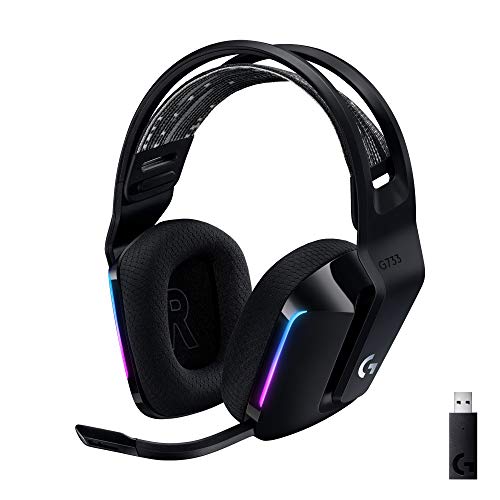
Pros
- Lightspeed wireless with 20 meter range handles typical living room and desk distances
- Up to 29 hours battery life covers multi-day use between charges
- Blue VO!CE mic processing in G HUB improves clarity for Discord and streaming
- Suspension headband and low mass design reduce clamp fatigue during long sessions
- Dual-zone Lightsync RGB with 16.8M colors is customizable through G HUB
Cons
- PS4 output limited to stereo, no suround on older PlayStation hardware
- Driver size, frequency response, and mic pattern not specified in source data
The Logitech G733 is a mid-tier wireless gaming headset targeting PC, PS5, PS4, and Nintendo Switch users who want a lightweight all-day fit. It leans on Lightspeed 2.4GHz wireless, PRO-G drivers, Blue VO!CE mic processing, and a reversible suspension headband, aimed at multi-hour gamers and streamers.
The defining feature is the combination of Lightspeed wireless with a quoted 20 meter range and up to 29 hours of battery. In practice this covers full workdays plus evening sessions without a charge cycle. PRO-G drivers, per Logitech, reduce distortion, and headsets in this tier typically deliver a mildly V-shaped tuning suited to positional FPS cues.
Trade-offs are typical at this price point. PS4 users are locked to stereo output with no virtual surround. Driver diameter, impedance, and frequency response are not published in the source data, so absolute output quality is hard to benchmark against wired competitors. There is no Bluetooth fallback listed, so mobile pairing is not supported.
Buy this if you want a light, long-battery 2.4GHz wireless headset for PC or PS5 with a usable broadcast-style mic. Skip this if you need wired low-latency USB, Bluetooth multipoint, or vendor-published driver and frequency response specs before purchase.
Drivers and tuning: Logitech lists PRO-G drivers tuned for reduced distortion, though exact driver diameter and frequency response are not specified in the source. Headsets in this tier typically ship with 40 to 50mm dynamic drivers and a mildly V-shaped response suited to explosions and footstep cues in FPS gameplay.
Connection and latency: Lightspeed 2.4GHz wireless with a stated 20 meter range covers desk and living room use. Compatibility is confirmed for PC, PS5, PS4 (stereo only), and Nintendo Switch. Bluetooth and wired 3.5mm fallback are not listed in the source, so single-dongle 2.4GHz is the only documented path.
Battery life: Rated up to 29 hours per charge, enough for roughly three to four full evening sessions before recharging. Exact charge time and USB-C versus micro-USB charging port are not specified in the source data.
Microphone: Detachable mic with Blue VO!CE filters configured in G HUB, providing EQ, noise reduction, and de-eser presets useful for Discord and Twitch chat. Mic polar pattern, sensitivity, and frequency range are not disclosed in the source specifications.
Preventive maintenance
Static rarely appears out of nowhere. It builds. A quick monthly habit keeps it away. Blow out the jack with compressed air, coil the cable loosely instead of yanking it, and hang the headset on a stand so the cord isn’t pinched under the desk. Keep the audio driver current but don’t chase every beta. And when a Windows feature update lands, double-check that your sample rate and enhancement settings survived it, because updates love to reset those.
Wireless owners have a couple of extra habits worth adding. Charge the headset before it hits zero, since a low battery can cause dropouts and crackle that mimic a hardware fault. Keep the 2.4GHz dongle plugged into a front port or a short extension cable rather than buried behind the tower, where the metal case and USB 3.0 ports both throw interference at the 2.4GHz band. If you notice static creeping in near other wireless gear, changing your router’s 2.4GHz channel or moving the dongle a few inches often clears a congested-band problem in seconds.
When it’s not fixable: what to replace
Sometimes the hiss wins. If bending the cable reproduces the static and you’ve already reseated and cleaned everything, the internal wiring is cracked and the headset is on borrowed time. A frayed cable near the plug, a driver that rattles at high volume, or static that persists across three different machines all point the same direction. Time for new hardware.
Going wireless removes the analog cable failure point completely, which is why it’s our default recommendation for anyone tired of chasing crackle. The Logitech G733 Lightspeed runs a dedicated 2.4GHz Lightspeed connection with PRO-G audio drivers and a suspension headband, and at $124.92 with a 4.0 rating it’s a solid mid-range pick that trades the fragile 3.5mm jack for a clean digital link. For a lighter budget, that same Picun G2 covers 2.4GHz, Bluetooth, and wired modes, so you keep options if one path acts up. If you’re building a shortlist, our guides to the best budget gaming headset break down more picks by price.
Before you spend, though, do one honest inventory. If the static only shows on one machine, follows a single cable, or disappears the moment you switch ports, the headset itself is probably fine and a new one won’t fix anything. Replacement makes sense when the fault travels with the headset across devices, when the drivers buzz or distort at moderate volume, or when the cable is visibly frayed. Match those symptoms to the cause and you’ll know No matter if you’re buying a solution or just repeating the problem with newer gear.
Tools and parts needed
You don’t need much. A can of compressed air, a few cotton swabs, and a small bottle of 90-percent-plus isopropyl alcohol handle every cleaning fix in this guide. A spare 3.5mm cable helps you confirm a cable fault in seconds if your headset uses a detachable cord. For interference troubleshooting, a cheap USB DAC is worth keeping around. And a replacement headset, wireless if you can swing it, is the last resort when the wiring’s truly gone.
Keep the cleaning supplies within reach of the desk and the whole routine takes under five minutes a month. If you’d rather not fuss with any of it, a wireless headset sidesteps most of these parts entirely, since there’s no analog jack to clean and no fragile cable to fatigue. That’s the quiet advantage of going cordless. Fewer failure points means fewer afternoons spent chasing a hiss.
A few more questions
Why does my headset only crackle when I move my head?
That’s a physical connection fault, almost always a loose plug or a cracked wire near the cable strain point. Reseat the plug first, clean the jack with compressed air, and if bending the cable changes the noise, the internal wiring is damaged and the cable or headset needs replacing.
Is static from my headset or my sound card?
Try the headset on a phone or a second computer. If the static disappears, your PC’s audio path is the culprit, likely onboard codec interference or a driver issue. If it follows the headset, the problem is in the cable or the drivers inside the cups.
One more free check before you dig in. Turn your master volume down to zero, then back up slowly while listening. If the hiss scales with volume, it’s coming from the amplifier stage in your audio output. If it’s a constant level no matter where the slider sits, you’re looking at interference bleeding into the signal. That single observation tells you which of the causes below to read first, and it costs you nothing but ten seconds.
Will a USB headset stop the buzzing for good?
Usually, yes, if the buzz is electrical interference from your onboard analog output. USB and wireless headsets do the digital-to-analog conversion outside the noisy motherboard environment, so ground-loop hum and GPU whine simply don’t reach them. Driver crackle can still happen, but the classic electrical buzz goes away.





























Write Your Review
No reviews yet. Be the first to share your experience!