

You’re mid-match, someone asks a question, and nobody answers because your teammates can’t hear a word you’re saying. The headset mic just died. Sometimes it’s a Windows setting that flipped after an update, sometimes it’s a physical mute switch you forgot about, and sometimes it’s a frayed cable that finally gave out. The good news? Most “headset mic not working” cases are fixable in a few minutes without buying anything new. We researched the common failure points, sorted them from quickest to most annoying, and laid out what actually resolves each one.
This guide walks through the obvious checks first, then the deeper causes, and finally the point where replacing the hardware makes more sense than fighting it. If you’re already shopping around because your current pair is on its last legs, our roundups of the best gaming headset and the best wireless gaming headset can save you some digging. For a tidy desk while you troubleshoot, a good headset stand keeps the cable from getting yanked in the first place. Let’s get your voice back.
First check the obvious: the 30-second check
Before you touch a single driver, run through the fast stuff. Is there a physical mute switch on the ear cup or inline on the cable? Flip it. Is the mic boom rotated all the way up? On plenty of models, raising the boom auto-mutes it, and that trips people up constantly. Check the volume mixer too, because Windows sometimes routes your input to the wrong device after a reboot.
Next, confirm the physical connection. A 3.5mm plug that’s half-seated will pass audio out but not carry mic signal, since the mic sits on a separate ring of the connector. Push it in until it clicks. On a combo jack, make sure you’re not plugged into a headphone-only port. USB and wireless dongle users, try a different port. That’s the whole 30-second sweep. If your mic is still silent, keep reading, because now it’s a software or hardware problem.
Cause #1: Windows privacy and input settings blocking the mic
This one bites more people than any hardware fault. Windows 11 has a per-app microphone permission toggle buried in Settings, and a feature update can silently switch it off. Open Settings, go to Privacy and security, then Microphone, and confirm that microphone access is on and that your game or chat app is allowed. Discord, Steam, and OBS each keep their own input settings on top of that, so a mic that works in one app can stay dead in another.
While you’re in there, open Sound settings and set your headset as the default input device. Windows loves to default back to a webcam mic or a monitor’s built-in array after you plug in something new. Speak into the mic and watch the input level bar move. If it’s flat, right-click the device, open properties, and check that it isn’t disabled or muted at the driver level. Set the input volume to around 80 to 90 percent, not 100, since maxing it out can introduce clipping that makes you sound worse than silence.
Also check sample format if the headset exposes one. Some chat apps behave poorly when Windows is set to an odd input format, so 16-bit, 48000Hz is a safe baseline for gaming and streaming apps. Disable audio enhancements for the input device while you’re diagnosing the issue, then turn them back on one by one if you need them. Simple first. A clean, boring input path tells you whether the mic is alive before software effects muddy the signal.
Cause #2: Outdated, corrupt, or wrong audio drivers
Drivers are the second usual suspect. A Windows Update can swap your working audio driver for a generic one that doesn’t handle the mic array correctly, and suddenly your input is gone. Open Device Manager, expand Audio inputs and outputs, and look for your headset. A yellow warning triangle means the driver failed to load. Right-click it, choose Uninstall device, then reboot so Windows reinstalls a clean copy.
For USB and wireless headsets with companion software, grab the latest driver straight from the manufacturer instead of trusting the generic Microsoft one. Logitech’s G HUB, for example, exposes mic gain and sidetone controls that the stock driver hides. If you recently updated Windows and the mic quit that same day, roll the audio driver back to the previous version through the driver’s properties tab. We’ve seen that single step revive a mic that looked completely dead. It isn’t glamorous, but it works more often than people expect.
Wireless dongles add another wrinkle. A 2.4GHz receiver plugged into the back of a desktop can sit beside USB 3.0 noise, Wi-Fi antennas, and a bundle of power cables. Move the dongle to a front port or a short USB extension cable so it has line of sight to the headset. If the mic cuts in and out instead of staying fully dead, that tiny move can make the difference. No magic. Just less interference.
Cause #3: A failing mic boom, frayed cable, or worn connector
If software checks out and the mic is still silent, the hardware itself is probably the culprit. Wired headsets take the most abuse right where the cable meets the plug and where the boom meets the ear cup. Wiggle the cable near the connector while watching the input meter. If the level flickers to life and then drops, you’ve found a broken solder joint or a fractured wire inside the insulation. That damage only gets worse, and no software fix will save it.
Detachable boom mics are easier here, since you can reseat or swap just the boom. Fixed booms are trickier. A mic capsule can also simply wear out after a few years of daily use, especially the tiny electret element inside budget models. When the mic hardware is the failure point and the headset is otherwise fine, a clean replacement pair with a proven noise-canceling mic is usually the sane move rather than soldering repairs on a $40 unit. The Picun G2 leans into that, pairing an ENC noise-canceling mic with 7.1 virtual surround and dual 2.4GHz plus Bluetooth 5.4 connectivity at $59.99, so a flaky boom stops being your problem for the price of a couple of games.
Do one more isolation pass before you replace anything. Plug the headset into a phone, laptop, console controller, or any other device that accepts the same connector. Record a short voice memo. If the recording is silent on two devices, the headset is the problem. If it works elsewhere, your PC’s jack, USB port, Bluetooth stack, or app settings are still the likely fault. That split keeps you from buying a new headset when the real issue is a dusty front-panel connector.

Pros
- Three connection modes on a single headset: 2.4GHz dongle, Bluetooth 5.4, and 3.5mm wired fallback.
- Vendor-rated 5ms 2.4GHz latency keps audio synced in competitive shooter scenarios.
- Long rated runtime, up to 100 hours in Bluetooth with RGB disabled for travel use.
- RetractableENC microphone tucks away, useful when switching between gaming and general listening.
Cons
- Limited owner feedback at time of writing, real-world reliability and QC signal is unverified.
- 7.1 surround is virtual DSP, not true multi-driver, so positional accuracy varies by title andear.
- RGB lighting materially cuts battery life, cited100-hour figure requires lighting turned off.
The Picun G2 is a budget-tier wireless gaming headset built around 40mm drivers, virtual 7.1 surround, and tri-mode connectivity across2.4GHz, Bluetooth 5.4, and 3.5m wired. Target buyer is a multi-platform player rotating between PC, PS5, PS4, and Switch who wants low-latency wireless without moving up to established brand pricing.
The defining feature is the tri-mode radio stack. The 2.4GHz USB-A or Type-C dongle is rated at 5ms latency, which is competitive for the tier and adequate for most FPS titles, while Bluetooth 5.4 handles phones and tablets. Headsets in this class typically deliver serviceable rather than reference-grade imaging, and virtual 7.1 leans on DSP rather than discrete drivers.
Trade-offs are typical at this tier. Battery figures are optimistic: 100 hours assumes Bluetooth with RGB off, and 2.4GHz drops the number to 42 to 45 hours. Driver material, impedance, frequency response, clamp force, and weight are not specified, so tonal balance and long-session comfort cannot be verified from source data alone.
Buy this if you want one headset that jumps between a PS5, a Switch dock, and a work laptop over Bluetooth, and you accept spec-sheet-only marketing. Skip this if you rely on measured frequency response, discrete suround, or detachable bom mics with broadcast-grade pickup for streaming.
Drivers and tuning: Picun specifies 40mm dynamic drivers paired with virtual 7.1 surround processing. Impedance, sensitivity, and frequency response are not specified, so bass extension and treble air cannot be quantified from source. Virtual 7.1 is DSP-based positional widening, useful for FPS cues but not equivalent to true multi-driver surround.
Connectivity and latency: Three modes are covered: 2.4GHz via USB-A or USB-C dongle, Bluetooth 5.4, and 3.5mm analog. The 2.4GHz link is rated at 5ms latency. Bluetooth codec support (SBC, AAC, aptX) is not specified, which maters for wireless music quality on phones and tablets.
Battery and power: Rated up to 100 hours on Bluetooth with RGB off, and 42 to 45 hours on 2.4GHz wireless. Play-while-charging is supported, so a USB cable can extend sessions past the rated ceiling. Charge time and battery capacity in mAh are not specified.
Microphone: Retractable omnidirectional bom with ENC noise reduction. Sample rate, bit depth, and pickup pattern beyond omni are not specified.ENC filtering targets background noise on the transmit side, adequate for party chat but below dedicated USB mic quality.
Preventive maintenance that keeps your mic alive
A little care buys you years. Route the cable so it doesn’t get pinched by your chair wheels or yanked when you stand up, because tension at the plug is what kills most wired mics. Unplug by gripping the connector, never the cable. Store the headset on a stand or hook instead of dropping it on the desk where the boom bends under its own weight. For wireless pairs, keep the firmware current through the companion app, since firmware patches occasionally fix input dropouts that feel like hardware faults. Wipe the mic foam now and then too. Grime buildup muffles you and traps moisture against the capsule.
When it’s not fixable: what to replace
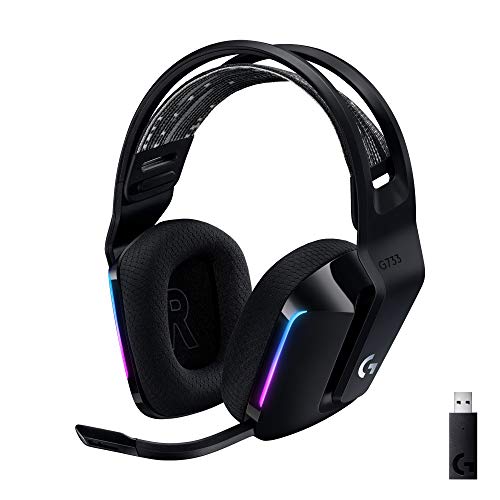
There’s a point where troubleshooting costs more time than the headset is worth. If the cable’s internally broken, the connector’s loose, or the mic capsule’s dead on a budget pair, replacement beats repair. Look for a model with a dedicated noise-canceling or broadcast-grade mic so voice quality stops being a gamble. The Logitech G733 fits that bill for a lot of people, with its Blue VO!CE mic processing, Lightspeed wireless, a lightweight suspension headband, and PRO-G audio drivers at $124.92. It carries a 4-star rating, and the Blue VO!CE presets give you real control over how you sound in chat, which is exactly what you want after fighting a dead mic for an hour.
Pros
- Lightspeed wireless with 20 meter range handles typical living room and desk distances
- Up to 29 hours battery life covers multi-day use between charges
- Blue VO!CE mic processing in G HUB improves clarity for Discord and streaming
- Suspension headband and low mass design reduce clamp fatigue during long sessions
- Dual-zone Lightsync RGB with 16.8M colors is customizable through G HUB
Cons
- PS4 output limited to stereo, no suround on older PlayStation hardware
- Driver size, frequency response, and mic pattern not specified in source data
The Logitech G733 is a mid-tier wireless gaming headset targeting PC, PS5, PS4, and Nintendo Switch users who want a lightweight all-day fit. It leans on Lightspeed 2.4GHz wireless, PRO-G drivers, Blue VO!CE mic processing, and a reversible suspension headband, aimed at multi-hour gamers and streamers.
The defining feature is the combination of Lightspeed wireless with a quoted 20 meter range and up to 29 hours of battery. In practice this covers full workdays plus evening sessions without a charge cycle. PRO-G drivers, per Logitech, reduce distortion, and headsets in this tier typically deliver a mildly V-shaped tuning suited to positional FPS cues.
Trade-offs are typical at this price point. PS4 users are locked to stereo output with no virtual surround. Driver diameter, impedance, and frequency response are not published in the source data, so absolute output quality is hard to benchmark against wired competitors. There is no Bluetooth fallback listed, so mobile pairing is not supported.
Buy this if you want a light, long-battery 2.4GHz wireless headset for PC or PS5 with a usable broadcast-style mic. Skip this if you need wired low-latency USB, Bluetooth multipoint, or vendor-published driver and frequency response specs before purchase.
Drivers and tuning: Logitech lists PRO-G drivers tuned for reduced distortion, though exact driver diameter and frequency response are not specified in the source. Headsets in this tier typically ship with 40 to 50mm dynamic drivers and a mildly V-shaped response suited to explosions and footstep cues in FPS gameplay.
Connection and latency: Lightspeed 2.4GHz wireless with a stated 20 meter range covers desk and living room use. Compatibility is confirmed for PC, PS5, PS4 (stereo only), and Nintendo Switch. Bluetooth and wired 3.5mm fallback are not listed in the source, so single-dongle 2.4GHz is the only documented path.
Battery life: Rated up to 29 hours per charge, enough for roughly three to four full evening sessions before recharging. Exact charge time and USB-C versus micro-USB charging port are not specified in the source data.
Microphone: Detachable mic with Blue VO!CE filters configured in G HUB, providing EQ, noise reduction, and de-eser presets useful for Discord and Twitch chat. Mic polar pattern, sensitivity, and frequency range are not disclosed in the source specifications.
If you’re on a tighter budget, don’t force the premium tier. Plenty of solid options land under a hundred bucks, and our guides to the best budget gaming headset and the best budget headset for streaming break down which cheaper pairs still ship a mic worth using.
Tools and parts needed
For the software fixes, you need nothing but a few minutes and access to Windows settings. For hardware diagnosis, a second device helps a ton. Plug the headset into a phone or another PC to isolate whether the fault is the headset or the computer. A spare 3.5mm cable or detachable boom lets you swap and confirm without guessing. Keep a can of compressed air around for clearing lint out of the jack, since a packed port can break the mic contact entirely. That’s it. No soldering iron required unless you enjoy that sort of thing.
If you use a laptop with one combo jack and a desktop with separate pink and green ports, keep a TRRS splitter in the drawer. The single plug on many headsets carries headphone and mic signals together, while older desktop cases expect two separate plugs. Without the splitter, audio out can work and the mic can look missing. It’s a cheap adapter, and it’s often the cleanest fix for a headset that works on a controller but not on a tower.
A few more questions
Why does my headset mic work in one app but not another?
That’s almost always an app-level input setting or permission, not a hardware fault. Each program keeps its own microphone selection on top of the Windows default, so Discord might be pointed at your webcam mic while your headset works fine elsewhere. Open the app’s audio settings, pick the headset as the input device, and confirm Windows privacy permissions allow that app to use the mic. It’s a five-minute fix once you know where to look.
My mic shows up but nobody can hear me. What now?
If the device appears but the input level bar stays flat, check that the mic isn’t muted at the driver level and that input volume is turned up to around 80 percent. If the bar moves but people still can’t hear you, the problem is on the output side, meaning your chat app or game is muting or not transmitting your input. Verify the app’s transmit settings and push-to-talk binding before you blame the headset.
Is it worth repairing a broken headset mic or should I replace it?
For a cheap wired pair with a broken cable or dead capsule, replacement wins almost every time, since parts and labor cost more than a new unit at that tier. For a higher-end headset with a detachable boom, swapping just the boom or cable is cheap and worth it. Weigh the repair cost against a fresh pair with a warranty and a proven mic, and pick whichever gets you back in chat without a recurring headache.





























Write Your Review
No reviews yet. Be the first to share your experience!