

The MSI Codex R2 is our first pick for gaming and streaming on the same PC. It pairs a GeForce RTX 5070 with 32GB of RAM, giving you room for OBS, chat, and a game without budgeting for an immediate memory upgrade. The CyberPowerPC Gamer Xtreme is the lower-cost starting point if your games suit an RTX 5060 and you still need to buy a mic or monitor.
The other three picks solve more specific problems. The ZOTAC MEK has 16GB of graphics memory, the Alienware Aurora has a 2TB drive for recordings, and the Skytech Azure 3 is our pick for high-resolution gaming. If you already have a capable gaming desktop, consider reusing it before buying a second machine just to broadcast. The buying priorities change when one PC only has to handle capture and encoding.


Pros
- 16GB GDDR7 VRAM on the 5060 Ti avoids texture pool limits at 1440p.
- 9700X on AM5 leaves a clear upgrade path to future Ryzen X3D chips.
- 360mm AIO is oversized for a 65W-class 9700X, giving quiet acoustic headroom.
- 850W 80+ Gold PSU hasample transient headroom above the GPU TGP class.
Cons
- Limited owner feedback at time of writing, real-world reliability data is thin.
- 1TB NVMe fills fast once two or three modern AA titles are installed.
- DR5-6000 is the AM5 sweet spot but no CL timing or QVL is specified.
The ZOTAC MEK is a mid-range AM5 prebuilt aimed at 1080p and 1440p gamers who want a turnkey box without sourcing parts. It pairs a Ryzen 7 9700X with an RTX 5060 Ti 16GB GDDR7, 32GB DDR5-6000, and a 1TB NVMe SSD inside a tempered glass chassis with a built-in system info display.
The defining feature is the 16GB VRAM buffer on the 5060 Ti. That extra headroom over 8GB variants maters for 1440p ray tracing and DLSS 4 Multi Frame Generation, where texture pools and frame buffers scale with resolution. Cards in this class typically land in the 1440p high toultra range on current AAA titles, with frame generation extending headroom in suported games.
Trade-offs are typical at this tier. The 1TB NVMe is tight for a modern game library, and the source does not specify RAM CL timings, motherboard chipset, or case GPU clearance, so upgrade planing requires opening the box first. The 360mm AIO is overspecified for a 9700X, which is welcome for noise but ads cost that could have gone to a 2TB drive.
Buy this if you want a plug and play AM5 system for 1440p gaming with an upgrade path to future Ryzen chips. Skip this if you need 4K native performance, high capacity storage out of the box, or documented component-level specifications before purchase.
GPU class and resolution fit: The RTX 5060 Ti 16GB GDDR7 sits in the 1080p high refresh and 1440p high tier. The 16GB VRAM buffer avoids the texture streaming issues seen on 8GB cards at1440p with ray tracing enabled, and DLSS 4 Multi Frame Generation extends headroom in suported titles.
CPU pairing: The Ryzen 7 9700X with 8 cores, 16 threads, 32MB L3 cache, and a 5.5GHz boost is well matched to the 5060 Ti. At 1440p the GPU is the bottleneck in most titles, so the 9700X has cycles left for OBS NVENC streaming or background workloads without frame time impact.
Memory and storage: 32GB DDR5-6000 is the AM5 sweet spot for FCLK 1:1 operation, though CL timings are not specified. The single 1TB NVMe M.2 SSD covers Windows 11 Home plus roughly three to five modern AAA installs before capacity becomes a constraint.
Thermals and power: A 360mm AIO with three 120mm fans is oversized for the 9700X 65W-class TDP, leaving quiet acoustic margin under sustained gaming loads. The 850W 80+ Gold PSU provides comfortable transient headroom above the 5060 Ti TGP class with room for GPU upgrades.

Pros
- 1000W Platinum PSU offers wide transient headroom for RTX 5070 spikes and future GPU swaps.
- 240mm AIO on Core Ultra 7 265KF should sustain all-core boost without thermal throttling.
- Dell 1 Year Onsite Service covers component failure at home, useful for prebuilt buyers avoiding RMA shiping.
Cons
- Limited owner feedback at time of writing, so long-term reliability and thermals remain unverified.
- 265KF has no integrated graphics, so any GPU failure leaves the system without display output for troubleshooting.
- Alienware chassis and proprietary layouts historically limit motherboard swaps and non-Dell PSU replacements.
The Aurora ACT1250 is a high-end prebuilt gaming tower built around the Intel Core Ultra 7 265KF, an RTX 5070, 32GB of DDR5, and a 2TB SSD behind a clear side panel. It targets buyers who want a warrantied, liquid-cooled 1440p or entry-4K rig without sourcing parts.
The defining pairing is the RTX 5070 with a 265KF on a 240mm AIO. Based on Blackwell class positioning, this configuration is aimed at high-refresh 1440p in current AAA titles, with DLSS frame generation extending playable4K in suported games. The 1000W Platinum PSU is generous for the stock GPU.
Trade-offs are typical for Alienware prebuilts. The 265KF is an F-SKU with no integrated graphics, complicating GPU-out diagnostics. Chassis and motherboard layouts have historically constrained aftermarket upgrades, and specific dimensions, VRM detail, and case clearances are not specified in the listing, so plan any future radiator or GPU swap around Dell documentation rather than ATX norms.
Buy this if you want a liquid-cooled RTX 5070 build with onsite waranty and clean cable work out of the box. Skip this if you plan aggressive part swaps, need an iGPU for troubleshooting, or already own a 1000W-class PSU and case suitable for a DIY equivalent.
Resolution target: RTX 5070 with 32GB DDR5 system memory is positioned for high-refresh 1440p raster in current AAA titles, with DLSS and frame generation extending playable 4K where supported. VRAM capacity on the 5070 is not specified in the listing, so 4K path tracing headroom depends on the retail SKU.
CPU pairing: Intel Core Ultra 7 265KF is an LGA1851Arrow Lake part without integrated graphics. Paired with a 240mm AIO, it should hold sustained all-core boost during streaming plus gameplay, and the 265KF is not expected to bottleneck an RTX 5070 at 1440p or 4K in GPU-bound titles.
Power and thermals: The 1000W 80Plus Platinum PSU provides significant headroom above the RTX 5070 board power, useful for transient spikes on Blackwell and any GPU upgrade path. The 240mm heat exchanger is described as optional in the listing, so confirm the cooler configuration on the specific ACT1250 unit ordered.
Storage and load times: A single 2TB SSD covers roughly a dozen modern AAA installs alongside Windows 11 Home. NVMe generation, sequential speds, and DRAM cache are not specified, so treat load-time claims as generic NVMe class rather than PCIe Gen5 tier without confirmation.

Pros
- Ryzen 7 9800X3D X3D cache leads current AM5 gaming CPU benchmarks
- RTX 5080 with 16GB GDDR7 covers 4K raster and ray tracing workloads
- 850W Gold ATX 3.0 PSU with 360mm AIO handles transient spikes and CPU thermal load
Cons
- Limited owner fedback at time of writing, buyer takes on early-adopter risk
- 16GB VRAMceiling can pressure 4K path-traced titles versus 24GB alternatives
- 850W is the floor for a 5080 and 9800X3D combo, transient headroom for future GPU upgrades is thin
The Skytech Azure 3 is a high-end prebuilt gaming PC built on AMD AM5 with a Ryzen 7 9800X3D and NVIDIA RTX 5080 16GB. It targets buyers who want 4K high-refresh gaming out of the box without sourcing individual parts or handling assembly themselves.
The 9800X3D and RTX 5080 pairing is the defining feature. Based on category benchmarks, this combination clears 100 FPS at 4K in most current AAA titles with DLSS 4 frame generation, and CPU-bound 1440p esports easily saturates 240Hz and 360Hz panels with headrom.
850W Gold is the practical minimum for an RTX 5080 plus 9800X3D combo, so transient headroom is thin if you plan a future GPU upgrade. VRAM at 16GB is competitive but not generous versus 24GB rivals for 4K path tracing, and the DDR5-6000 RGB kit brand and CL timings are not disclosed.
Buy this if you want a plug-and-play 4K gaming rig on current-gen AM5 and Blackwell hardware without waiting on parts availability. Skip this if you already own a Zen 4 or Ada Lovelace system, or if native 4K path tracing without upscaling is your primary workload.
4K Gaming: With 16GB GDDR7 on the RTX 5080, 4K native raster in current AAA titles typically clears 60 FPS, and DLSS 4 frame generation pushes beyond 100 FPS. Native path-traced titles at 4K may still dip below 60 without upscaling enabled.
1440p Esports: The 9800X3D X3D cache leads current AM5 gaming charts, so this rig is CPU-bound in most 1440p esports scenarios. Counter-Strike 2, Valorant, and Rocket League should saturate 240Hz and 360Hz panels with frame headroom.
Thermals and Power: The 360mm ARGB AIO handles the 9800X3D at stock and under PBO Curve Optimizer tuning. The 850W Gold ATX 3.0 PSU mets NVIDIA's RTX 5080 recommendation, leaving limited overhead for future 5090-tier GPU upgrades.
Storage and Memory: 2TB NVMe M.2 fits roughly 20 modern AAA installs before offload. 32GB DDR5-6000 hits the Ryzen FCLK 1:1 sweet spot, though the source does not disclose CL30 vs CL32 timings or memory brand and QVL fit.

Pros
- RTX 5060 8GB paired with i5-14400F suits 1080p high-refresh gaming
- DR5 memory and B760 chipset align with current Intel LGA1700 platform
- 1TB PCIe 4.0 NVMe SD gives usable game library capacity from day one
Cons
- Limited owner feedback at time of writing, buyer signal is thin
- 8GB VRAM tightens headroom for 1440p ultra textures and ray tracing loads
- PSU wattage, cooler type, and case model are not specified in source
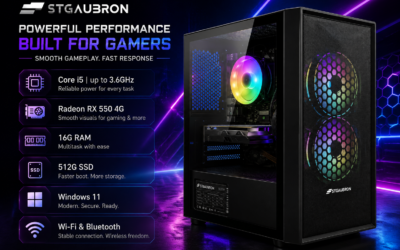
This is a mid-range prebuilt gaming tower built around an Intel Core i5-14400F, an NVIDIA GeForce RTX 5060 8GB, 16GB of DDR5, and a 1TB PCIe 4.0 NVMe SSD on a B760 chipset. The target buyer wants a ready-to-run 1080p high-refresh rig without sourcing parts or tuning BIOS.
The defining pairing here is the RTX 5060 8GB with a 10-core i5-14400F. Cards in this class typically deliver 1080p ultra at high refresh in most modern titles and 1440p with DLSS upscaling enabled. The i5-14400F rarely bottlenecks this GPU tier, leaving frametimes GPU-bound where you want them.
Trade-offs are typical at this tier. 8GB of VRAM limits headroom for 1440p ultra textures and heavy ray tracing, and the source does not specify PSU wattage, cooler class, or case model, all of which drive thermals, transient behavior, and future GPU upgrades. Warranty is one year parts and labor, standard for boutique prebuilts.
Buy this if you want a plug-and-play 1080p high-refresh gaming PC with Windows 11,iFi 6, and peripherals included. Skip this if you plan to game at 1440p ultra with ray tracing, need more than 8GB of VRAM for AI or content work, or want documented PSU and cooling specs before purchase.
GPU class and resolution fit: The RTX 5060 8GB is a mainstream 1080p card that stretches to 1440p with DLSS Quality or Balanced. Esports titles at 1080p should saturate high-refresh panels, while AA titles at 1440p ultra will lean on frame generation to stay smooth.
CPU pairing: The Core i5-14400F runs 10 cores at 2.5GHz base on LGA1700 with a B760 board. That is a balanced match for the RTX 5060, avoiding CPU bottlenecks in GPU-bound scenarios and giving headroom for OBS NVENC streaming alongside gameplay.
Memory and storage: 16GB of DDR5 is the current baseline for new releases, and the 1TB PCIe 4.0 NVMe SSD keps level loads and shader compilation quick. Exact DR5 speed, timings, and SD model are not specified in source.
Display outputs and connectivity: The GPU exposes 1x HDMI and 2x DisplayPort, enough for a triple-monitor setup at typical gaming refresh rates. WiFi 6, Bluetooth 5.3, 2x USB-A 3.2, and 6x USB-A 2.0 cover peripherals, though USB-C on the chassis is not listed.
Best Prebuilt Streaming PCs at a Glance
| Pick | Desktop | CPU and GPU | Best for | Main tradeoff |
|---|---|---|---|---|
| Best for most | MSI Codex R2 | Core i5-14400F, RTX 5070 12GB | Gaming and OBS with 32GB RAM | 1TB shared by games and recordings |
| 16GB graphics memory | ZOTAC MEK | Ryzen 7 9700X, RTX 5060 Ti 16GB | Games or creative projects with high VRAM needs | Lower GPU tier than the MSI |
| More recording space | Alienware Aurora | Core Ultra 7 265KF, RTX 5070 12GB | Saving footage to a 2TB SSD | Higher cost with the same GPU as the MSI |
| High-end gaming | Skytech Azure 3 | Ryzen 7 9800X3D, RTX 5080 16GB | Demanding games on a high-resolution display | Highest price in this group |
| Lower-cost starter | CyberPowerPC Gamer Xtreme | Core i5-14400F, RTX 5060 8GB | A first 1080p gaming and streaming setup | 16GB of system RAM |
1. MSI Codex R2 for Most One-PC Setups
Look for model D14NVP5-613US. It pairs the Core i5-14400F with an RTX 5070 12GB, 32GB of DDR5 memory, and a 1TB NVMe SSD. A common one-PC workload is a game, an OBS scene with a webcam and alerts, and a browser open to chat. The 32GB configuration is useful in that setup because the game and all those background tools share system memory.
The RTX 5070 also gives OBS a dedicated NVIDIA hardware encoder. The game still needs room to render, and OBS needs GPU resources to compose each scene before encoding. If you max out the graphics card in a demanding game, a frame-rate cap or a lower graphics setting can free up room for OBS. Leave some headroom even if you’re streaming at a lower resolution than you’re playing.
The first limit many buyers will hit is storage. If a few large games already occupy most of the drive, saving long recordings on the same 1TB SSD will take some housekeeping. Check the exact model’s storage expansion before ordering if you expect to keep footage on the machine. If you primarily edit and export video between streams, compare the cost of a larger SSD and a stronger CPU before moving up to the Aurora.
2. ZOTAC MEK for 16GB of Graphics Memory
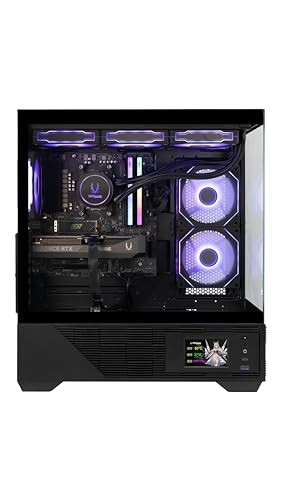
This MEK combines a Ryzen 7 9700X and a 16GB RTX 5060 Ti with 32GB of DDR5 and a 1TB NVMe SSD. Look for the 16GB graphics card in the listing. NVIDIA also makes an 8GB RTX 5060 Ti, so the GPU name alone won’t identify this configuration.
Where the extra graphics memory matters is in a workload that can use it. Think of a game with a large texture pack or a creator project with assets that need to fit in VRAM. Sixteen gigabytes is capacity, and the chip still sits in a lower graphics tier than the RTX 5070. Compare results for your specific games and settings before paying more for the MEK. The amount of VRAM on its own tells you little about what viewers will see at a given stream bitrate.
The listing also specifies an 850W 80 Plus Gold power supply. That gives you a starting point for future upgrades, but check the PSU model, its available connectors, and the space inside the case before you plan a card swap. The 1TB drive is the same capacity as the MSI’s. Buy the MEK for a concrete graphics-memory need, especially if the Codex still costs less when you shop.
3. Alienware Aurora for Local Recordings
The Aurora ACT1250 configuration here pairs a Core Ultra 7 265KF and RTX 5070 with 32GB of DDR5 and a 2TB NVMe SSD. If you keep a separate high-quality copy of each stream for highlights, there’s more room to leave recent footage on the PC while you edit. At an average video bitrate of 20 Mbps, one hour takes roughly 9GB before audio and container overhead. Long sessions and higher recording rates make the space disappear quickly.
Dell documents a 2.5Gb Ethernet port on the ACT1250, and the listing specifies Wi-Fi 7. Wired networking makes sense for broadcasting when you can run a cable, and the faster local port can help when copying footage to a compatible network drive. Your stream still depends on how much upload bandwidth you can sustain to the ingest server.
Same RTX 5070 as the MSI. The additional money goes toward a different CPU, more built-in storage, and the Aurora’s platform. If recording space is your main concern, compare the Aurora’s price with the cost of adding another drive to the Codex. Check the exact expansion layout and the seller’s support terms before buying either machine.
4. Skytech Azure 3 for High-End Gaming
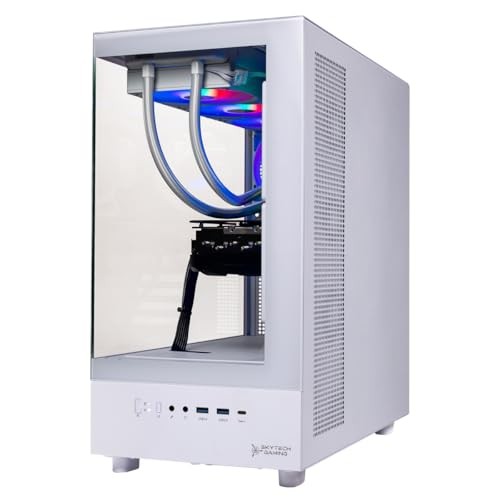
This Azure 3 lists a Ryzen 7 9800X3D, an RTX 5080 16GB, 32GB of DDR5-6000, and a 2TB NVMe SSD. Skytech also specifies a 360mm liquid cooler and an 850W Gold ATX 3 power supply for the matching white configuration. The case for paying for these parts starts with the game you want to play and the display you want to play it on.
Say you play on a 4K monitor but broadcast at 1080p. The game still has to render at the resolution and settings you choose for your own display. OBS then prepares the output for viewers. The RTX 5080 is the highest gaming tier here, so the Azure is the pick to investigate when demanding games at high display resolutions are already part of your plan. The more expensive card can’t change your streaming service’s bitrate limit.
The 2TB SSD also makes sense if you record and edit locally. Even so, price the tower against your full setup. If 1080p gaming is your priority and you still need audio gear, the CyberPowerPC or MSI leaves more room in the budget. If you’re buying the Skytech, confirm the exact case and component list at checkout. Azure 3 is the name of a family with several configurations.
5. CyberPowerPC Gamer Xtreme for a First Setup
CyberPowerPC’s GXiVR8060A47 is the lowest-cost pick we found in this group. It has a Core i5-14400F, RTX 5060 8GB, 16GB of DDR5, and a 1TB PCIe 4.0 SSD. That’s a sensible place to start shopping if you’re putting together a modest 1080p gaming and streaming desk and want to reserve money for a mic, headphones, or a second display.
The RTX 5060 has its own NVENC hardware encoder. Your likely constraints are the card’s gaming headroom and the 16GB of system RAM. An esports title with one simple scene puts different demands on the machine than a new open-world game with a browser, voice chat, several camera sources, and local recording running together. Check how your regular games run on this GPU at the settings you want to use.
More room for a mic and monitor. Less room for a growing workload. If you expect to upgrade the memory, ask how the installed 16GB is split across the slots. If you’re planning a future GPU upgrade, find out what the power supply can support and what cards will physically fit. Our prebuilt PC upgrade guide explains what to look for before committing to the case and motherboard.
How We Evaluated These Streaming PCs
We compared five new desktops available from Amazon US on November 25, 2026. We looked for named CPU and GPU models, hardware encoding support, enough memory to make the intended workload realistic, and storage that makes sense for each price tier. We checked the listed configurations against system and component documentation where available. The picks are based on those specifications and purchase tradeoffs. We haven’t measured frame rates, temperatures, fan noise, or stream quality on the assembled desktops.
Our OBS hardware encoding reference informed how we weighed the GPU and CPU. All five systems offer an NVIDIA hardware encoding path, so we compared what else your money buys, such as storage or a graphics card better suited to your games. Listed U.S. prices ranged from $1,141.99 to $4,049.99 when checked, before tax and shipping. Check the selected seller, condition, and exact configuration at checkout because the same product name may cover multiple variants.
How to Choose a Prebuilt Streaming PC
Will one PC run both the game and the stream?
If you’re buying one machine for both jobs, choose the GPU around your games and display, then use a supported hardware encoder in OBS. A second PC makes more sense if you already have a gaming rig and have a specific reason to run capture or production separately. For a dedicated streaming PC, prioritize an encoder your software supports, the right capture inputs, wired networking, and recording storage. Check whether a desktop you already own can do that job before paying for another full gaming tower.
If you’re shopping specifically for a second machine, shortlist compact desktops with an integrated encoder supported by OBS, such as a compatible Intel Quick Sync or AMD AMF system. Match the USB capture device to the computer’s available ports and check that the capture device supports your source resolution and frame rate. For an internal PCIe capture card, choose a tower with a compatible slot and enough physical clearance to install it.
Does your platform accept the codec you want to use?
NVIDIA documents H.264, HEVC, and AV1 encoding for the RTX 50 family. The platform and your account determine which options you can actually send. Start with the service’s current codec and bitrate guidance, and use an unlisted or private broadcast if available to check your settings. For recording, confirm that your editing software imports the codec before you capture a whole session. See NVIDIA’s OBS broadcasting guide.
If you’re replacing an existing PC because streams stutter, check where the frames are being lost before you pick a part to upgrade. A game that runs smoothly can still leave OBS too little GPU time to assemble a scene. Try a game frame-rate cap or a simpler scene to see whether the problem improves. Network-related drops point to a different set of fixes. See the OBS performance guide.
How much storage and networking do you actually need?
Decide how many sessions you want available locally and estimate space from the recording bitrate and length. A 1TB drive can work if you move finished footage off the tower regularly. For the stream itself, run a wired connection if practical and check upload performance during the hours you’ll go live. If OBS reports dropped frames from a network issue, start with the connection and your bitrate settings. See the OBS connection guide.
Which accessories need their own budget?
Count the USB ports you’ll use for the camera, microphone, and other devices. If you use a console or a second PC, check how your capture card connects and how you’ll route game audio and voice chat. Plan where a second monitor will fit before spending on one. Our streaming PC setup guide walks through the hardware, OBS, and audio once you’ve picked a tower.
Frequently Asked Questions
Is 16GB of RAM enough for gaming and streaming?
It can be enough for a lighter game and a simple OBS scene. Choose 32GB if you often run a memory-heavy game alongside browser sources, voice chat, and editing tools. System RAM is separate from the graphics card’s VRAM. The CyberPowerPC has 16GB of system RAM and 8GB of VRAM, for example.
Do I need a capture card for one-PC streaming?
OBS can capture a game running on the same PC without a capture card. A capture card is useful when the picture comes from an external HDMI source, such as a console or another computer. Check the capture and passthrough formats if you want to keep playing on a high-refresh display.
Should I buy a better CPU or a better GPU?
Start with what limits your games and workflow. A stronger GPU can be more useful if your games are graphics-limited at your monitor’s resolution, especially with a supported hardware encoder handling compression. Spend more on the CPU if your main games or editing tasks are CPU-heavy and you can point to a benefit for the software you use.
Bottom Line
Get the MSI Codex R2 if you want to game and broadcast on one PC and its RTX 5070 fits your games. Choose the CyberPowerPC if the lower price helps you afford the rest of the setup. Pay extra for the MEK’s graphics memory, the Aurora’s storage, or the Azure 3’s higher graphics tier when your workload makes use of that particular upgrade.



Write Your Review
No reviews yet. Be the first to share your experience!