A few years back, picking a 240Hz monitor meant accepting a 1080p TN panel with washed-out colors and viewing angles that fell apart the second you slouched. That was the deal. You traded image quality for frames, and competitive shooter players took it without complaining. In 2026, that compromise is gone. You can buy a 4K OLED running at 240Hz, or a 1440p IPS panel for under $200, or a QD-OLED that does both color accuracy and refresh rate without picking sides. The whole buying calculation shifted, and most people haven’t caught up.
The short answer
240Hz means the display refreshes its image 240 times per second, up from 60Hz on a standard office monitor or 144Hz on a typical gaming panel. You get smoother motion, lower perceived input latency, and clearer tracking during fast camera movement. Honestly, the jump from 60Hz to 144Hz is dramatic. Going from 144Hz to 240Hz? It’s real, but it’s subtle unless you’re playing competitive FPS titles where reaction time genuinely matters.
The longer explanation
Frametime is where this gets interesting. At 60Hz, each frame stays on screen for about 16.67 milliseconds. At 144Hz it’s 6.94ms. At 240Hz it drops to 4.17ms. That’s the window between when your GPU finishes a frame and when your eyes see it. Cut that window, and your inputs feel snappier because the chain from mouse movement to pixel change shortens.
Display latency stacks on top of frametime. Even a fast IPS panel adds 3-5ms of processing delay; OLED panels typically clock in under 1ms. Add scan-out time (how long it takes the panel to draw the image top to bottom), and you’re looking at a total latency budget. Dropping from 144Hz to 240Hz shaves roughly 2.8ms off frametime alone. Whether you’ll feel that depends on what you’re doing.
Here’s the diminishing returns problem. The human visual system isn’t linear. Going from 30fps to 60fps is night and day. 60 to 144 is obvious. 144 to 240 is detectable mostly during specific scenarios: fast horizontal panning, tracking targets, or flick shots. Outside those moments, you won’t notice.
Why it works this way
Modern LCDs and OLEDs use what’s called sample-and-hold. Each frame stays lit for its entire frametime, then switches instantly to the next one. Your brain interprets this static-then-jump pattern as motion, but when objects move across the screen, your eyes track them smoothly while the image holds still. The mismatch creates motion blur. It’s not the panel being slow, it’s biology meeting physics.
Higher refresh rates reduce sample-and-hold blur because each frame holds for a shorter window. At 240Hz, motion clarity roughly doubles compared to 120Hz. Some monitors add backlight strobing (often called ULMB or DyAc) to flash the backlight between frames, mimicking how old CRTs worked. Strobing nukes motion blur but costs brightness, and you generally can’t combine it with variable refresh rate. Most players don’t bother with it.
OLED changes this calculation a bit. Pixel response times are effectively instant, so motion clarity at 240Hz on an OLED looks cleaner than the same refresh rate on a fast IPS. You’re still bound by sample-and-hold, but you skip the gray-to-gray transition smear that LCDs can’t fully escape.
When you would want this
If you play competitive FPS titles regularly, 240Hz earns its keep. Counter-Strike 2, Valorant, Apex Legends, Overwatch 2, Rainbow Six Siege. These games reward consistent tracking and fast target acquisition, and pro players have used 240Hz+ panels for years for good reason. The smoother motion makes flick shots more predictable, and lower input latency tightens your reaction window. We’re talking margins of a few milliseconds, but at high skill levels, that adds up.
Mouse sensitivity preferences also play in. Players running low DPI with big arm swings benefit more from high refresh because their cursor crosses more pixels per second, making frame transitions more visible. High-sens players don’t see as much benefit.
Where 240Hz doesn’t matter? Movies cap at 24-60fps, so the panel’s just holding each frame longer. Slower-paced RPGs, strategy games, and anything you play at 60fps don’t gain anything. Photo editing, video work, productivity? Pointless. You’re paying for headroom you’ll never use. Buy for color accuracy and resolution instead.

Pros
- Glossy QHD OLED panel delivers sharp detail, excellent perceived contrast, and standout HDR black levels
- 240Hz refresh with 0.03ms (GtG) response is purpose-built for competitive motion clarity
- Strong adaptive sync support, NVIDIA G-Sync Compatible and AMD FreeSync Premium Pro
- Modern connectivity: 2x HDMI 2.1, DisplayPort 1.4, and USB hub support
- Ergonomic stand with height, swivel, tilt, and pivot adjustments, plus VESA mounting
Cons
- Glossy screen finish can show reflections in bright rooms, positioning and lighting matter
- OLED panels can be susceptible to image retention over time, using OLED care features and varied content is recommended
- No DisplayPort 2.1 listed, so you are capped by DP 1.4 and HDMI 2.1 bandwidth for high refresh use cases
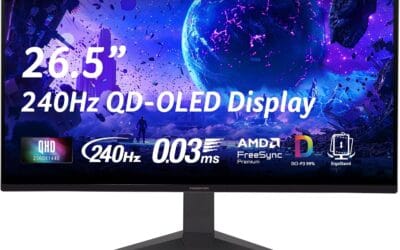
The LG 27GX704A-B UltraGear is a 27-inch QHD (2560x1440) glossy OLED gaming monitor built for the high-end 1440p segment, where players want both competitive speed and OLED-level contrast. It is a strong fit for esports-focused PC gamers chasing high refresh, plus single-monitor users who also care about cinematic HDR visuals.
For motion performance, the headline specs are a 240Hz refresh rate and a 0.03ms (GtG) response time, backed by VESA ClearMR 13000 certification. In practice, this class of OLED is excellent at keeping fast targets readable during flicks and tracking, especially when paired with a GPU that can push very high frame rates at 1440p.
Image quality is a major selling point: OLED contrast (rated 1,500,000:1), VESA DisplayHDR True Black 400, and up to 98.5% DCI-P3 color coverage combine for deep blacks, vibrant highlights, and wide-gamut color. The display is rated at 275 nits typical brightness and up to 1300 nits peak, which helps HDR highlights pop, although overall room lighting still matters with a glossy finish.
Connectivity is well-rounded for modern rigs, with 2x HDMI 2.1, DisplayPort 1.4, and a USB hub (USB upstream plus downstream ports). It also supports NVIDIA G-Sync Compatible and AMD FreeSync Premium Pro, helping reduce tearing and stutter when FPS varies, which is common in newer AAA games.
Trade-offs are typical for glossy OLED: reflections can be distracting in bright spaces, and long-term static HUD or desktop use requires sensible OLED care settings to reduce image retention risk. Overall, if you want a fast 1440p OLED for competitive play and high-contrast HDR gaming, this is a compelling choice, but users in very bright rooms or those who leave static UI elements on-screen all day should plan their setup accordingly.
| Category | Details |
|---|---|
| Model | LG 27GX704A-B.AUS |
| Panel | OLED, glossy finish, flat |
| Screen Size | 27 inches |
| Resolution | 2560 x 1440 (QHD) |
| Aspect Ratio | 16:9 |
| Refresh Rate | 240 Hz |
| Response Time | 0.03 ms (GtG) |
| Adaptive Sync | NVIDIA G-Sync Compatible, AMD FreeSync Premium Pro |
| HDR | VESA DisplayHDR True Black 400, HDR10 |
| Contrast Ratio | 1,500,000:1 |
| Color Gamut | Up to 98.5% DCI-P3 |
| Brightness | 275 nits typical (cd/m²) |
| Ports | 2x HDMI 2.1, 1x DisplayPort 1.4, USB (up to 3 total listed) |
| Ergonomics | Height, tilt, swivel, pivot |
| Mounting | VESA wall-mount support |
| Dimensions (D x W x H) | 8.7 x 23.8 x 21 inches |
| Weight | 15.9 lb |
| Color | Black |
| Warranty | 2-year parts and labor |
| In the Box | Monitor, DisplayPort cable, HDMI cable, power cable, USB A to B cable |
PC hookup for best results: Use DisplayPort 1.4 from a modern GPU for high refresh QHD gaming. HDMI 2.1 is also available and is convenient for multi-device setups.
VRR guidance: NVIDIA G-Sync Compatible VRR is supported on GeForce GTX 10-series and newer over DisplayPort, and on GeForce RTX 30-series and newer over HDMI 2.1. AMD FreeSync Premium Pro is supported for compatible Radeon GPUs.
Console pairing: The dual HDMI 2.1 ports make this a strong fit for current-gen consoles and a PC on the same display. Set the console to the monitor’s native 1440p output when available for the cleanest image.
Mounting and ergonomics: If you plan to arm-mount, confirm your VESA mount supports the monitor’s size and weight. The included stand already supports height, tilt, swivel, and pivot for easy desk ergonomics.
OLED best practices: For mixed gaming and desktop use, enable OLED protection features, avoid leaving static UI elements up for long periods, and use reasonable brightness levels to help mitigate image retention over time.
Common misconceptions
“The human eye can only see 30fps.” This one refuses to die. It’s nonsense. Pilots in studies have identified aircraft silhouettes flashed for 1/220th of a second. Your eyes don’t have a frame rate; they’re continuous sensors. What’s true is that perception of smoothness has diminishing returns, but the threshold isn’t 30, or 60, or even 144.
“You need an RTX 5090 to drive 240fps.” Not at 1080p, you don’t. Most esports titles hit 240+ on a midrange GPU because they’re built to run light. Valorant pushes 400+fps on cards that cost $300. 1440p and 4K change the math, sure, but if you’re playing CS2 competitively at 1080p, a $400 GPU handles it fine.
“OLED can’t do 240Hz.” False, and falling further behind reality every year. Multiple 4K OLED panels run 240Hz natively now, and QD-OLED options at 1440p have been around for a while. The burn-in concern is also overblown for current-gen panels with proper pixel-shifting and refresh routines, though you should still vary your content.

Pros
- Custom heatsink and graphene film support better thermal management than standard OLED designs.
- Includes HDMI 2.1, DisplayPort 1.4 with DSC, and 90 W USB-C for flexible high-bandwidth connections.
- Ergonomic stand allows tilt, swivel, and height adjustments plus VESA mounting compatibility.
Cons
- Peak brightness can vary after factory color calibration according to the product listing.
- OLED panels require ongoing use of pixel-cleaning and screen-shift features to limit burn-in risk.
This high-end 32-inch 4K QD-OLED monitor targets gamers and content creators who prioritize contrast, color volume, and motion clarity at UHD resolution.
The third-generation QD-OLED panel delivers 240 Hz refresh with a 0.03 ms GtG response time, which reduces blur more effectively than typical LCD overdrive settings in fast scenes.
Build quality includes a cyberpunk-inspired frameless design, an ergonomic stand with multiple adjustments, and rear vents paired with a custom heatsink plus graphene film for thermal control.
Trade-offs at this tier include the need for active OLED care routines and the possibility of brightness variation after calibration, both noted in the listing.
Buy this monitor if you want native 4K high-refresh OLED performance with strong connectivity; skip it if you prefer simpler LCD maintenance or lower power draw.
| Panel Type | QD-OLED |
|---|---|
| Size | 32 inches |
| Resolution | 3840 x 2160 (UHD) |
| Refresh Rate | 240 Hz |
| Response Time | 0.03 ms (GTG) |
| HDR Support | HDR10, Dolby Vision, VESA DisplayHDR 400 True Black |
| Color Gamut | 99% DCI-P3, true 10-bit |
| Sync Technology | G-SYNC Compatible, AMD FreeSync Premium Pro |
| Ports | DisplayPort 1.4 (DSC), HDMI 2.1, USB-C (90 W PD), USB hub |
| Stand Adjustments | Tilt, swivel, height |
| VESA Mount | Compatible |
Frequently asked
Can you actually see the difference between 144Hz and 240Hz?
Yes, but the gap is narrower than 60 to 144. Side-by-side, most people clock the difference within a minute of fast-motion content. In blind comparisons during slower gameplay, it’s much harder to spot. If you’re not playing competitive FPS, the upgrade probably isn’t worth the price premium over a good 144Hz panel.
Do I need DisplayPort 2.1 for 240Hz?
Only at higher resolutions. 1080p and 1440p 240Hz works fine over DisplayPort 1.4 with DSC (Display Stream Compression). 4K 240Hz typically needs DP 2.1 or HDMI 2.1 with DSC to hit full bandwidth uncompressed. Check the monitor’s spec sheet because some panels rely on DSC even at lower resolutions to squeeze through DP 1.4.
What GPU do I need to drive 240fps at 1440p?
Depends entirely on the game. CS2 and Valorant hit 240+fps at 1440p on an RTX 4070 or RX 7800 XT without breaking sweat. Modern AAA titles like Cyberpunk or Alan Wake 2? You’ll need an RTX 5080 or better, and even then you’ll lean on DLSS or FSR. Match your GPU to the games you actually play, not the spec sheet.
Is 360Hz worth it over 240Hz?
For 99% of players, no. The frametime difference shrinks to about 1.4ms, which is below most people’s perception threshold even in fast motion. Pro esports players might benefit at the margins, but for everyone else, the money’s better spent on resolution, panel quality, or a faster GPU. 240Hz is the current good middle ground, and that’s likely to hold for a couple more years.