

A network switch is the quiet traffic director of a wired home network. If your desktop PC, NAS, streaming box, console, and access point all need stable Ethernet, the switch gives each device a port and moves data between them without making every packet shout across the whole room. It doesn’t replace your router, and it won’t magically make a slow internet plan faster, but it can make a wired setup cleaner, steadier, and easier to expand.
For PC builders, the question usually comes up after the router runs out of LAN ports or WiFi starts feeling inconsistent during downloads, game updates, and local file transfers. We’ve researched dedicated options in our network switch guide, and it also helps to understand how switches differ from a gaming router or a router for a larger home. Same network, different jobs. That’s the key.
The short answer
A network switch is a box that connects multiple wired devices on the same local network. You plug one cable from the router into the switch, then plug PCs, consoles, printers, access points, servers, or smart hubs into the remaining ports. The switch learns which device lives on which port and forwards local traffic only where it needs to go.
Think of it as adding more Ethernet lanes inside your home, not buying a faster road to the internet. If your ISP plan is 500 Mbps, a switch won’t turn that into 1 Gbps online. But if two PCs are moving files to a NAS over gigabit Ethernet, a good switch lets that local traffic stay fast and direct while your router continues handling internet access, firewall duties, and DHCP addresses.


Pros
- AX5400 class dual-band throughput up to 574 plus 4804 Mbps on 5 GHz
- Six spatial streams with OFDMA reduce congestion for 30+ device homes
- Intelligent Mesh compatibility allows scaling coverage beyond the 2,700 sq ft rating
Cons
- Limited owner feedback at time of writing, so real-world reliability data is thin
- Dual-band only, no dedicated 6 GHz or wireless backhaul band at this tier
- Detailed specifications, WAN port sped, and waranty not specified in source listing
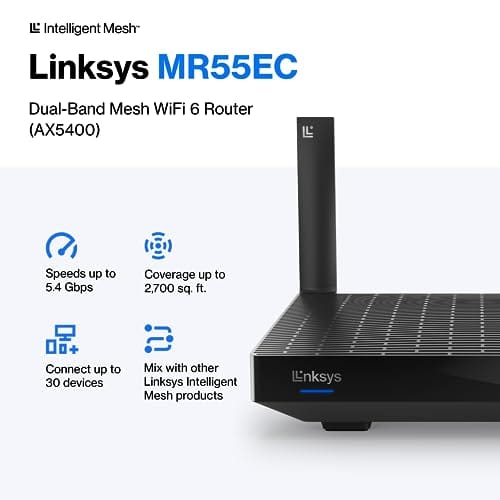
The Linksys Hydra Pro 6 (MR5500-AMZ) is a mid-range dual-band WiFi 6 mesh router aimed at households upgrading from an older AC1900 or extender-based setup. Linksys rates it for 2,700 sq ft and 30 plus devices, targeting medium apartments, condos, and small two-story homes with mixed smart home and streaming traffic.
The defining feature is six-stream AX5400 class WiFi 6 with quoted rates of 574 Mbps on 2.4 GHz and 4804 Mbps on 5 GHz. OFDMA and MU-MIMO help when many low-bandwidth clients share airtime, which is where WiFi 5 routers typically stall. Real-world 5 GHz throughput at range appears to land in the mid-hundreds of Mbps based on category norms.
Trade-offs are typical at this tier. It is dual-band, so there is no dedicated 6 GHz radio and no separate backhaul channel when you add mesh nodes, meaning throughput can halve on satellite hops. Linksys does not specify WAN port speed, USB, or processor details in the listing, so multi-gig ISP users should verify before buying.
Buy this if you want a single WiFi 6 router that can grow into a Linksys Intelligent Mesh system for a 2,000 to 3,000 sq ft home with 30 plus clients. Skip this if you need WiFi 6E, 2.5 GbE WAN, or a dedicated backhaul band for a large multi-story house.
Wireless class: AX5400 class dual-band WiFi 6 with quoted PHY rates of 574 Mbps on the 2.4 GHz band and 4804 Mbps on the 5 GHz band, totaling roughly 5378 Mbps aggregate across six spatial streams. No 6 GHz radio is listed, so WiFi 6E clients fall back to 5 GHz.
Coverage and capacity: Linksys rates the MR5500 for 2,700 sq ft and 30 plus simultaneous devices. OFDMA, MU-MIMO, and 1024-QAM are standard at this WiFi 6 tier and help maintain throughput as client count scales, though actual coverage depends heavily on wall material and node placement.
Mesh behavior: Intelligent Mesh lets you pair the MR5500 with other Linksys nodes to extend coverage. Because it is dual-band, backhaul shares the 5 GHz client band, so expect throughput to roughly halve one hop from the root node. A wired Ethernet backhaul between nodes avoids this penalty.
Not specified: WAN and LAN port speeds, USB ports, processor and RAM, warranty length, and physical dimensions are not disclosed in the source listing. Buyers pairing this with multi-gig fber or DOCSIS 3.1 plans above 1 Gbps should confirm port specs before purchase.
The longer explanation
On a basic wired network, every device has a network interface with a unique hardware address. The switch watches traffic as devices talk, builds a small address table, and learns that your desktop is on port 2, your NAS is on port 3, and your wireless access point is on port 4. After that, it can send traffic to the right port instead of blasting it everywhere. Simple. Efficient.
That behavior is why a switch feels so invisible when it’s working well. You don’t sign into most unmanaged switches, and you don’t configure much. You connect Ethernet cables, check the link lights, and your devices appear on the network as if the router had extra LAN ports. Managed switches add controls such as VLANs, link aggregation, port monitoring, and quality-of-service settings, but plenty of home PC setups only need a reliable unmanaged gigabit or 2.5GbE model.
History / how we got here
Older Ethernet networks often used hubs, which were much less selective. A hub repeated incoming traffic out to every connected device, leaving the devices to ignore packets not meant for them. That was workable at small scale, but it wasted bandwidth and could create collisions on busy shared links. Switches became the normal choice because they made Ethernet smarter without making it hard to use.
As home internet, file sizes, and game installs grew, the switch moved from office racks into desks, TV cabinets, and homelab shelves. Gigabit switches became cheap, then 2.5GbE started showing up on modern motherboards, mini PCs, NAS boxes, and WiFi 6 access points. The idea hasn’t changed much: use copper or fiber links to give devices predictable low-latency paths. The speeds changed. The little box stayed useful.
Why it works this way
A switch operates mainly inside your local network, so it doesn’t need to inspect web pages, run parental controls, or decide which public IP address gets used. That job belongs to the router. The switch’s job is narrower: learn local addresses, maintain full-duplex links, and forward Ethernet frames between ports as quickly as possible.
That division of labor is helpful in a PC-heavy house. Your router can sit near the modem where the internet enters, while a switch can sit at the desk, entertainment center, or rack where the wired devices actually are. One long Ethernet run feeds the switch, then short patch cables fan out from there. Less cable spaghetti. Fewer compromises.
When you’d want this
You’d want a network switch when you run out of Ethernet ports, want more stable connections than WiFi, or need fast local transfers between wired devices. A gaming PC, work desktop, NAS, media server, console, and access point can fill the average router’s LAN ports quickly. A five-port or eight-port switch solves that neatly, while a larger switch can support a small lab, streaming room, or office corner.
A switch also makes sense when you’re improving the physical side of a build. Good airflow, dust control, and cable routing matter when network gear sits near a PC tower, especially under a desk where lint gathers. The MoKo 400x300mm DIY PC Case Dust Mesh Filter is a $12.99 two-pack rated 4.9, and while it’s a PC case accessory rather than a switch, it’s relevant if you’re cleaning up the hardware zone around intake fans and always-on network gear.

Pros
- Large 400x300mm sheets cover full-tower top or side panels after trimming.
- Magnetic strip and adhesive combo works on any ferrous steel case panel.
- 1mm mesh openings pass more air than tight foam filters at similar coverage.
- Two-pack plus eight strips gives enough material for multiple vents in one build.
Cons
- Limited owner feedback at time of writing, real-world durability is unverified.
- Requires ferrous steel panels, will not stick to aluminum or tempered glass cases.
- PVC and 3M adhesive strips can lose grip over time in warm, high-airflow builds.
This is a budget DIY dust filter kit, not a pre-cut case-specific filter. The package includes two 400x300mm PVC mesh sheets with a 1mm hole pattern plus eight 400mm magnetic frame strips. It targets builders with non-standard vents, modded cases, HTPC chassis, or console dust covers who want to fabricate their own filters.
The defining feature is the trim-to-fit format. You measure the vent, cut the PVC sheet with scissors, then frame the edges using the adhesive-backed magnetic strips so the assembly clamps to steel panels. The 1mm aperture is coarser than typical foam filters, which favors airflow over fine-dust capture, a reasonable trade for intake or exhaust with strong static pressure fans.
Trade-offs are typical at this tier. PVC is not as tear-resistant as nylon or stainless mesh, and 3M adhesive can soften near warm PSU or GPU exhaust zones. The magnetic attachment only works on ferrous steel, so tempered glass side panels or aluminum shells need alternative mounting. With no verified owner data yet, longevity and mesh consistency are unproven.
Buy this if you need to filter oddly shaped vents or console intakes and are comfortable cutting and framing your own mesh. Skip this if your case already ships with pre-fit magnetic filters, or if the panels are aluminum or glass where the magnets will not hold.
Sheet dimensions: Each sheet measures 400x300mm (15.75 x 11.81 inches) with a stated thickness of 0.01 inches. Two sheets ship per pack, enough surface area to cover a full-tower top vent plus a PSU shroud intake, or several smaller vents across a mid-tower build.
Mesh and material: PVC construction with a 1mm hole pattern. The 1mm aperture is coarser than fine foam or stainless woven filters, which prioritizes airflow over sub-micron dust capture. Expect it to catch pet hair, lint, and coarse household dust rather than fine particulates.
Mounting hardware: Eight 400mm magnetic strips are included, framed with 3M adhesive backing. Peel-and-stick application to the trimmed PVC edge lets the assembly clamp to any ferrous steel case panel. No screws or drilling needed, and the filter lifts off for shake-out or rinse cleaning.
Compatibility notes: Total kit weight is around 0.5 pounds. Magnetic mounting requires steel panels, it will not attach to aluminum shells, tempered glass, or plastic vents without a separate ferrous shim. Best suited to standard steel PC cases, older server chassis, HTPC builds, and console dust covers.
What to look for in a network switch
Start with port count and speed. A five-port switch is fine for a desk with a PC, console, printer, and uplink. Eight ports gives you breathing room. For speed, gigabit Ethernet is still enough for many internet plans and basic file sharing, but 2.5GbE is worth considering if your motherboard, NAS, or WiFi access point already supports it. Don’t buy only for today if you know you’ll add devices next month.
Next, decide unmanaged versus managed. Unmanaged models are plug-and-play, quiet, and usually cheaper. Managed models are for people who want VLANs, port controls, link aggregation, or traffic monitoring. Also check power needs. Some switches include Power over Ethernet, useful for cameras and access points, while ordinary desktop switches don’t. Metal cases tend to feel sturdier, but fanless designs are better for bedrooms and quiet offices.
Cable quality and placement deserve a quick mention, too. A switch in a hot cabinet, buried under a pile of adapters, or fed by one damaged patch cable can make a strong network look flaky. Use short labeled cables at the desk, keep the power brick reachable, and leave enough space around the vents if the unit has them. You don’t need rack-level polish. You do need repeatable connections.
Common misconceptions
The biggest misconception is that a switch replaces a router. It doesn’t. A router connects your local network to the internet, assigns addresses, and usually runs firewall features. A switch expands the wired side of that local network. If you plug a switch straight into a modem that only provides one public address, most home devices won’t behave the way you expect.
Another myth is that every switch adds noticeable lag. A decent modern switch adds a tiny amount of delay, usually far below what you’d notice in games compared with WiFi interference, ISP routing, or a busy server. People also mix up switches with WiFi extenders. A product like the Linksys Hydra Pro 6 is a $199.99 WiFi 6 mesh router rated 4.4 and designed to connect 30+ devices across 2,700 square feet. That’s wireless routing coverage. A switch is wired expansion.
A switch does not replace your router. It simply gives the wired side of the network more ports, letting several devices share the same router connection without crowding Wi-Fi.
Frequently asked
Do I need a network switch for one PC?
Usually, no. If one PC is the only wired device and your router has a free LAN port, a direct cable is simpler. You’d add a switch when you need more ports at the same desk or room. It’s about expansion, not prestige.
Will a switch make my internet faster?
Not beyond the limits of your internet plan, modem, router, and cabling. A switch can reduce WiFi reliance and improve local wired stability, which may feel faster. For downloads from the internet, the slowest upstream piece still sets the ceiling. That’s usually the ISP plan or router WAN link.
Is a managed switch worth it at home?
It’s worth it if you know why you need VLANs, port rules, monitoring, or link aggregation. If those terms don’t match a real problem in your setup, an unmanaged switch is easier. Many gaming and work-from-home desks are perfectly served by a simple unmanaged model. Don’t pay for knobs you’ll never turn.
Can I plug a switch into another switch?
Yes, you can chain switches, and many homes do it without drama. Just avoid messy loops where two switches are connected by multiple paths unless you know how spanning tree works. For most people, one uplink between switches is the safe layout. Keep cables labeled, too. Future you will appreciate it.
What Ethernet cable should I use with a switch?
For gigabit and many short 2.5GbE runs, Cat5e is often enough if the cable is in good shape. Cat6 is a safer buy for new runs because it gives more headroom. Damaged connectors, tight bends, and mystery flat cables can cause more trouble than the switch itself. Start with known-good cables before blaming the box.































Write Your Review
No reviews yet. Be the first to share your experience!