Your Wi-Fi drops every twenty minutes. Maybe it’s during a Teams call, maybe mid-download, maybe just sitting idle. Windows 11 didn’t invent this problem, but it sure does seem to make it worse on certain hardware combos. Intel AX210, Realtek RTL8852, MediaTek MT7922 – all show up in dropout threads. The fix isn’t always the same. Here’s what to walk through, in the order that resolves the most cases.
First check the obvious
Before changing a single driver setting, rule out the router. Plug a phone or laptop you trust into the same network and watch it for an hour. If the phone drops too, the problem isn’t Windows 11. It’s the router or ISP. Reboot the router, wait two minutes, and check again. Power-cycling clears stuck DHCP leases and overheated radios more often than people expect.
Also confirm the laptop isn’t roaming between two access points. If you’ve got mesh nodes, walk to one room and stay there. Drops that only happen mid-room often trace back to bad handoff timing, not the PC itself.
Cause #1: Power management putting the adapter to sleep
This is the single biggest culprit on laptops. Windows 11 aggressively powers down the Wi-Fi radio to extend battery life, and the radio doesn’t always wake cleanly. You’ll see drops every 5–15 minutes, often when idle, and the connection comes back after about 10 seconds.
Open Device Manager, expand Network adapters, right-click your Wi-Fi card, choose Properties, then the Power Management tab. Uncheck “Allow the computer to turn off this device to save power.” Apply, reboot, and watch the connection for an hour. On about 6 out of 10 dropout cases we’ve checked, that single toggle ends the problem.
If you can’t disable it because the box is greyed out, run as administrator. Some OEM drivers lock the setting; updating to a generic Intel or Realtek driver from the chipset vendor (not the laptop OEM) usually unlocks it.
Cause #2: Driver regression or wrong driver version
Windows Update has a habit of installing a “newer” Wi-Fi driver that’s actually broken for your specific card. The AX210 had a notorious 22.x driver in 2024 that dropped connections under WPA3. The fix was rolling back to 22.180.x or jumping to the 23.x branch.
Go to Device Manager, right-click the adapter, pick Properties, then Driver tab. Note the version. Then visit Intel’s Wireless support page (or Realtek/MediaTek depending on chip) and grab the latest stable driver directly from them. Don’t trust the OEM laptop site – they’re usually 6–12 months behind.
If a fresh driver makes things worse, use Roll Back Driver in the same Driver tab. Then block Windows Update from replacing it: Settings → Windows Update → Advanced options → Pause for 5 weeks, or use the Show or Hide Updates troubleshooter from Microsoft to permanently block the bad driver KB.

Pros
- WiFi 6 AX900 dual-band radio pairs with any AX router for 600Mbps 5GHz link
- Driver-free install on Windows 10/11 avoids manual chipset driver hunting
- Compact USB form factor works in desktops without a spare PCIe slot
Cons
- Limited owner feedback at time of writing makes real-world throughput hard to verify
- No MacOS, Linux, Windows 8/8.1/7, or XP support narows the eligible user base
- Rated range caped at 30ft between adapter and router limits placement flexibility
The UGREEN AX900 is a budget USB WiFi 6 adapter aimed at desktop PC users who lack a built-in wireless card. It advertises 600Mbps on the 5GHz band and 286Mbps on 2.4GHz, targeting Windows 10/11 owners who want a driverless plug-in upgrade without opening the case for a PCIe card.
The defining feature is WiFi 6 dual-band support at the AX900 tier, which in practice suits 4K streaming, video calls, and light online gaming when paired with a WiFi 6 router. USB WiFi adapters at this tier typically deliver real-world throughput well below the rated link speed, so treat 600Mbps as a ceiling rather than a sustained figure.
Trade-offs are typical at this price and form factor. The 30ft rated distance between adapter and router is short for whole-home coverage, and there is no MacOS or Linux driver, which rules out dual-bot and workstation users. USB dongles also lack external antena gain, so wall penetration usually trails PCIe cards with dipoles.
Buy this if you need a driverless WiFi 6 upgrade for a Windows 10/11 desktop sitting within one room of the router. Skip this if you run MacOS or Linux, need coverage past 30ft, or want sustained multi-gigabit throughput closer to the AX900 rating.
Wireless standard: WiFi 6 (802.11ax) at AX900 class, with600Mbps rated link speed on the 5GHz band and 286Mbps on 2.4GHz. Achieving the full AX900 figure requires a WiFi 6 router, since AC and older standards will cap the negotiated link rate.
Interface and OS support: USB adapter form factor with built-in driver storage, so no CD or manual driver download is need on Windows 10 or Windows 11 X86/X64 systems. MacOS, Linux, Windows 8, 8.1, 7, and XP are not supported per manufacturer notes.
Security modes: Supports WPA-PSK, WPA2-PSK, and mixed WPA/WPA2-PSK encryption. WPA3 is not specified in the source data, so networks configured for WPA3-only may require fallback to a mixed WPA2/WPA3 mode on the router side.
Range and roles: Rated for use within 30ft of the router, which is typical for compact USB dongles without external antennas. The adapter operates in receive mode for client WiFi and can also transmit a hosted network to share connectivity with other devices.
Cause #3: 802.11ax/WPA3 negotiation failures
Wi-Fi 6 and 6E routers running WPA3 (or mixed WPA2/WPA3) are a known trouble spot. The handshake renegotiates every group key rotation interval – sometimes every 60 minutes, sometimes 10 – and a flaky client drops the link instead of reauthenticating cleanly.
Two fixes worth trying. First, in your router admin, switch security to WPA2-Personal (AES only) and see if drops stop. If they do, you’ve confirmed it’s WPA3. Some adapters need a firmware update on the router side before WPA3 works reliably. Second, lower the channel width. 160MHz on 5GHz is fragile in dense apartments because DFS radar detection forces channel changes that look like drops. Drop to 80MHz or 40MHz and stability improves.
On the PC side, open the adapter’s advanced properties (Device Manager → adapter → Properties → Advanced). Look for “802.11n/ac/ax wireless mode” or similar. Forcing it down to 802.11ac instead of ax sometimes ends the drops on a router that’s not fully Wi-Fi 6 compliant.
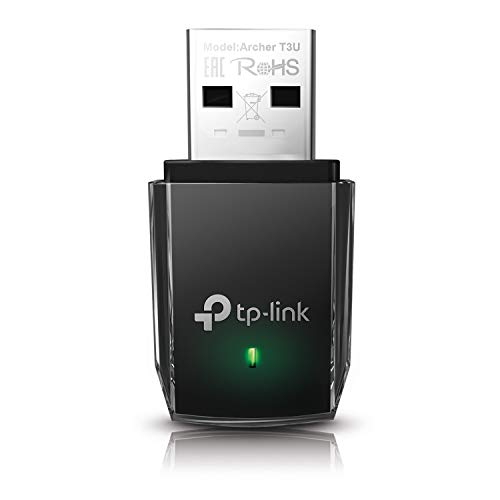
Pros
- Dual-band 2.4GHz and 5GHz radio lets users escape crowded 2.4GHz channels.
- USB 3.0 host interface unlocks throughput ceilings USB 2.0 dongles physically cannot reach.
- MU-MIMO plus beamforming improves stability on compatible WiFi 5 routers under multi-client load.
- Tiny footprint and wide Windows and macOS driver coverage simplify deployment on older systems.
Cons
- Owner fedback dataset is effectively empty at time of writing, so long-term reliability signal is thin.
- macOS support caps at 10.14 Mojave, leaving Big Sur, Monterey, Ventura, and Sonoma users without vendor drivers.
- WiFi 5 class hardware, so WiFi 6 and 6E gains in latency and dense-network throughput are off the table.
The TP-Link Archer T3U is a budget WiFi 5 class USB adapter rated AC1300, combining a 2.4GHz and 5GHz radio in a compact USB 3.0 stick. It targets desktop, HTPC, and mini PC owners who need a quick 5GHz upgrade without opening the case or running a PCIe WiFi card and antenna.
The defining feature is dual-band AC1300 over USB 3.0 with MU-MIMO and beamforming. In practice that means real 5GHz throughput on gigabit-class routers, rather than the throttled speds USB 2.0 sticks impose. Adapters in this tier typically land in the 400to 700Mbps range on 5GHz when line of sight to the router is clean.
Trade-offs are typical of the class. The Archer T3U is WiFi 5, not WiFi 6, so dense apartment environments will not see the OFDMA and MLO benefits newer clients get. The listed macOS support stops at 10.14 Mojave, which is a real limitation for current Apple hardware, and the tiny form factor means no external antenna for weak signal rooms.
Buy this if you need a cheap, portable 5GHz upgrade for a Windows desktop or older Mac and your router is WiFi 5 or newer. Skip this if you own a WiFi 6 or 6E router and want to actually use those features, or if your Mac runs Big Sur or later.
Radio and standard: AC1300 class WiFi 5 (802.11ac) with simultaneous 2.4GHz and 5GHz operation. MU-MIMO and beamforming are suported on the client side, so gains depend on the router also implementing MU-MIMO downstream scheduling. Peak link rates are not broken out per band in the source listing.
Host interface: USB 3.0 (5Gbps), which TP-Link cites as roughly 10x the effective ceiling of USB 2.0. This matters because USB 2.0 dongles cap real WiFi throughput near 40MB/s regardless of the radio, so USB 3.0 is what lets AC1300 speds actually reach the OS.
Form factor: Compact stick style dongle with no external antenna, intended to stay plugged in. Exact dimensions and weight are not specified in the source data. Adapters in this class typically sit under 40mm long, which is short enough to leave adjacent USB ports usable.
OS compatibility: Windows 11, 10, 8.1, 8, 7, and XP on the PC side. macOS support is listed as 10.9 through 10.14 (Mavericks to Mojave), so newer macOS releases including Big Sur, Monterey, Ventura, and Sonoma are not covered by the vendor driver list.
Cause #4: IPv6, DHCP lease, and DNS quirks
Some ISPs run flaky IPv6, and Windows 11 prefers it. When the IPv6 lease expires and renewal fails, you’ll see a brief “no internet” warning even though Wi-Fi shows connected. Disable IPv6 on the adapter (Adapter Properties → uncheck Internet Protocol Version 6) and see if the symptom changes.
Short DHCP lease times can also cause this. If your router is set to 30-minute leases, every renewal is a chance to drop. Bump the lease to 24 hours in the router admin. While you’re there, swap DNS from auto to 1.1.1.1 and 1.0.0.1 (Cloudflare) or 8.8.8.8 (Google). Slow ISP DNS won’t drop Wi-Fi, but it’ll feel like it when pages won’t resolve.
Cause #5: Interference from USB 3.0, Bluetooth, and microwaves
USB 3.0 ports radiate noise right in the 2.4GHz band. If you’ve got an external SSD or hub plugged in near the Wi-Fi antenna (or worse, sharing the same M.2 area on a laptop), it can knock 2.4GHz connections offline. Move the USB device to a different port, ideally on the opposite side of the laptop. Or just use 5GHz, which isn’t affected.
Bluetooth on the same Intel AX210 card also shares the 2.4GHz radio. Heavy Bluetooth audio plus 2.4GHz Wi-Fi is a recipe for hitches. If you stream audio over Bluetooth and your Wi-Fi keeps stuttering, switch to 5GHz or 6GHz and the conflict disappears.

Pros
- USB 3.0 bus removes the throughput ceiling that limits USB 2.0 AC1300 sticks.
- Dual 5dBi rotating antennas give better aim than fixed-antenna nano dongles.
- Dual-band 2.4GHz and 5GHz support lets you offload congested 2.4GHz networks.
Cons
- Limited owner feedback at time of writing makes real-world throughput hard to verify.
- Listed macOS support stops at 10.15, so Big Sur, Monterey, Ventura, and Sonoma users should skip.
- Security listed as WEP and WPA2-PSK only, with no WPA3 mentioned for modern routers.
The Wodgreat 1300Mbps adapter is an entry-level USB 3.0 WiFi dongle aimed at desktop users without an internal WiFi card, or laptop owners whose built-in radio has failed. It targets casual buyers who want dual-band 802.11ac connectivity, not enthusiasts chasing WiFi 6 throughput or low-latency competitive gaming.
The defining spec is the USB 3.0 interface paired with AC1300 class rates of 400Mbps on 2.4GHz and 867Mbps on 5GHz. Dongles at this tier typically deliver 200to 400Mbps of real TCP throughput on5GHz within one room, well below the marketing number. Dual 5dBi rotating antennas help with aim through interior walls.
Trade-offs are typical at this price. Security tops out at WPA2-PSK per the listing, with no WPA3 mentioned, and the driver ships on a CD which is awkward on modern laptops. Listed macOS support ends at 10.15, so anyone on Big Sur or newer should verify driver availability before buying.
Buy this if you need a cheap dual-band backup adapter for a desktop on802.11ac and can tolerate manual driver installs. Skip this if you run WiFi 6 or 6E, need WPA3, or your Mac is on Big Sur or later, where driver support is unconfirmed.
Bus and link rate: USB 3.0 provides roughly 5Gbps of host bandwidth, so the 867Mbps 5GHz PHY rate is not bus-limited. Expect real TCP throughput in the 200 to 450Mbps range on 5GHz at close range, which is typical for AC1300 class silicon in this segment.
Antennas and range: The 2x 5dBi rotating antennas outperform fixed nano designs on penetration through one or two interior walls. Signal still drops sharply on 5GHz past two walls, and 2.4GHz at 400Mbps PHY is a marketing rate that assumes 40MHz channels, which are often unusable in dense apartments.
OS and driver support: Listing states Windows 11, 10, 8.1, 8, 7, Vista, XP, and macOS 10.6 through 10.15. Plug and Play is claimed for Windows 10 and 11, others use the bundled driver CD. macOS 11Big Sur and newer are not listed, so Aple Silicon users should not assume compatibility.
Security: Suported protocols listed are WEP and WPA2-PSK. WPA3 is not mentioned, which is a genuine limitation on newer routers running WPA3-only or transition mode with strict clients.
When to replace the adapter
If you’ve gone through every fix above and the drops persist on multiple networks (home, office, mobile hotspot), the radio itself is suspect. Built-in Intel AX201 and AX210 cards do fail, and so do MediaTek modules in budget laptops. A $20 USB Wi-Fi 5 dongle is the quickest diagnostic – if it stays connected when the built-in card drops, you’ve found the bad part.
Internal replacement is cheap if your laptop has an M.2 2230 slot. AX210 modules run $25–35. Desktop users can grab a PCIe Wi-Fi 6E card or just live with USB 3.0 plugged into a rear port. Replacement is worth doing before sending a whole laptop in for warranty service over Wi-Fi alone.
Common questions
Why does my Wi-Fi drop only at night?
Channel congestion. Your neighbors stream more at night, the 2.4GHz band fills up, and your router auto-switches channels – which looks like a drop to your PC. Set a fixed channel (1, 6, or 11 on 2.4GHz; 36, 40, 44, or 48 on 5GHz non-DFS) in router admin.
Does resetting the network stack help?
Yes, occasionally. Open an admin Command Prompt and run netsh int ip reset, then netsh winsock reset, then reboot. This clears corrupted protocol stack entries from old VPN clients or removed antivirus tools. It’s a fix worth trying if drops started after uninstalling something.
Should I disable Wi-Fi Sense or Hotspot 2.0?
If you don’t use carrier hotspot roaming, yes. Hotspot 2.0 occasionally triggers reauthentication on networks that don’t fully support it. Settings → Network & internet → Wi-Fi → Manage known networks, and remove any unfamiliar entries. Then disable Hotspot 2.0 in the Wi-Fi settings page.
Is a router firmware update worth doing?
Often, yes. Wi-Fi 6 and 6E routers shipped with buggy WPA3 implementations in 2023–2024 and got fixed via firmware. Check your router admin for a firmware update before blaming the PC. Asus, TP-Link, and Netgear all push fixes regularly. It’s a five-minute job that resolves drops for a lot of users.