

You just pulled a brand-new SSD out of the box, slotted it in, and now Windows acts like it doesn’t exist. That’s normal. A fresh drive ships raw, with no partition and no file system, so File Explorer won’t show it until you format it yourself. This walkthrough takes you from a blank stick of flash memory to a fully usable drive, using a Samsung 990 PRO 2TB NVMe as the example drive throughout. The same clicks apply to any modern SSD, SATA or NVMe.
Formatting sounds intimidating if you’ve never done it, but it’s mostly a five-minute job once you know the order of operations. We’ll cover initializing the disk, choosing a partition style, picking a file system, and the settings that actually matter for speed and compatibility. If you’re still shopping and haven’t bought a drive yet, our roundup of the best 2TB NVMe SSDs and the current best SSD deals are worth a look first. Already decided this will be your Windows drive? The picks for a boot drive line up closely with what we’re formatting here.
What you’ll need
Not much, honestly. You need the SSD itself, a working Windows PC where the drive is physically installed, and about ten minutes. No extra software required for a basic format, since Disk Management ships with every copy of Windows 10 and 11. If you’re wiping a used drive rather than a new one, you’ll also want the manufacturer’s utility, which for our example is Samsung Magician. That tool handles secure erase and firmware updates, and it’s a free download.

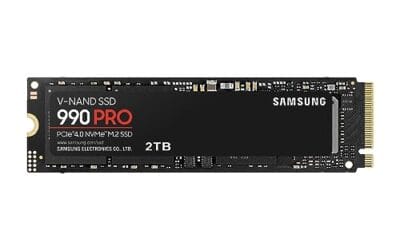
The example drive here is the Samsung 990 PRO 2TB, an M.2 2280 NVMe stick rated for sequential reads up to 7,450 MB/s on a PCIe Gen4 slot. It runs around $389.99 and holds a 4.2 rating. High-end hardware like this deserves a clean setup, because a wrong partition style or a full format on a huge drive can cost you time you didn’t need to spend. Get the drive seated in the M.2 slot, screwed down, and booted before you go further.


Pros
- Rated 7,450 MB/s sequential read pushes close to the PCIe Gen4 x4 ceiling for game loads.
- Rated 6,900 MB/s sequential write helps large file transfers and 4K editing scratch workflows.
- Samsung claims 55 percent random IOPS uplift vs the 980 PRO, benefiting bot and app launch responsiveness.
Cons
- Limited owner feedback available at time of writing, so long-term reliability signal remains thin.
- TBW endurance rating not specified in listing, worth confirming for sustained write workloads.
- No heatsink on this SKU, sustained Gen4 writes may need a motherboard M.2 cooler to avoid throttling.
The Samsung 990 PRO 2TB is a high-end PCIe Gen4 NVMe SSD in the M.2 2280 form factor, rated up to 7,450 MB/s sequential read and 6,900 MB/s sequential write. It targets desktop gamers, PS5 upgraders, and content creators who want Gen4 headroom without stepping up to a Gen5 drive.
The defining pitch is near-ceiling Gen4 bandwidth paired with a claimed 55 percent uplift in random IOPS over the 980 PRO. In practice, drives at this tier typically shave a second or two off open-world level loads and accelerate DirectStorage titles, though real-world gaming deltas over solid Gen4 rivals remain modest.
Gen4 flagships like this tend to run hot under sustained sequential writes, and the bare version without a heatsink relies on motherboard M.2 cooling to hold peak speeds. TBW endurance is not specified in the listing, so buyers running heavy write workloads should confirm the rating from Samsung's own datashet.
Buy this if you want a top-shelf Gen4 drive for a gaming PC, editing rig, or PS5 with a well-cooled M.2 slot. Skip this if you already own a fast Gen4 SD, need Gen5 bandwidth for scratch work, or want a factory heatsink model included in the box.
Sequential throughput: Samsung rates the 990 PRO at up to 7,450 MB/s sequential read and 6,900 MB/s sequential write over PCIe Gen4 x4. That is close to the practical Gen4 x4 ceiling near 7,500 MB/s, so large file copies are limited more by the source disk than by this drive.
Random performance: The listing calls out a 55 percent improvement in random performance versus the 980 PRO. Random 4K IOPS drives OS snappiness, shader cache loads, and small file operations, so the uplift matters more day to day than the sequential headline for most users.
Form factor and platform: The drive uses M.2 2280 single-sided layout and PCIe Gen4 x4, dropping into standard desktop M.2 slots, most Gen4 laptops, and the PS5 storage bay. Capacity spans 1TB to 4TB in the family, with this SKU at 2TB for a balanced game library.
Power and thermals: Samsung claims up to 50 percent better performance per wat versus the 980 PRO, helping in fanless laptop bays and compact ITX builds with limited airflow. Under sustained writes, this bare version benefits from a motherboard M.2 heatsink to avoid thermal throttling on long transfers.
Step 1: Confirm the drive is detected
Before formatting anything, make sure the PC actually sees the hardware. Reboot and enter your motherboard’s BIOS or UEFI, usually by tapping Delete or F2 during startup. Look under the storage or NVMe section for the drive model. If the 990 PRO shows up there, the physical install is good. If it doesn’t, the M.2 slot may be disabled, sharing bandwidth with a SATA port, or the stick isn’t seated fully.
Back in Windows, you can also right-click the Start button and open Device Manager, then expand Disk drives. A detected-but-unformatted SSD appears here even though File Explorer stays quiet. Seeing it in one of these two places tells you the rest is just software. That’s the reassuring part.
Step 2: Open Disk Management
Right-click the Start button and choose Disk Management, or press Windows key plus X and pick it from the menu. When it loads, Windows often throws up a pop-up asking to initialize the new disk automatically. If that box appears, great, you can handle initialization right there. If it doesn’t, you’ll spot your SSD in the lower pane as a bar labeled “Unallocated” with a black header, usually sitting below your existing Disk 0.
Take a second to identify the correct disk by its size. A 2TB SSD reports as roughly 1863 GB of usable space, thanks to the difference between how drives and Windows count gigabytes. Formatting the wrong disk wipes real data, so match that capacity carefully before clicking anything. When you’re sure which one is the new drive, you’re ready to initialize.
Step 3: Initialize the disk (GPT vs MBR)
Right-click the new disk’s info box on the left of its row and choose Initialize Disk. Windows asks whether you want MBR or GPT partition style. For any modern SSD, and especially a 2TB drive, pick GPT. MBR caps out at 2TB and belongs to legacy BIOS systems, while GPT supports larger volumes, more partitions, and the UEFI boot standard every recent build uses. There’s no real reason to choose MBR on a drive like this.
Click OK and the operation finishes almost instantly. The disk header stays “Unallocated” for now, which is expected. Initializing just writes the partition table; it doesn’t create a usable space yet. Think of it as laying the foundation before you build the room. One quick note: if you ever migrate this drive between an old BIOS machine and a newer UEFI board, GPT is the choice that keeps it bootable on both. That comes next.
Step 4: Create a new simple volume
Right-click anywhere in the unallocated space and select New Simple Volume. A wizard opens. On the size screen, leave the value at the maximum if you want the whole 990 PRO as one drive, which is what most people should do. Want to split the SSD into a games partition and a storage partition? Enter a smaller number in megabytes here, finish the wizard, then repeat this step on the leftover unallocated space to build the second volume.
Next the wizard asks you to assign a drive letter. Any free letter works; Windows suggests the next one available. If this drive is going to hold a game library, people often assign something memorable like G. You can change it later without reformatting, so don’t overthink it. Click Next to reach the part that actually formats the drive.
Pros
- Rated 7,450 MB/s sequential read pushes close to the PCIe Gen4 x4 ceiling for game loads.
- Rated 6,900 MB/s sequential write helps large file transfers and 4K editing scratch workflows.
- Samsung claims 55 percent random IOPS uplift vs the 980 PRO, benefiting bot and app launch responsiveness.
Cons
- Limited owner feedback available at time of writing, so long-term reliability signal remains thin.
- TBW endurance rating not specified in listing, worth confirming for sustained write workloads.
- No heatsink on this SKU, sustained Gen4 writes may need a motherboard M.2 cooler to avoid throttling.
The Samsung 990 PRO 2TB is a high-end PCIe Gen4 NVMe SSD in the M.2 2280 form factor, rated up to 7,450 MB/s sequential read and 6,900 MB/s sequential write. It targets desktop gamers, PS5 upgraders, and content creators who want Gen4 headroom without stepping up to a Gen5 drive.
The defining pitch is near-ceiling Gen4 bandwidth paired with a claimed 55 percent uplift in random IOPS over the 980 PRO. In practice, drives at this tier typically shave a second or two off open-world level loads and accelerate DirectStorage titles, though real-world gaming deltas over solid Gen4 rivals remain modest.
Gen4 flagships like this tend to run hot under sustained sequential writes, and the bare version without a heatsink relies on motherboard M.2 cooling to hold peak speeds. TBW endurance is not specified in the listing, so buyers running heavy write workloads should confirm the rating from Samsung's own datashet.
Buy this if you want a top-shelf Gen4 drive for a gaming PC, editing rig, or PS5 with a well-cooled M.2 slot. Skip this if you already own a fast Gen4 SD, need Gen5 bandwidth for scratch work, or want a factory heatsink model included in the box.
Sequential throughput: Samsung rates the 990 PRO at up to 7,450 MB/s sequential read and 6,900 MB/s sequential write over PCIe Gen4 x4. That is close to the practical Gen4 x4 ceiling near 7,500 MB/s, so large file copies are limited more by the source disk than by this drive.
Random performance: The listing calls out a 55 percent improvement in random performance versus the 980 PRO. Random 4K IOPS drives OS snappiness, shader cache loads, and small file operations, so the uplift matters more day to day than the sequential headline for most users.
Form factor and platform: The drive uses M.2 2280 single-sided layout and PCIe Gen4 x4, dropping into standard desktop M.2 slots, most Gen4 laptops, and the PS5 storage bay. Capacity spans 1TB to 4TB in the family, with this SKU at 2TB for a balanced game library.
Power and thermals: Samsung claims up to 50 percent better performance per wat versus the 980 PRO, helping in fanless laptop bays and compact ITX builds with limited airflow. Under sustained writes, this bare version benefits from a motherboard M.2 heatsink to avoid thermal throttling on long transfers.
Step 5: Choose a file system and format
The format screen has three fields that matter. For file system, choose NTFS if this is a Windows drive for games, apps, or general storage, since NTFS handles large files, permissions, and the whole capacity of a 2TB SSD without issue. Pick exFAT only if you plan to share the drive with a Mac or move it between systems often. Leave the allocation unit size at Default; the automatic 4K cluster is right for nearly everyone, and changing it rarely helps.
Now the important checkbox: keep “Perform a quick format” ticked. A quick format writes a fresh file system in seconds and is the correct choice for a new drive. A full format, with the box unchecked, scans every sector for bad blocks and can take an hour or more on a 2TB SSD, adding wear for no benefit on healthy new flash. Give the volume a label like “Games” or “Samsung 990,” click Next, then Finish. Within moments the drive shows up in File Explorer, ready to use.
Troubleshooting common issues
Most setups go clean. When they don’t, the fix is usually quick once you know where to look. Here are the snags that trip people up.
The SSD doesn’t appear at all
If neither Disk Management nor the BIOS lists the drive, power down and reseat the M.2 stick, making sure it clicks in at an angle and lies flat under its screw. Confirm the slot supports NVMe rather than SATA-only, and check your manual for lane-sharing that disables a SATA port when an M.2 is populated. A drive that shows in BIOS but not Windows just needs the initialize step above.
You’re formatting a used drive with old data
A pre-owned SSD may carry stale partitions or a system reserved section that a normal format won’t clear. Open the manufacturer utility, Samsung Magician for the 990 PRO, and run its secure erase feature to return the drive to a factory-blank state. After that, run through Steps 2 to 5 as if it were new. Secure erase also restores full performance on a drive that’s been heavily written.
Speeds feel slower than the rating
If your 990 PRO benchmarks well below its 7,450 MB/s figure, the drive is probably in a Gen3 slot or a chipset lane rather than the CPU-connected Gen4 M.2 slot. Check the motherboard manual for which slot runs full Gen4 x4. It’s a placement issue, not a formatting one, but people often blame the format when a card is in the wrong socket.
Windows wants to format it again every reboot
A drive that keeps prompting for a format usually has a failing connection or a partition that didn’t commit. Reformat once more with a quick format, and if the prompt returns, swap the M.2 screw or slot. Persistent format prompts on a truly new drive are rare, so don’t panic, but do rule out a loose seat.
Wrapping up
That’s the whole job: confirm detection, open Disk Management, initialize as GPT, create a simple volume, and quick-format to NTFS. Five steps, a few minutes, and your new SSD goes from invisible to fully usable. The Samsung 990 PRO we walked through is a Gen4 workhorse, but the exact same clicks format a budget SATA drive or a portable stick. If you’re setting up storage across several drives, our guides to the best gaming SSDs and mass-storage picks pair well with what you just learned. Get the format right once and you won’t think about it again.
Common questions
Do I need to format a brand-new SSD before using it?
Yes, almost always. A new SSD ships raw with no file system, so Windows won’t show it in File Explorer until you initialize and format it. The one exception is a pre-cloned drive or an external SSD that a manufacturer preformatted at the factory, which you can use straight away.
Should I pick NTFS or exFAT?
Choose NTFS for a drive that stays in a Windows PC, since it handles the full 2TB capacity, large game files, and permissions cleanly. Pick exFAT only if you’ll move the SSD between Windows and macOS regularly. For an internal boot or games drive, NTFS is the right call every time.
Is a quick format safe, or should I do a full format?
A quick format is safe and recommended for new SSDs. It writes a fresh file system in seconds without scanning every sector. A full format adds unnecessary write cycles and can take over an hour on a 2TB drive, so save it for cases where you suspect physical bad sectors on an older disk.
Why does my 2TB SSD show as 1.81TB after formatting?
Nothing’s wrong. Drive makers count a terabyte as a trillion bytes, while Windows counts in binary, so a 2TB drive reports as roughly 1863 GB. You’re not losing real capacity, it’s just two different ways of measuring the same space.
Can I format an SSD that already has Windows on it?
You can’t format the drive you’re currently booted from within Windows. To wipe a system drive, boot from Windows installation media and format it during setup, or connect the SSD to another PC as a secondary drive and format it there. For a new empty drive, none of that applies.






























Write Your Review
No reviews yet. Be the first to share your experience!