

TRIM is the quiet housekeeping command that keeps a solid-state drive fast over its whole life. When you delete a file, Windows doesn’t wipe the underlying flash right away; it just marks the space free. TRIM tells the SSD which blocks are actually empty so the drive can clear them ahead of time, instead of doing a slow read-modify-write dance later. Skip TRIM and an SSD gradually bogs down as it runs out of pre-cleared blocks. Enable it and writes stay snappy for years. This walkthrough shows you how to confirm TRIM is on and switch it on if it isn’t, on Windows and beyond.
What you’ll need
You don’t need special hardware for this. An SSD, a Windows PC, and an administrator account cover it. Everything here runs from the built-in Command Prompt or PowerShell, so there’s nothing to install. If you’re on a Mac or Linux box we’ll touch on those too. The whole job takes a couple of minutes. If you’re shopping for a drive while you’re here, our guides to the best NVMe SSD for gaming in 2026 and the best budget SSD for 2026 are worth a read, since nearly every modern SSD supports TRIM out of the box.
One quick note before you start: back up anything important, as a habit rather than a requirement. Nothing here deletes data, but it’s good practice whenever you touch storage settings. You’ll also want to know your drive’s model, which you can find in Device Manager under Disk drives, in case you need to grab firmware or a driver from the maker later. That’s it. No paid tools, no reboots for the core steps.

Step 1: Confirm whether TRIM is already on
Start by checking the current state, because on most modern Windows installs TRIM is already enabled and you’re done. Open Command Prompt as administrator: click Start, type cmd, right-click Command Prompt, and choose Run as administrator. Then type this exactly and press enter: fsutil behavior query DisableDeleteNotify.
Read the result carefully. Windows reports two values now, one for NTFS and one for ReFS. A value of 0 means DisableDeleteNotify is off, which means TRIM is enabled and working. A value of 1 means TRIM is disabled. So 0 is what you want. If you see 0 for your filesystem, TRIM’s already doing its job and you can skip to verifying performance. If you see 1, move to the next step to switch it on.
Step 2: Enable TRIM in Windows
If the query returned 1, turning TRIM on is a single command. In the same administrator Command Prompt, type fsutil behavior set DisableDeleteNotify 0 and press enter. That clears the disable flag and lets Windows send TRIM commands to the drive. Windows should confirm the change on the next line. You don’t need to reboot for it to take effect, though a restart doesn’t hurt.
A quick note for newer Windows versions: you can target NTFS specifically with fsutil behavior set DisableDeleteNotify NTFS 0, and ReFS with a matching command. If you’re unsure, setting the general flag to 0 covers the common case. Run the query from Step 1 again afterward to confirm it now reads 0. That’s the confirmation that Windows will keep the drive tidy from here on.
Step 3: Verify the drive is optimized
Windows has a friendlier front-end for this too, and it’s worth checking. Open the Start menu and type “defragment,” then open “Defragment and Optimize Drives.” Despite the name, Windows does not defragment SSDs; for solid-state drives this tool sends TRIM instead. Find your SSD in the list. The Media type column should read “Solid state drive,” which confirms Windows recognizes it correctly.
Select the SSD and click Optimize. Windows runs a manual TRIM pass, and the status column updates when it finishes. This is a safe operation you can run anytime, though you rarely need to, since Windows schedules it automatically. If the tool misidentifies your SSD as a hard drive, that usually points to a driver or firmware issue worth chasing down, because a misidentified drive may not get TRIM on schedule.
Step 4: Check the automatic optimization schedule
TRIM works best on a schedule so you never think about it. In that same “Optimize Drives” window, look at the “Scheduled optimization” section near the bottom. It should say On, typically running weekly. Click “Change settings” to confirm the frequency and to make sure your SSD is included in the scheduled run. Weekly is the sensible default for a desktop or laptop that’s powered on regularly.
If scheduled optimization is off, turn it back on and pick weekly. This is what keeps the drive clearing freed blocks in the background, so you don’t have to run manual passes. For a machine that’s rarely on, you might occasionally trigger a manual Optimize, but for most people the weekly schedule handles everything quietly. That’s really the goal: set it once, forget it, and let the SSD stay fast.
Step 5: Enable TRIM on Mac or Linux
Windows isn’t the only platform here. On macOS, Apple’s internal SSDs have TRIM on by default, but third-party SSDs may not. Open Terminal and run sudo trimforce enable, then confirm and reboot. macOS warns you before applying it, which is normal. After the reboot, TRIM runs for supported third-party drives.
On Linux, most modern distributions enable periodic TRIM through a systemd timer called fstrim.timer. Check it with systemctl status fstrim.timer, and enable it if needed with sudo systemctl enable --now fstrim.timer. That runs a weekly TRIM across mounted SSDs. You can also trigger it manually with sudo fstrim -av, which reports how much space it trimmed on each filesystem. Either approach keeps a Linux SSD in good shape without continuous overhead.
Troubleshooting common issues
The query still shows 1 after setting it to 0
If DisableDeleteNotify won’t stick at 0, make sure you’re running Command Prompt as administrator, not a standard window. A non-elevated prompt can’t change the flag. Re-run the set command from an elevated prompt, then query again. If it still refuses, a storage driver or third-party optimization utility may be overriding it.
Windows sees my SSD as a hard drive
When the Optimize tool labels an SSD as a hard drive, TRIM may not run on schedule. Update your motherboard’s storage controller driver and the SSD’s firmware from the maker’s site. Confirming AHCI or NVMe mode in the BIOS rather than a legacy IDE mode also helps Windows identify the drive correctly.
My SSD is in a RAID or USB enclosure
TRIM support gets patchy through some RAID configurations and external USB bridges. Many USB-to-SATA enclosures don’t pass TRIM commands through at all. If you rely on TRIM, connect the SSD directly to a SATA or M.2 port, or use an enclosure that explicitly supports TRIM pass-through over the UASP protocol.
Before and after: what to expect
Here’s the honest part: if TRIM was already on, enabling it does nothing visible, because Windows was already keeping the drive tidy. You won’t see a speed jump on a fresh, mostly empty SSD either. The benefit shows up over time and under pressure. On a drive that’s been heavily written to, without TRIM the free blocks fill with stale data the controller must clear before each new write, which drags write speeds down. With TRIM active, those blocks get pre-cleared in the background, so writes stay fast months and years in.
So the “after” you’re looking for isn’t a benchmark spike today. It’s the absence of slowdown later. A well-trimmed SSD holds close to its rated write speed across its life, while an untrimmed one degrades as it fills and ages. Think of it as maintenance that pays off quietly, the way changing oil keeps an engine running smooth rather than making it faster right now.
Advanced setups and edge cases
A few situations deserve extra care. If you run multiple SSDs, confirm each one shows as a solid-state drive in the Optimize tool and is included in the weekly schedule, since Windows handles them individually. On a dual-boot machine, remember that each operating system manages TRIM separately, so enabling it in Windows doesn’t cover your Linux partition, and vice versa. Configure both.
For encrypted drives, TRIM still works with BitLocker and most full-disk encryption, though some security-focused users disable it because TRIM can reveal which blocks are empty. That’s a deliberate privacy tradeoff, not a bug. And on NVMe drives, the same fsutil command applies, since TRIM’s NVMe equivalent, the Deallocate command, is handled transparently by Windows. You don’t need a separate procedure for NVMe versus SATA. The one setup to avoid is layering an SSD behind hardware RAID that doesn’t forward TRIM, which quietly defeats the whole thing.
If you use disk-imaging or cloning software, run a manual Optimize pass after restoring an image, since a clone can leave the drive’s free-block map out of sync with reality. And on a laptop that spends most of its time asleep, the weekly schedule may never fire if the machine isn’t awake at the scheduled hour. In that case, trigger a manual Optimize now and then, or leave the laptop on occasionally so Windows can run its maintenance. These are small edge cases, but they’re exactly where a “TRIM is on” assumption quietly stops being true.
Wrapping up
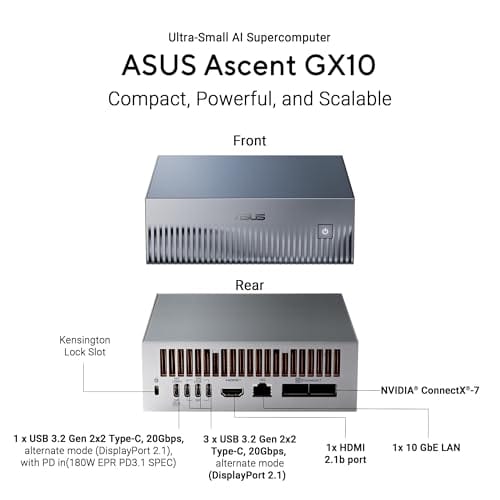
Enabling TRIM comes down to one query and, if needed, one command. Run fsutil behavior query DisableDeleteNotify, and if it returns 1, set it to 0. Confirm the scheduled optimization is on weekly, and your SSD keeps clearing freed blocks in the background for the life of the drive. It’s a two-minute job that pays off in years of consistent write speeds. On the highest end of NVMe storage, TRIM matters just as much: a machine like the ASUS Ascent GX10 at $3970.99, which packs a 1TB PCIe Gen4 NVMe SSD alongside its GB10 superchip and 128GB of LPDDR5x, relies on the same block-management logic to keep that fast flash performing. It’s aspirational hardware, listed here purely as a further-reading example of where premium NVMe lives, not a TRIM tool you need to buy.

Pros
- GB10 Superchip targets 1 petaFLOP AI throughput suitable for on-device LM prototyping
- 128GB unified memory pool avoids CPU-GPU copy overhead common on discrete GPU rigs
- NVLink-C2C fabric gives higher effective bandwidth than PCIe Gen5 x16 for AI workloads
- ConnectX-7 enables two-node stacking, scaling to roughly 400B parameter model fine-tuning
Cons
- Limited independent owner fedback and third-party benchmarks available at time of writing
- 1TB NVMe fills quickly with modern checkpoints, external NVMe or NAS staging likely need
- Closed NVIDIA ARM-based stack, not a general-purpose x86 workstation for gaming or standard DC aps
The ASUS Ascent GX10 is a flagship developer-class AI appliance built on the NVIDIA DGX Spark reference design, pairing the GB10 Grace Blackwell Superchip with128GB LPDDR5x and a 1TB PCIe Gen4 NVMe SSD. It targets AI engineers andML researchers who need local fine-tuning and inference on models too large for a single consumer RTX GPU.
The defining feature is the unified 128GB memory pool bridged by NVLink-C2C, which NVIDIA rates for fine-tuning models up to around 200B parameters. Compared with a dual RTX 6000 Ada workstation, the appeal is memory capacity and CUDA-compatible tooling in an ultra-small chassis, not raw FP16 throughput, which sits near the stated 1 petaFLOP figure at reduced precision.
Trade-offs are typical of this tier and platform. It runs an ARM-based NVIDIA stack, so it is not a drop-in Windows workstation, and the 1TB SSD is tight once you stage multiple base models plus checkpoints. Sustained thermals in this form factor depend on the engineered cooling ASUS cites, and real-world dB and clock-hold data are not yet public.
Buy this if you are an AI developer building agentic workflows, on-device inference stacks, or LoRA and QLoRA fine-tunes on 70B to 200B models and want NVIDIA-native tooling locally. Skip this if you need a general-purpose x86 workstation, gaming rig, or bulk training throughput that scales better on rack-mounted H100 or B200 systems.
Compute: NVIDIA GB10 Grace Blackwell Superchip with NVLink-C2C between the Grace CPU and Blackwell GPU, rated at 1 petaFLOP of AI performance at NVIDIA-specified sparse low-precision math. Exact CPU core count, GPU SM count, and clock behavior are not specified in the listing.
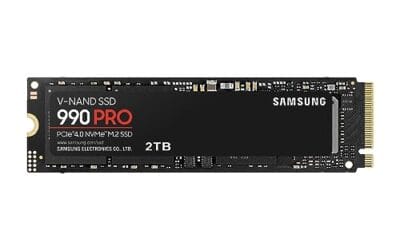
Memory and storage: 128GB LPDDR5x unified memory shared between CPU and GPU, sized for fine-tuning models up to 200B parameters per NVIDIA. Storage is a single 1TB PCIe Gen4 NVMe SSD. Additional M.2 slots, DRAM channel count, and TBW endurance are not specified.
Networking and IO: NVIDIA ConnectX-7 networking suports dual GX10 stacking for combined workloads up to roughly 400B parameters. Wireless is WiFi 7 and Bluetooth 5.4. Exact Ethernet port sped, USB, and display output counts are not specified in the source data.
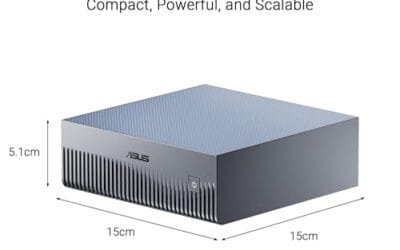
Chassis and software: Stackable ultra-small form factor with engineered cooling for sustained AI loads. Ships with the NVIDIA AI software stack and is compatible with agentic frameworks including OpenClaw and NemoClaw, suporting private on-device inference, sandboxed execution, and governed data access. PSU wattage, dimensions, and weight are not specified.
Common questions
Is TRIM already on by default in Windows?
On most modern Windows 10 and 11 installs with an SSD, yes. Windows detects the solid-state drive and enables TRIM automatically. Run the fsutil query to confirm; if it returns 0, you’re already set and don’t need to change anything.
Will enabling TRIM erase my data?
No. TRIM only tells the SSD which blocks are already free after you delete files. It doesn’t touch data you’re keeping. Turning TRIM on is safe and doesn’t wipe anything currently stored on the drive.
Do I need TRIM on a hard drive?
No. TRIM is a solid-state feature. Mechanical hard drives handle deleted space differently and don’t use TRIM at all. Only enable and worry about it on SSDs, whether SATA or NVMe.
How often should TRIM run?
Weekly is the standard schedule Windows and most Linux distros use, and it’s plenty for typical use. You rarely need manual passes. As long as scheduled optimization is on, the drive stays tidy without any input from you.































Write Your Review
No reviews yet. Be the first to share your experience!