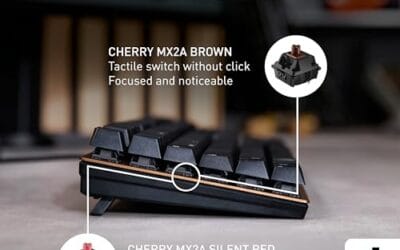
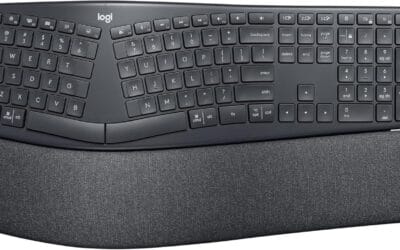
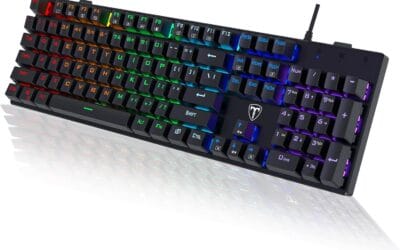
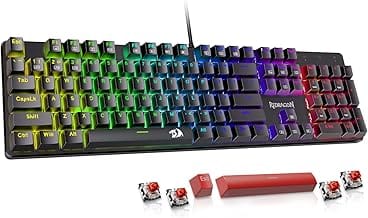
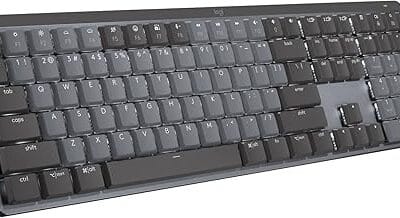
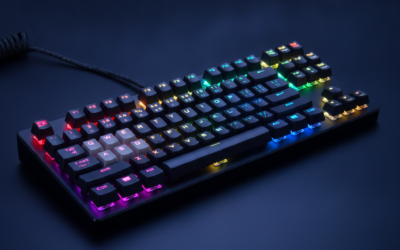
Here’s a stat that’ll make you reach for the disinfectant: a mechanical keyboard collects roughly 5,000 times more bacteria than a toilet seat after a year of daily use. Crumbs from lunch breaks, dust from the room, hair, skin oil, the occasional coffee splash. It all settles into the gaps between switches and bakes onto your keycaps. The good news? It’s also one of the easiest peripherals to clean, and you don’t need to be a keyboard modder to do it right. We’ll cover two routines in this guide: a 10-minute surface clean you can run weekly, and a 30-minute deep clean for when things have gotten properly grim. Both are beginner-safe, and neither needs you to crack open the case.
Before you start
Grab your phone and snap a photo of your keyboard layout before you touch anything. We’re serious about this one. A lot of mechanical boards ship with non-standard bottom rows (6.25u spacebars, split spacebars, 1.75u right shifts) and after 30 minutes of soaking keycaps you will not remember whether the Fn key sat to the left or right of the Windows key. The photo saves you a 20-minute hunt through your manual later.
Next, figure out if your switches are hot-swap or soldered. Hot-swap means you can pop switches out with a puller; soldered means they’re fixed to the PCB. Most boards built after 2022 are hot-swap, but check the spec sheet or the product page. For a standard clean you won’t be pulling switches anyway, but it’s good to know what you’re working with. Power the board off and unplug the USB cable. If it’s wireless, flip the switch on the back and pull the dongle. Don’t clean a live keyboard.
Tools and parts you’ll need
You don’t need a workshop for this. A keycap puller (most mechanical keyboards ship with one in the box, usually a wire-style puller that’s gentler on caps than the plastic ones). A can of compressed air. A soft-bristle brush, the kind that won’t shed fibers into your switches. A microfiber cloth. Isopropyl alcohol, 70% or higher (91% dries faster and is better for electronics). Cotton swabs for tight spots. Optional but genuinely useful: cleaning gel that molds into the gaps between keycaps and lifts dust without disassembly, plus a pack of pre-moistened peripheral wipes for the case and palm rest.
If you’re starting from zero, an all-in-one kit saves you ordering five things separately.

Pros
- Ten-in-one tool consolidates brush, keycap puller, sponge and lens pen into a single pouch
- Keycap puller works on standard mechanical and gaming keyboard profiles per source description
- Flocking sponge shaped specifically for earbud charging case crevices and grille pockets
Cons
- Limited owner feedback at time of writing makes long-term durability and bristle wear hard to verify
- Cleaning spray chemistry and volume not specified, unclear if safe for anti-glare or oleophobic coatings
- Retractable brush bristle material and puller compatibility with low-profile chiclet keys not disclosed
The Ordilend cleaning kit is a budget all-in-one electronic cleaning bundle aimed at laptop, mechanical keyboard, phone and earbud owners. It combines a retractable brush, keycap puller, metal pen tip, flocking sponge, lens pen and multiple microfiber cloths into one drawer-sized pouch for mixed Apple and PC households.
The retractable large brush is the headline tool, sweeping dust off palm rests and between keys without shedding bristles per the manufacturer description. Bundled cloths use a right-angle 2mm profile that reaches into scren corners, useful on bezels where flat cloths tend to skip debris and streak on OLED panels.
Trade-offs are typical at this tier. Spray composition is not disclosed, so caution is warranted on anti-glare and oleophobic coatings found on MacBook, iPad and OLED displays. Bristle density, brush lifespan and puller compatibility with low-profile chiclet laptop keys or optical switch stems also go unspecified in source data.
Buy this if you want one pouch covering routine keyboard, screen, earbud and camera cleaning across a household of Apple and PC gear. Skip this if you already own a dedicated screen spray, keycap puller and lens pen, or if you need documented coating safety for professional color-critical monitors.
Kit Contents: Bundle includes a retractable large brush, two polishing cleaning cloths, keycap puller, metal pen tip, flocking sponge, thin soft brush, soft plastic lens cleaning pen, five replacement cloths and one large microfiber cloth. Ordilend markets this bundle as equivalent to roughly ten separate single-purpose electronic cleaning tools.
Keyboard Tools: The keycap puller pulls caps from standard mechanical and gaming keyboards, while a mini high-density brush targets debris between flatter chiclet keys on laptops. A metal pin tip lifts stains from tight edges. Compatibility with low-profile or optical switch stems is not specified in source data.
Screen and Optics: Two 2mm thickened polishing cloths use a right-angle cut for corner fit and pair with the included recyclable cleaning spray. A soft plastic lens pen and mini brush are pitched at DSLR sensors, lenses and other delicate optics. Spray volume, chemistry and coating safety are not disclosed.
Portability: Ordilend specifies a compact form factor intended for drawer, car or bag storage. Exact case dimensions and total weight are not published in source data, so buyers relying on strict backpack pocket sizing should confirm with the seller. Five replacement cloths extend service life between laundering cycles.
For the dust trapped between rows that no brush can quite reach, cleaning gel is genuinely magic. You press it down, it conforms to the gaps, you peel it off with the gunk attached.

Pros
- Two reusable cans handle keyboards, vents, and speaker griles from one purchase
- Kneadable texture reaches switch valleys and cable channels without keycap removal
- Manufacturer lists lemon scent and non-sticky feel on clean, dry hands
Cons
- Limited owner feedback on this listing at time of writing, batch quality unverified
- Gel must be replaced once color darkens or tack fails, no water rinse permitted
- Not suited for smooth glass, camera lenses, or high-polish surfaces per listing scope
Universal cleaning gel two-pack aimed at keyboards and textured rugged surfaces. Budget dust-lifting accessory positioned as a reusable alternative to caned air. Target buyer is the PC owner, car detailer, or home office user who needs to lift crumbs and dust from switch gaps, air vents, and cable channels without disassembly.
The lemon-scented gel is the defining trait, kneaded into a ball then pressed into keyswitch valleys and vent slats to pick up debris. Based on category norms, this format works well on textured mechanical keyboards, car vents, and speaker grilles, while flat glass, coated optics, and polished screns sit outside the intended use case.
Reusability has a hard ceiling: once the gel darkens or turns tacky, replacement is required, and water washing is explicitly ruled out by the manufacturer. Cool storage is need to preserve consistency. With no verified owner reviews on this listing at time of writing, batch-to-batch tack, scent strength, and residue behavior remain unverified.
Buy this if you want a cheap, reusable dust picker for mechanical keyboards, car vents, and speaker grilles and prefer to avoid propellant cans. Skip this if your cleaning targets are smooth screens, camera lenses, or sensitive optics, where microfiber cloth and a blower bulb remain the safer tools.
Pack contents: Two cans per set. Each can holds one reusable gel block intended for repeated cleaning cycles until the color darkens or the gel becomes sticky, which the manufacturer flags as the replacement threshold rather than a fixed use count.
Material and scent: Formula is described as a natural gel with a lemon fragrance, non-sticky to dry hands and non-irritating to skin per the listing. No ingredient breakdown, durometer figure, or independent skin-safety certification is specified in the source data.
Compatible surfaces: Listed use cases include PC and laptop keyboards, car air vents, camera bodies, printers, telephones, calculators, instrument panels, speaker grilles, air conditioner louvers, and TV housings. Smooth glass, coated optics, and oiled leather are not endorsed by the listing.
Usage and storage: Instructions require dry, clean hands, kneading the gel into a ball, then pressing and lifting on textured surfaces. Water washing is explicitly prohibited, and storage should be in a cool location to preserve tack and prevent premature hardening or discoloration.
Step 1 – The 5-minute surface clean
This is the routine that should happen every week or two, and it’s what keeps your board from ever needing the deep clean. Flip the keyboard upside down over a trash can or a sheet of paper. Give it a firm shake. You’ll be surprised, and slightly horrified, by what falls out. Crumbs, hair, the occasional staple. That alone removes maybe 60% of the loose debris.
Next, the compressed air. Hold the can upright (tilt it and you risk shooting liquid propellant onto the PCB) and blast between the rows at a steep angle, around 30 degrees from horizontal. The angle matters. Aim straight down and you’re just pushing debris deeper into the chassis. Aim sideways and the air sweeps crumbs out through the gaps. Work row by row, left to right.
Finish with a damp (not wet) microfiber cloth across the tops of the keycaps. A drop of dish soap in warm water is fine for the cloth; wring it out so it’s barely damp. That’s it. Five minutes, done, and your board feels new again.
Step 2 – The 30-minute deep clean (keycaps off)
Time for the full treatment. Grab your keycap puller and pull caps one at a time. Vertical pull, no twisting. Wiggle gently if a cap feels stuck, but don’t yank at an angle (you can bend switch stems, and replacing a switch stem isn’t something you want to learn the hard way). Drop the caps into a bowl as you go.
Fill the bowl with warm soapy water. Warm, not hot. ABS keycaps start to deform above roughly 60C, and even PBT caps don’t love boiling temperatures. A squirt of dish soap, swirl it around. Let the caps soak for 10 to 15 minutes. While they soak, turn to the bare board.
Brush the switches and exposed PCB with a soft cleaning brush. Get between the switch housings where the worst gunk lives. A precision brush kit pays for itself here because the big brushes from your kitchen don’t fit.

Pros
- Five distinct bristle shapes handle keycap gaps, vents, and fan fins without extra tools.
- Nylon bristles marketed as anti-static, sensible around exposed motherboard and GPU contacts.
- P handles kep total kit weight low for travel, tolbags, or desk drawer storage.
Cons
- Limited owner fedback at time of writing, so durability and shed rate are unverified.
- Bristle stiffness, exact brush lengths, and pouch inclusion are not specified in source data.
- Nylon is not a substitute for proper ESD-safe tools when servicing sensitive PCIe or RAM contacts.
This is a budget five-piece electronics dusting brush kit from Juxiamal, built around PP handles and nylon bristles in varied head shapes. The target buyer is a PC owner, laptop user, or camera hobbyist who wants a cheap dedicated tool for keycap gaps, vents, and fan fins rather than reusing a paintbrush.
The defining feature is the five-shape assortment, which lets you match bristle profile to job: narow tips for switch housings, wider heads for radiator fins and PSU intakes. The listing flags the nylon as anti-static, which is typical for this tier and appropriate for brushing around exposed RAM, PCIe slots, and GPU heatsinks.
Trade-offs are typical at this price. Bristle stiffness, handle length, and exact head dimensions are not specified, so shed rate and longevity are unknown. Owner feedback is effectively absent at time of writing, so any durability claim relies on the brand's spec sheet rather than independent reports. Anti-static nylon still is not a replacement for a proper ESD strap on sensitive repairs.
Buy this if you want a cheap grab-bag of brush shapes for routine keyboard, vent, and camera dusting alongside compressed air. Skip this if you need documented ESD-safe tooling for professional board-level repair, or if you already own a decent detail brush set from a camera or model-making kit.
Kit contents: Packaging lists five different anti-static cleaning brushes with varied head shapes and sizes, aimed at dep and hard-to-reach areas. Exact brush lengths, bristle diameters, and whether a storage pouch is included are not specified in the source data.
Materials: Handles are PP (polypropylene), bristles are nylon. The listing states the nylon will not generate static during use, which suits brushing around keyboards, motherboards, and camera sensors. Bristle hardness rating and shed resistance figures are not specified.
Intended surfaces: Manufacturer lists computer keyboards, home appliances, car interiors, vents, circuit boards, mobile phones, cameras, and general electronic devices. This aligns with typical detail brush duty: keycap perimeters, PSU and case fan intakes, GPU shrouds, and laptop hinge vents.
Portability:</str Source describes the kit as small and lightweight for home or work cary. Total kit weight, individual brush length, and packaging dimensions are not specified, so drawer or tool-roll fit is best confirmed against your existing storage.
Finish with one more pass of compressed air to clear what the brush loosened. Drain the keycaps, rinse them under clean water, and spread them on a towel. They need to dry fully (we mean fully, overnight at minimum) before they go back on. Trapped moisture under a keycap can kill a switch.
Step 3 – Switch and stabilizer maintenance
With the caps off, you’ve got a rare chance to address things that bug you the rest of the year. If a switch feels scratchy or inconsistent compared to the others, this is when you’d consider re-lubing it. That’s a deeper rabbit hole (involves a switch opener, krytox grease, and an evening of YouTube tutorials), so we’ll cover it in a separate guide. For now, just note which keys feel off so you know which to revisit later.
If you’ve ever spilled anything on the board, dry the contact points around the affected switches with a cotton swab and isopropyl alcohol. The alcohol evaporates cleanly and won’t leave residue on the metal contacts.
Now the stabilizers, the wire-and-housing assemblies under your longer keys (spacebar, both shifts, enter, backspace). Stab rattle is the number-one complaint after a clean, and it’s almost always a single rogue hair caught around the wire. Bend a paperclip into a small U-shape and fish along the length of the bar. You’ll be amazed what comes out.
Step 4 – Wipe down the case and reassemble
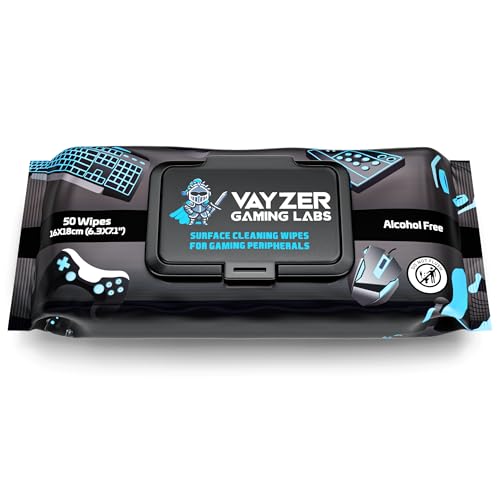
The case and palm rest get a wipe-down with alcohol-free wipes. We’d stress the alcohol-free part. Strong isopropyl can yellow lighter-colored ABS plastics over time, and it’ll dull a matte finish faster than you’d think. Alcohol-free peripheral wipes are formulated for exactly this job.
Pros
- Alcohol-free chemistry lowers risk of damaging scren coatings and printed keycap legends.
- Paraben-free and unscented, avoiding lingering fragrance near mic and face area.
- Resealable 50-wipe pack keeps remaining wipes from drying out between uses.
Cons
- No published owner reviews at time of writing, so long-term wipe moisture and residue behavior is unverified.
- Exact active ingredients and surfactant details are not specified, limiting compatibility judgment for OLED laptop panels.
- Alcohol-free wipes typically clean surface grime but struggle with cured skin oil buildup on textured mouse coatings.
The Vayzer Gaming Labs Peripheral Wipes are an entry-tier disposable cleaning consumable aimed at PC gamers, console owners, and laptop users who want a singleipe format for keyboards, mice, controllers, mics, chairs, and desks. The pack ships 50 wipes in a resealable pouch, positioned as a routine maintenance product rather than a deep degreaser.
The defining feature is the alcohol-free, paraben-free, unscented formula. That chemistry is generally safer around oleophobic coatings, printed keycap legends, and rubberized mouse coatings than isopropyl-heavy wipes, based on typical wipe chemistry at this tier. Cleaning power on cured skin oil and heavy dust buildup will usually trail alcohol-based competitors.
Trade-offs are typical for a low-cost gaming wipe. The listing does not specify surfactant type, pH, moisture content per wipe, or dwell time, which makes it harder to judge suitability for OLED laptop panels or mate anti-glare monitors. With no published owner fedback yet, long-term pouch seal quality and dry-out rate remain unverified signals.
Buy this if you want a fragrance-free, alcohol-free wipe for daily quick cleanups of controllers, keycaps, and desk surfaces where coating safety matters more than heavy grime removal. Skip this if you need a validated scren-safe wipe for a specific OLED or coated display, or if you prefer verified isopropyl wipes for disinfection.
Formula: Alcohol-free, paraben-free, and unscented per the listing. Specific surfactants, preservatives, and pH are not specified. Alcohol-free wipes in this category typically rely on mild detergents and water, which favor coating safety over aggressive disinfection or oil cuting on textured peripherals.
Pack format: 50 wipes per pack in a resealable pouch, marketed as travel friendly. Individual wipe dimensions, GSM fabric weight, and moisture content per wipe are not specified, all of which normally drive real-world wipe lifespan and residue behavior on glossy surfaces.
Compatibility scope: Listing cals out keyboards, mice, controllers, mics, laptops, PCs, chairs, and desks. No explicit guidance is provided for OLED or QD-OLED panels, matte anti-glare monitor coatings, or leather and PU chair upholstery, so users should spot-test on high-value surfaces first.
What is not specified:Ingredient list, streak or residue rating, antibacterial claims, shelf life after opening, and country of manufacture are not listed in the source data. Buyers who need documented scren-safe certification or medical-grade disinfection should look at products with published specifications instead.
Once your keycaps are bone dry (check by pressing one against your cheek; if it feels even slightly cool, it’s still got moisture), it’s time to put everything back together. Reference the photo you took at the start. Press each cap straight down onto its switch stem until you feel the click. Don’t rock them on. If a cap won’t seat fully, check the stem orientation; Cherry MX stems are cross-shaped and only fit one way.
Plug the keyboard back in and open a key checker (Keyboard Tester online or VIA if your board supports it). Tap every single key. Any that don’t register get pulled and reseated.
If something goes wrong
Keys feel mushy or unresponsive after reassembly? Nine times out of ten the keycap isn’t fully seated. Push it down with a firmer press until you feel the switch click engage. Mechanical keys have a distinct snap when they’re on properly.
A key doesn’t register at all? Pull the cap and look for visible debris around the switch stem (a stray fiber from your brush, a bit of keycap legend that chipped off). If the switch itself looks dirty, a single drop of isopropyl on a cotton swab around the housing usually fixes it. Never spray cleaner directly onto a switch.
Sticky residue from an old spill that didn’t come out with soap? 70% isopropyl on a cotton swab, dabbed (not rubbed) on the affected area. It dissolves sugar and most food residue without harming the plastic.
Lost or broken a keycap? Any aftermarket Cherry MX-compatible set fits standard layouts. Just match the profile (OEM, Cherry, SA) so it doesn’t look out of place next to its neighbors.
Wrapping up
Run the surface clean every week or two, and you’ll probably never need the deep clean. If you eat at your desk (we all do, no judgment), bump that to weekly. The full keycap-off deep clean is a once-per-quarter job at most, twice a year if you’re tidy. Wash your hands before long gaming or typing sessions; skin oil is what makes keycaps look greasy after six months. A dust cover when the board’s not in use buys you another few months between cleans. Treat a $150 mechanical board with this kind of care and it’ll easily outlast three or four membrane keyboards from the same era. We’ve got boards from 2014 still going strong.