

Adding RAM to a mini PC is one of the cheapest, highest-impact upgrades you can do, and it takes about fifteen minutes if the machine cooperates. More memory means smoother multitasking, snappier browser tabs, and fewer stutters when a background task decides to wake up. The catch is that mini PCs vary wildly. Some pop open with two thumbscrews and hand you a pair of SODIMM slots, while others hide the memory under the board or, in the worst cases, solder it down entirely. This walkthrough covers how to figure out which camp yours falls into, then how to swap or add the modules safely. If you’re still shopping, our guides to the best mini PC for office work and the best mini PC for 1080p gaming flag which models are actually upgradeable before you buy.
What you’ll need
You don’t need much. A small Phillips #0 or #1 screwdriver handles almost every mini PC case, and a plastic pry tool or an old guitar pick helps release clips without scratching anything. Grab an anti-static wrist strap if you have one, or at minimum touch a bare metal surface before you handle the modules so you don’t zap them. The important part is the RAM itself. Mini PCs use SODIMM sticks, the shorter laptop-style memory, not the full-length DIMMs a desktop takes. Confirm whether your machine wants DDR4 or DDR5, the maximum speed it supports, and the capacity ceiling per slot. Check the manufacturer’s spec sheet or run a free tool like CPU-Z, which reads your current module’s type and speed straight from the system.
Buy the memory as a matched kit if you’re replacing both slots. Two 16GB sticks from the same kit are less annoying than mixing one old 8GB stick with one new 16GB stick and hoping the board negotiates cleanly. Also check physical clearance. Most SODIMMs are low profile, but a few mini PCs place the memory under a 2.5-inch drive tray or a thin heat spreader, and bulky modules can make reassembly miserable.
Step 1: Confirm your mini PC is actually upgradeable
This is the step people skip, and it’s the one that saves the most frustration. Look up your exact model and search for “SODIMM” or “user upgradeable memory” in its spec sheet. Machines built around standard laptop CPUs, like most Intel NUC-style boxes and the popular Beelink and Minisforum units, almost always give you removable SODIMM slots. Ultra-compact models that use low-power mobile chips sometimes ship with LPDDR memory soldered directly to the board. If yours is soldered, there’s no upgrade path, and no amount of prying changes that. Knowing this up front means you order the right parts or, if you’re stuck, plan a different route. For always-on builds where memory headroom matters, our best mini PC for home server picks call out which models take the most RAM.
One quick tell: single-channel machines with one SODIMM slot let you swap capacity but not add a second stick, while dual-slot boards let you go to dual-channel. That distinction changes what you buy. If your box has two slots and only one is filled, you can simply drop a matching stick into the empty slot without removing anything. That’s the easiest version of this whole job, and plenty of budget mini PCs ship exactly that way to keep the base price down.
Step 2: Power down completely and open the case
Shut the mini PC down fully, then unplug the power adapter. Don’t just sleep it. You want zero current in the board before you go poking around. Flip the unit over and look for screws on the bottom panel, often hidden under the rubber feet or a warranty sticker. Back them out with your Phillips driver and keep them in a small dish so they don’t roll off the desk. Some cases lift straight off once the screws are out, while others need you to run a pry tool around the seam to release plastic clips. Work slowly around the edge. If it resists hard, double-check for a screw you missed rather than forcing the panel and cracking a tab.
Step 3: Locate the SODIMM slots and remove old modules if needed
Once you’re inside, the SODIMM slots are usually right on top or under a thin metal shield you unscrew. You’ll see either one occupied slot with a spare open, or two slots already filled. If both are filled and you’re moving to larger sticks, you’ll pull the old ones first. Spread the two metal retention clips on either end of the module outward at the same time. The stick pops up to roughly a 30-degree angle on its own. Grip it by the edges, never the gold contacts, and slide it straight out of the slot. Set it on the anti-static bag your new RAM came in. Handle every module by the edges from here on, since skin oils and static are what damage memory, not rough handling.
Step 4: Seat the new memory correctly
Line up the notch on the SODIMM with the ridge in the slot. It only fits one way, so if it doesn’t line up, flip it around rather than pushing. Hold the stick at that same 30-degree angle, slide the contact edge fully into the slot until the gold fingers nearly disappear, then press the module down flat toward the board. The two retention clips snap inward and grab the notches on the sides with a firm click. That click is what you’re listening for. If it feels loose or sits crooked, pull it and reseat it, because a partially seated stick is the number one cause of a machine that won’t boot after an upgrade. Running two sticks? Match them in capacity and speed and populate both slots to unlock dual-channel mode, which meaningfully boosts memory bandwidth on integrated-graphics mini PCs.
Step 5: Close up, boot, and verify the RAM
Set the panel back on, drive the screws in snug but not gorilla-tight, and reseat the rubber feet if they cover the holes. Plug the adapter back in and power on. The first boot after a memory change sometimes takes an extra ten or twenty seconds while the system trains the new modules, so don’t panic if the screen stays black a beat longer than usual. Once you’re at the desktop, open Task Manager, click the Performance tab, and check the Memory readout. It should show the new total. For a deeper confirmation, jump into the BIOS during startup and look at the reported capacity and speed there. If both match what you installed, you’re done. That’s the whole job.
Troubleshooting common issues
The mini PC won’t turn on after the upgrade
Nine times out of ten, it’s a module that isn’t fully seated. Power down, open it back up, and reseat each stick until both clips click hard. Confirm you didn’t knock loose a nearby cable or connector while working. If it still won’t post, pull the new RAM and drop the original stick back in to confirm the machine itself is fine, then re-check that your new memory matches the type and speed your board actually supports.
Windows shows less RAM than I installed
First, check the BIOS to see whether it reports the full amount. If the BIOS sees it all but Windows doesn’t, you might have a memory limit set in the system configuration. Type msconfig, open the Boot tab, click Advanced options, and make sure the maximum memory box is unchecked. Also confirm you’re running 64-bit Windows, since a 32-bit install caps out around 4GB no matter how much you add.
The system boots but feels unstable or crashes
Mismatched or faulty memory shows up as random freezes and crashes. Run the built-in Windows Memory Diagnostic or a bootable memory diagnostic overnight to check the modules for errors. If you mixed two different kits, that’s a common cause of instability. Try running each stick alone to isolate a bad one. Dropping the memory speed slightly in the BIOS can also stabilize a picky module if the board is pushing it too hard.
My mini PC has soldered memory. Is there any option?
If the RAM is soldered, you can’t add more, and that’s just how those compact boards are built. Your realistic options are closing background apps, adding a fast SSD so the system leans on swap less painfully, or stepping up to a machine with real upgrade headroom. It’s frustrating, but forcing the issue only risks damaging the board.
Wrapping up
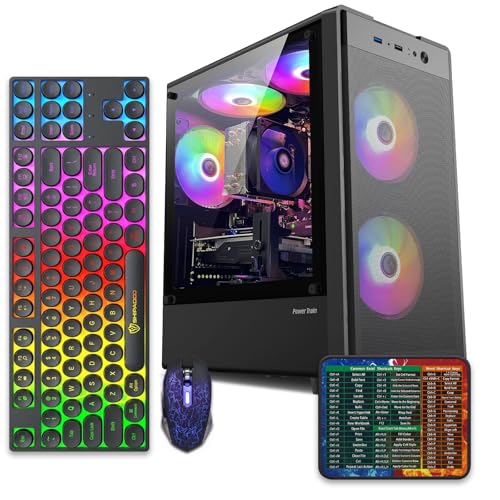
Adding RAM to a mini PC comes down to three things: confirm it’s upgradeable, buy the right SODIMM type, and seat the sticks until they click. Do that and you’ll turn a sluggish little box into something that keeps up with a dozen tabs and a couple of background jobs without breaking a sweat. If your unit turned out to have soldered memory and you’d rather own a machine you can keep upgrading for years, a compact tower with open slots is the sane alternative. The abytespark Prebuilt Gaming PC Desktop pairs an Intel Core i7 with a standard tower layout at $499.99 and a 4.4 rating, so you get real DIMM slots and room to grow instead of a dead end. Planning a media box or NAS instead? Our best mini PC for Plex guide points you toward models that stay easy to service.
Pros
- 512GB SSD bot drive avoids the HDD bottleneck common in budget prebuilts
- RX 590 8GB VRAM buffer handles 1080p textures better than 4GB budget cards
- Complete bundle with RGB peripherals means no extra spend to start using
- Genuine Windows 11 Home 64-bit preinstalled, no activation hassle out of box
Cons
- Limited owner feedback at time of writing, verify seller reputation before purchase
- Core i7-4770 is Haswell era LGA150, no upgrade path and weak IPC versus modern CPUs
- Windows 11 on 4th-gen Intel is unsupported by Microsoft and may miss feature updates
- No CD/DVD-ROM support and RAM/GPU generation limits future workload headroom
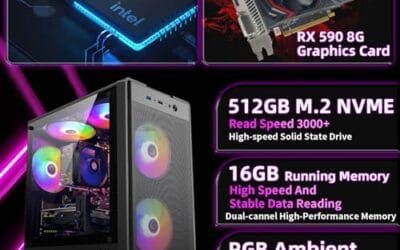
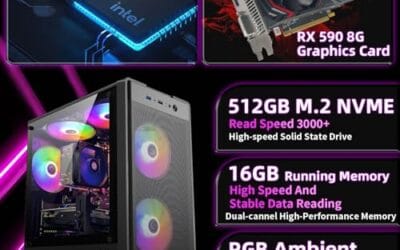
This is an entry-tier prebuilt tower built around an Intel Core i7-4770 Haswell CPU, 16GB RAM, a 512GB SSD, and an AMD Radeon RX 590 8GB GDDR5 GPU. It targets budget buyers who need a working office and light gaming PC with peripherals bundled, not enthusiasts chasing current-gen performance.
The defining feature is the RX 590 8GB paired with a 512GB SSD, an uncommon combo at this price band. Cards in this class typically handle 1080p esports titles at 60+ FPS on medium to high, matching the vendor claim for CS:GO, League of Legends, Apex, and Overwatch. Newer AA titles will need lowered settings.
Trade-offs are significant. The i7-4770 launched in 2013, so IPC, single-thread performance, and platform features like NVMe bot, PCIe Gen4, and modern USB are limited. Windows 11 runs here but sits outside Microsoft's official supported CPU list. There is no realistic CPU or socket upgrade path on LGA1150.
Buy this if you need a plug-and-play 1080p esports and office tower with keyboard, mouse, and RGB included at a low outlay. Skip this if you want current-gen platform support, sustained AA 1440p gaming, or a build with a meaningful upgrade runway.
GPU class: The AMD Radeon RX 590 8GB GDDR5 is a Polaris-refresh card roughly equivalent to a GTX 1060 6GB tier. Expect 1080p 60+ FPS in esports titles like CS:GO, Overwatch, Apex, League, and Fortnite on medium settings, matching the listing's claims.
AAA and modern titles: The vendor lists GTA V, Warzone, Hogwarts Legacy, and The Division 2. Realistically, these run at 1080p low to medium with FSR upscaling where suported.Ray tracing is unsupported on RX 590. No DLSS, no frame gen, no AV1 encode.
CPU bottleneck: The Core i7-4770 quad-core with 8threads at up to 3.9GHz will bottleneck the RX 590 in CPU-heavy titles like Warzone and Escape from Tarkov. Expect frame time inconsistency in large team fights even when average FPS looks aceptable.
Storage and RAM fit: 512GB SSD holds Windows plus 3 to 5 modern game installs before space pressure. 16GB DR3-era RAM is adequate for current esports but leaves no headroom for heavy streaming, browser tabs, and OBS NVENC alongside a game session.
Common questions
How much RAM should I put in a mini PC?
For everyday office work and browsing, 16GB is the comfortable target in 2026. If you run virtual machines, a home server, or a lot of heavy tabs, 32GB gives you real breathing room. Going past that rarely helps a mini PC, since these systems are usually paired with modest CPUs that finish the work before memory becomes the bottleneck.
Can I mix two different RAM sticks in a mini PC?
You can, but it’s not ideal. The system runs at the speed of the slower stick and can drop out of dual-channel mode if the capacities don’t match well, which costs you bandwidth. Mismatched kits are also a frequent cause of instability. For the smoothest result, buy a matched pair rated at the same speed and capacity and install both together.
Do I need to update the BIOS before adding RAM?
Usually no. Most mini PCs recognize a larger or faster module fine on stock firmware. The exception is jumping to a higher-capacity stick than the board originally shipped with, where an older BIOS occasionally needs an update to see the full amount. Check the manufacturer’s support page for your model if the new capacity isn’t detected correctly.
Will adding RAM void my mini PC warranty?
On machines designed with user-accessible SODIMM slots, opening the bottom panel to add memory is expected and normally fine. Some brands still place a sticker over a screw, so check your warranty terms first. If the memory is soldered and there’s no service panel, opening the case is a different story and best avoided entirely.



























Write Your Review
No reviews yet. Be the first to share your experience!