

The three main mouse grips are palm, claw, and fingertip. In palm grip, most of your hand rests on the shell. In claw, your palm heel braces the back and your fingers arch. In fingertip, your palm stays clear. Choose the grip that lets you steer, click, and lift the mouse comfortably.
Start with the mouse you already own. Notice where your hand lands during a game and where it lands when you’re scrolling or dragging a window. You might find that you use two different grips without thinking about it.
How to tell which mouse grip you use
Move the cursor across your screen, then pause without deliberately repositioning your hand. Look at your palm from the side. Broad contact usually means palm grip. Contact mainly at the heel, with your knuckles raised, points to claw. If only your fingers and thumb touch the mouse, you’re using fingertip grip, even if the heel of your hand rests on the desk. Corsair’s guide to grip contact points
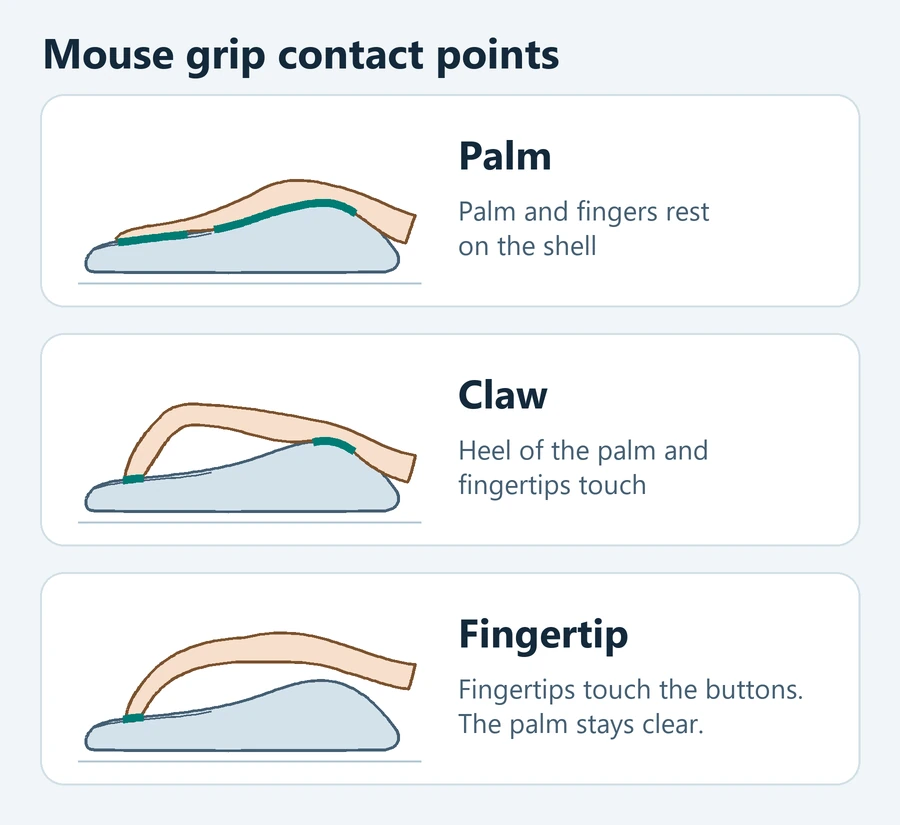
Repeat the check after you lift the mouse to recenter it. If the heel of your palm touches down for a drag but floats when you make a small correction, call it a hybrid grip if you like. The useful detail is when that contact changes and whether the shell gets in your way.
Palm grip gives your hand a broad place to rest
With a palm grip, the body of the mouse fills the space under your hand. Your index and middle fingers generally lie flatter over the main buttons, and your thumb sits along the side. A shell with enough length under your fingers and a back curve that meets your palm is a sensible starting point. How full it feels depends on your hand size and where the shell rises.
Imagine dragging a file between two monitors. You can move your forearm across the pad while keeping the same contact with the shell. Pulling the mouse a few millimeters toward you with your fingers alone may feel more restricted because the back is already against your palm. If that rarely bothers you, the extra support may be worth it.
Watch for a shell that feels comfortable at rest but spreads your thumb and ring finger apart when you lift it. On the other end, if your fingertips hang over the front buttons and you keep sliding your palm back to click, look for more usable button length. A long mouse can still have short buttons or a hump that puts your hand too far forward.
Claw grip leaves room to curl your fingers
In a claw grip, the heel of your palm meets the rear of the mouse and your fingers curl down toward the buttons. Most of the palm has room above the shell. The rear contact gives you a place to settle the mouse after a lift, while bent fingers can still move it a little under your hand.
Say you’re following a moving target and it suddenly changes direction. A claw grip lets you finish a broad sweep with your arm and add a small finger correction while keeping some rear contact. If you curl your index finger more sharply to reach the wheel, though, the front of that particular shell may sit too far from where your palm lands.
Try a shell with a defined rear curve if you like a clear point of contact. The curve should meet the heel of your hand where it already sits. If it pushes your hand up and steepens your finger bend, try a lower or differently positioned hump. Relaxed claw and more pronounced claw are both possible. You can keep the bend shallow if that makes repeated clicks easier. ZOWIE’s claw grip explainer
Fingertip grip keeps your palm clear of the shell
Your index and middle fingertips work the main buttons while your thumb and the fingers on the far side hold the mouse. Keeping your palm free lets you extend your fingers to nudge the mouse away and curl them to draw it back. Your arm can still take over for a longer sweep.
Think about lining up a tiny icon after moving the cursor most of the way across your desktop. With fingertip grip, that last nudge can come from your fingers. The tradeoff is that you have to support the sides without the shell braced against your palm. If you squeeze the mouse every time you stop or lift it, a different width or side contour may feel easier to hold.
Shorter, lower shapes are worth comparing if the rear of your current mouse bumps your hand when you pull it back. Check the sides as well. A narrow waist can be easy to reach, but what matters is whether your thumb and ring finger can lift the mouse with a light hold. ZOWIE’s fingertip grip and shape guide
Compare the grips with the mouse you have
Keep the same mouse, pad, and pointer sensitivity while comparing grips. Pick three motions you already make: a wide sweep, a small correction, and a lift back to the middle of the pad. Then use the side button or scroll wheel as you normally would. Try each position briefly, then spend a few minutes with the one that feels easiest.
- During the sweep: Does the heel of your hand stay where you expect, or do you keep shifting forward on the shell?
- During the correction: Can you pull the mouse toward you a little without the rear catching your palm?
- During the lift: Do your side fingers have a steady hold? If you put the mouse down and immediately regrip, notice which finger has to move.
- During the click: Can you press the wheel or thumb button and return to your usual position without sliding your whole hand?
Try the same motions later in an ordinary session. A few easy swipes. A stretch of regular play. If the second feels different from the first, pay attention to what changed. A mouse placed far from the keyboard can leave you reaching, and a high desk can leave your wrist bent upward. Bring the mouse closer and give yourself enough room to keep your wrist roughly in line with your forearm. OSHA’s guidance on mouse placement
If the mouse feels hard to start or stop regardless of how you hold it, the surface may also play a part. Our guide to gaming mousepad materials explains how different surfaces can change the feel of a sweep. Compare one change at a time so you can tell which one helped.
What to look for when comparing mouse shapes
Measure your hand from the crease at the wrist to the tip of your middle finger and across the knuckles, excluding your thumb. Use those two measurements to compare your current fit with a candidate, keeping in mind that the widest point of the shell may sit behind the place you grip it. Also compare the height and position of the hump, the highest curve on top. Two mice with the same overall length and height can meet your palm in different places. ZOWIE’s guide to mouse shape and fit
For palm grip, compare how much of the back supports your hand and where your fingers land on the buttons. For claw, look for space between the middle of your palm and the shell while the heel settles naturally. For fingertip, compare side width and how far you can pull the mouse inward before it touches your palm. If you use your left hand, check which side actually has the thumb buttons. A symmetrical outline can still have buttons on just one side.
If you can handle two shapes side by side, start both from the same hand position and roll the wheel without looking down. Then lift each mouse just enough to clear the pad. A wide rear can feel supportive on the desk while the side walls feel hard to hold in the air. With online listings, look for both side and top views. The side view shows where the shell rises, and the top view shows how much the sides narrow under your fingers. A few millimeters in the right spot may matter more than the size label on the box.
Shape changes can be subtle. If the current mouse fits except for a hard-to-reach thumb button, look at button position before jumping to a much shorter shell. Our guide on how to choose a gaming mouse covers the other decisions, including connection type and controls.
Is one grip better for FPS games?
Each grip gives you a different way to make corrections. Palm offers broad contact during a sweep, claw lets you brace the heel while adjusting with bent fingers, and fingertip leaves more room for the fingers to move the shell. In an FPS, use the grip that lets you track, change direction, and reset your mouse without an awkward shift. How often you need to lift and reset can also depend on sensitivity and available pad space.
You don’t have to use your gaming grip all day. If your hand settles into a palm grip while you work and shifts toward claw when you play, that’s a practical response to different tasks. People can also change grips when they switch shells. The labels help you describe what feels different.
Which mouse grip should you start with?
Start with the position your hand returns to on its own. Try palm if you’d like more shell under your hand, claw if you want a rear brace with room for finger movement, or fingertip if you want your palm clear for small corrections. If you can move, click, and lift comfortably across a full session, you’ve found a grip you can keep. If the shell still gets in your way, use the contact points above to narrow down the shapes in our gaming mouse buying guide.









Write Your Review
No reviews yet. Be the first to share your experience!