

If you’ve priced out a new display lately, you’ve probably seen “G-Sync” stamped on the spec sheet and wondered if it’s worth paying extra for. The short version: it matters when your frame rate bounces around, which is most of the time in real games. It fixes screen tearing and the stutter that comes from a monitor and a GPU running on different clocks. Whether that’s a big deal depends on what you play and how sensitive you are to visual hitches.
This guide breaks down what G-Sync actually does, how it differs from AMD’s FreeSync and plain VRR, and when you’d notice the difference versus when you’re paying for a badge. We’ll keep it plain-English and tie it back to real hardware. If you’re already shopping, our roundups of the best 1440p gaming monitor picks and the best 4K G-Sync monitor options cover the panels most people end up choosing. For a tighter budget, the best 24-inch monitor list is a good starting point.
The short answer
Yes, G-Sync matters for gaming, but not the way the marketing implies. It’s a variable refresh rate (VRR) technology. Your monitor normally refreshes at a fixed cadence, say 60 or 144 times per second. Your GPU, meanwhile, spits out frames whenever it finishes rendering them, which is almost never a clean multiple of that cadence. When those two fall out of sync, you get tearing (a frame split across the screen) or stutter (a frame held too long). G-Sync makes the monitor wait for the GPU instead of the other way around. The refresh rate flexes in real time to match whatever frame rate you’re hitting.
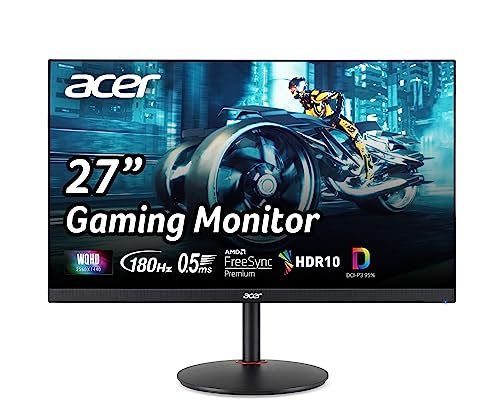
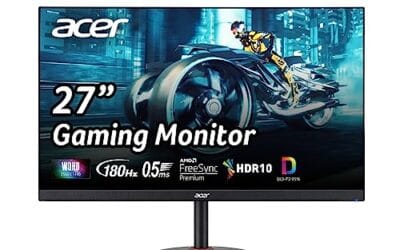
The payoff is a smoother, tear-free image without the input lag that V-Sync adds. It’s most obvious in the 40 to 90 fps range, exactly where mid-tier rigs live. Above 120 fps the benefit shrinks because frames arrive so fast that tearing is harder to catch. Below 40 fps, no sync tech saves a bad experience. A monitor like the Acer Nitro XV271U, a 27-inch 1440p IPS panel with adaptive sync up to 180Hz at $169.99, sits right in the range where VRR earns its keep.
Pros
- 1440p 180Hz IPS panel via DisplayPort 1.2 hits the current price/perf sweet spot
- 95% DCI-P3 gamut is uncommon at this tier, useful for content viewing
- Full ergonomic stand: 4.7 inch height, 360 swivel, plus/minus 90 pivot, VESA 100
Cons
- Limited owner feedback at time of writing, long-term panel uniformity unverified
- HDMI 2.0 caps at 144Hz; only DisplayPort 1.2 unlocks the full 180Hz refresh
- No USB hub and 2W stereo speakers are strictly a bep-only backup at this tier
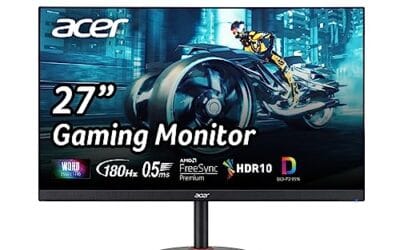
The Acer Nitro XV271U M3bmiiprx is a budget-oriented 27inch 1440p IPS gaming monitor targeting builders stepping up from 1080p high refresh. With 2560x1440 resolution, 180Hz over DisplayPort, and FreeSync Premium, it fits users pairing an RTX 4060,X 4060 Ti, or RX 7600 XT class GPU running competitive and AA titles at medium to high settings.
The defining feature is the 180Hz IPS panel with a claimed 0.5ms GtG response, paired with 95% DCI-P3 coverage. In practice, IPS panels at this tier typically deliver around 300to 350 nits SDR brightness and moderate contrast near 1000:1, so blacks will lift in dark rooms. FreeSync Premium adds low framerate compensation, useful when demanding titles drop below 60 FPS.
Trade-offs are typical for the segment. HDMI 2.0 bandwidth caps refresh at 144Hz, so consoles and older GPUs will not reach the full 180Hz ceiling. HDR tier, panel bit depth, and factory calibration are not specified in the listing, and there is no USB hub. The 2W speakers are functional only as a fallback.
Buy this if you want a 1440p 180Hz IPS panel with a full ergo stand and 95% DCI-P3 for mixed gaming and casual creative work. Skip this if you need verified HDR performance, USB-C daisy chaining, or OLED-level contrast for dark-room cinema use.
Panel and Resolution: 27 inch WQHD IPS at 2560x1440 gives a 0.233m pixel pitch, sharp enough that antialiasing needs drop versus 1080p 27 inch panels. IPS delivers wide viewing angles suited to desk sharing or off-axis reference monitors during editing sessions.
Refresh and Response: 180Hz refresh is available only through DisplayPort 1.2; HDMI 2.0 tops out at 144Hz due to bandwidth limits. Acer lists 1ms GtG typical and up to 0.5ms GtG at aggressive overdrive, though inverse ghosting is common at max overdrive on IPS panels in this bracket.
Color and HDR: 95% DCI-P3 coverage is the standout spec, wider than most sub-tier IPS panels that sit near 90% sRGB. HDR certification level, peak brightness, and local dimming are not specified in the source, so treat HDR as a compatibility mode rather than a true HDR experience.
Ports and Ergonomics: 1 DisplayPort 1.2, 2 HDMI 2.0, and audio out cover a PC plus one console. The stand offers minus 5 to 25 degree tilt, 4.7 inch height range, 360 degree swivel, and plus/minus 90 degree pivot, with 100x100 VESA for monitor arms. FreeSync Premium is confirmed, G-SYNC compatibility is not listed.
The longer explanation
Here’s the core problem. A fixed 144Hz monitor draws a new image every 6.9 milliseconds, on a strict schedule. Your GPU doesn’t care about that schedule. In a firefight it might render a frame in 8ms, then 5ms, then 11ms as the scene load changes. When a fresh frame lands mid-draw, the monitor stitches the top half of the old frame to the bottom half of the new one. That seam is tearing, and once you notice it you can’t un-notice it.
The old fix was V-Sync, which forces the GPU to hold each finished frame until the monitor is ready. It kills tearing, but it adds latency and can halve your effective frame rate when you dip below the refresh ceiling. G-Sync flips the control around. A hardware module (or, on cheaper panels, a firmware standard) lets the monitor redraw the instant a frame is ready, anywhere from 1Hz up to the panel’s max. No seam, no forced wait, no big latency penalty. That’s the whole trick, and it’s genuinely useful.
How it works under the hood
Nvidia launched G-Sync in 2013 with a dedicated scaler chip built into the monitor. That module handled the variable timing and did some extra work like variable overdrive, which keeps pixel response consistent across the refresh range. It worked well, but the hardware added cost, and those displays carried a premium of $100 or more over identical non-G-Sync panels.
AMD answered in 2015 with FreeSync, which piggybacks on the VESA Adaptive-Sync standard baked into DisplayPort and later HDMI. No proprietary chip, so it’s nearly free to implement. That’s why you’ll see FreeSync on budget displays like the AOC 24G51F and the Acer Nitro at prices where a hardware G-Sync module would never fit. In 2019 Nvidia blinked and introduced “G-Sync Compatible” certification, which lets its GPUs run VRR over that same open standard. So a FreeSync monitor can, in most cases, deliver a G-Sync experience on an Nvidia card. The badge and the underlying tech drifted apart, which is exactly why the spec sheet gets confusing.
Why it works this way
The reason VRR helps so much is that game frame rates are inherently unstable. No engine renders a perfectly flat frame time. Loading a new area, an explosion, a crowd of enemies, all of it swings the render time frame to frame. A fixed refresh rate assumes stability that doesn’t exist, so it’s always fighting your GPU. VRR stops the fight by making the display the follower instead of the leader.
There’s a catch tied to the panel’s VRR window. Every adaptive-sync display has a supported range, say 48 to 180Hz. Inside that window everything’s smooth. Drop below the floor and you’re back to tearing or stutter unless the monitor supports Low Framerate Compensation, which multiplies frames to stay in range. That’s why refresh ceiling and the width of the VRR range both matter, and why a 144Hz or 180Hz panel gives you more usable headroom than an old 60Hz screen. Pairing the tech with a strong panel is half the battle, which is where the best 27-inch 1440p monitor picks come in.
When you’d want this
VRR earns its money when your frame rate can’t stay pinned to your refresh rate. That’s most people. If you play fast shooters, open-world RPGs, or anything that swings between 50 and 130 fps, adaptive sync smooths out the ride and you’ll feel it in the aiming. Competitive players chasing raw latency sometimes leave it off and just eat the tearing at 240 fps and up, but that’s a niche call. For the other 95 percent of gamers, VRR on is the default, and it’s basically free on modern panels.
Where it matters less: if you already lock a steady 60 fps in slower games and never dip, or you’re on an older 60Hz display with a narrow VRR window, the gain is small. Budget shoppers get the best deal here, because you no longer pay a premium for the feature. The AOC 24G51F, a 24-inch 1080p 144Hz IPS panel at $89.99 with a 4.9 rating, bundles adaptive sync into a sub-$100 monitor. That would’ve been unthinkable a few years ago. It’s a clean example of VRR trickling down to entry-level gear.

Pros
- IPS panel offers wider off-angle color stability than VA screens common at this price.
- 116% sRGB coverage handles gaming and general content color reproduction adequately.
- Three-year zero-bright-dot warranty coverage is uncommon on entry-tier IPS panels.
Cons
- Limited owner feedback at time of writing, hard to confirm QC consistency across units.
- HDR ready label lacks a VESA tier, so peak brightness likely sits near 250 to 300 nits.
- 1ms MPRT is a strobed figure; real GtG on entry IPS typically lands between 4 and 8ms.
The AOC 24G51F is an entry-level 24-inch FHD gaming monitor built around a 144Hz IPS panel with Adaptive-Sync. It targets budget esports players and console owners who want higher refresh than 60Hz without steping up to 1440p or OLED tiers. Console output tops out at 120Hz over HDMI 2.0.
The defining feature is IPS at 144Hz in the sub-24-inch budget class. Owner data is thin at time of writing, but panels in this tier typically deliver 250 to 300 nits SDR brightness and near-full sRGB coverage. The 1ms MPRT figure is strobing based; real GtG response on entry IPS usually falls between 4 and 8ms.
HDR ready is marketing shorthand rather than VESA HDR400 certification, so expect flat highlights in HDR content. Pixel density on a 23.8-inch 1080p panel is roughly 92 PPI, visibly softer than 1440p at the same size. No USB hub or built-in speakers are listed, which is typical at this tier.
Buy this if you need a second high-refresh IPS display for 1080p esports or a Series X console at 120Hz, and you value the zero-bright-dot coverage. Skip this if you already run a 1440p-class GPU like an RTX 4070, or if you need calibrated color for photo and video work.
Panel and resolution: IPS panel at 1920x1080 across a 23.8-inch viewable diagonal, yielding roughly 92 PPI. Refresh rate reaches 144Hz over DisplayPort. IPS provides wider off-angle color stability than VA panels at this size class, useful for shared or dual-monitor setups.
Response and sync: AOC lists 1ms MPRT, a strobed measurement rather than GtG. Real gray-to-gray on entry IPS panels typically sits between 4 and 8ms. Adaptive-Sync support covers the FreeSync range and works with G-SYNC Compatible mode on NVIDIA cards, cutting tearing when framerate dips.
Color and HDR: Rated 116% sRGB coverage, adequate for gaming and general content but not calibrated for DCI-P3 workflows. HDR ready is unbadged, so no VESA HDR400 tier is specified. Expect peak brightness in the 250 to 300 nit range typical of this segment.
Connectivity: One HDMI 2.0 and one DisplayPort input, no USB hub, no built-in speakers listed. HDMI 2.0 handles 1080p at 120Hz for PS5 and Xbox Series X. The three-sided frameless design suits stacked 24-inch panels with minimal bezel between screns.
What to look for in a VRR gaming monitor
Start with the refresh ceiling and the VRR range, not the badge. A panel that syncs from roughly 48Hz to its max gives you real headroom; a narrow window undercuts the whole point. Confirm the sync works over your connection too, since some monitors only do VRR over DisplayPort and fall back to fixed refresh on HDMI. The Acer Nitro, for reference, lists one DisplayPort 1.2 and two HDMI 2.0 inputs, so you’ve got options for a PC plus a console.
Panel type and resolution matter as much as the sync. An IPS panel like the ones in both the Acer and AOC gives you better color and viewing angles than a cheap TN screen, which is why the Acer’s DCI-P3 95 percent coverage is worth noting for anyone who edits photos between matches. Match resolution to your GPU: 1080p at 144Hz is easy to drive, while 1440p at 180Hz asks more of your card. And don’t sweat the “G-Sync Compatible” sticker versus plain FreeSync; on a current Nvidia card the practical result is the same. If you want a curated shortlist, our best gaming monitor deals and best gaming monitor under $400 pages filter for panels that get the fundamentals right.
Common misconceptions
The biggest myth is that G-Sync raises your frame rate. It doesn’t. It synchronizes what you already have, so a 55 fps game still runs at 55 fps; it just looks smoother getting there. Another one: that you need an Nvidia card and a hardware G-Sync module. You don’t. Any FreeSync or Adaptive-Sync panel will run VRR on a modern Nvidia or AMD GPU over DisplayPort, and often over HDMI.
People also assume more VRR always means lower input lag. Not quite. VRR removes the latency V-Sync adds, but it doesn’t beat running uncapped with tearing on for pure milliseconds. And the “hardware module is always better” line is dated. It buys you variable overdrive and a wider range on premium screens, but a good FreeSync panel covers the vast majority of real-world use for a fraction of the price.
Frequently asked
Does G-Sync work with an AMD graphics card?
Not the proprietary hardware version, but it doesn’t matter. AMD cards use FreeSync over the same Adaptive-Sync standard, and most monitors sold today support both paths. So a display marketed as FreeSync or G-Sync Compatible will do VRR on whichever GPU brand you own, as long as you’re connected over a supported port.
Is there any downside to leaving G-Sync on?
For nearly everyone, no. Turn it on and forget it. The only crowd that occasionally disables it is competitive players chasing the last millisecond of latency at very high frame rates, and even that’s debated. For normal gaming, VRR on is the right call.
Do I need a high refresh rate monitor for G-Sync to help?
It helps at any refresh rate, but a higher ceiling gives you a wider window where the sync stays active. A 144Hz or 180Hz panel like the AOC or Acer keeps VRR working across a much bigger frame-rate range than an old 60Hz screen, so you get smooth results more of the time.
Will G-Sync fix stutter in a poorly optimized game?
Partly. It smooths the mismatch between your GPU and monitor, so tearing and refresh-related judder go away. It can’t fix stutter caused by CPU bottlenecks, shader compilation, or bad streaming code. If a game hitches even at a locked frame rate, that’s an engine problem, not a display one.
Is a hardware G-Sync module worth the extra money?
For most gamers, no. The open FreeSync and G-Sync Compatible standards deliver a near-identical experience on today’s panels for far less. The dedicated module adds variable overdrive and a slightly wider range that enthusiasts on high-end displays may value, but it’s not something a typical player will notice day to day.




























Write Your Review
No reviews yet. Be the first to share your experience!