

FreeSync is one of those features that quietly sits in your monitor and graphics card, doing nothing until you flip the right switches. If you bought a display with adaptive sync but you’re still seeing screen tearing or stutter in games, there’s a good chance it isn’t actually turned on. Confirming FreeSync status takes about five minutes, and it doesn’t require any special gear beyond what’s already plugged into your PC. This walkthrough shows you how to verify the feature end to end: in your GPU driver, in the monitor’s on-screen menu, and with a quick in-game sanity check. If you’re still shopping and want a display that supports it well, our roundups of the best 1440p gaming monitor options and the latest best gaming monitor deals are worth a look before you commit.
What you’ll need
The good news? You already own everything required. You’ll need a FreeSync-capable monitor, an AMD or NVIDIA graphics card that supports variable refresh rate, and a DisplayPort or HDMI cable rated for the job. That last part trips people up more than you’d expect. Older HDMI cables can cap your refresh rate, so if your monitor runs at 144Hz or 180Hz, use DisplayPort 1.2 or better when the option exists. You’ll also want the current graphics driver installed, since adaptive sync toggles hide inside driver software that Windows doesn’t ship with by default.
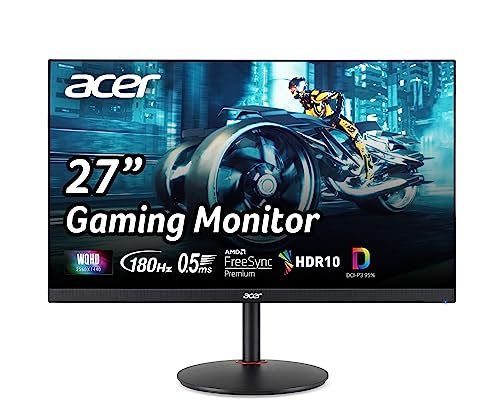
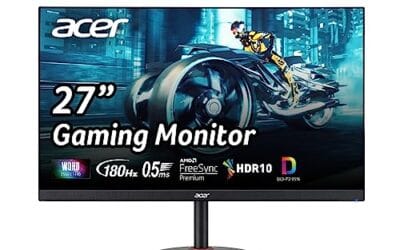
If you’re setting this up on a fresh panel, a display like the Acer Nitro 27″ WQHD is a clean reference point. It’s a 2560 x 1440 IPS monitor with AMD FreeSync Premium up to 180Hz, a 0.5ms response spec, 95% DCI-P3 coverage, one DisplayPort 1.2 input, and two HDMI 2.0 ports, currently around $169.99 with a 4.8 rating. That connector mix matters here, because the DisplayPort path is what unlocks the full 180Hz FreeSync range on this model.
Pros
- 1440p 180Hz IPS panel via DisplayPort 1.2 hits the current price/perf sweet spot
- 95% DCI-P3 gamut is uncommon at this tier, useful for content viewing
- Full ergonomic stand: 4.7 inch height, 360 swivel, plus/minus 90 pivot, VESA 100
Cons
- Limited owner feedback at time of writing, long-term panel uniformity unverified
- HDMI 2.0 caps at 144Hz; only DisplayPort 1.2 unlocks the full 180Hz refresh
- No USB hub and 2W stereo speakers are strictly a bep-only backup at this tier
The Acer Nitro XV271U M3bmiiprx is a budget-oriented 27inch 1440p IPS gaming monitor targeting builders stepping up from 1080p high refresh. With 2560x1440 resolution, 180Hz over DisplayPort, and FreeSync Premium, it fits users pairing an RTX 4060,X 4060 Ti, or RX 7600 XT class GPU running competitive and AA titles at medium to high settings.
The defining feature is the 180Hz IPS panel with a claimed 0.5ms GtG response, paired with 95% DCI-P3 coverage. In practice, IPS panels at this tier typically deliver around 300to 350 nits SDR brightness and moderate contrast near 1000:1, so blacks will lift in dark rooms. FreeSync Premium adds low framerate compensation, useful when demanding titles drop below 60 FPS.
Trade-offs are typical for the segment. HDMI 2.0 bandwidth caps refresh at 144Hz, so consoles and older GPUs will not reach the full 180Hz ceiling. HDR tier, panel bit depth, and factory calibration are not specified in the listing, and there is no USB hub. The 2W speakers are functional only as a fallback.
Buy this if you want a 1440p 180Hz IPS panel with a full ergo stand and 95% DCI-P3 for mixed gaming and casual creative work. Skip this if you need verified HDR performance, USB-C daisy chaining, or OLED-level contrast for dark-room cinema use.
Panel and Resolution: 27 inch WQHD IPS at 2560x1440 gives a 0.233m pixel pitch, sharp enough that antialiasing needs drop versus 1080p 27 inch panels. IPS delivers wide viewing angles suited to desk sharing or off-axis reference monitors during editing sessions.
Refresh and Response: 180Hz refresh is available only through DisplayPort 1.2; HDMI 2.0 tops out at 144Hz due to bandwidth limits. Acer lists 1ms GtG typical and up to 0.5ms GtG at aggressive overdrive, though inverse ghosting is common at max overdrive on IPS panels in this bracket.
Color and HDR: 95% DCI-P3 coverage is the standout spec, wider than most sub-tier IPS panels that sit near 90% sRGB. HDR certification level, peak brightness, and local dimming are not specified in the source, so treat HDR as a compatibility mode rather than a true HDR experience.
Ports and Ergonomics: 1 DisplayPort 1.2, 2 HDMI 2.0, and audio out cover a PC plus one console. The stand offers minus 5 to 25 degree tilt, 4.7 inch height range, 360 degree swivel, and plus/minus 90 degree pivot, with 100x100 VESA for monitor arms. FreeSync Premium is confirmed, G-SYNC compatibility is not listed.
Step 1: Confirm your monitor and GPU both support FreeSync
Start with the specs before touching any settings. Check your monitor’s product page or the sticker on the back for “FreeSync,” “Adaptive Sync,” or “VRR.” Then confirm your graphics card can drive it. Modern AMD Radeon cards support FreeSync natively, and NVIDIA GPUs from the GTX 10-series onward can run FreeSync monitors under the “G-Sync Compatible” label. That cross-compatibility is why a FreeSync panel isn’t locked to one brand anymore. If you’re comparing panels by size while you plan a build, the best 27-inch 1440p monitor guide and the best 24-inch monitor picks break down which sizes pair well with which cards.
Write down your monitor’s supported FreeSync range too. It’s usually printed as something like 48 to 180Hz. That number decides whether Low Framerate Compensation can kick in, and it affects what you’ll see later in the driver panel. The lower bound matters more than people assume. When your frame rate dips below that floor, LFC doubles up frames to keep sync intact, but only on panels that advertise support for it. A wide range, say 40Hz to 180Hz, gives you more headroom during demanding scenes.
Step 2: Enable FreeSync in your monitor’s on-screen menu
Here’s the step almost everyone skips. FreeSync has to be switched on inside the monitor itself, not just the GPU. Grab the physical buttons or joystick on the back or bottom edge of your display and open the on-screen display menu. Look under a heading like Gaming, Picture, or Setup for an entry named “FreeSync,” “Adaptive Sync,” or “VRR.” Toggle it on.
Some monitors offer two modes, often labeled “Standard” and “Ultimate” or “Extended.” The extended mode widens the sync range but can introduce flicker on certain panels, so start with the standard setting and only change it if you notice problems. Save and exit the menu. If the option is grayed out, that’s almost always a cable or input issue, and we’ll circle back to that in the troubleshooting section.
Step 3: Turn on adaptive sync in your graphics driver
Now the software side. On an AMD system, right-click the desktop and open AMD Software: Adrenalin Edition. Go to Settings, then Display, and flip “AMD FreeSync” to Enabled for your monitor. The panel shows the current FreeSync status right there, which is the single fastest way to verify the feature is live.
On an NVIDIA system, open the NVIDIA Control Panel, expand Display in the left sidebar, and click “Set up G-SYNC.” Check the box to enable G-Sync Compatible mode and apply it to your FreeSync monitor. You can choose to enable it for full screen mode only or for both windowed and full screen, and most gamers leave both selected. If the “Set up G-SYNC” entry doesn’t appear at all, your driver hasn’t detected a VRR-capable display, which usually points back to the cable or the monitor toggle from Step 2. Owners planning a higher-refresh setup often check the best 360Hz gaming monitor guide to see how driver behavior scales at extreme refresh rates.
Step 4: Set your refresh rate and resolution correctly
FreeSync only works when your display is actually running at its rated refresh rate. Open Windows Settings, go to System, then Display, then Advanced display. Confirm the resolution matches your monitor’s native panel, for example 2560 x 1440 on a 1440p screen, and set the refresh rate to the highest value listed. If your 180Hz monitor is stuck at 60Hz, Windows defaulted to a safe fallback and adaptive sync won’t behave as intended.
Not seeing the high refresh option? That’s the cable talking again. A DisplayPort 1.2 connection carries 1440p at high refresh comfortably, while an underrated HDMI cable may force a lower ceiling. Swap to the DisplayPort input and recheck the dropdown.
Pros
- 1440p 180Hz IPS panel via DisplayPort 1.2 hits the current price/perf sweet spot
- 95% DCI-P3 gamut is uncommon at this tier, useful for content viewing
- Full ergonomic stand: 4.7 inch height, 360 swivel, plus/minus 90 pivot, VESA 100
Cons
- Limited owner feedback at time of writing, long-term panel uniformity unverified
- HDMI 2.0 caps at 144Hz; only DisplayPort 1.2 unlocks the full 180Hz refresh
- No USB hub and 2W stereo speakers are strictly a bep-only backup at this tier
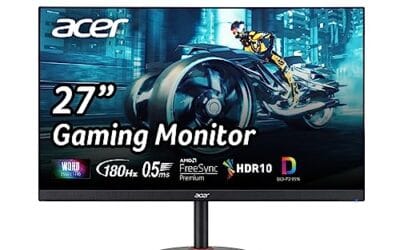
The Acer Nitro XV271U M3bmiiprx is a budget-oriented 27inch 1440p IPS gaming monitor targeting builders stepping up from 1080p high refresh. With 2560x1440 resolution, 180Hz over DisplayPort, and FreeSync Premium, it fits users pairing an RTX 4060,X 4060 Ti, or RX 7600 XT class GPU running competitive and AA titles at medium to high settings.
The defining feature is the 180Hz IPS panel with a claimed 0.5ms GtG response, paired with 95% DCI-P3 coverage. In practice, IPS panels at this tier typically deliver around 300to 350 nits SDR brightness and moderate contrast near 1000:1, so blacks will lift in dark rooms. FreeSync Premium adds low framerate compensation, useful when demanding titles drop below 60 FPS.
Trade-offs are typical for the segment. HDMI 2.0 bandwidth caps refresh at 144Hz, so consoles and older GPUs will not reach the full 180Hz ceiling. HDR tier, panel bit depth, and factory calibration are not specified in the listing, and there is no USB hub. The 2W speakers are functional only as a fallback.
Buy this if you want a 1440p 180Hz IPS panel with a full ergo stand and 95% DCI-P3 for mixed gaming and casual creative work. Skip this if you need verified HDR performance, USB-C daisy chaining, or OLED-level contrast for dark-room cinema use.
Panel and Resolution: 27 inch WQHD IPS at 2560x1440 gives a 0.233m pixel pitch, sharp enough that antialiasing needs drop versus 1080p 27 inch panels. IPS delivers wide viewing angles suited to desk sharing or off-axis reference monitors during editing sessions.
Refresh and Response: 180Hz refresh is available only through DisplayPort 1.2; HDMI 2.0 tops out at 144Hz due to bandwidth limits. Acer lists 1ms GtG typical and up to 0.5ms GtG at aggressive overdrive, though inverse ghosting is common at max overdrive on IPS panels in this bracket.
Color and HDR: 95% DCI-P3 coverage is the standout spec, wider than most sub-tier IPS panels that sit near 90% sRGB. HDR certification level, peak brightness, and local dimming are not specified in the source, so treat HDR as a compatibility mode rather than a true HDR experience.
Ports and Ergonomics: 1 DisplayPort 1.2, 2 HDMI 2.0, and audio out cover a PC plus one console. The stand offers minus 5 to 25 degree tilt, 4.7 inch height range, 360 degree swivel, and plus/minus 90 degree pivot, with 100x100 VESA for monitor arms. FreeSync Premium is confirmed, G-SYNC compatibility is not listed.
Step 5: Verify FreeSync is working in a real game
Settings can say one thing and the panel can do another, so a live check settles it. Many monitors have a built-in FreeSync indicator buried in the OSD menu that reports the current status while a variable-framerate source is running. Turn that on if yours has it. Then launch a game and cap the frame rate somewhere inside your monitor’s FreeSync range, say 90fps on a 48 to 180Hz panel, using the in-game limiter or your driver.
With FreeSync active, tearing during camera pans should vanish and motion should look cleaner without the input-lag penalty of traditional V-Sync. Toggle the monitor’s FreeSync switch off mid-session and you’ll often see tearing return immediately. That before-and-after difference is the clearest confirmation you’ll get. If you’re weighing G-Sync hardware against FreeSync while you evaluate, the best 4K G-Sync monitor comparison lays out where each technology earns its keep.
Troubleshooting common issues
Most FreeSync problems trace back to a handful of culprits. Here are the ones that account for the majority of “it won’t turn on” reports.
The FreeSync toggle is grayed out
This is nearly always a connection fault. Make sure you’re plugged into DisplayPort or a full HDMI 2.0 port, not a passive adapter or a dock that strips VRR support. Reseat the cable at both ends. If your monitor has multiple inputs, some only pass FreeSync on specific ports, so consult the port labels and try the DisplayPort input first.
FreeSync is on but tearing continues
Check your frame rate. If your game runs above the monitor’s maximum refresh, you’ve exited the FreeSync range and tearing comes back. Cap your frames a few below the panel’s ceiling, for instance 176fps on a 180Hz display. Confirm the refresh rate in Windows is set to maximum, not the 60Hz fallback.
Flickering in menus or loading screens
Some panels flicker when frame rates swing wildly, which happens most in game menus that render at hundreds of frames per second. Switch the monitor’s FreeSync mode from Extended back to Standard, and enable a frame cap so the rate stays inside the supported window. That usually settles it.
NVIDIA card won’t show the G-Sync option
Update to the latest NVIDIA driver, then enable FreeSync in the monitor’s OSD before opening the Control Panel. NVIDIA only exposes “Set up G-SYNC” once it detects an active VRR display, so the order matters. A reboot after the driver update clears up most detection hiccups.
What you should expect afterward
Once everything’s dialed in, gameplay inside your monitor’s refresh range should look tear-free and smooth, even when your frame rate bounces around. You won’t gain raw frames per second, that’s not what adaptive sync does, but the frames you do get land cleaner. Fast-paced shooters and open-world games benefit the most, since those are where frame times fluctuate hardest. The difference is easiest to spot during fast horizontal camera movement, where tearing normally shows up as a visible seam splitting the image. Budget-minded buyers who want this experience without overspending can scan the best gaming monitor under $400 list for panels that hit the mark.
Wrapping up
Checking FreeSync comes down to three places that all have to agree: the monitor’s OSD, the graphics driver, and your Windows refresh-rate setting. Flip the toggle on the panel, enable adaptive sync in Adrenalin or the NVIDIA Control Panel, confirm you’re running native resolution at full refresh, then prove it in a real game. If a step won’t cooperate, the cable and the port are the first suspects, not your GPU. Five minutes of checking is a small price for motion that finally looks the way your hardware promised.
Common questions
Does FreeSync work with NVIDIA graphics cards?
Yes. NVIDIA GPUs from the GTX 10-series onward can drive FreeSync monitors through the “G-Sync Compatible” mode in the NVIDIA Control Panel. You’ll enable FreeSync in the monitor’s menu first, then switch on G-Sync Compatible mode in the driver. It won’t carry NVIDIA’s full G-Sync module features, but the core tear-free experience works fine.
How do I know if FreeSync is actually active?
The quickest confirmation is in your GPU driver: AMD’s Adrenalin panel and NVIDIA’s Control Panel both report FreeSync or G-Sync status per display. Many monitors also have an OSD indicator that shows when a variable-refresh source is running. The visual proof is toggling it off in a game and watching tearing return.
Why is my FreeSync option grayed out?
That points to a connection issue almost every time. Passive adapters, docks, and underrated HDMI cables can block VRR from being detected. Plug directly into a DisplayPort or full HDMI 2.0 port, reseat the cable, and confirm the monitor is set to its high refresh rate. The toggle should light up once a proper VRR link is established.
Do I need to cap my frame rate for FreeSync?
It helps. FreeSync only operates inside the monitor’s supported range, so capping frames a few below the panel’s maximum keeps you in that window and prevents tearing at the top end. On a 180Hz display, a cap around 176fps is a common choice. Low Framerate Compensation handles the bottom of the range on supported panels.




























Write Your Review
No reviews yet. Be the first to share your experience!