

Your WiFi holds for a while, then drops. A video call freezes, a download dies, the little icon flashes, and thirty seconds later you’re back online like nothing happened. This isn’t the same problem as slow WiFi or a router that never connects. It’s the maddening intermittent-drop pattern, where the link keeps dying and reviving on its own. We researched the common culprits behind repeated disconnects on Windows PCs and home networks, and the fixes that actually hold. If your hardware is simply past its prime, our best WiFi 6 router for 2026 and best mesh WiFi system guides cover proven upgrades. Let’s chase down why yours keeps dropping.
First check the obvious (the 30-second check)
Before you touch a single setting, rule out the two-minute stuff. Is it every device or just one? If your phone, laptop, and TV all drop together, the router or modem is the suspect. If only your desktop drops, the problem lives on that machine, usually its WiFi adapter or driver. Power-cycle the modem and router: unplug both, wait sixty seconds, plug the modem in first, then the router. That single step clears a surprising number of recurring drops caused by a wedged connection table. Note when the drops happen too. Every evening? That points to congestion. Random? That points to hardware or drivers.
One more quick check before you dig in: log into your router and glance at its status or system log page. Most routers record disconnect events, and a wall of drop entries at the same time each night tells you the problem is network-wide, not device-specific. While you’re there, confirm the internet light on the modem stays solid. If the modem itself keeps dropping the line to your provider, no amount of PC tinkering will help, and that’s a call to your ISP rather than a settings fix. Ruling the modem in or out early saves you an hour of chasing the wrong ghost.

Cause #1: Windows power management is killing the adapter
This one bites laptop users constantly, and it’s the fix people miss. By default, Windows is allowed to shut off your WiFi adapter to save power. When the machine idles or the battery dips, it powers the radio down, the connection drops, and you get that stutter right when you look away for a minute. It looks like a router fault, but the router is fine. Windows pulled the plug on its own network card.
Open Device Manager, expand Network adapters, right-click your wireless adapter, and choose Properties. Under the Power Management tab, uncheck “Allow the computer to turn off this device to save power.” While you’re in there, open your power plan’s advanced settings, find Wireless Adapter Settings, and set Power Saving Mode to Maximum Performance on both battery and plugged-in. This costs a trickle of battery life and eliminates one of the most common intermittent-drop causes on Windows laptops. If only one PC drops and others don’t, start here every time.
There’s a related setting worth checking on the same tab. Some adapters, especially Intel models, expose a “U-APSD support” or “power save polling” option under Advanced properties. Disabling those aggressive power-saving modes stops the radio from dozing between packets, which is another quiet source of micro-drops during video calls and gaming. If your machine only disconnects after it’s been idle or after waking from sleep, this is almost certainly the reason, and the fix sticks once you turn the power savings off.
Cause #2: Channel congestion and band steering confusion
If every device drops in the evening, your neighbors are the problem. WiFi shares airspace, and the crowded 2.4GHz band in particular gets choked when a dozen nearby routers all fight over the same few channels. Microwaves, Bluetooth gear, and cheap smart plugs pile on interference. When the noise floor spikes, your connection can’t hold and it drops until the channel clears. It’s not your imagination that it’s worse at 8pm.
Log into your router’s admin page and stop leaving the channel on Auto. On 2.4GHz, force it to channel 1, 6, or 11, since those don’t overlap. A free WiFi analyzer app shows which one your neighbors are avoiding. Then look at band steering. Many routers broadcast 2.4GHz and 5GHz under one name and shuffle devices between them, and some adapters handle that handoff badly, dropping the link each time they switch. Splitting the two bands into separate network names, then joining your PC to the stronger 5GHz band directly, stops the ping-ponging. That single change fixes a lot of “it just keeps disconnecting” complaints.
If splitting the bands isn’t an option on your router, at least give the two networks the strongest signal you can. The 5GHz band is faster and far less congested, but it doesn’t travel through walls well, so a PC two rooms away may cling to a weak 5GHz link and drop repeatedly rather than settle onto the sturdier 2.4GHz band. In that case, joining the 2.4GHz network directly can be the more stable choice, congestion aside. It’s a genuine trade between speed and reach, and the right answer depends on how far your PC sits from the router.
Cause #3: Outdated drivers or aging router firmware
A stale wireless driver is one of the most reliable causes of random single-PC drops. Windows Update often installs a generic driver that’s older than what your adapter maker ships, and buggy versions disconnect under load or after sleep. Grab the current driver straight from Intel, Realtek, or your laptop maker’s support page, not a third-party updater. On the router side, log in and check for a firmware update. Manufacturers push fixes for exactly this kind of stability bug, and an unpatched router from years ago can drop clients simply because its firmware was never corrected.
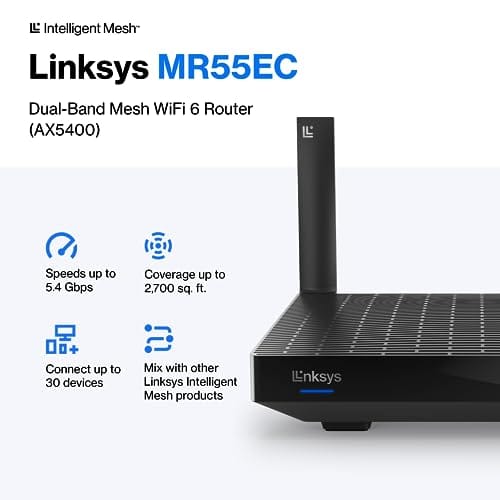
Here’s the harder truth: sometimes the router itself is the fault, and no setting saves it. Old routers overheat, their radios degrade, and they choke once you connect more than a handful of modern devices. If yours is four or five years old, runs hot to the touch, and drops the whole house no matter what you change, it has reached the end of its useful life. A current WiFi 6 unit like the Linksys Hydra Pro 6 (MR5500) handles 30-plus devices across roughly 2,700 square feet and holds a far more stable link than an aging single-band box. At $199.99 with a 4.4-star owner rating, it’s a sensible replacement when the old one simply can’t keep everything connected. Our best WiFi 6 router for apartments guide has smaller-space picks if that’s your situation.

Pros
- AX5400 class dual-band throughput up to 574 plus 4804 Mbps on 5 GHz
- Six spatial streams with OFDMA reduce congestion for 30+ device homes
- Intelligent Mesh compatibility allows scaling coverage beyond the 2,700 sq ft rating
Cons
- Limited owner feedback at time of writing, so real-world reliability data is thin
- Dual-band only, no dedicated 6 GHz or wireless backhaul band at this tier
- Detailed specifications, WAN port sped, and waranty not specified in source listing
The Linksys Hydra Pro 6 (MR5500-AMZ) is a mid-range dual-band WiFi 6 mesh router aimed at households upgrading from an older AC1900 or extender-based setup. Linksys rates it for 2,700 sq ft and 30 plus devices, targeting medium apartments, condos, and small two-story homes with mixed smart home and streaming traffic.
The defining feature is six-stream AX5400 class WiFi 6 with quoted rates of 574 Mbps on 2.4 GHz and 4804 Mbps on 5 GHz. OFDMA and MU-MIMO help when many low-bandwidth clients share airtime, which is where WiFi 5 routers typically stall. Real-world 5 GHz throughput at range appears to land in the mid-hundreds of Mbps based on category norms.
Trade-offs are typical at this tier. It is dual-band, so there is no dedicated 6 GHz radio and no separate backhaul channel when you add mesh nodes, meaning throughput can halve on satellite hops. Linksys does not specify WAN port speed, USB, or processor details in the listing, so multi-gig ISP users should verify before buying.
Buy this if you want a single WiFi 6 router that can grow into a Linksys Intelligent Mesh system for a 2,000 to 3,000 sq ft home with 30 plus clients. Skip this if you need WiFi 6E, 2.5 GbE WAN, or a dedicated backhaul band for a large multi-story house.
Wireless class: AX5400 class dual-band WiFi 6 with quoted PHY rates of 574 Mbps on the 2.4 GHz band and 4804 Mbps on the 5 GHz band, totaling roughly 5378 Mbps aggregate across six spatial streams. No 6 GHz radio is listed, so WiFi 6E clients fall back to 5 GHz.
Coverage and capacity: Linksys rates the MR5500 for 2,700 sq ft and 30 plus simultaneous devices. OFDMA, MU-MIMO, and 1024-QAM are standard at this WiFi 6 tier and help maintain throughput as client count scales, though actual coverage depends heavily on wall material and node placement.
Mesh behavior: Intelligent Mesh lets you pair the MR5500 with other Linksys nodes to extend coverage. Because it is dual-band, backhaul shares the 5 GHz client band, so expect throughput to roughly halve one hop from the root node. A wired Ethernet backhaul between nodes avoids this penalty.
Not specified: WAN and LAN port speeds, USB ports, processor and RAM, warranty length, and physical dimensions are not disclosed in the source listing. Buyers pairing this with multi-gig fber or DOCSIS 3.1 plans above 1 Gbps should confirm port specs before purchase.
Preventive maintenance
Keep drops from creeping back with a few habits. Reboot your router every month or two so its memory and connection table stay clean. Check for firmware updates a couple times a year. Keep the router out in the open, off the floor, and away from metal, thick walls, and other electronics, since placement affects signal stability more than people expect. And update your PC’s wireless driver whenever you notice new instability rather than waiting for a total failure. A router that runs cool and current stays reliable far longer.
One more habit pays off: prune devices you no longer use from the network. Old phones, a retired tablet, or a smart plug you unplugged months ago still hold DHCP leases and clutter the connection table, and a full or fragmented table makes an aging router likelier to drop active clients. Clearing out stale reservations in the router’s DHCP list, and changing the WiFi password once a year to boot off anything you’ve forgotten about, keeps the device count honest. A lean, well-placed network simply drops less.
When it’s not fixable: what to replace
You’ve unchecked power management, split the bands, updated every driver, and it still drops. At that point you’re troubleshooting worn-out hardware. If a cheap USB WiFi adapter keeps dropping your desktop, replace it with a decent internal card or a quality external one, since the bargain dongles are notorious for overheating and disconnecting. If the whole network drops and the router is old, the router is what to replace. A modern WiFi 6 router or a mesh system spreads a stable signal across the home and ends the dead-zone drops a single old router can’t cover. Our best mesh WiFi system for large homes guide is the place to start if range is the real issue.
Before you spend anything, run one honest process of elimination. Plug your PC into the router with an ethernet cable for a day. If the wired connection never drops but WiFi does, you’ve confirmed the wireless side is the fault and not your internet service. If the wired link drops too, the problem is upstream, and that’s your modem or your provider, not your WiFi at all. This one check saves people from buying a new router that was never going to help. Once you know it’s genuinely the wireless hardware, a modern router or mesh kit is money well spent.
Tools and parts needed
Most of this fix costs nothing but time. You’ll want access to your router’s admin page, so have the login handy, usually printed on the router itself. A free WiFi analyzer app on your phone makes channel selection quick. The only parts you might buy are a replacement wireless adapter for a problem desktop, or a new router if the old one is the failure point. Everything else is software and settings you already own.
If you do end up replacing the wireless card in a desktop, match it to your needs. A PCIe WiFi 6 card with external antennas pulls in a stronger, steadier signal than a tiny USB dongle tucked behind the tower, and external antennas can be repositioned to dodge interference. For a laptop, an M.2 wireless module swap is doable but fiddly, so a good USB WiFi 6 adapter is often the easier upgrade that still ends the drops.
Common questions
Why does my WiFi disconnect only on one laptop?
A single-device drop almost always points to that machine, not the router. The usual culprit is Windows power management shutting off the adapter, or an outdated wireless driver. Uncheck the power-saving option in Device Manager and install the current driver from your adapter maker. If other devices stay connected while that one drops, the network itself is fine.
Can too many devices cause WiFi to keep dropping?
Yes. Older and budget routers have a limited number of connections they handle well, and they start dropping clients once you pile on phones, laptops, TVs, and smart-home gadgets. A modern WiFi 6 router such as the Linksys Hydra Pro 6 supports 30-plus devices and manages that load far better. If your drops began after adding several new devices, capacity is likely the cause.
Does moving the router really help with disconnects?
It does more than most people think. Thick walls, metal, and distance weaken the signal, and a weak link drops far more often than a strong one. Placing the router centrally, raised off the floor, and out in the open often steadies a connection that kept dropping in a far room. If one area drops constantly, a mesh node or extender covers that dead zone.































Write Your Review
No reviews yet. Be the first to share your experience!