

You press a key once and get “hhello” on screen. That’s keyboard chatter, also called double typing, and it turns a quick email into a proofreading chore. The good news: most cases are fixable at home without a soldering iron, and you can often pin the cause down in under five minutes. We researched the common failure points, from software debounce quirks to worn switch contacts, and laid out fixes in the order that solves the most keyboards with the least wasted effort. If the board turns out to be beyond saving, our guides to the best mechanical keyboard for typing and the best budget mechanical keyboard for typing point toward solid replacements.
First check the obvious (the 30-second check)
Before you blame the hardware, rule out the cheap stuff. Unplug the keyboard and plug it into a different USB port, ideally one directly on the motherboard rather than a front-panel header or a hub. Flaky hubs and marginal cables cause phantom repeats far more often than people expect. If you’re on a wireless board, swap the batteries or top up the charge, since low voltage makes signals noisy and triggers false double presses.
Next, try the keyboard on a second computer. If the chatter follows the board to another machine, the fault is in the keyboard. If it vanishes, your original PC’s drivers or USB stack are the culprit, not the keys. This one check saves hours. Do it first, every time.

Also check Windows repeat behavior, because it can mimic chatter even when the switch is fine. Open keyboard settings and make sure the repeat delay isn’t set to the lowest value and the repeat rate isn’t cranked all the way up. That setting shouldn’t create two letters from one clean tap, but it can make a long press look like a hardware fault. If the issue happens only while you’re gaming, close the game launcher, keyboard software, and overlay tools one by one. Boring, yes. Useful, absolutely.
Cause #1: Software debounce set too aggressive
Every keyboard uses a debounce window, a tiny delay after a keypress during which extra signals get ignored. Membrane boards bake this into firmware you can’t touch. Many mechanical boards, though, let you adjust it through companion software or open-source firmware like QMK and VIA. If that window is set too short, legitimate switch bounce sneaks through as a second character. This is the single most common software cause, and it’s a free fix.
Open your keyboard’s app and look for a debounce or key delay value, often measured in milliseconds. Bumping it from something like 5 ms to 8 or 10 ms usually clears intermittent chatter without adding noticeable lag. On QMK boards you can raise the DEBOUNCE define and reflash. Owner reports show this alone resolves a large share of double typing on programmable keyboards, especially ones a few years into daily use. Start here before you open anything up.
Don’t chase a zero-latency number just because it sounds faster. For typing, an extra 3 to 5 ms is effectively invisible, while the reduction in accidental repeats is obvious the moment you write a paragraph. If your board offers per-key debounce, raise it only on the problem keys first. Spacebar chatter, for example, can be tamed without changing how WASD feels in games. That’s the cleanest software-side fix.
Cause #2: Dust and debris under the keycap
Grit, crumbs, and skin oil work their way under keycaps and interfere with the switch mechanism. On membrane keyboards, debris on the contact dome makes a single press register twice. On mechanical switches, sticky residue around the stem changes how the contact leaf springs back, producing bounce. If only one or two keys chatter, contamination is a prime suspect.
Power down, pop the affected keycap with a puller, and blast the switch with compressed air from a couple of angles. For mechanical switches, a few drops of isopropyl alcohol rated 90 percent or higher, worked in by actuating the switch a dozen times, dissolves the gunk that causes intermittent contact. Let it dry fully before powering back on. This cleaning routine revives a surprising number of boards that owners were ready to toss, and it costs almost nothing.
Avoid heavy cleaners, WD-40, and thick lubricant as a rescue move. They can leave residue that attracts more dust or softens plastics over time. If a spill was involved, flip the board key side down immediately, unplug it, and leave it to dry for at least a full day before trying again. Rice won’t help here. Airflow and patience will.
Cause #3: Worn switch contacts on a specific key
Mechanical switches carry a rated lifespan in the tens of millions of actuations, but the keys you hammer most, space, backspace, E, and the arrow cluster, age faster. Over time the metal contact leaf loses tension and starts bouncing, which reads as double typing. Cleaning buys time here, though a truly worn switch eventually needs replacing. That’s where a hot-swap board changes everything.
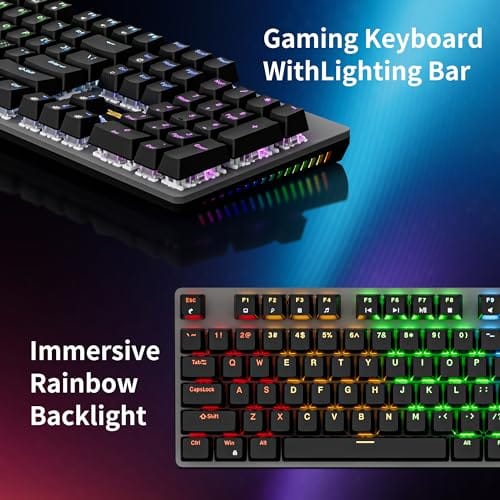
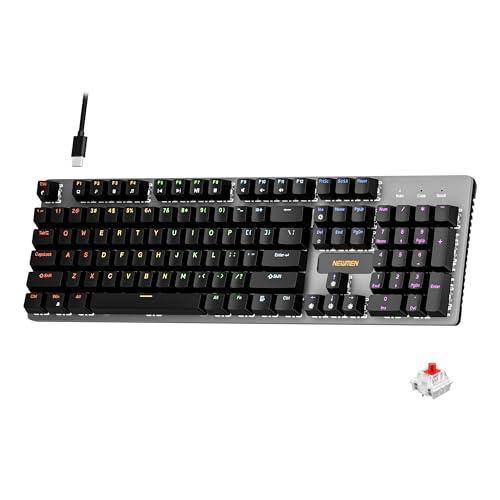
On a hot-swappable keyboard you can pull a chattering switch with a puller tool and press a fresh one into the socket, no soldering required. It’s a two-minute repair. If you’re shopping a board that makes this kind of self-service easy, the Newmen GM325Pro is a wired 104-key mechanical option at $20.89 with a strong 4.8 rating, a hot-swap metal panel, and linear red switches. The hot-swap design means a single failed switch never sends the whole keyboard to the trash, which is exactly the resilience you want if chatter has burned you before.
Pros
- Hot-swap sockets allow switch experimentation without soldering tools or PCB risk
- Metal top plate delivers firmer typing feel than plastic budget boards at this tier
- Full-key rollover and linear red switches handle rapid inputs for casual gaming
Cons
- Limited owner feedback at time of writing, so long-term reliability is unproven
- RGB is restricted to side lighting only, per-key backlight is fixed rainbow patterns
- ABS keycaps typical at this tier tend to shine and wear faster than PBT
The Newmen GM325Pro is a budget full-size 104-key wired mechanical keyboard aimed at first-time mechanical buyers and casual gamers who want a hot-swap PCB without moving up to enthusiast pricing. It ships with linear red switches, a metal top plate, ABS keycaps, and side-edge RGB lighting.
The defining feature here is the hot-swap socket combined with linear red switches. That gives new users a low-friction path to swap inactile or silent switches later without soldering. Typing fel on metal-plate boards at this tier is usually firmer and less hollow than all-plastic budget pers, based on category norms.
Trade-offs are typical for the price class. Per-key RGB is not suported, only side lighting is true RGB while the top backlight runs 13 preset rainbow effects. ABS keycaps tend to develop shine within months of heavy use, and Newmen does not publish switch lifecycle, polling rate, or NKRO wired specs in the source data.
Buy this if you want a cheap full-size hot-swap platform to learn on and plan to upgrade switches or keycaps later. Skip this if you need per-key RGB, PBT caps, a documented polling rate, or a keyboard with a dep owner review history to validate QC.
Switches and layout: Linear red switches on a full 104-key ANSI layout, with full-key rollover claimed by the manufacturer. Actuation force, travel, and switch brand are not specified in the source. Linear reds typically sit near 45g actuation and 4m total travel in this category.
Hot-swap PCB: Sockets accept standard MX-style switches, so tactile, clicky, or silent linear options from third parties drop in without soldering. Pin compatibility (3-pin vs 5-pin) is not specified, buyers should confirm before ordering replacement switches.
Build and lighting: Metal top plate over ABS black keycaps. RGB is limited to the side edge, while the top backlight cycles through 13 preset rainbow patterns rather than per-key addressable RGB. Case material below the plate is not specified.
Connectivity and software: Wired only via a detachable 1.8m USB cable. FN combos cover F1 to F11 media and calculator shortcuts. Customization software suports key remap, macro recording, and lighting tweaks, though poling rate and software platform support are not specified.
Cause #4: Corrupt or conflicting drivers
Sometimes the keyboard is fine and Windows is confused. A corrupt keyboard driver, a lingering filter driver from software you removed, or a conflict with a macro utility can inject repeat keystrokes. This is likelier when the chatter started right after an update or a new program install, and when the same keyboard behaves perfectly on another PC per your earlier check.
In Device Manager, right-click the keyboard entry, uninstall the device, then reboot so Windows reinstalls a clean driver. Also review any keyboard remapping or macro apps running in the background, since AutoHotkey scripts and gaming utilities occasionally double-fire. Turning those off one at a time isolates the offender quickly. If you run more than one input tool, a clean-boot session with everything disabled gives you a reliable baseline, and you can re-enable each app until the chatter returns.
Laptop users should also check accessibility settings. Sticky Keys, Filter Keys, and repeat-key controls can change how Windows handles short presses, and they sometimes get enabled by a shortcut or a shared-family profile. On Windows 11, open Settings, Accessibility, Keyboard, then turn off anything you don’t intentionally use. If your typing improves instantly, the keyboard wasn’t dying. The OS was interpreting your input in a weird way.
Preventive maintenance
A little routine care keeps chatter from coming back. Give the board a compressed-air pass every month or two, keep drinks off the desk, and wash your hands before long sessions to cut down on the oils that gum up switches. If your keyboard supports firmware updates, install them, since manufacturers sometimes ship debounce improvements. For programmable boards, note your working debounce value somewhere so you can restore it after a reflash.
Storage matters too. Don’t toss a board into a backpack with loose crumbs, pens, and cable ends grinding under the caps. If you use a compact typing board for travel, a sleeve or dust cover helps more than RGB ever will. For buyers comparing layouts, the best 65 percent keyboard for typing guide is useful because smaller boards are easier to keep clean and move safely. Less debris, fewer weird repeats.
When it’s not fixable: what to replace
If cleaning, driver resets, and debounce tweaks all fail, and the board isn’t hot-swappable, replacement is the sensible call. Soldered switch swaps are possible but fiddly, and on a cheap membrane board the labor isn’t worth it. When you do upgrade, prioritize build quality and serviceability so the next case of chatter is a two-minute repair, not a landfill trip. Also pay attention to warranty status. If a newer board starts repeating on several keys at once, don’t open it before you check the return window, because disassembly can complicate a simple claim.
For a typing-focused office board, the Cherry KC 200 MX at $56.31 is a plausible step up. It uses Cherry’s newer MX2A switches in a metal plate frame, carries a 4.0 rating, and comes in a quiet silent red variant that suits shared spaces. Cherry’s switch reputation is a big reason people pick it for daily driving. If your priority is instead cheap resilience against future chatter, a hot-swap board keeps repairs trivial. Match the choice to how you work.

Pros
- MX2A Silent Red linears actuate quietly, good fit for open-plan offices
- Metal plate frame keeps chassis stiff and reduces caseping under typing
- Cherry Gold-Crosspoint contacts rated for 50 million keystrokes on this variant
- Full-size layout with dedicated numpad suits data entry and spreadshet work
Cons
- Renewed unit with no owner fedback loged yet, cosmetic and wear condition varies
- Silent Red linears lack tactile bump, typists who prefer fedback should pick Brown
- Source data omits connectivity, cable type, polling rate, and dimensions
The Cherry KC 200 MX is a full-size office-focused mechanical keyboard sold here as a Renewed unit in Bronze with MX2A Silent Red linear switches. It targets office typists, developers, and finance or admin users who want Cherry switch fel and a metal plate frame without the RGB and gamer styling of enthusiast boards.
The defining feature is the MX2A Silent Red switch, Cherry's updated linear with dampened stems aimed at reducing bottom-out and return noise. Cherry rates this variant for 50 million keystrokes. Based on the linear profile, expect smooth actuation with no tactile bump, which suits fast touch typists and users on frequent video calls.
Trade-offs are typical at this tier and Renewed status. Silent Red linears are polarizing, users coming from Browns or Blues will miss the tactile feedback, and the source does not specify polling rate, connection type, cable, keycap material, or dimensions. As a Renewed listing, cosmetic condition and remaining switch life depend on the refurbisher rather than a factory-fresh baseline.
Buy this if you want a quiet full-size Cherry mechanical for office or shared-space use and value the metal plate build over RGB features. Skip this if you prefer tactile or clicky switches, need confirmed wireless or USB-C connectivity, or want a waranty profile equivalent to new stock.
Switches: Cherry MX2A Silent Red, linear with integrated dampeners, made in Germany with Gold-Crosspoint contacts. Rated for 50 million keystrokes on this variant, versus 100 million on MX2A Brown. Linear travel with no tactile bump favors light, fast keypresses over deliberate typing fedback.
Build: Metal plate frame under the switches, which stiffens the deck and cuts flex compared with plastic-only office boards. Cherry positions the KC 200 MX as a slim modern design, though exact case height, weight, and keycap material are not specified in the source data.
Layout and indicators: Full-size layout retains the dedicated numpad and function row, which maters for spreadsheet,ERP, and accounting workflows. White LED status indicators are built into Caps Lock, Scroll Lock, and Num Lock keys, avoiding a separate indicator strip and keeping the top edge clean.
Gaming fit: Silent Red linears work for casual gaming and MMO or productivity crossover use given their light linear fel, but the source does not list polling rate, N-key rollover, or onboard profiles, so competitive esports buyers should confirm specs before committing.
Tools and parts needed
You don’t need much. A keycap puller and a switch puller, usually bundled with any hot-swap board, cover disassembly. Add a can of compressed air, a bottle of 90-percent-plus isopropyl alcohol, and a few spare switches matched to your board if it’s hot-swappable. That kit handles the vast majority of double typing repairs, and it costs a fraction of a new keyboard. For deeper firmware fixes, QMK and VIA are free downloads.
Keep the spare switches labeled by type. A red linear switch won’t feel like a brown tactile one, and mixing one odd switch into the home row is distracting even if it works electrically. If you don’t know the exact switch, pull one from a rarely used key, place it under the failing letter, and move the chattering switch to Scroll Lock or another key you almost never press. Ugly workaround. Still effective. Keep the pulled parts in a small labeled bag so a future repair takes minutes instead of another teardown.
Common questions
Why did my keyboard suddenly start double typing?
Sudden onset usually points to software, a fresh driver conflict, a new macro app, or a debounce setting that changed after a firmware flash. If it began with no software changes, dust or an aging switch on a heavily used key is the likelier cause. Run the second-computer check to tell them apart, and note when the symptom started.
Can debounce software fully fix chatter?
Often yes, if the switch is only mildly worn. Raising the debounce window masks minor bounce and buys real time. It won’t rescue a badly degraded switch forever, so treat it as the first fix, not a permanent patch for failing hardware.
Is a hot-swap keyboard worth it to avoid this?
If chatter has frustrated you before, yes. Hot-swap sockets let you replace one failing switch in about two minutes with no soldering, which turns a dead board into a cheap repair. It’s the most future-proof way to own a mechanical keyboard long term.


































Write Your Review
No reviews yet. Be the first to share your experience!