

You press a key, the cursor blinks back at you, and nothing types. No error, no warning, just dead silence from a board that worked fine yesterday. It’s maddening, and it’s common. The frustrating part is that a keyboard rarely dies for the reason people assume. It’s usually not the switches or a spilled drink. More often it’s Windows quietly cutting power to a USB port, a firmware conflict from a companion app, or a recent update that broke input focus. We researched the failure points that trip people up most, the ones that don’t show up in a quick cable check, and we’ll walk each one down in order. If you land on a replacement, our best mechanical keyboard for typing guide is a solid next stop.
This works for wired and wireless boards, membrane and mechanical, on desktops and laptops alike. The trick is to go in the right order, from the software gremlins that fix in two minutes to the hardware faults that mean a new board. Start at the top and don’t skip steps.
First check the obvious (the 30-second check)
Before you touch a setting, rule out the two-second stuff. Tap Caps Lock and watch the light. If it toggles, the board has power and a live connection, so your problem is almost certainly software. If the light stays dark, you’re looking at a power or connection issue instead. That single check splits your whole troubleshooting path in half, so do it first.
Next, plug the keyboard into a different USB port, ideally one on the back of the machine straight into the motherboard rather than a front hub. Then reboot. A restart clears the frozen driver states behind a huge share of no-typing complaints, and a port swap rules out one dead jack. If those two moves bring it back, great, you’re done. If not, the causes below are where the real answers live.

Try one more quick isolation move while you’re here. If you have a second computer or even a phone with a USB adapter, plug the board into that. A keyboard that types fine elsewhere but stays dead on your main PC points the finger squarely at software or a power setting on that machine, not the hardware. A board that fails everywhere is telling you the fault is inside the keyboard. Two minutes of this check up front saves you from chasing driver fixes on a board that was physically broken all along.
Cause #1: Windows is cutting power to the USB port
This one catches almost everybody, and it hides in plain sight. Windows has a power-saving feature called USB selective suspend that puts idle ports to sleep to save energy. On a desktop it’s harmless most of the time, but on laptops and after certain updates it starts suspending the port your keyboard lives on, and the board goes dead until you unplug and replug it. If your keyboard cuts out after the PC sits idle, or wakes up unresponsive after sleep, this is your prime suspect.
The fix takes about a minute. Open Device Manager, expand Keyboards and also Universal Serial Bus controllers, right-click each USB Root Hub, choose Properties, open the Power Management tab, and uncheck the box that lets Windows turn off the device to save power. Do the same for the keyboard entry itself if the tab appears. Then head to Control Panel, Power Options, and disable USB selective suspend under advanced settings for your active plan. While you’re at it, turn off Fast Startup, which lives under Power Options and quietly skips a full hardware reset on boot, leaving USB devices in a half-initialized state. Owner reports point to that combo fixing boards that seemed randomly dead.
Pros
- Hot-swap sockets allow switch experimentation without soldering tools or PCB risk
- Metal top plate delivers firmer typing feel than plastic budget boards at this tier
- Full-key rollover and linear red switches handle rapid inputs for casual gaming
Cons
- Limited owner feedback at time of writing, so long-term reliability is unproven
- RGB is restricted to side lighting only, per-key backlight is fixed rainbow patterns
- ABS keycaps typical at this tier tend to shine and wear faster than PBT
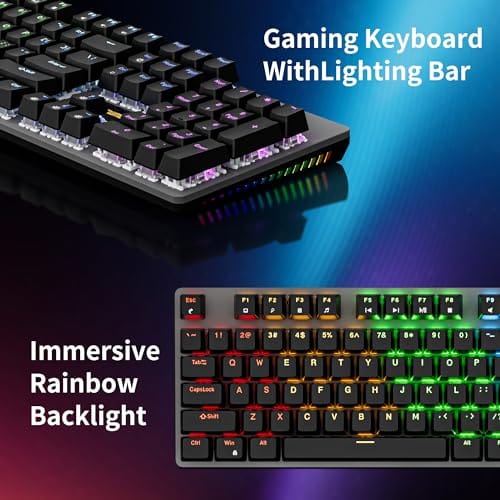
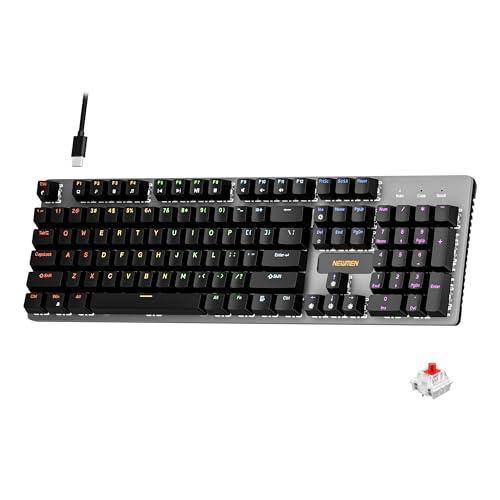
The Newmen GM325Pro is a budget full-size 104-key wired mechanical keyboard aimed at first-time mechanical buyers and casual gamers who want a hot-swap PCB without moving up to enthusiast pricing. It ships with linear red switches, a metal top plate, ABS keycaps, and side-edge RGB lighting.
The defining feature here is the hot-swap socket combined with linear red switches. That gives new users a low-friction path to swap inactile or silent switches later without soldering. Typing fel on metal-plate boards at this tier is usually firmer and less hollow than all-plastic budget pers, based on category norms.
Trade-offs are typical for the price class. Per-key RGB is not suported, only side lighting is true RGB while the top backlight runs 13 preset rainbow effects. ABS keycaps tend to develop shine within months of heavy use, and Newmen does not publish switch lifecycle, polling rate, or NKRO wired specs in the source data.
Buy this if you want a cheap full-size hot-swap platform to learn on and plan to upgrade switches or keycaps later. Skip this if you need per-key RGB, PBT caps, a documented polling rate, or a keyboard with a dep owner review history to validate QC.
Switches and layout: Linear red switches on a full 104-key ANSI layout, with full-key rollover claimed by the manufacturer. Actuation force, travel, and switch brand are not specified in the source. Linear reds typically sit near 45g actuation and 4m total travel in this category.
Hot-swap PCB: Sockets accept standard MX-style switches, so tactile, clicky, or silent linear options from third parties drop in without soldering. Pin compatibility (3-pin vs 5-pin) is not specified, buyers should confirm before ordering replacement switches.
Build and lighting: Metal top plate over ABS black keycaps. RGB is limited to the side edge, while the top backlight cycles through 13 preset rainbow patterns rather than per-key addressable RGB. Case material below the plate is not specified.
Connectivity and software: Wired only via a detachable 1.8m USB cable. FN combos cover F1 to F11 media and calculator shortcuts. Customization software suports key remap, macro recording, and lighting tweaks, though poling rate and software platform support are not specified.
Cause #2: A firmware or companion-app conflict
Modern keyboards ship with their own firmware and a companion app, and those two are the source of more no-typing scares than most people realize. A gaming board running iCUE, Synapse, Ghub, or a similar suite can lose its key mapping after the app auto-updates, leaving the whole board or a chunk of it silent. The remap loads at startup, so the keyboard looks bricked when it’s really just been told to send nothing. This is easy to miss because the lights and RGB often still work fine, which fools you into blaming hardware.
Start by opening the companion app and checking for a firmware update, then apply it, since a reflash restores boards that seemed dead. If the app itself is the problem, uninstall it fully, reboot, and let Windows load its generic keyboard driver, which almost always types even when the fancy software won’t. From there, reinstall a clean copy of the companion app. Also check the app for a stuck macro layer or a game profile that disabled certain keys, because an accidental profile switch can mute a row without you knowing. If typing returns on the generic driver but dies again once the suite loads, you’ve found your culprit, and a clean reinstall of that app usually settles it for good.
Cause #3: A recent Windows update broke input
Sometimes the board is perfect and Windows is the problem. A cumulative update can ship a keyboard-input regression, flip your input language, or turn on an accessibility filter that ignores keystrokes. If your trouble started right after an update, this is where to look, and the fixes are quick. First, open Accessibility settings and switch off Filter Keys, which makes Windows ignore quick or repeated presses and leaves keys feeling dead or laggy. A stray press of Right Shift for eight seconds can enable it without you noticing.
Next, glance at the language indicator in the taskbar. If your keyboard types the wrong symbols, like a pound sign where the hash should be, Windows likely switched your input layout, often after an accidental Windows plus Space. Set it back and the board types normally again. If keys are genuinely dead across every app and Safe Mode types fine, a startup driver or the update itself is the offender, and rolling the update back through Windows Update history restores input. Boards from the same repair usually work again the moment the bad patch is gone. A durable, driver-simple board helps here, and a set like our best budget mechanical keyboard for typing picks tends to run on generic drivers that dodge these conflicts entirely.
Cause #4: A worn switch or damaged contact layer
If the software checks come up clean and only some keys fail, the hardware itself is finally in the frame. On a mechanical board, a single dead or repeating key almost always means a worn switch. Pull the keycap, blow the socket out with compressed air, and press the stem. A switch that sticks, chatters, or refuses to register is a classic mechanical failure, and on a hot-swap board you pull it with a puller and drop in a fresh one in under a minute, no soldering. On a membrane board, a dead row usually means the contact layer under the rubber domes is damaged, often from dust or an old spill, and that’s rarely worth repairing.
A hot-swap board turns this from a crisis into a shrug. The Newmen GM325Pro is a 104-key wired mechanical keyboard at $20.89, rated 4.8 stars, with a hot-swap metal panel and linear red switches, so a single failing switch never sidelines the whole board. It’s cheap enough to keep in a drawer as a backup and forgiving enough that a stuck key is a two-minute repair. For a membrane board with a soaked contact layer, though, replacement beats a rescue almost every time.
One more hardware check before you give up on a board. If several keys in a cluster die at once but the rest type fine, suspect the ribbon cable or the internal controller rather than individual switches. On a membrane keyboard the flexible circuit can crack at a fold point after years of flexing, killing a whole zone. That’s not a repair most people should attempt. It means the board’s done. But confirming it saves you from swapping switches on a board that was never going to come back, and it tells you the fault is structural, not something a cleaning will cure.
Preventive maintenance
A little upkeep heads off most of these headaches. Blow dust and crumbs out of the board every couple of months with compressed air, and wipe the keycaps with a barely damp cloth. Keep drinks behind the keyboard, not beside it, since sugary spills are the number one killer of membrane boards. On the software side, don’t let companion apps auto-update blind. Read the changelog, and if a firmware push breaks your mapping, roll it back. Pull the batteries from a wireless board you’re storing for weeks so leaked cells don’t corrode the contacts. Small habits, big payoff.
When to call a pro vs DIY
Nearly everything above is a DIY job. Power settings, driver reinstalls, update rollbacks, and switch swaps need no special skill, just patience and maybe a keycap puller. The line to call a pro is a laptop with a dead built-in keyboard, since that repair means opening the chassis and swapping a ribbon-connected assembly that’s easy to damage. A desktop board almost never justifies pro repair. At $20 to $60 for a solid replacement, your time is worth more than a deep rescue on a cheap membrane board. Laptop owners have a shortcut too. A cheap external USB or wireless keyboard gets you working in seconds while you decide whether the internal fix is worth it.
Tools and parts needed
You won’t need much. A can of compressed air, a keycap puller, and a switch puller cover the mechanical repairs, and all three often ship bundled with hot-swap boards. A spare USB cable and a second computer let you isolate whether the fault sits in the board or the PC. Fresh batteries are worth keeping around for wireless setups. A soft brush and a little isopropyl alcohol help with sticky spills on a mechanical board, though anything soaked in soda is usually past saving. If you decide the board is genuinely done, a quiet office-grade replacement like the Cherry KC 200 MX at $56.31, rated 4 stars, pairs Cherry’s new MX2A Silent Red switches with a metal plate frame, and it’s the kind of board you buy once and forget about. For more layouts, our best ergonomic keyboard roundup covers the strain-reducing options.

Pros
- MX2A Silent Red linears actuate quietly, good fit for open-plan offices
- Metal plate frame keeps chassis stiff and reduces caseping under typing
- Cherry Gold-Crosspoint contacts rated for 50 million keystrokes on this variant
- Full-size layout with dedicated numpad suits data entry and spreadshet work
Cons
- Renewed unit with no owner fedback loged yet, cosmetic and wear condition varies
- Silent Red linears lack tactile bump, typists who prefer fedback should pick Brown
- Source data omits connectivity, cable type, polling rate, and dimensions
The Cherry KC 200 MX is a full-size office-focused mechanical keyboard sold here as a Renewed unit in Bronze with MX2A Silent Red linear switches. It targets office typists, developers, and finance or admin users who want Cherry switch fel and a metal plate frame without the RGB and gamer styling of enthusiast boards.
The defining feature is the MX2A Silent Red switch, Cherry's updated linear with dampened stems aimed at reducing bottom-out and return noise. Cherry rates this variant for 50 million keystrokes. Based on the linear profile, expect smooth actuation with no tactile bump, which suits fast touch typists and users on frequent video calls.
Trade-offs are typical at this tier and Renewed status. Silent Red linears are polarizing, users coming from Browns or Blues will miss the tactile feedback, and the source does not specify polling rate, connection type, cable, keycap material, or dimensions. As a Renewed listing, cosmetic condition and remaining switch life depend on the refurbisher rather than a factory-fresh baseline.
Buy this if you want a quiet full-size Cherry mechanical for office or shared-space use and value the metal plate build over RGB features. Skip this if you prefer tactile or clicky switches, need confirmed wireless or USB-C connectivity, or want a waranty profile equivalent to new stock.
Switches: Cherry MX2A Silent Red, linear with integrated dampeners, made in Germany with Gold-Crosspoint contacts. Rated for 50 million keystrokes on this variant, versus 100 million on MX2A Brown. Linear travel with no tactile bump favors light, fast keypresses over deliberate typing fedback.
Build: Metal plate frame under the switches, which stiffens the deck and cuts flex compared with plastic-only office boards. Cherry positions the KC 200 MX as a slim modern design, though exact case height, weight, and keycap material are not specified in the source data.
Layout and indicators: Full-size layout retains the dedicated numpad and function row, which maters for spreadsheet,ERP, and accounting workflows. White LED status indicators are built into Caps Lock, Scroll Lock, and Num Lock keys, avoiding a separate indicator strip and keeping the top edge clean.
Gaming fit: Silent Red linears work for casual gaming and MMO or productivity crossover use given their light linear fel, but the source does not list polling rate, N-key rollover, or onboard profiles, so competitive esports buyers should confirm specs before committing.
Common questions
Why does my keyboard work in BIOS but not in Windows?
That’s a software fault, and it’s good news, because the hardware and connection are clearly fine. Reinstall the keyboard driver through Device Manager, disable Filter Keys, and check for a companion app that grabbed control of the board. Booting into Safe Mode confirms whether a startup program or a bad update is the real offender.
My keyboard dies after the PC wakes from sleep. Why?
That’s the classic sign of USB selective suspend or Fast Startup leaving the port half-asleep. Open Power Management for your USB Root Hubs in Device Manager and uncheck the power-saving box, then disable USB selective suspend and Fast Startup in Power Options. That combo stops Windows from cutting power to the port your keyboard uses.
Should I repair the keyboard or just replace it?
It depends on the board. A hot-swap mechanical keyboard with one bad switch is a two-minute fix, so repair it. A membrane board hit by a spill, or a cheap board with several dead keys, usually isn’t worth the effort. At $20 to $60 for a capable replacement, your time is often worth more than the rescue.


































Write Your Review
No reviews yet. Be the first to share your experience!