

If you’ve opened up a PC case in the last few years, you’ve probably spotted a small horizontal slot near the CPU socket with a tiny screw at one end. That’s an M.2 slot, and it’s quietly become one of the most important connectors on any modern motherboard. It’s where your fastest storage lives, and it’s the reason boot times dropped from a minute to a few seconds.
The confusing part is that “M.2” doesn’t describe speed at all. It describes a shape. Two drives can look identical, sit in the same slot, and perform wildly differently. So before you buy a board built for a chip like the 7800X3D or drop a fresh SSD into an existing rig, it helps to know what the slot actually does. This guide breaks it down in plain English, and we’ll point you toward a few boards that handle M.2 well along the way, including options covered in our best 7800X3D motherboard roundup.
The short answer
An M.2 slot is a compact connector that lets you plug a gumstick-sized storage drive directly into your motherboard, with no cables at all. Most of the time it carries an NVMe SSD that talks to your CPU over PCIe lanes, which is why these drives feel so fast. Think of it as a smaller, faster replacement for the old SATA cable-and-tray setup that dominated PCs for two decades.
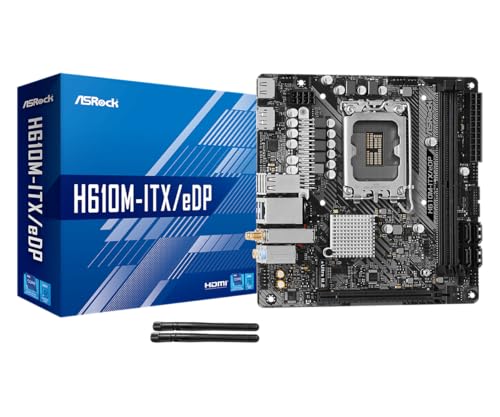
That’s the whole idea in one sentence. The drive slides in at an angle, you push it flat, and one screw holds it down. No power cable. No data cable. Even tiny Mini-ITX boards squeeze in at least one slot, which is part of why small-form-factor builds got so capable. The ASRock H610M-ITX/eDP, an $89.99 LGA1700 board rated 4 out of 5 that supports Intel 14th, 13th, and 12th Gen Core chips, packs PCIe 4.0 and M.2 support onto a board barely bigger than your hand.
Pros
- eDP 1.4 header is rare at this tier, ideal for custom AIO and panel builds
- Dr.MOS 50A 6-phase VRM adequate for 65W LGA1700 CPUs in SFF cases
- PCIe 4.0 x16 slot preserves GPU bandwidth despite H610 chipset limits
- Integrated WiFi 5 and Bluetooth 5.1 plus Intel Gigabit LAN cover connectivity
Cons
- Limited owner fedback available at time of writing, making reliability signal thin
- H610 blocks CPU overclocking and caps DR4 at 3200MHz with no XMP scaling
- Single M.2 slot is Gen3 x4 only, no Gen4 NVMe or secondary M.2
The ASRock H610M-ITX/eDP is a budget LGA1700 Mini-ITX board built around Intel's entry H610 chipset with DDR4 memory and a dedicated eDP 1.4 panel connector. It targets SFF builders, embedded system integrators, and digital signage projects rather than gamers chasing K-series CPUs or high-frequency RAM tuning.
The standout is the eDP 1.4 header, which lets integrators drive a laptop-style FHD 60Hz panel directly, useful for all-in-one and industrial builds. For general desktop use, HDMI 2.1 outputs 4K 60Hz and DisplayPort 1.4 handles up to 8K 60Hz, both dependent on the installed CPU's iGPU capabilities.
Trade-offs are typical at H610 tier: no CPU or memory overclocking, DDR4-3200 ceiling, a single Gen3 x4 M.2, and no rear USB-C. The 6-phase 50A Dr.MOS VRM is fine for 65W non-K chips like a Core i5-13400, but pairing with a 14700K in a hot SFF case is not the intended use.
Buy this if you need a compact LGA1700 board with eDP for a panel PC, signage kiosk, or budget SFF office build. Skip this if you want DR5, K-series overclocking headroom, Gen4 NVMe, or dual M.2 storage on a modern Intel platform.
Socket and chipset: LGA1700 with H610 chipset supports 12th, 13th, and 14th Gen Core CPUs. H610 disables CPU multiplier and memory overclocking, so pair with locked SKUs like Core i3-12100, i5-13400, or i5-14400 for best value rather than K-series parts.
Memory support: 2 DR4 DIMM slots run dual-channel up to 3200MHz with XMP 2.0 and ECC UDIMM in non-ECC mode. Confirm kits against ASRock's QVL, since Mini-ITX 2-DIMM layouts are typically friendlier to Hynix and Micron dies at 3200 CL16.
Storage and PCIe: One PCIe 4.0 x16 slot for GPU, one Ultra M.2 slot (PCIe Gen3 x4 and SATA3), and 4 SATA3ports. Only one M.2, so plan bot NVMe plus SATA SDs for bulk storage in SFF builds.
Form factor and I/O: Standard 6.7 by 6.7 inch Mini-ITX footprint fits ITX cases and thin mITX chassis. Rear I/O includes HDMI 2.1, DisplayPort 1.4, 2 USB 3.2 Gen1, 4 USB 2.0, and Gigabit LAN. Note CNVi Bluetooth shares bandwidth with one rear USB 2.0 port.
The longer explanation
Here’s where people get tripped up. The M.2 slot is just a physical interface. What runs through it depends on the drive and the board. Two protocols share the same slot shape: SATA and NVMe. A SATA M.2 drive tops out around 550 MB/s, the same ceiling as an old 2.5-inch SATA SSD. An NVMe drive on PCIe 4.0 lanes can hit 7,000 MB/s or more. Same slot, roughly twelve times the throughput.
Then there’s the length question. M.2 drives come in sizes labeled by a four-digit number: 2242, 2260, 2280, and so on. The first two digits are the width in millimeters, the last two are the length. Nearly every desktop drive is 2280, meaning 22mm wide and 80mm long. Laptops and handhelds sometimes use the shorter 2230 size. Your motherboard’s standoff screw position tells you which lengths it accepts, and most desktop boards support several.
How it works
When you seat an NVMe drive, it connects straight to PCIe lanes, the same high-speed data highways your graphics card uses. On modern platforms, the top M.2 slot usually wires directly to the CPU for the lowest possible latency, while additional slots route through the chipset. That’s why the primary slot is almost always the fastest one on the board.
The generation matters too. PCIe 3.0 x4 gives you roughly 3,500 MB/s. PCIe 4.0 x4 doubles that to around 7,000 MB/s. PCIe 5.0 pushes past 12,000 MB/s. The Gigabyte A520I AC, a $126.61 AM4 Mini-ITX board rated 4.3 out of 5, runs its M.2 slot at NVMe PCIe 3.0 x4. Plenty fast for gaming and everyday work, even if it’s not chasing the newest speed records. A drive will always run at the slower of the two: if you put a PCIe 4.0 SSD in a 3.0 slot, it drops to 3.0 speeds, and nothing breaks.
Why it works this way
The whole point of M.2 was killing the bottleneck. SATA was designed in an era of spinning hard drives, and its interface simply couldn’t keep pace once flash memory arrived. Engineers needed a way to connect storage directly to the CPU’s PCIe lanes without the overhead of an aging protocol. NVMe, built from the ground up for flash, was the answer. It handles thousands of command queues at once, where SATA managed just one.
Cutting the cables was a bonus that turned out to matter a lot. Cleaner builds, fewer failure points, and enough space savings that a full desktop drive fits on a board you can hold in one palm. That’s how compact boards for chips like the Ryzen 7 9800X3D got so popular, and it’s a recurring theme in our best motherboard for the Ryzen 9800X3D coverage.
When you’d want this
Honestly, you want M.2 in nearly every build today. It’s the default for your operating system and main applications because boot and load times shrink dramatically. If you’re building a gaming rig, a fast NVMe drive cuts level loading and, on newer titles that support DirectStorage, feeds textures to your GPU faster. For a high-core-count workstation chip like the i9-13900K, having two or three M.2 slots means you can separate your OS, projects, and scratch storage without a tangle of SATA cables.
Small builds benefit most. A Mini-ITX board only has room for one or two expansion slots, so cable-free storage is close to mandatory. The Gigabyte A520I AC shows the appeal: a compact AM4 board with a 55A DrMOS power design, Intel WiFi plus Bluetooth, and a single fast M.2 slot, all on a footprint that fits inside tiny cases. If you’re pairing a modern Intel chip with a small board, our best motherboard for the i7-14700K picks and the best i9-13900K board guide both flag which layouts give you the most M.2 real estate.

Pros
- Q-Flash Plus enables BIOS update without CPU installed, essential for Ryzen 5000 out-of-box support.
- 55A DrMOS phases are adequately rated for Ryzen 5 and Ryzen 7 non-X chips at stock settings.
- Intel WiFi AC and Bluetooth onboard saves a PCIe slot in a platform with zero spare slots.
- Three rear display interfaces (DP plus two HDMI) give APU builders real multi-monitor flexibility.
Cons
- A520 chipset lacks PCIe 4.0 and overclocking support, ruling out XFR tuning and fast NVMe Gen4 drives.
- Single M.2 slot at PCIe 3.0 x4 speeds caps sequential reads well below modern Gen4 SSDs.
- Only two DIMM slots with no OC headroom means RAM configuration and speed are locked to JEDEC or limited EXPO profiles.
The Gigabyte A520I AC is a budget-tier Mini-ITX motherboard on the AMD AM4 socket, targeting builders who need a compact, self-contained system around a Ryzen 5000 or 3000 series CPU. It is best suited for home theater PCs, small office machines, or entry-level SFF gaming rigs where size and wireless connectivity matter more than overclocking.
The standout feature is Q-Flash Plus, which allows BIOS updates from a FAT32 USB drive with no CPU or RAM installed. For buyers picking up a Ryzen 5000 CPU with an older BIOS on the shelf, this is a genuine convenience that removes the need to borrow a compatible CPU. The 55A DrMOS 6-phase VRM is adequate for Ryzen 5 5600 and Ryzen 7 5700X at stock, though sustained all-core loads on higher-TDP chips may see thermal limits without active airflow over the heatsink.
The A520 chipset is the real constraint here. There is no CPU overclocking, no PCIe 4.0 support, and the single M.2 slot runs at PCIe 3.0 x4, capping sequential reads around 3,500 MB/s. With only two DIMM slots and no XMP/EXPO tuning above JEDEC defaults on this chipset, RAM flexibility is limited. Case builders should also confirm GPU length clearance in their chosen Mini-ITX enclosure before purchasing.
Buy this if you are building a compact Ryzen 5000 system where integrated WiFi and Q-Flash convenience matter and overclocking is not on the table. Skip this if you plan to run a Ryzen 9 series chip, use a Gen4 NVMe drive at full speed, or need any meaningful CPU tuning headroom.
CPU and Socket: AM4 socket supports 3rd Gen Ryzen (Zen 2) natively and 5th Gen Ryzen 5000 (Zen 3) after a Q-Flash Plus BIOS update. A520 chipset does not support CPU overclocking or manual frequency tuning, so PBO and Curve Optimizer are off the table entirely.
RAM and Memory: Two DIMM slots support dual-channel DDR4 configurations. A520 chipset limits practical RAM tuning, so target DDR4-3200 CL16 kits for the best 1:1 FCLK ratio without pushing outside chipset support. Maximum capacity is not specified in source data; typical AM4 Mini-ITX boards support 64GB across two slots.
Storage and Expansion: One M.2 slot running PCIe 3.0 x4 delivers up to approximately 3,500 MB/s sequential read, sufficient for mid-range NVMe SSDs but incompatible with PCIe 4.0 drives at full rated speed. A single PCIe 3.0 x16 slot handles the discrete GPU, leaving no room for add-in cards in a Mini-ITX build.
Display and Wireless: Rear I/O includes one DisplayPort and two HDMI outputs for APU-based builds, supporting up to three simultaneous displays. Intel dual-band AC WiFi covers 2.4 GHz and 5 GHz bands with Bluetooth included. ALC887 audio codec is functional for basic use but below the ALC1220 found on mid-range and higher boards.
What to look for in an M.2 slot
Start with how many slots the board has and what generation each one runs. A budget board might give you one PCIe 3.0 slot. A mid-range or high-end board often has two or three, mixing PCIe 4.0 and 5.0. Check whether populating a second M.2 slot disables SATA ports or steals lanes from your graphics card, because that lane-sharing is common and easy to miss in the manual.
Heatsinks are the other big one. Fast NVMe drives get hot, and a bare drive can throttle under sustained writes. Many boards now ship with a metal M.2 heatsink that clips over the drive, which keeps speeds steady during long transfers. If you’re spending on a PCIe 4.0 or 5.0 SSD, a board with a proper heatsink is worth the few extra dollars. The best 9800X3D motherboard options and boards from our i9-13900K lineup tend to include these by default.
Common misconceptions
The biggest myth is that every M.2 drive is fast. It isn’t. A SATA M.2 drive fits the same slot but runs at old SATA speeds, so buyers who grab the cheapest “M.2 SSD” sometimes wonder why their new drive feels no quicker than the old one. Read the spec sheet. If it says NVMe and PCIe, you’re getting the fast kind.
Another one: people assume more M.2 speed always means a snappier PC. Past a point, you won’t feel the difference in daily use. A PCIe 3.0 NVMe drive already loads Windows and launches games plenty fast for most folks. The jump to PCIe 5.0 shows up in benchmarks and heavy file work, not in whether your browser opens faster. Don’t overpay for numbers you’ll never notice.
Frequently asked
Is M.2 the same as NVMe?
No, and this trips up a lot of buyers. M.2 is the slot shape and connector. NVMe is a protocol that runs over PCIe lanes. Most M.2 drives use NVMe, but some use the slower SATA protocol instead. Always check the listing for “NVMe” if speed is what you’re after.
Can I put any M.2 drive in any M.2 slot?
Usually, but not always. The slot has to support the drive’s key type and protocol. Most desktop boards accept both SATA and NVMe drives in the primary slot, while a few slots are NVMe-only. Length matters too, since a 2280 drive needs a 2280 standoff. Your board manual spells out exactly what each slot handles.
Do I need a heatsink on my M.2 drive?
For a PCIe 3.0 drive, it’s optional. For fast PCIe 4.0 and 5.0 drives under heavy sustained writes, a heatsink helps prevent thermal throttling. Many boards include one, and drives sometimes ship with their own. If yours already has cooling, you’re set.
Will adding a second M.2 drive slow down my other components?
It can, depending on the board’s lane layout. On some motherboards, filling a second or third M.2 slot disables certain SATA ports or drops your GPU slot from x16 to x8. Check the board’s block diagram before you buy if you plan to run multiple drives. Budget boards like the ASRock H610M-ITX/eDP keep things simple with fewer slots to juggle.
Is M.2 storage worth it over a regular SATA SSD?
For most builds, yes. An NVMe M.2 drive is several times faster than SATA, and it frees up cables and space inside the case. Prices have fallen enough that there’s little reason to choose SATA for a boot drive now. The main exception is adding cheap bulk storage, where a large SATA SSD or even a hard drive can still make sense.




























Write Your Review
No reviews yet. Be the first to share your experience!