

A BIOS Flashback button is one of those motherboard features that sounds mysterious until the one day you need it. Then it’s brilliant. It lets you update a motherboard’s BIOS with only a power supply, a USB drive, and the board itself, often without a CPU, memory, graphics card, or full boot into firmware setup.
That’s especially useful if you’re building around a newer processor on an older chipset, recovering from a bad firmware update, or preparing a board before the rest of the parts arrive. If you’re pairing modern Ryzen chips with boards from our 7800X3D motherboard guide or choosing parts for a newer build like our best motherboard for 9800X3D picks, BIOS support isn’t just a spec-sheet footnote. It can decide whether the system boots at all. Related buying context: best motherboard for i9 13900k 2.
The short answer
A BIOS Flashback button triggers a dedicated firmware update routine built into the motherboard. Instead of starting the PC normally, the board reads a correctly named BIOS file from a USB flash drive and writes it to the firmware chip using standby power from the PSU. No display output. No keyboard. Sometimes no CPU installed. Tiny miracle.
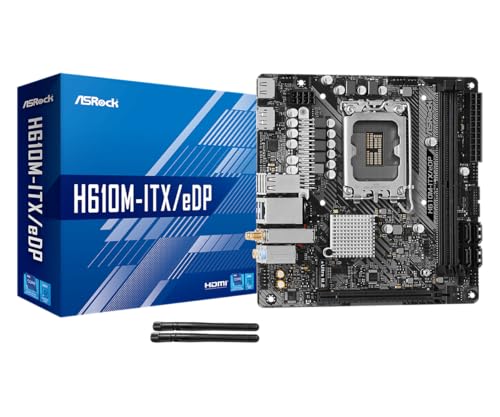
Different brands use different names. ASUS usually calls it BIOS FlashBack, Gigabyte often uses Q-Flash Plus, MSI uses Flash BIOS Button, and ASRock has its own BIOS Flashback wording on supported models. The idea is the same: update the board’s firmware from USB without a working boot environment. The ASRock H610M-ITX/eDP at $89.99, rated 4 stars, is a compact Mini-ITX LGA1700 board with DDR4, PCIe 4.0, eDP, HDMI, DisplayPort, Intel Gigabit LAN, Wi-Fi 5, and Dr.MOS power hardware, but shoppers still need to verify the exact board revision and support page before assuming any flashback-style feature is present.
Pros
- eDP 1.4 header is rare at this tier, ideal for custom AIO and panel builds
- Dr.MOS 50A 6-phase VRM adequate for 65W LGA1700 CPUs in SFF cases
- PCIe 4.0 x16 slot preserves GPU bandwidth despite H610 chipset limits
- Integrated WiFi 5 and Bluetooth 5.1 plus Intel Gigabit LAN cover connectivity
Cons
- Limited owner fedback available at time of writing, making reliability signal thin
- H610 blocks CPU overclocking and caps DR4 at 3200MHz with no XMP scaling
- Single M.2 slot is Gen3 x4 only, no Gen4 NVMe or secondary M.2
The ASRock H610M-ITX/eDP is a budget LGA1700 Mini-ITX board built around Intel's entry H610 chipset with DDR4 memory and a dedicated eDP 1.4 panel connector. It targets SFF builders, embedded system integrators, and digital signage projects rather than gamers chasing K-series CPUs or high-frequency RAM tuning.
The standout is the eDP 1.4 header, which lets integrators drive a laptop-style FHD 60Hz panel directly, useful for all-in-one and industrial builds. For general desktop use, HDMI 2.1 outputs 4K 60Hz and DisplayPort 1.4 handles up to 8K 60Hz, both dependent on the installed CPU's iGPU capabilities.
Trade-offs are typical at H610 tier: no CPU or memory overclocking, DDR4-3200 ceiling, a single Gen3 x4 M.2, and no rear USB-C. The 6-phase 50A Dr.MOS VRM is fine for 65W non-K chips like a Core i5-13400, but pairing with a 14700K in a hot SFF case is not the intended use.
Buy this if you need a compact LGA1700 board with eDP for a panel PC, signage kiosk, or budget SFF office build. Skip this if you want DR5, K-series overclocking headroom, Gen4 NVMe, or dual M.2 storage on a modern Intel platform.
Socket and chipset: LGA1700 with H610 chipset supports 12th, 13th, and 14th Gen Core CPUs. H610 disables CPU multiplier and memory overclocking, so pair with locked SKUs like Core i3-12100, i5-13400, or i5-14400 for best value rather than K-series parts.
Memory support: 2 DR4 DIMM slots run dual-channel up to 3200MHz with XMP 2.0 and ECC UDIMM in non-ECC mode. Confirm kits against ASRock's QVL, since Mini-ITX 2-DIMM layouts are typically friendlier to Hynix and Micron dies at 3200 CL16.
Storage and PCIe: One PCIe 4.0 x16 slot for GPU, one Ultra M.2 slot (PCIe Gen3 x4 and SATA3), and 4 SATA3ports. Only one M.2, so plan bot NVMe plus SATA SDs for bulk storage in SFF builds.
Form factor and I/O: Standard 6.7 by 6.7 inch Mini-ITX footprint fits ITX cases and thin mITX chassis. Rear I/O includes HDMI 2.1, DisplayPort 1.4, 2 USB 3.2 Gen1, 4 USB 2.0, and Gigabit LAN. Note CNVi Bluetooth shares bandwidth with one rear USB 2.0 port.
The longer explanation
Your motherboard stores low-level firmware on a small chip. That firmware initializes the CPU, memory, chipset, storage controller, fan controls, boot devices, and security features before Windows or Linux ever starts. If the firmware doesn’t recognize your CPU, the machine can appear dead even when every cable is connected correctly. Fans may spin, LEDs may glow, and nothing useful happens.
BIOS Flashback works around that chicken-and-egg problem. The board has a tiny update controller or embedded routine that can run from standby 5V power. You download the correct BIOS file from the motherboard vendor, extract it, sometimes rename it with a vendor utility or exact filename, place it on a FAT32 USB drive, plug that drive into a specific rear USB port, then press the Flashback button. The board’s indicator LED usually blinks during the write process and stops when the update is complete.
That process is not the same as entering BIOS setup and using the normal update menu. A normal update requires a POST-capable system. Flashback is for the moments before that: the board can’t boot with the installed CPU yet, the firmware menu is unreachable, or you want to prepare the board on a bench with only the 24-pin and CPU power cables attached.
How it works
Motherboards gained this feature because CPU support started moving faster than retail inventory. A board can sit in a warehouse for months with an older firmware version, while a newer CPU launches after that board was boxed. The chipset may be electrically compatible, but the firmware needs updated microcode and initialization tables before the processor will POST. Without Flashback, you’d need an older compatible CPU just to update the board. Annoying. Sometimes impossible.
The rise of AM4 made the feature more visible. One socket covered many Ryzen generations, so a board could physically accept several CPUs that needed different firmware support. Intel platforms see this too, particularly with refreshed CPU generations on an existing socket. That’s why a motherboard list for something like a Core i7-14700K build shouldn’t just focus on VRMs and PCIe slots. Firmware recovery and update options matter if you want fewer build-day surprises.
Vendors also use the feature as a safety net. Firmware updates can fail because of a power interruption, wrong file, unstable USB drive, or user impatience. Some boards still require service after a truly broken flash, but Flashback can rescue many boards that would otherwise need an external programmer or an RMA.
Why it works this way
A PC can’t load a normal BIOS update tool until the motherboard has initialized enough hardware to run it. That means CPU detection, memory training, USB initialization, display output, and basic input support all need to work first. If any of those steps fail because the firmware is too old, the normal path is blocked. Flashback removes most of those dependencies.
The dedicated USB port matters because the board’s flashback routine usually looks only at one controller and one port. The filename matters because the routine isn’t browsing folders like a human. It’s looking for a specific pattern. FAT32 matters because a lightweight embedded routine may not read exFAT or NTFS. That’s why motherboard manuals sound so picky here. They’re not being dramatic; the update logic is intentionally narrow so it can run before the full system exists.
There’s also a reason the process can take several minutes with no screen feedback. Firmware chips are slow compared with SSDs, and writing them safely involves erasing, programming, and verifying blocks. If you pull power halfway through, you can create a worse problem than the one you started with. Let it blink. Let it finish.
When you’d want this
You’d want BIOS Flashback before installing a newer CPU into a board that may have shipped with older firmware. For example, a compact AM4 Mini-ITX board might support multiple Ryzen generations on paper, but support can depend on a specific BIOS version. The Gigabyte A520I AC is a $126.61 Mini-ITX AM4 board rated 4.3 stars, and its title lists Q-Flash Plus, Direct 6 Phases Digital PWM with 55A DrMOS, Gaming GbE LAN, Intel WiFi plus Bluetooth, NVMe PCIe 3.0 x4 M.2, and 3 display interfaces. That Q-Flash Plus feature is exactly the kind of firmware-update convenience builders look for in tight Mini-ITX systems.
You’d also want it after a failed firmware update, when a board won’t POST but still receives standby power. It’s useful for open-bench builds, secondhand boards with unknown firmware versions, and systems built for someone else where you want to update the board before installing the CPU cooler, cable managing the case, and locking everything down. Less drama later.

Pros
- Q-Flash Plus enables BIOS update without CPU installed, essential for Ryzen 5000 out-of-box support.
- 55A DrMOS phases are adequately rated for Ryzen 5 and Ryzen 7 non-X chips at stock settings.
- Intel WiFi AC and Bluetooth onboard saves a PCIe slot in a platform with zero spare slots.
- Three rear display interfaces (DP plus two HDMI) give APU builders real multi-monitor flexibility.
Cons
- A520 chipset lacks PCIe 4.0 and overclocking support, ruling out XFR tuning and fast NVMe Gen4 drives.
- Single M.2 slot at PCIe 3.0 x4 speeds caps sequential reads well below modern Gen4 SSDs.
- Only two DIMM slots with no OC headroom means RAM configuration and speed are locked to JEDEC or limited EXPO profiles.
The Gigabyte A520I AC is a budget-tier Mini-ITX motherboard on the AMD AM4 socket, targeting builders who need a compact, self-contained system around a Ryzen 5000 or 3000 series CPU. It is best suited for home theater PCs, small office machines, or entry-level SFF gaming rigs where size and wireless connectivity matter more than overclocking.
The standout feature is Q-Flash Plus, which allows BIOS updates from a FAT32 USB drive with no CPU or RAM installed. For buyers picking up a Ryzen 5000 CPU with an older BIOS on the shelf, this is a genuine convenience that removes the need to borrow a compatible CPU. The 55A DrMOS 6-phase VRM is adequate for Ryzen 5 5600 and Ryzen 7 5700X at stock, though sustained all-core loads on higher-TDP chips may see thermal limits without active airflow over the heatsink.
The A520 chipset is the real constraint here. There is no CPU overclocking, no PCIe 4.0 support, and the single M.2 slot runs at PCIe 3.0 x4, capping sequential reads around 3,500 MB/s. With only two DIMM slots and no XMP/EXPO tuning above JEDEC defaults on this chipset, RAM flexibility is limited. Case builders should also confirm GPU length clearance in their chosen Mini-ITX enclosure before purchasing.
Buy this if you are building a compact Ryzen 5000 system where integrated WiFi and Q-Flash convenience matter and overclocking is not on the table. Skip this if you plan to run a Ryzen 9 series chip, use a Gen4 NVMe drive at full speed, or need any meaningful CPU tuning headroom.
CPU and Socket: AM4 socket supports 3rd Gen Ryzen (Zen 2) natively and 5th Gen Ryzen 5000 (Zen 3) after a Q-Flash Plus BIOS update. A520 chipset does not support CPU overclocking or manual frequency tuning, so PBO and Curve Optimizer are off the table entirely.
RAM and Memory: Two DIMM slots support dual-channel DDR4 configurations. A520 chipset limits practical RAM tuning, so target DDR4-3200 CL16 kits for the best 1:1 FCLK ratio without pushing outside chipset support. Maximum capacity is not specified in source data; typical AM4 Mini-ITX boards support 64GB across two slots.
Storage and Expansion: One M.2 slot running PCIe 3.0 x4 delivers up to approximately 3,500 MB/s sequential read, sufficient for mid-range NVMe SSDs but incompatible with PCIe 4.0 drives at full rated speed. A single PCIe 3.0 x16 slot handles the discrete GPU, leaving no room for add-in cards in a Mini-ITX build.
Display and Wireless: Rear I/O includes one DisplayPort and two HDMI outputs for APU-based builds, supporting up to three simultaneous displays. Intel dual-band AC WiFi covers 2.4 GHz and 5 GHz bands with Bluetooth included. ALC887 audio codec is functional for basic use but below the ALC1220 found on mid-range and higher boards.
What to look for in a BIOS Flashback feature
First, confirm the feature exists on the exact motherboard model and revision. Product families can be confusing, and a similar-looking board may lack the button. Look for wording like BIOS Flashback, Q-Flash Plus, Flash BIOS Button, or USB BIOS Flashback on the vendor page and in the manual. Don’t rely on one marketplace bullet point if the vendor manual says otherwise.
Second, check the physical layout. The best implementations label the correct USB port clearly on the rear I/O shield and put the button where you can reach it without shorting pins or guessing. A status LED is important too. If the manual explains blink patterns, failure states, and estimated update time, that’s a good sign the vendor expects regular users to actually use the feature.
Third, read the CPU support list before buying. BIOS Flashback helps you install newer firmware, but it doesn’t magically make unsupported processors compatible. Match the socket, chipset support, CPU support table, and minimum BIOS version. For higher-end Intel systems such as boards considered for a Core i9-13900K build, also weigh power delivery, cooling, and memory support alongside firmware tools.
Common misconceptions
The first misconception is that every motherboard with a BIOS update feature has true Flashback. Many boards can update from inside firmware setup, but they still need a working CPU and memory to reach that menu. True Flashback means the board can update from USB without a normal POST, usually through a special button and port.
The second misconception is that Flashback is only for emergencies. It’s a recovery feature, yes, but it’s also a planning feature. If your board supports it, you can update the firmware before the CPU ever touches the socket. That’s handy if you’re building at night, helping a friend, or trying to avoid rebuilding half the system because the screen stayed black.
The third misconception is that the newest BIOS is always the right BIOS. Usually, newer firmware improves CPU support, memory compatibility, and stability, but read the vendor notes. Some releases change defaults, remove older CPU support on limited ROM chips, or target very specific fixes. If your system is stable and you don’t need new CPU support, a firmware update should still be treated like maintenance, not entertainment.
Frequently asked
Do I need a CPU installed to use BIOS Flashback?
On boards with true BIOS Flashback, usually no. Many can update with only the 24-pin motherboard power cable and the 8-pin CPU power cable connected. Still, you should follow the manual for your exact model because vendors differ on required power connections and button behavior.
Can BIOS Flashback fix a bricked motherboard?
Sometimes. If the board still receives standby power and the flashback controller can read the USB drive, it may rewrite the firmware successfully. If the firmware chip, power circuitry, or update controller is physically damaged, Flashback won’t be enough.
What format should the USB drive use?
FAT32 is the safest choice and is commonly required. Use a small, simple USB drive if you have one, place the BIOS file in the root directory, and use the exact filename required by the vendor. Weird hub setups and huge multi-partition drives can create avoidable headaches.
How long does a BIOS Flashback update take?
Many boards finish in 3 to 10 minutes, but the manual is the better authority. The status LED usually blinks while the update is active. If it blinks for only a few seconds and stops, that often means the file name, USB port, drive format, or BIOS file is wrong.
Is BIOS Flashback worth paying extra for?
For budget builds with a known-compatible CPU, maybe not. For newer CPUs, small-form-factor builds, secondhand boards, or systems you assemble for other people, it’s absolutely worth considering. It’s one of those features you’ll ignore for years, then appreciate in five tense minutes.




























Write Your Review
No reviews yet. Be the first to share your experience!